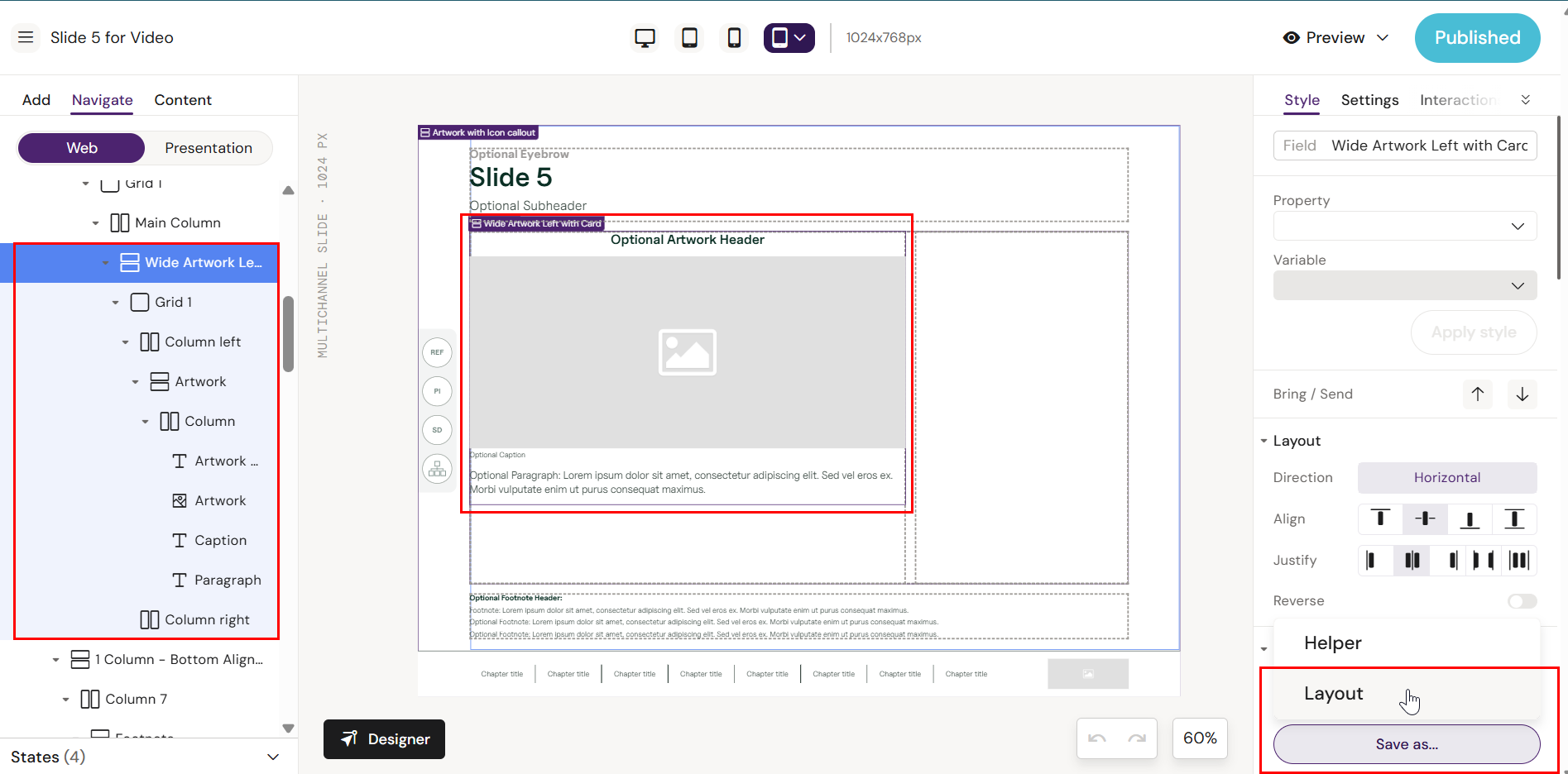
How to Build and Save a Layout
What is a Layout in Activator?

This feature is only available to the Designer role
A Layout is a pre-designed block of content, built using smaller building pieces called components. Think of it as a ready-made section—like a header, a footer, or a call-to-action area—that can be reused to save time and keep designs consistent.
Layouts are created by Designers and relates via Activator to the Design System. The Layouts can then be used by Editors who then drag and drop the layouts into their workspace, making content creation faster and more efficient.
Create a new Layout
We recomment building Layouts from the Design System UI which provides a better overview of available layouts and layout groups. You can read more about this in the article Creating New Content for DS3 article.
The steps provided in this article describes how to create a layout from within a document already connected to an established Design System.
How to Build a Simple Layout for Email
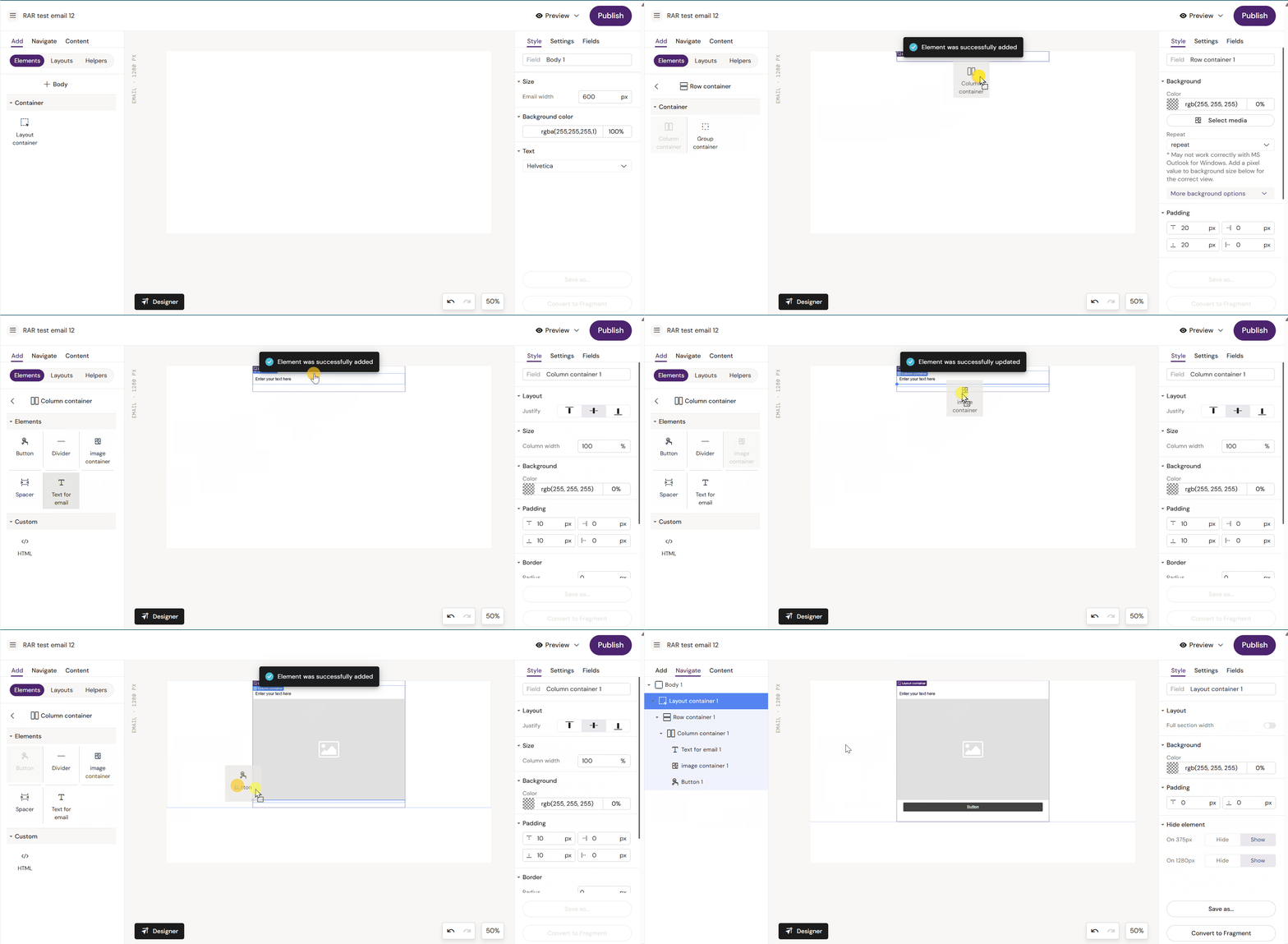
Open your email document in Activator.
Drag and drop the available components into the workspace. For Emails you will always start with a Layout Container and then a Column Container or Group Container.
The following example shows a simple Email layout that consists of a headline, an image and a button. For the sake of brevity, no styling is done.
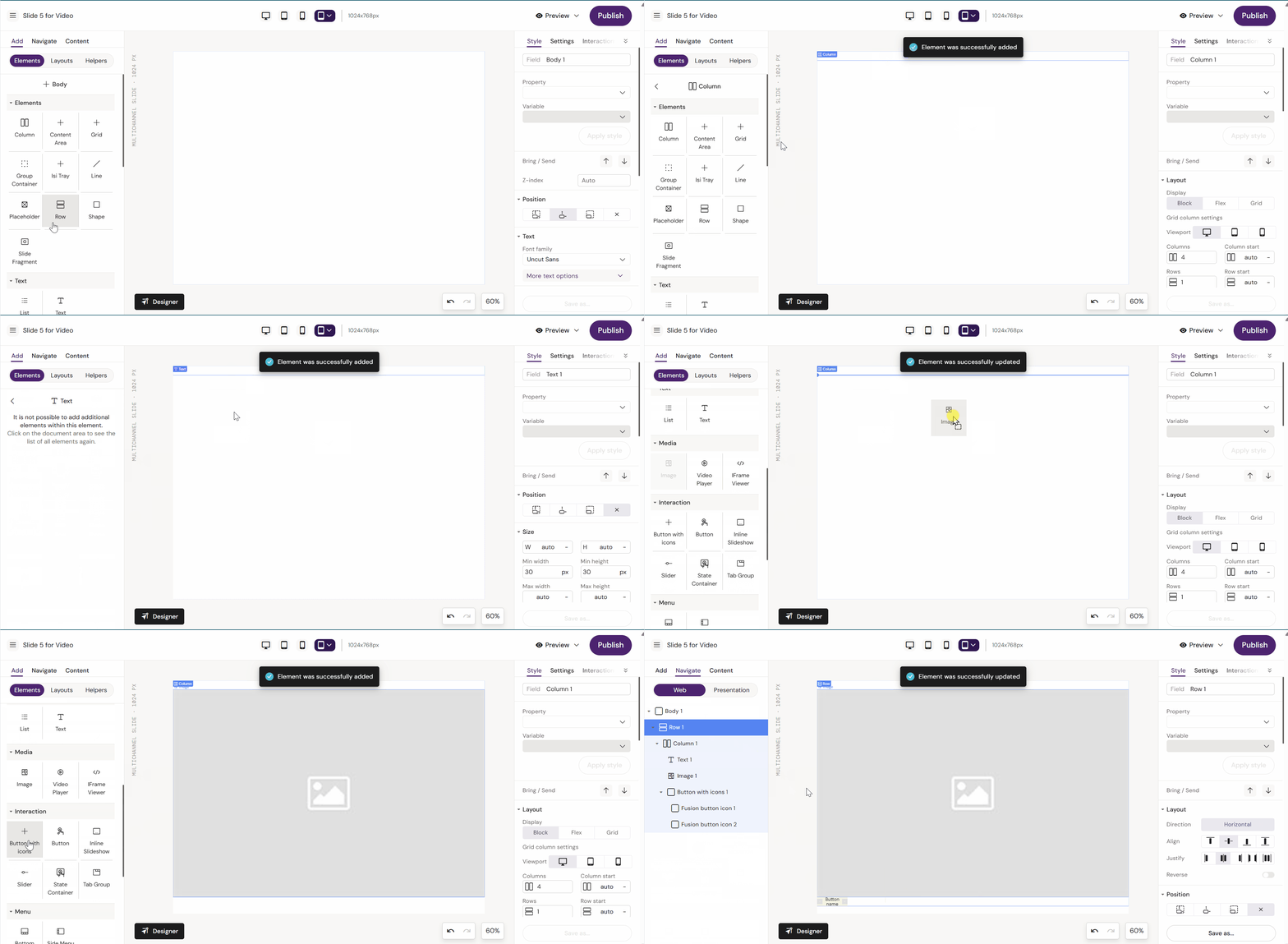
How to Build a Simple Layout for a Slide / Brief.
Open your Slide or Brief document.
Slides don’t have Layout Containers. Instead, use a Row to get started and then a Column.
The following example shows a simple Slide layout that consists of a headline, an image and a button. For the sake of brevity, no styling is done.
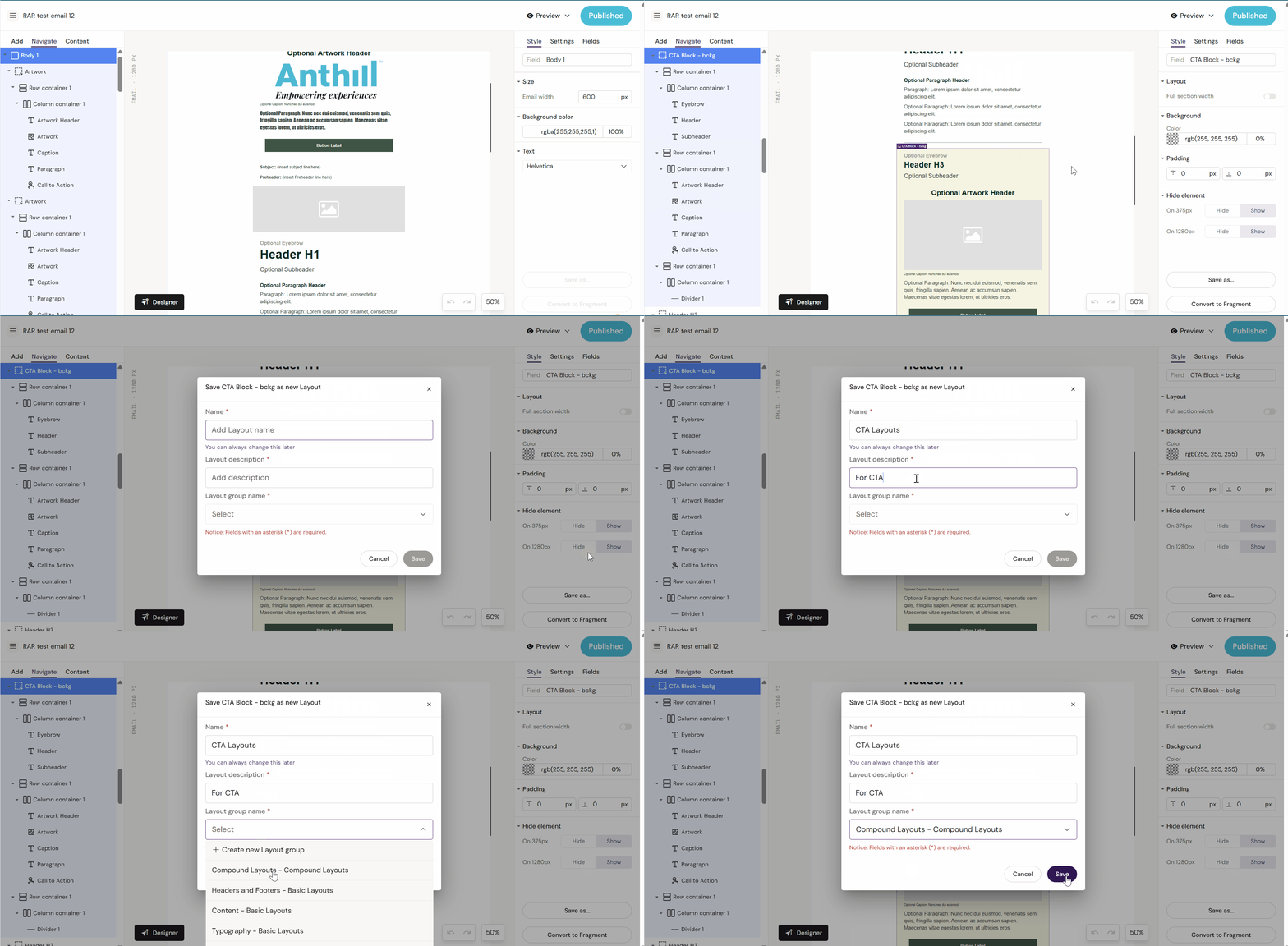
Saving as a designed block of content as a Layout can be done in the following ways:
Saving Layouts for Emails.
Click on the Layout Container. This will highlight everything inside of the Layout Container.
Go to the Style menu and click on Save As → Layout or New Layout
Saving Layouts for Slides & Briefs.
Click on the Row that contains the content you wish to save as a Layout.
Go to the Style menu and click on Save As → Layout or New Layout