How to Create an MLR PDF Report
The purpose of Modular Content is to use and reuse pre-approved content on your documents to ensure the accuracy and correctness of the key message you want to convey to the end-user. It can also be used to hasten the Medical Legal Regulatory process.
The Medical Legal Regulatory (MLR) review process is not a feature of Activator, but Activator can create a report showing unmodified and modified content which can be sent to your MLR review team.
MLR report view for a single document
To start viewing your content from an MLR perspective, open it and switch to Preview mode.
After clicking the preview button, the slide will open in preview mode. You can then switch between Design mode and MLR review mode. For this review, choose the MLR view.
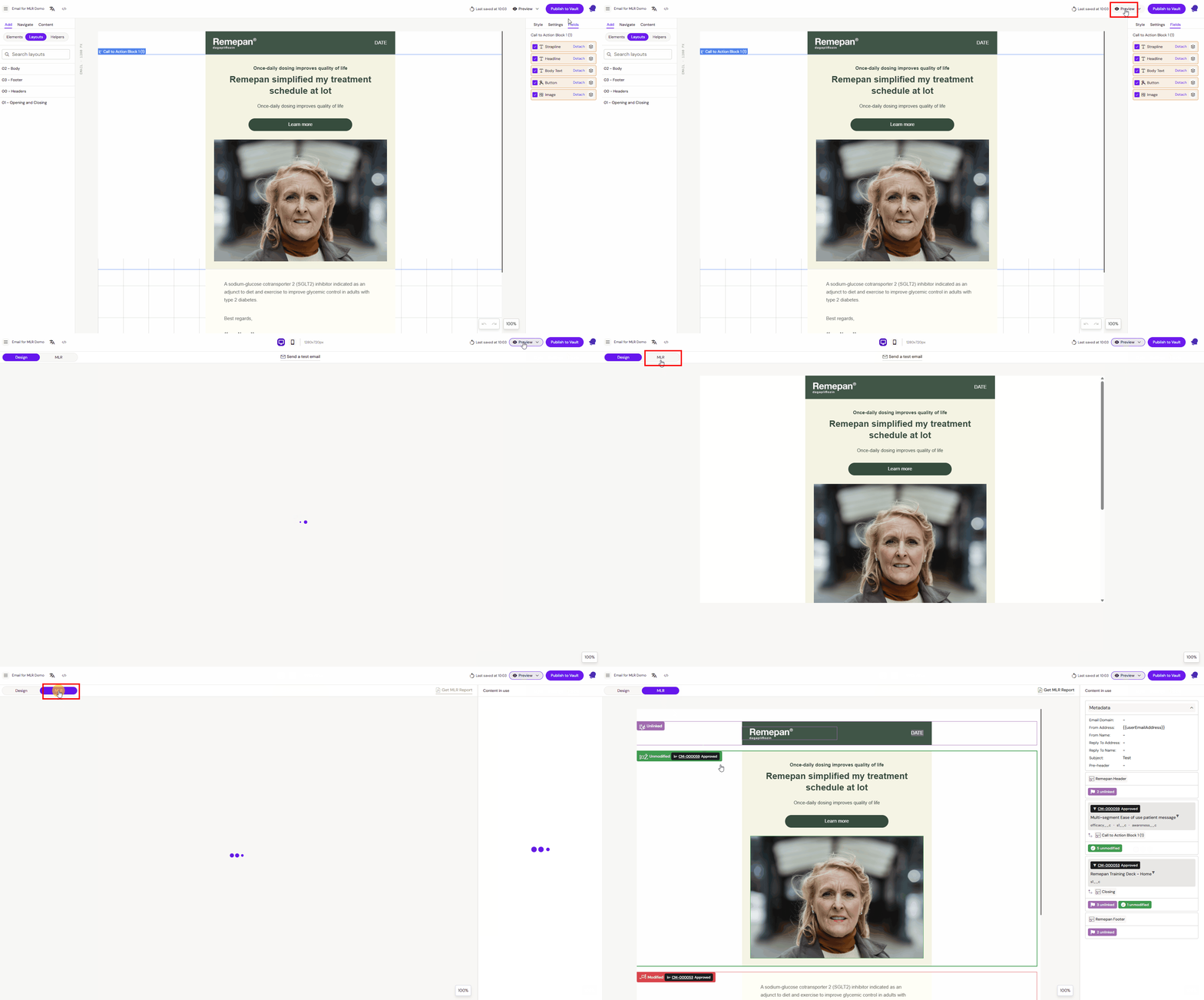
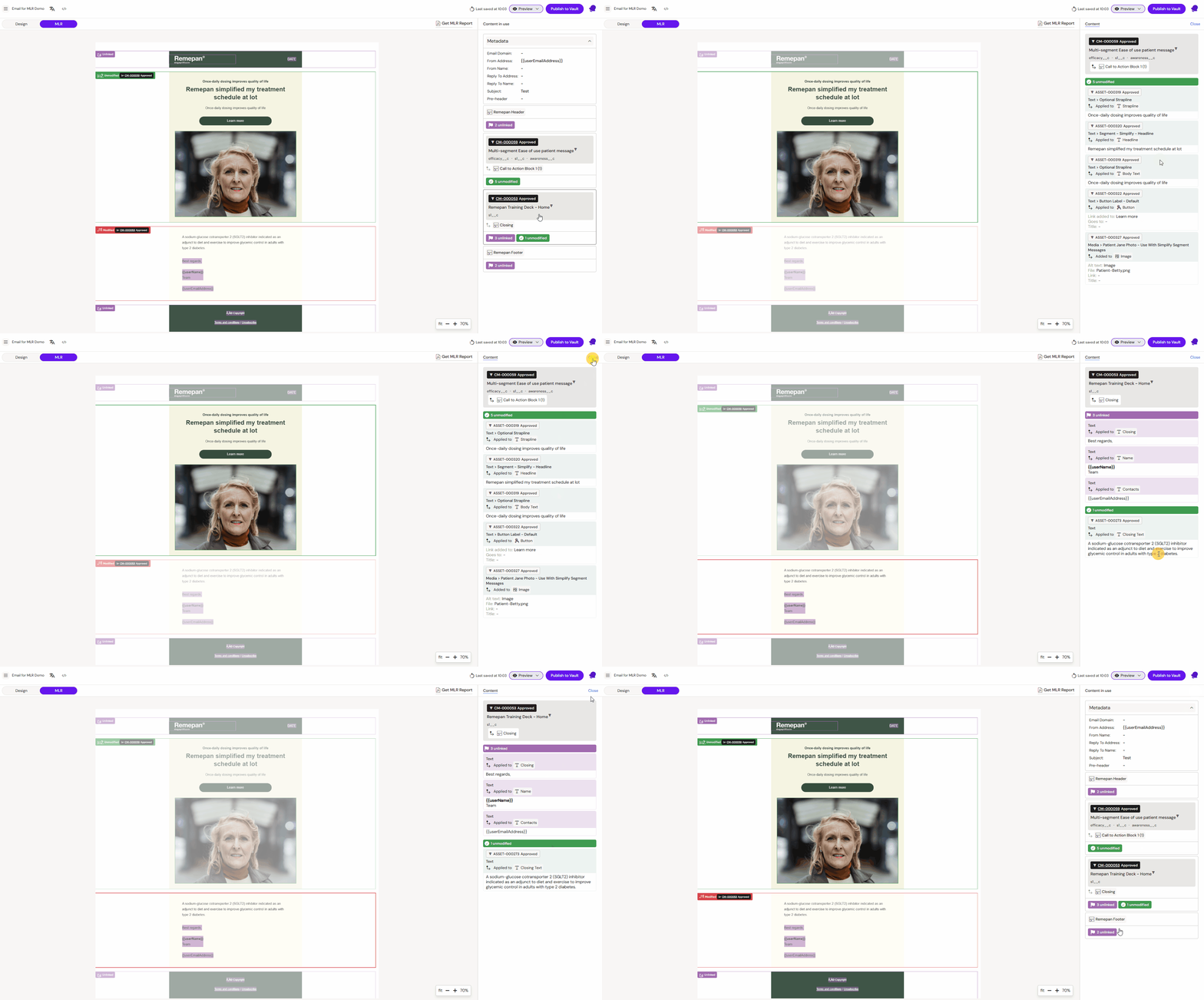
The example shown above is an email composed of 4 layouts. All used layouts and their respective content elements are listed in the right-hand pane. There, you can click on the layout name to expand the view and see which fields are linked to Modular Content and if it has been altered.
Understanding the report
|
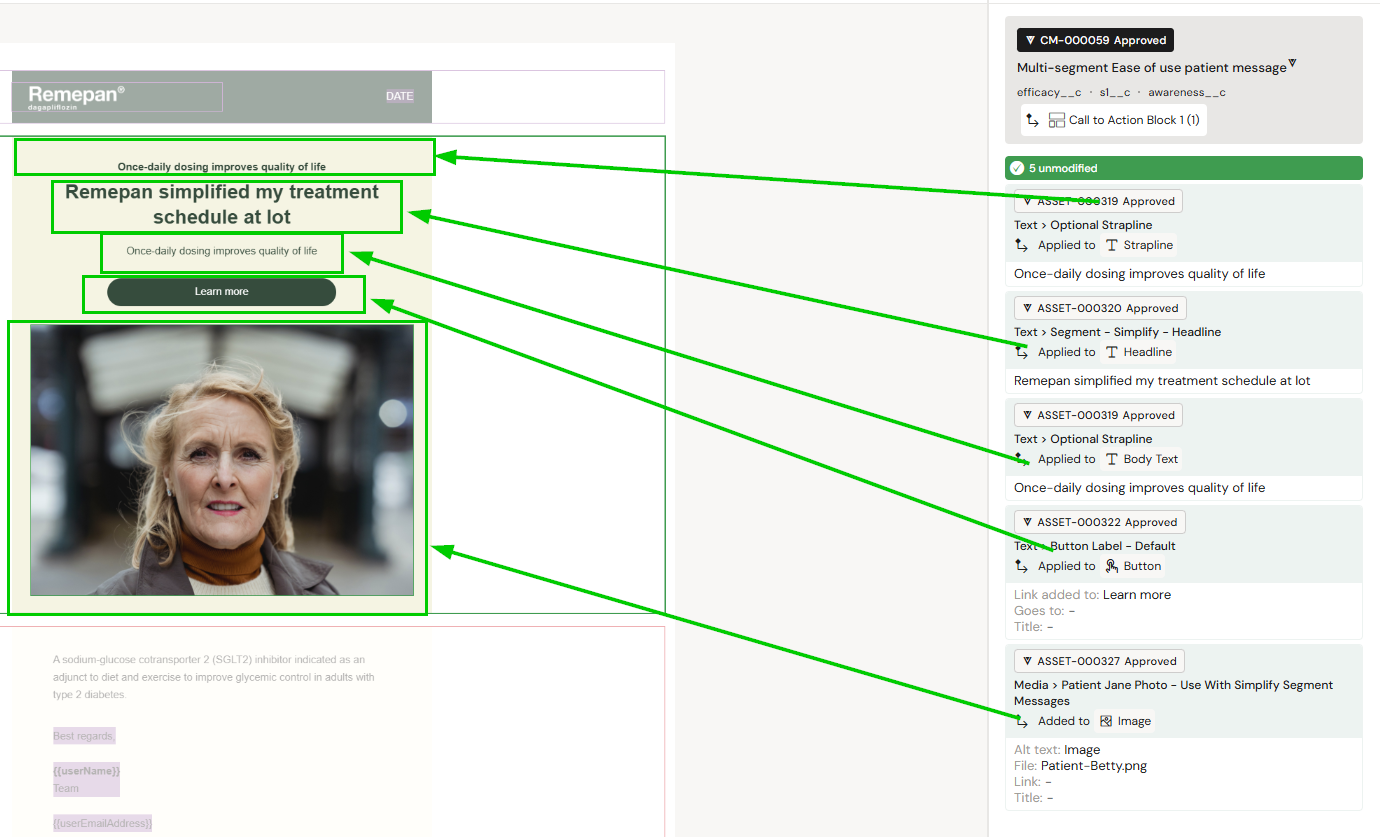
In the example layout, there are five content elements (text and button) where Modular Content was used on all fields. The ID and name is listed at the top: CM-000059, “Multi-segment ease of use patient message” The entire layout is surrounded by a green border, indicating that no manual changes were made to this Layout and that all content is approved. |
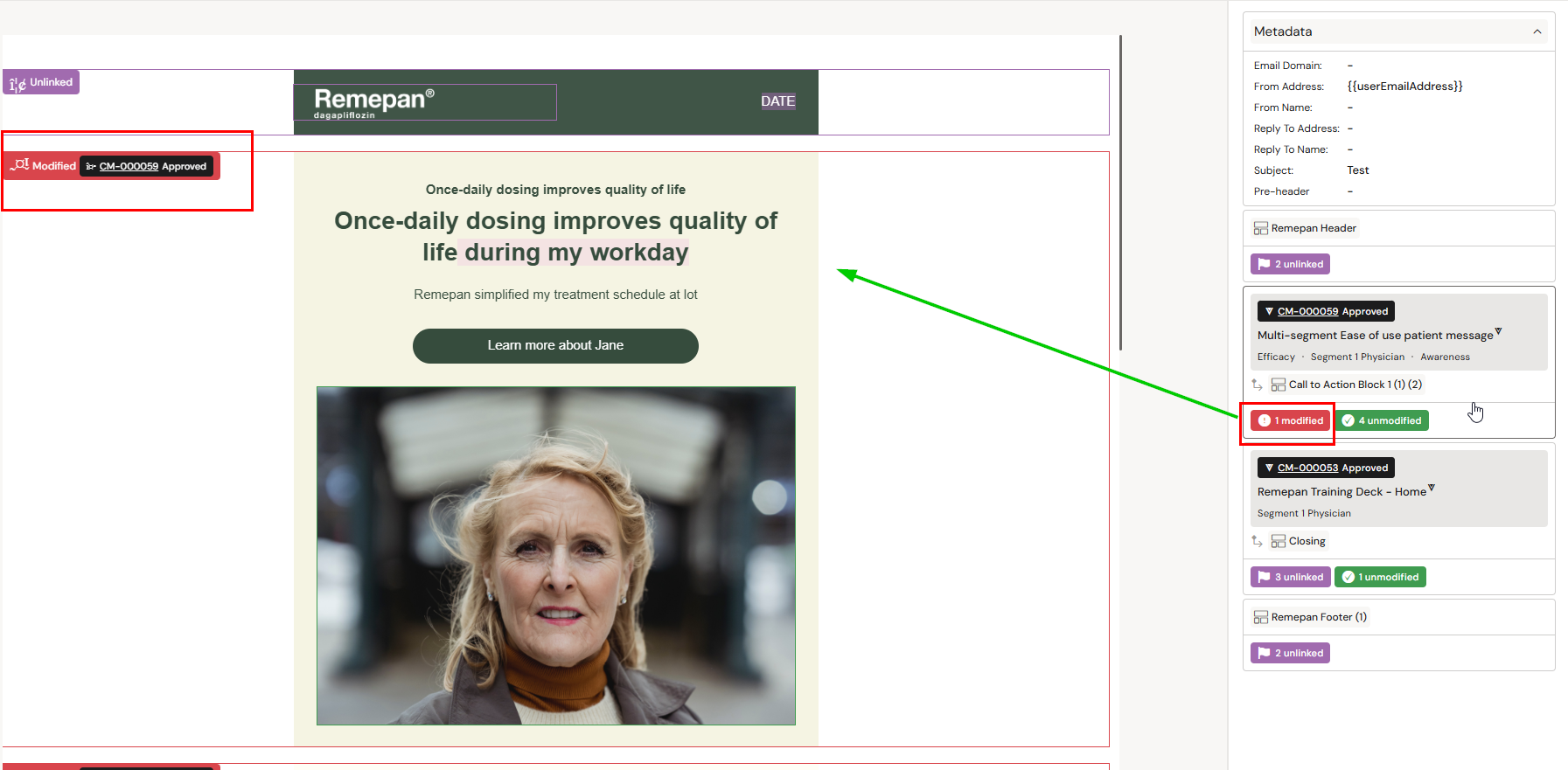
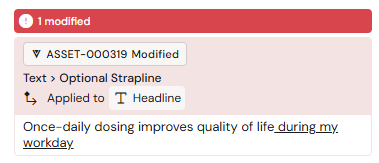
| If the user alters the text in a specific field, In this case, adding the words “during my workday” in the headline, the MLR report will detect that a change was made to what otherwise would have been approved content. This change is shown in the MLR report by a red flag and the changed words are highlighted in red. |
|---|---|
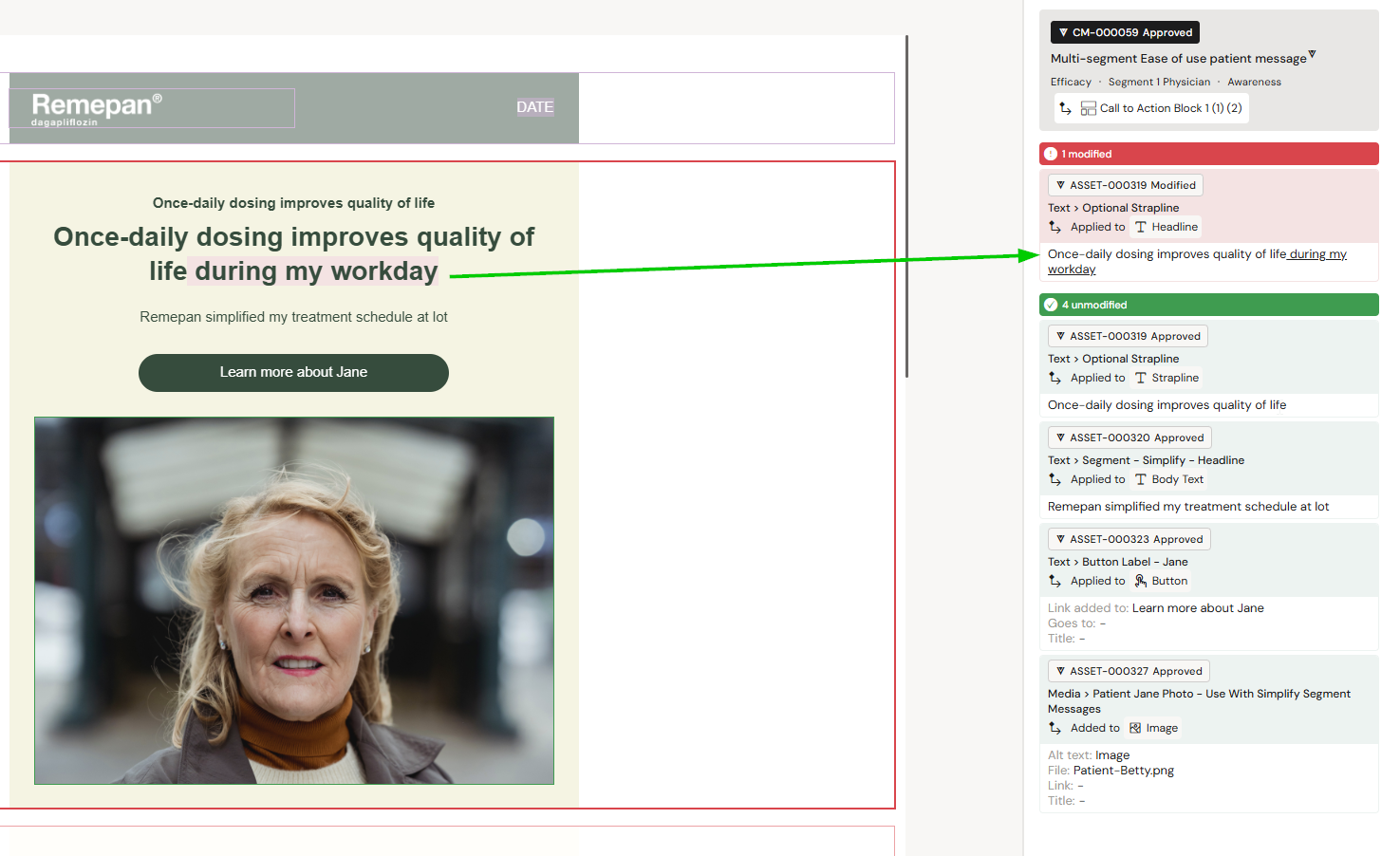
| Expand the section further by clicking on it to se more details. |
The Three Different MLR States
Content elements can generally have three different MLR review states:
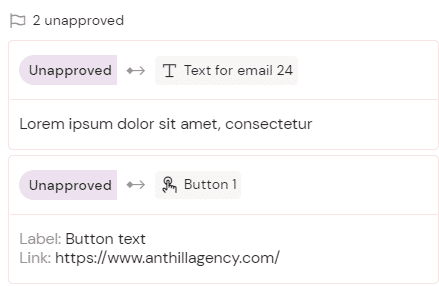
Umodified (green color)
Content linked to Veeva Vault Modular Content which already is approved through an MLR review.Unlinked (purple color)
Content that is either completely new or has not previously undergone an MLR review. Placeholder content from Layouts will always be listed as unlinked.Modified (red color)
Content linked to Veeva Vault Modular Content, but where the original content has been modified. If you add or remove content from a previously linked field, it will receive the Modified status and must be reviewed again.
Title | Image |
|---|---|
Unmodified (green) | 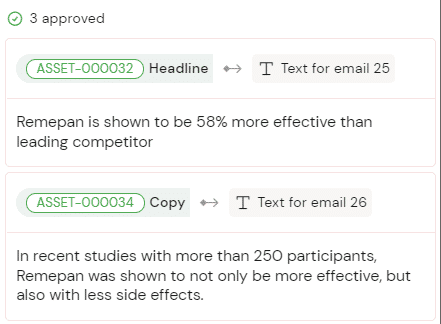 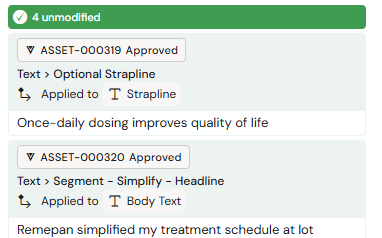
|
Unlinked (purple) |
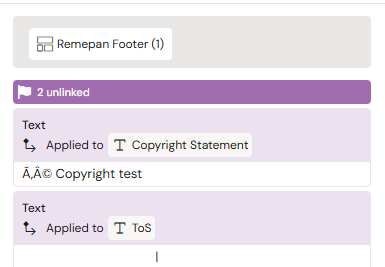 |
Modified (red) |
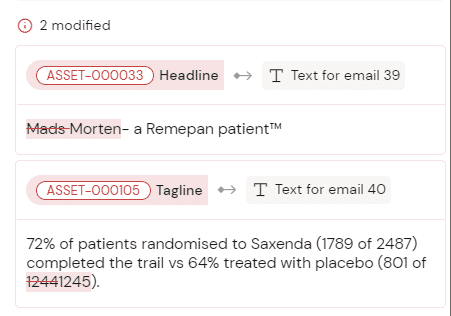 
|
Creating an MLR PDF report for your content review
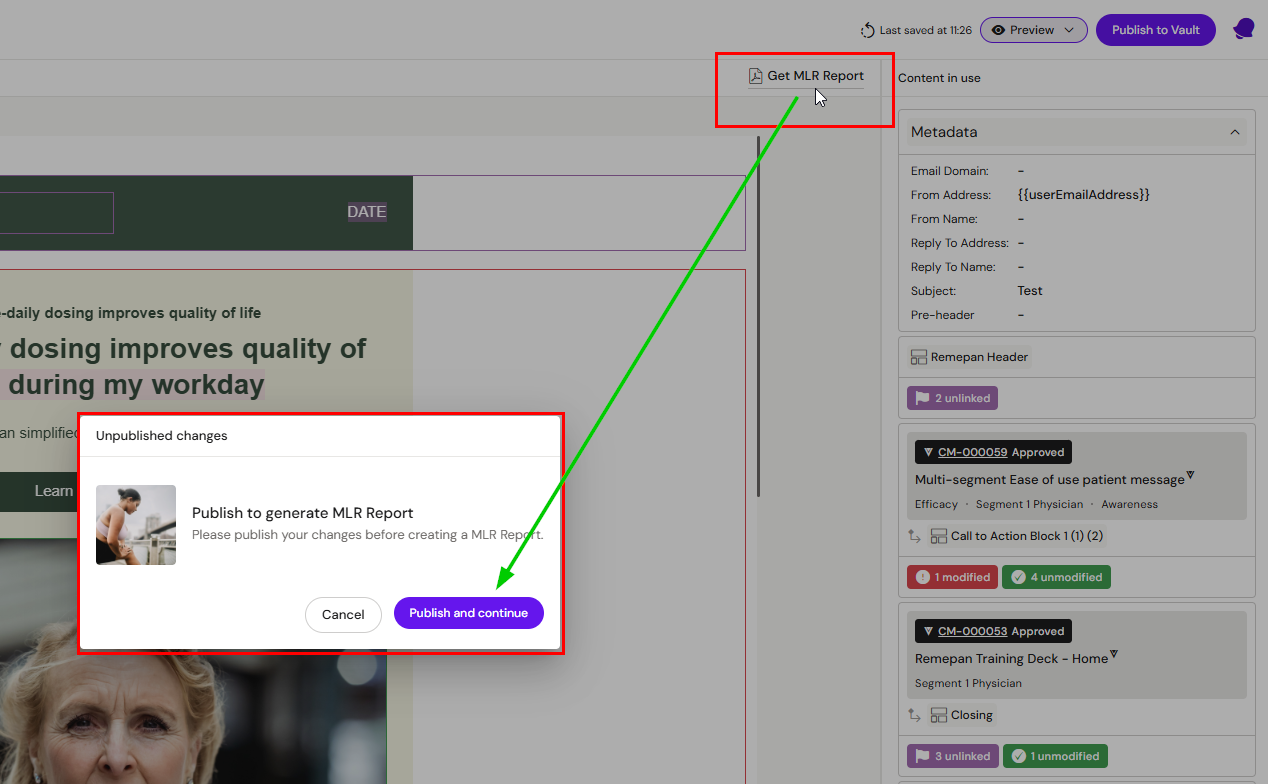
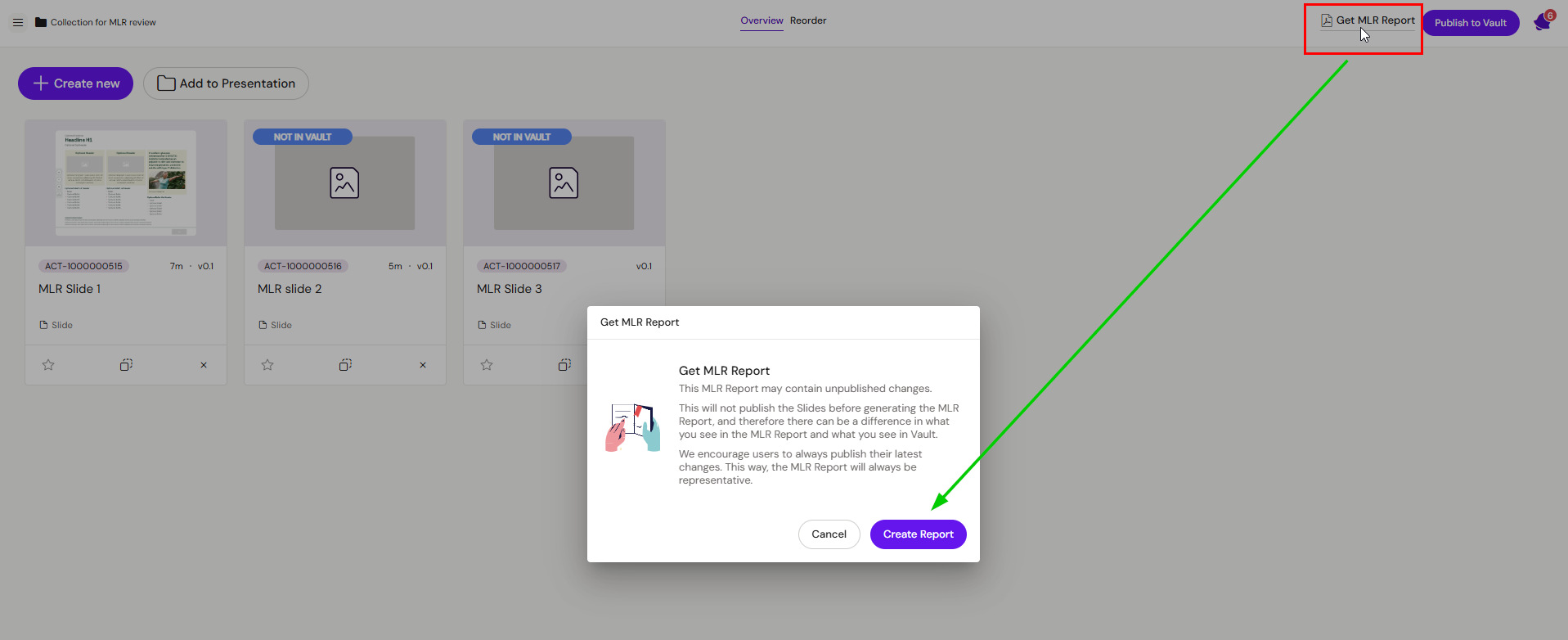
Once you have finished making edits to your content piece and it is ready for MLR review, you can pull the MLR report by clicking on the ‘Get MLR Report’ button next to the right-hand pane.
If the document has changes that were not published, Activator will prompt you do to so
The system will generate a PDF report for you to download.
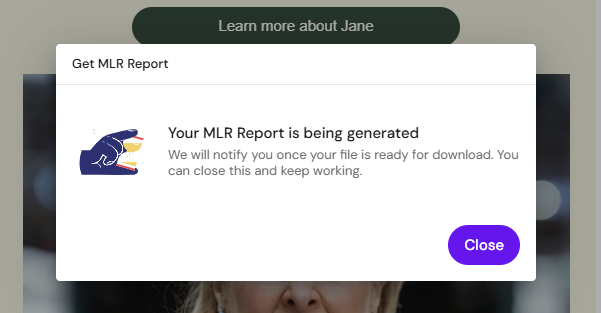
Please be aware that the preparation time for the report may vary based on the number of layouts and content elements you have in the content piece you are generating the report for.
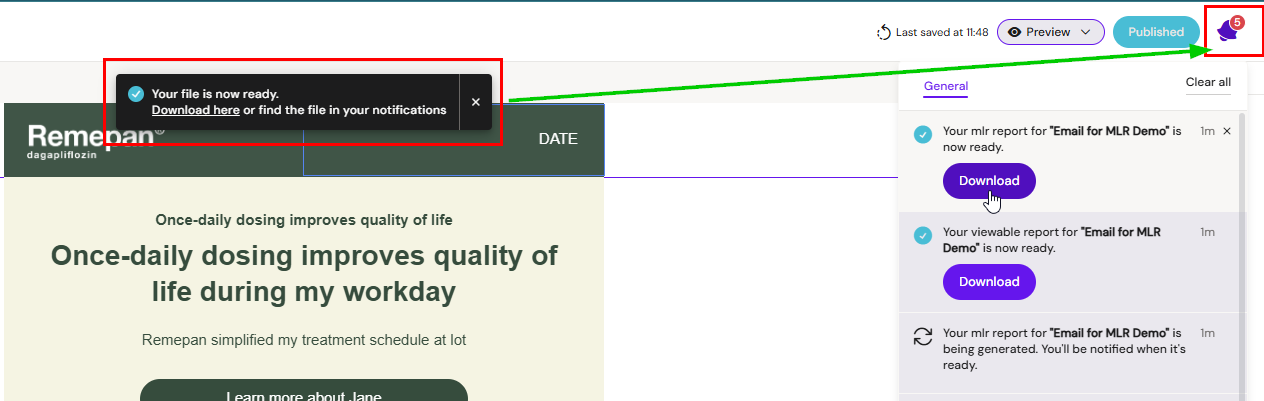
While the report is being prepared, you can continue working in Activator. Once the report is ready, a small notification will appear at the top of your screen, letting you know that it's available for download.
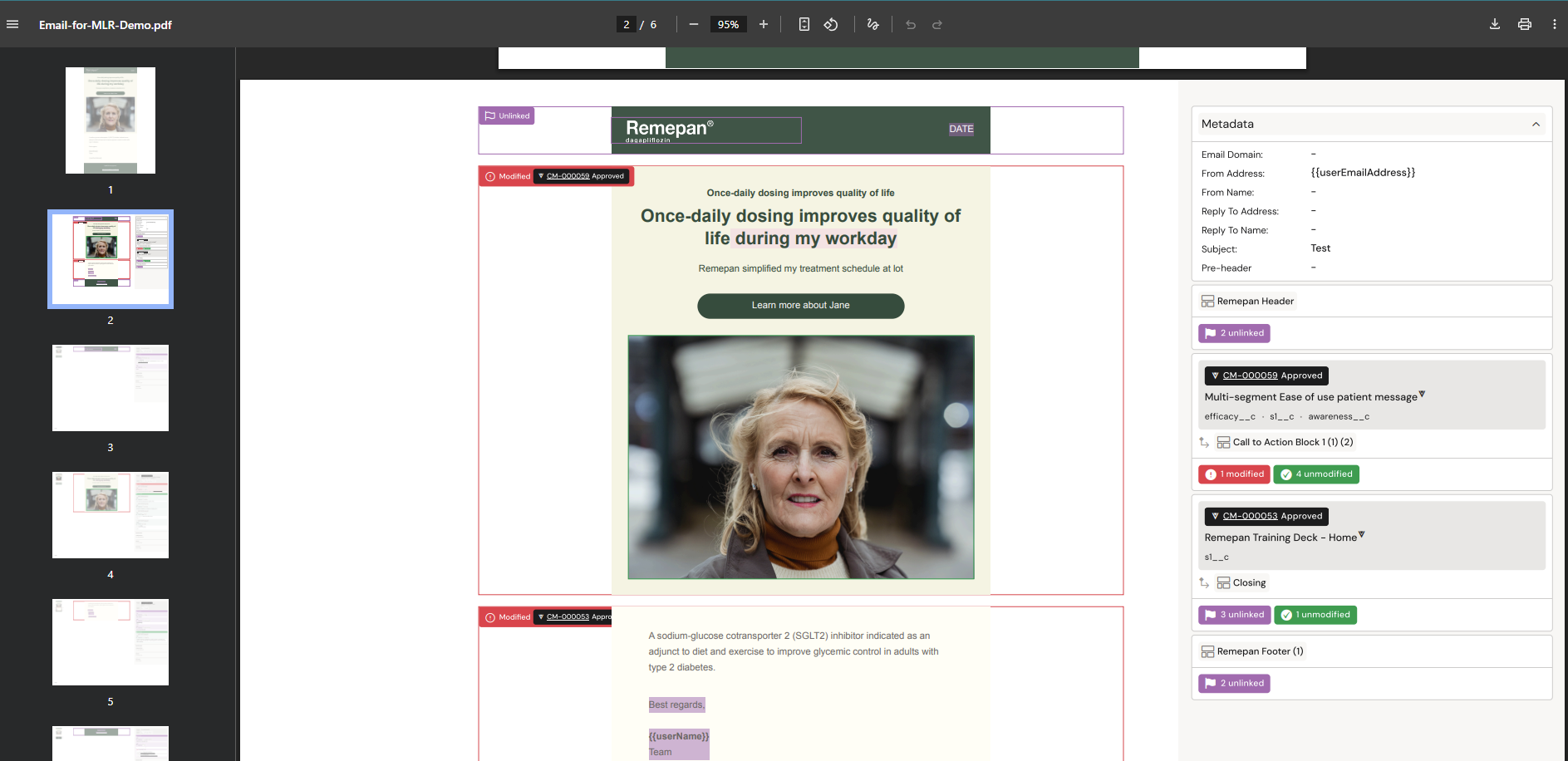
Caption - A MLR report in PDF format
Creating an MLR PDF report for an entire Presentation
Instead of creating a PDF for each document in your Presentation, Activator can create a report for all the content in the Presentation for you.
Be aware that this report will not publish your content for you and we recommend that you ensure all content has been published to your DAM before the MLR report for the Presentation is generated
Creating an MLR Report when Publishing

This feature is optional and may not be available in all Activator environments.
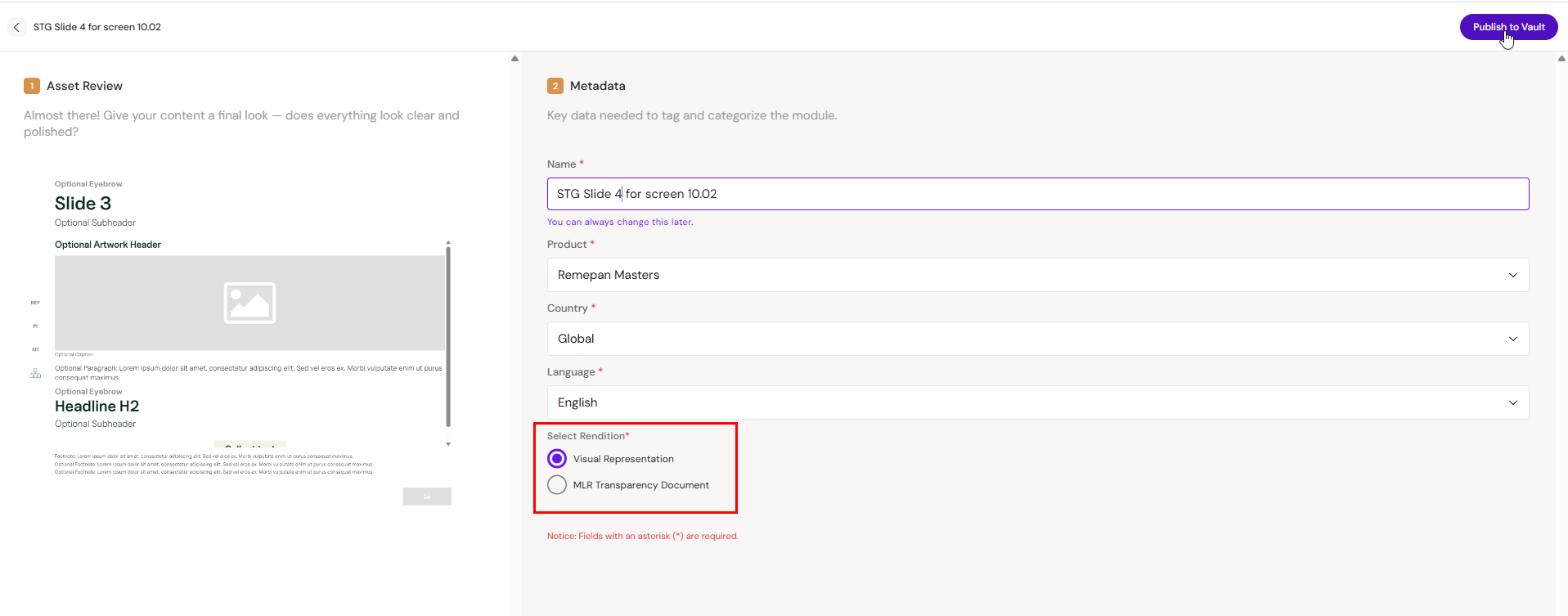
Activator can be configured to automatically generate either a visual representation or an MLR document during publishing. Simply choose your preferred option in the Publishing Wizard.