How to Preview Content

Even though these features are fairly reliable when it comes to the final output, we always recommend testing using real life scenarios. Emails should be sent to a variety of email clients, or by using an email pre-deployment platform.
Slides, meant for iPad devices, should also be tested on real target devices. Please refer to your internal guidelines for testing content created in Activator.
Before publishing, it’s important to test how your content appears and behaves. Here we will show you how to:
Access the share button: Generate a QR code, preview link as well as PDF/MLR reports and distribution packages
Preview your document directly in Activator
Send a test email (email only)
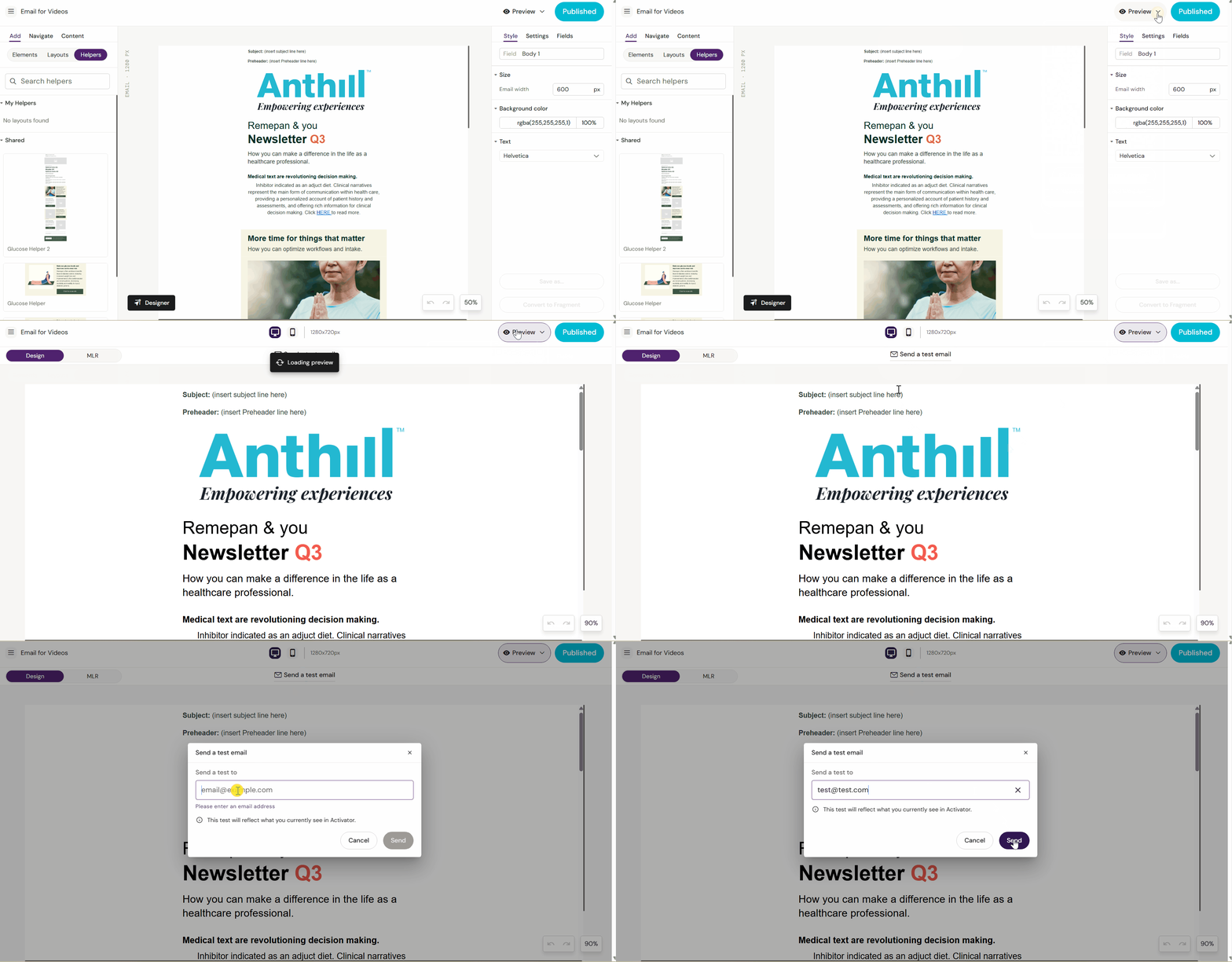
The example shows an Email. The functionality to preview is the same for Slides
Share button
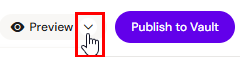
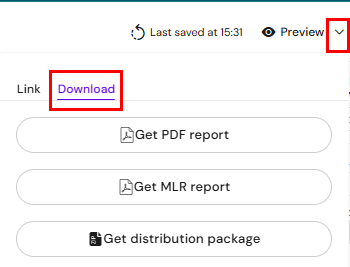
Click on the arrow pointing down next to Preview open a menu.
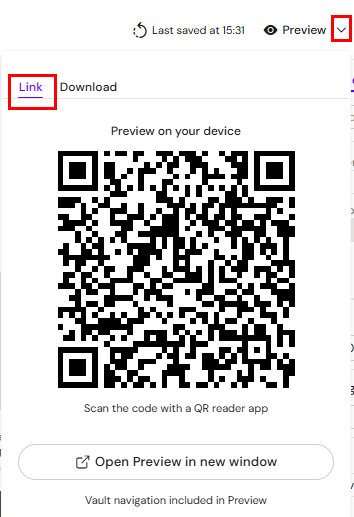
The Link tab displays a QR code as well as a URL generator which can be used to preview the content without having access to Activator.
The Download tab provides an option to generate and download a PDF or MLR report of the document as well as the document’s distribution package.
All files are generated based on the current working revision of the document, ensuring that the preview reflects the actual state of the content, layout, and metadata at the moment of export.
Preview in Activator
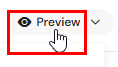
Click the Preview button located at the top right above the canvas. Be mindful to click on the button that says Preview and not the drop-down Share button.
This will show you the design of the document as it might appear on a specific device. You can toggle between the views using the middle buttons representing a PC screen, Ipad or cell phone.
Exit this mode by clicking on the Preview button again
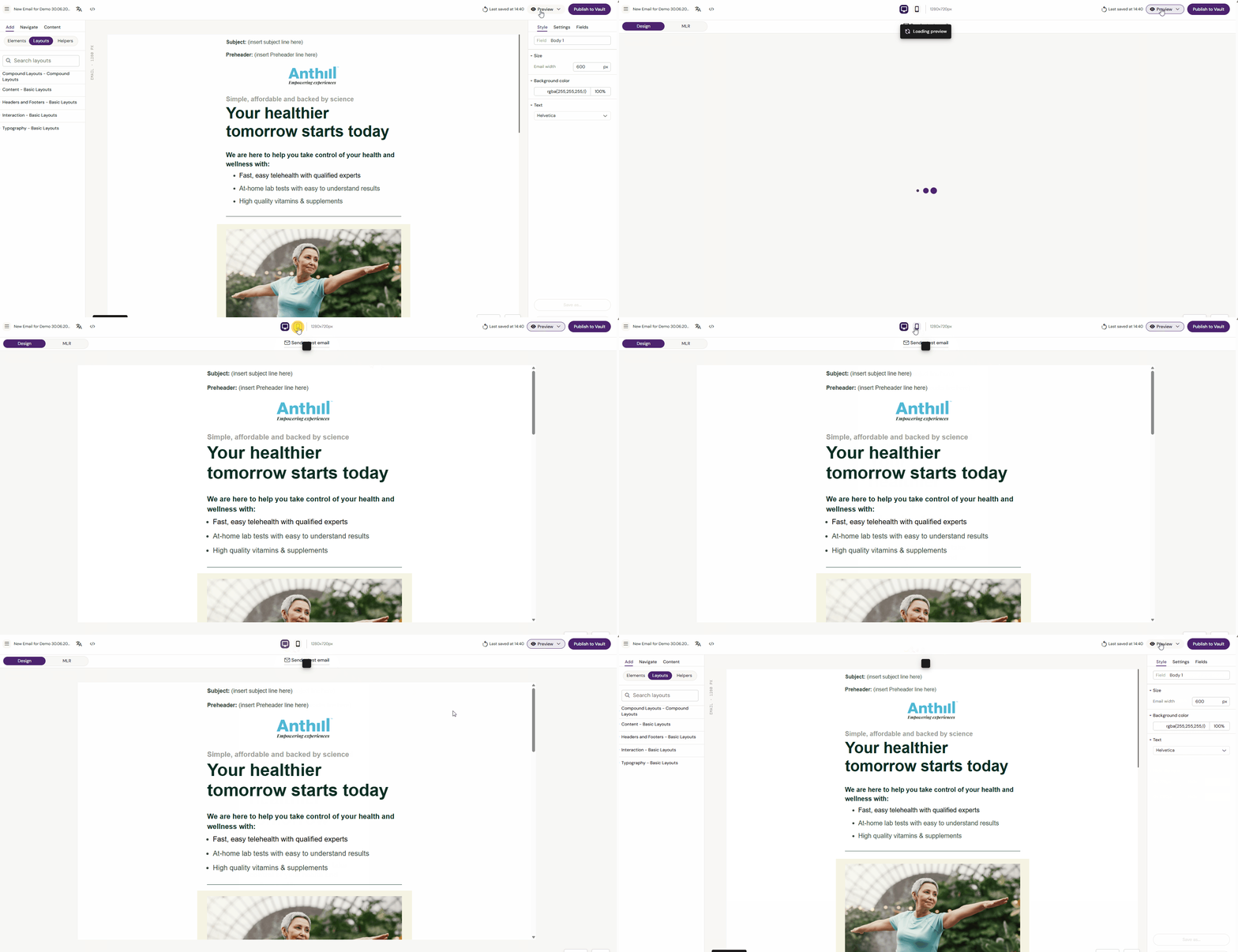
The example above shows the two options availble for an Email: Desktop and cell phone..
Slides or Briefs will have an additional option for 3 types of iPads.
-20251211-122721.png?inst-v=975cbeae-2139-404a-860f-6b520655945d)
Test functionality in Activator
While you are in preview mode, you can also test if your buttons, interactions and navigation. The two latter only apply to Slides and Briefs.
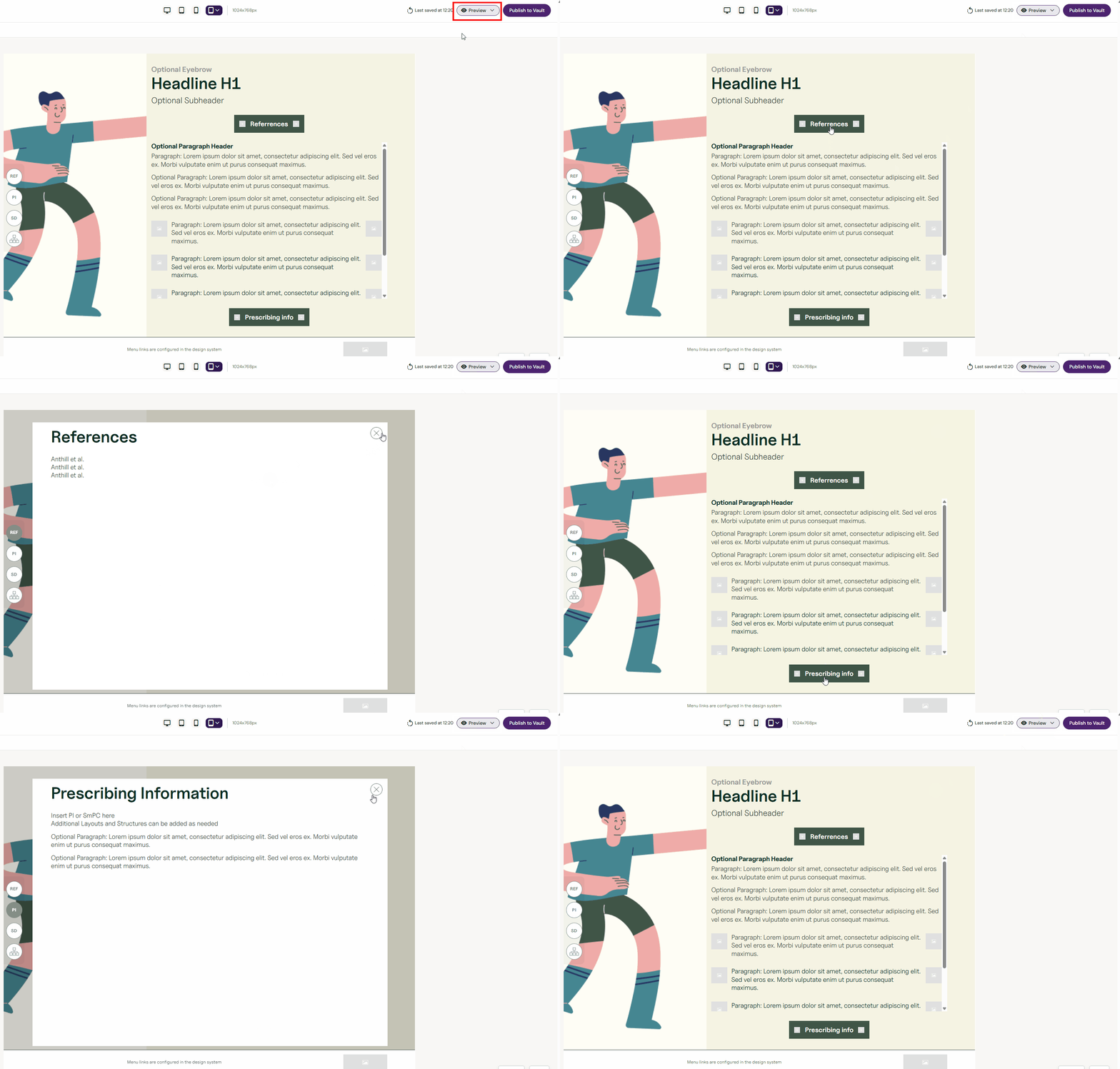
Testing popup buttons on a Slide
Send a test Email in Activator.
This feature is only available for Email documents
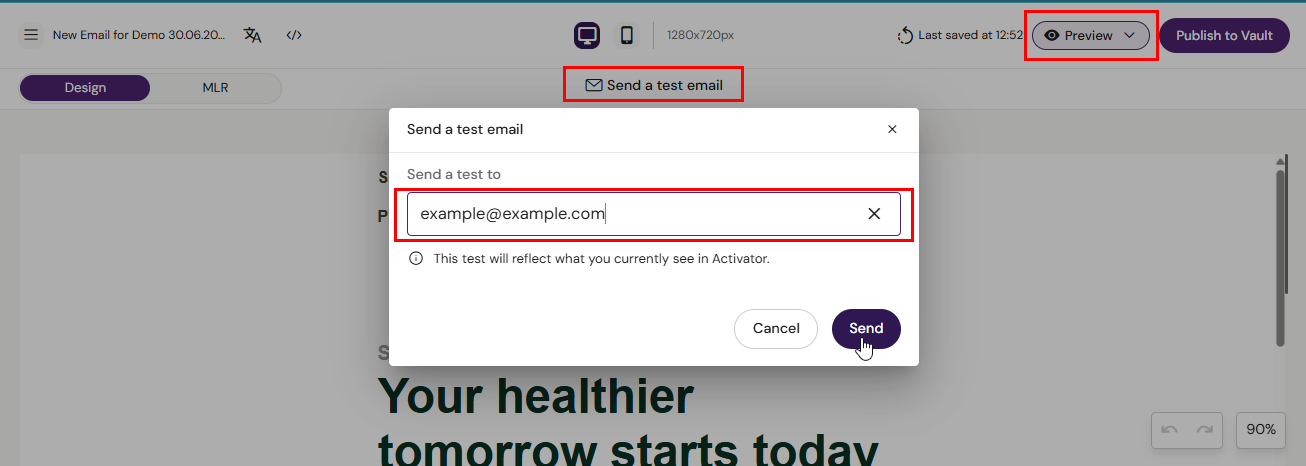
It is important to test how Emails look and behave before sending them off for approval. Activator has a feature that allows you to send a test to any email address.
Send a test email by following steps.
Click the “Preview” button in the top right corner.
Click the “Send a Test” button in the top middle of the screen.
Add the email you want to send a test to and hit “Send”