
Email Layout Design Best Practices
This Best Practice article describes topics an Email Designer should be aware of when building Layouts for Activator Approved Email.
Building the correct basic setup
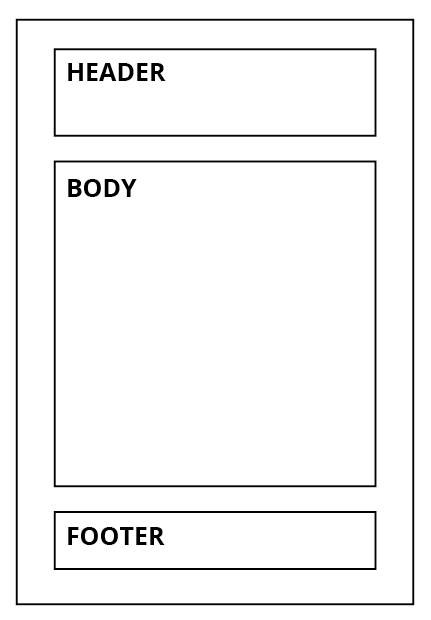
First, start with a breakdown of the basic setup for your email into sections.
A well-designed email is typically set up with a header section, a body section containing an intro text, the message(s) of the email, an outro text, and a footer section.
Please see the example to the right.
All emails created in Activator have a width of 600px, ensuring that the email is supported by most email clients on desktop computers and mobile devices.
After deciding which content to add to your sections, you can start building the different sections in Activator.
A section is built by using three core elements:
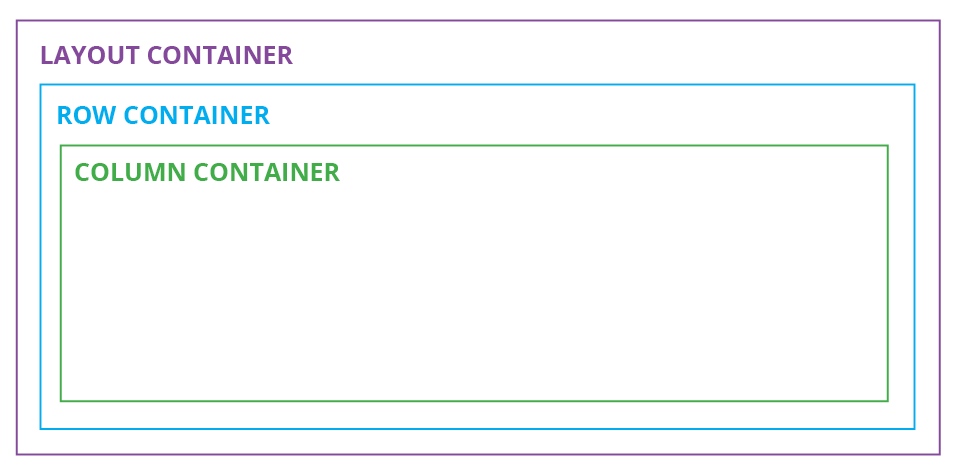
Layout container (The purple line)
- This container allows you to save your design as a layout. This mandatory element unlocks the option to add a row container.Row container (The blue line)
- This container allows you to add multiple column setups into one layout container by having more than one row container per layout.Column container (The green line)
- This container allows you to split up your design into multiple columns by adding multiple columns to your row container.
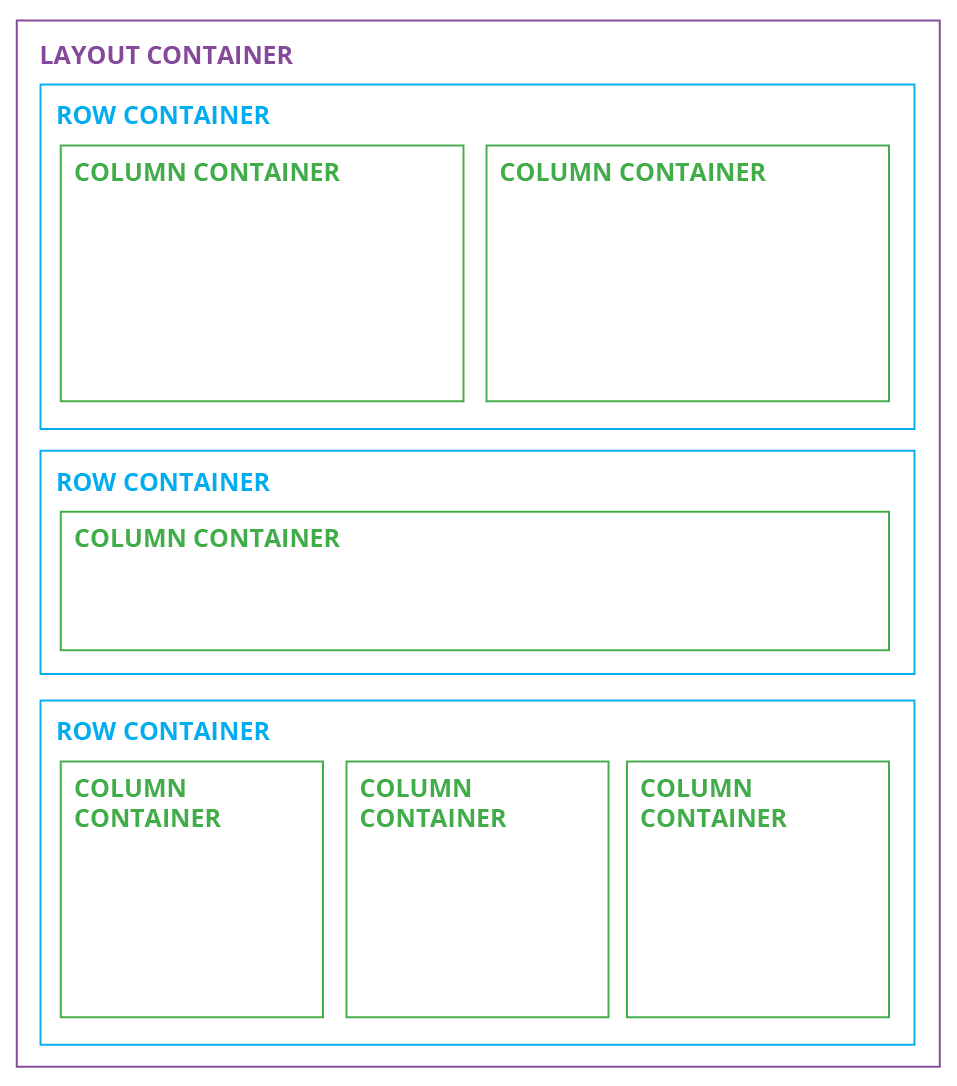
Working with multiple rows and columns:
As mentioned above, it is possible to work with multiple rows and columns, but if this isn’t done correctly, the email may not be displayed as expected on the end device.
TIP: A row container can only contain 1 line of column containers, meaning: If you know that your content will need both a full-width column and a 50/50 column setup, then you need to split it into two rows. In the example to the right, there is a row container for each line of columns.
A good way to start an email is by start building the container blocks first, which become the base of your email. After placing these, you can add content elements like text, images, buttons, lines, and dividers. You can read more about email components here Email Components

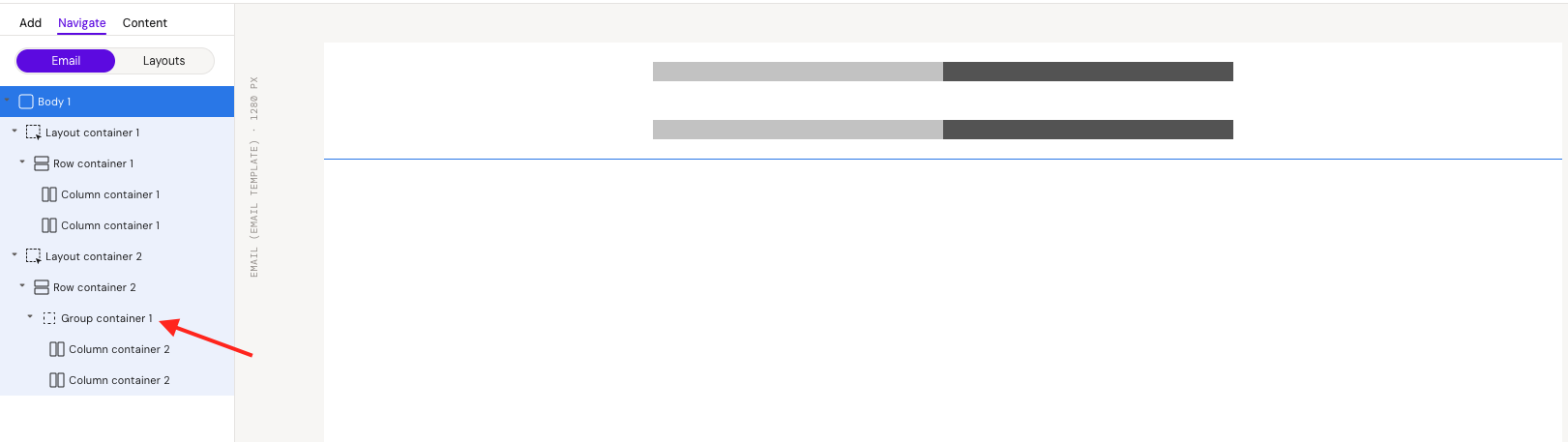
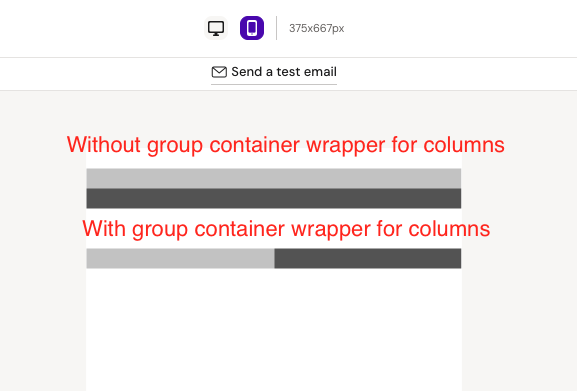
It is possible to insert a group container inside a row and only after add columns. The differences will be in the mobile view:
Without group container wrapper: In the mobile view, each column will fill 100% width
With group container: Columns will follow the same structure as in the desktop view
Working with text
When you add text to your email, it is important to choose the font family because the default font looks like Arial. Most companies use Arial as their web font, to make sure the font is supported by the email program the receiver is using.
5 TIPS FOR FONT:
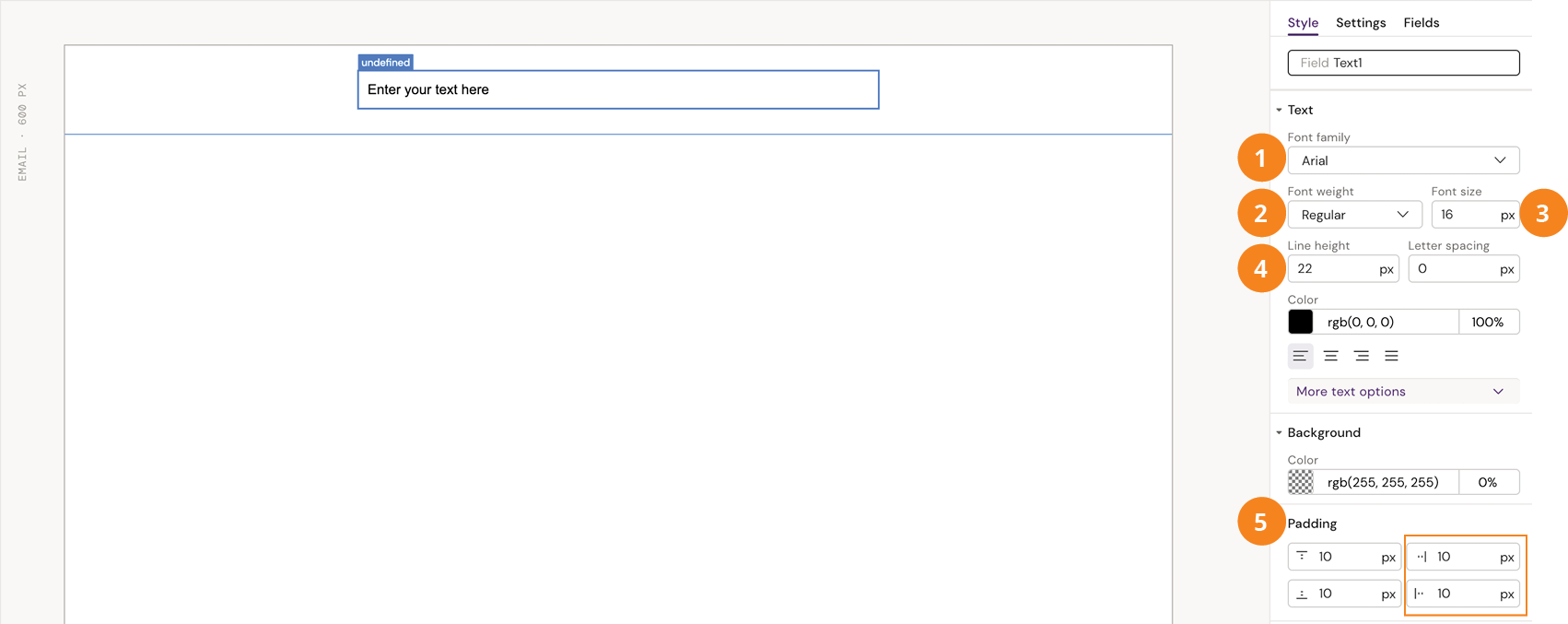
Font family - This field should never be empty. ALWAYS remember to pick a font family to ensure your email will be displayed with the correct font.
Font weight - Set the weight of your font, and choose the text pieces that need to stand out, by using italics or bold.
Font size - The default is 16px, but a headline is often 30px. Body text is often between 12-14px.
Line height - A good rule of thumb regarding the line height is to add 4px to the font size. If your font size is 12px, your line height should be 16px. This will give the correct spacing between the lines.
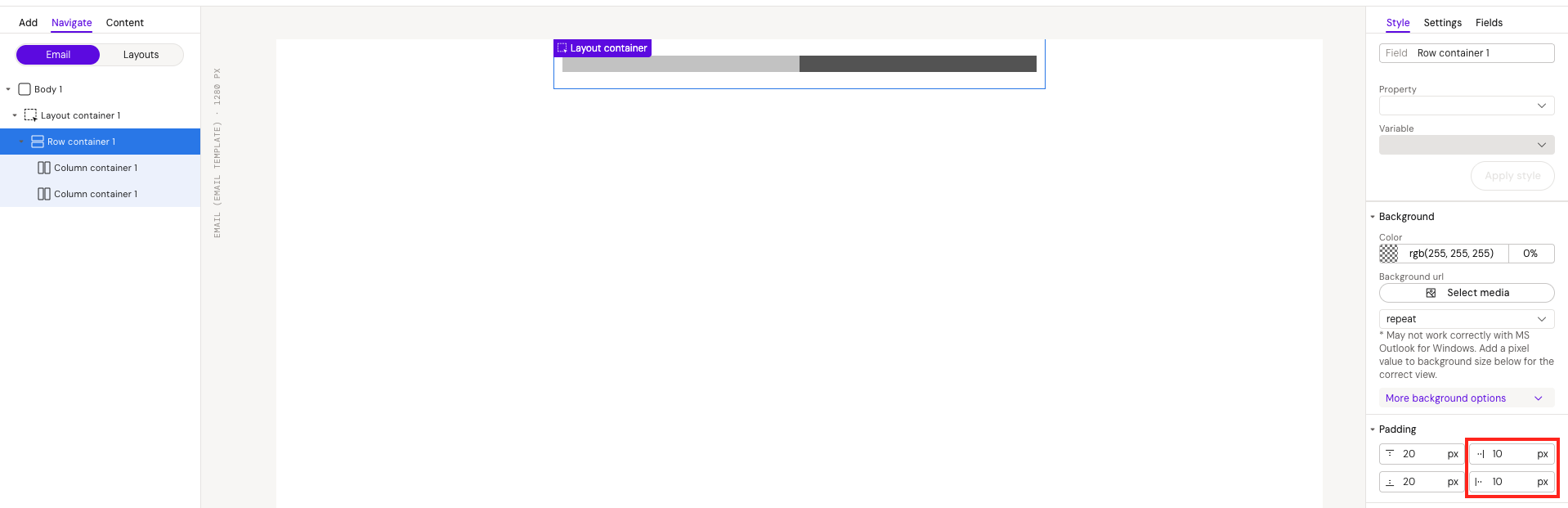
Padding - It is not required to add paddings to the text element, but remember about paddings for the mobile view (as we won't have the space as we have in the desktop view). It is better to add paddings on the higher level, such as row containers, for example. This prevents the text from going all the way to the edge in the mobile view.
Best practice for designing an email
This outlines best practices for designing email layouts in Activator to ensure CRM compatibility, performance, and smooth approval.
Keep Emails Short and Focused
When designing emails in Activator, always keep in mind that CRM platforms enforce strict HTML size limits.

Both platforms enforce a 128 KB (~131k characters) limit on email HTML content
The limit applies to the final compiled HTML, not just what you see in the editor. Every element you add increases the total HTML size.
How to Verify Character Count (Veeva)
Push the email to Vault
Download the Veeva HTML file from Renditions
Open it in a text editor that shows character count (e.g. Sublime Text)
Content & Visual Hierarchy Best Practices
Hero / Full-Width Images
If you start your email with a full-width image, try not to make it too tall to prevent too much scrolling. Alternatively, you can hide the image on mobile, so the receiver reading the email on mobile won’t skip reading it because they have to scroll too much to reach the message.
Call-To-Action (CTA) Buttons
If you have CTAs (call to action buttons), ensure the button appears before the “fold” or the scroll area. If the CTAs are too far down the page, the receiver might not reach the CTA.
Remember to keep it to a MAX of only 2 CTAs per email. The receiver will likely not click any if you have 4-5 CTAs.
Core Principles for Email Structure
Every email element takes space in the HTML file. Rows, columns, text elements, dividers, spacers, and containers all contribute to the total character count.
Avoid Unnecessary Elements
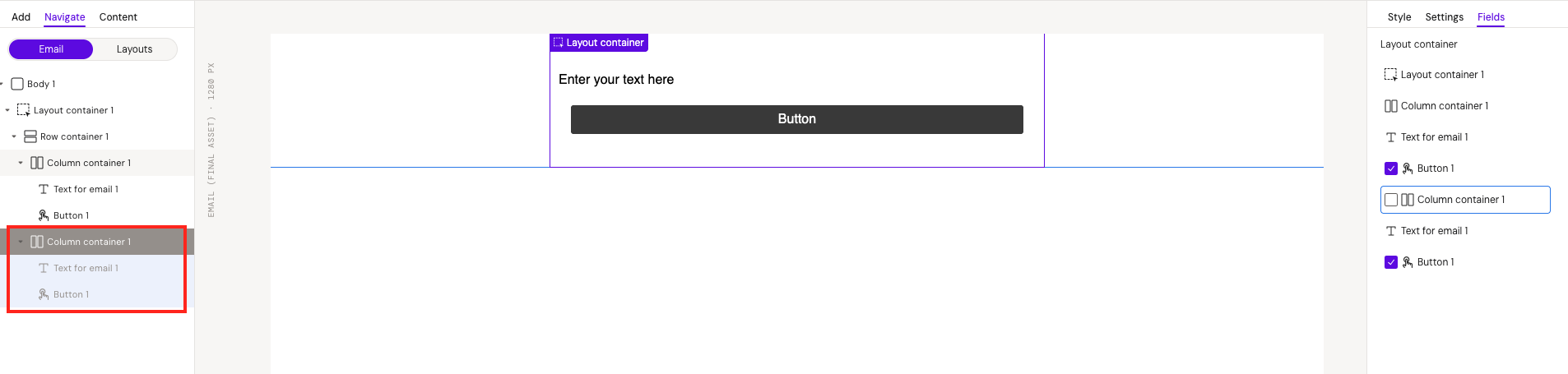
Do not add empty rows, columns, or elements unless truly required.
Remove hidden elements instead of simply hiding them (unless absolutely necessary).
Row and Column Rules
All columns combined must equal 100% of the row width.
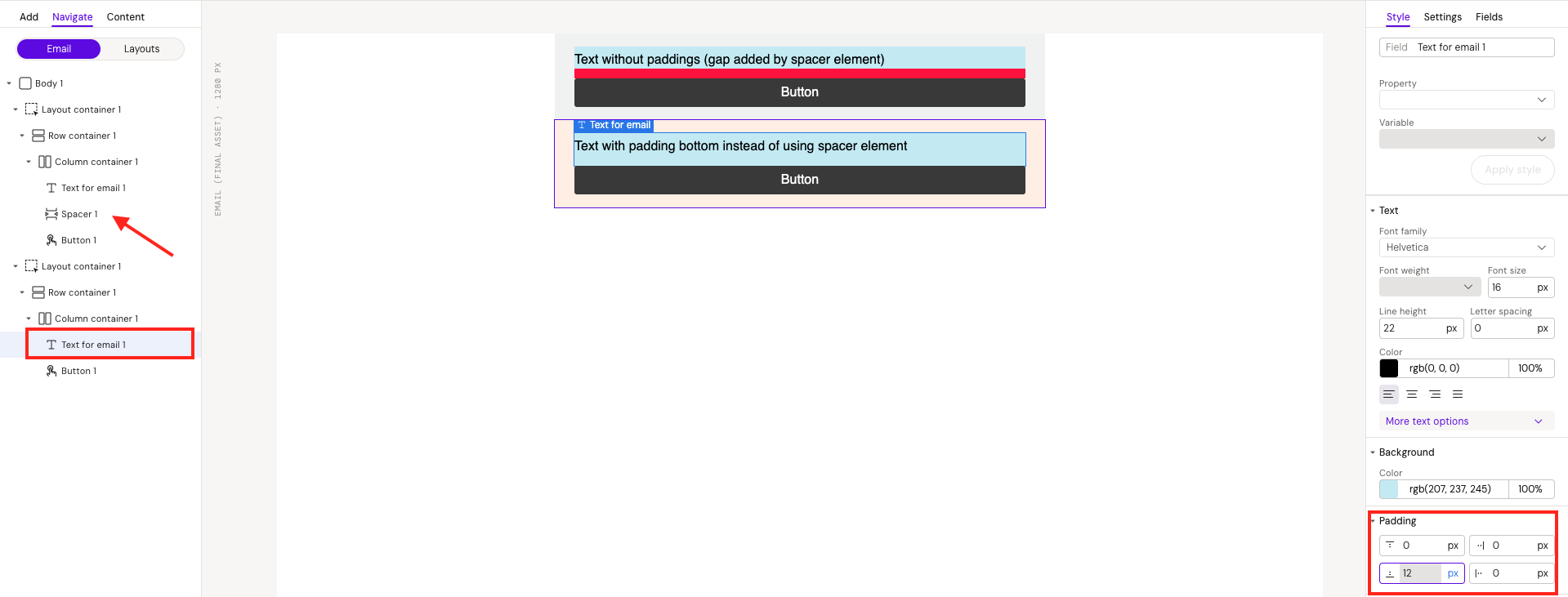
Prefer padding over spacer elements to reduce HTML size.
This helps stay within HTML size limits and avoids unnecessary complexity.
Image Handling
Use Public CDN URLs or Base64 embedding for images.
When building layouts and helpers for design systems that are later rendered as email content in Activator, image sources are a critical component. Often, teams embed images from:
Veeva Vault uploads
Local file paths
Internal Design System resources (e.g., S3 buckets or private environments)
These sources are problematic because the image URLs used in these contexts often point to temporary or internal storage. These locations are not designed to be persistent or publicly accessible, which leads to broken images when the final email is viewed by recipients. To ensure reliability, image sources must use stable, public URLs.
Recommended Approach
Use Public CDN URLs (preferred) or Base64 embedding to ensure image reliability.
For more information: Image Handling in Design Systems – Activator Standards
Decimal Pixel Values
Avoid using decimal pixel values like 10.5px. While this method can help achieve pixel-perfect accuracy, in the future, such sizes may cause problems on different devices. Elements with these sizes might behave unexpectedly.
If you encounter such issues, round the pixel values to the nearest whole number. For instance:
5.7px→6px6.4px→6px5.5px→ (choose the most suitable value depending on the situation, e.g.,5pxor6px)
Recommended Design Improvements (Common Issues)
Based on real issues observed in Activator → CRM workflows:
Remove Unnecessary Group Container
Example: Logo placed inside Group container are often unnecessary.
Removing them simplifies structure and reduces HTML size.

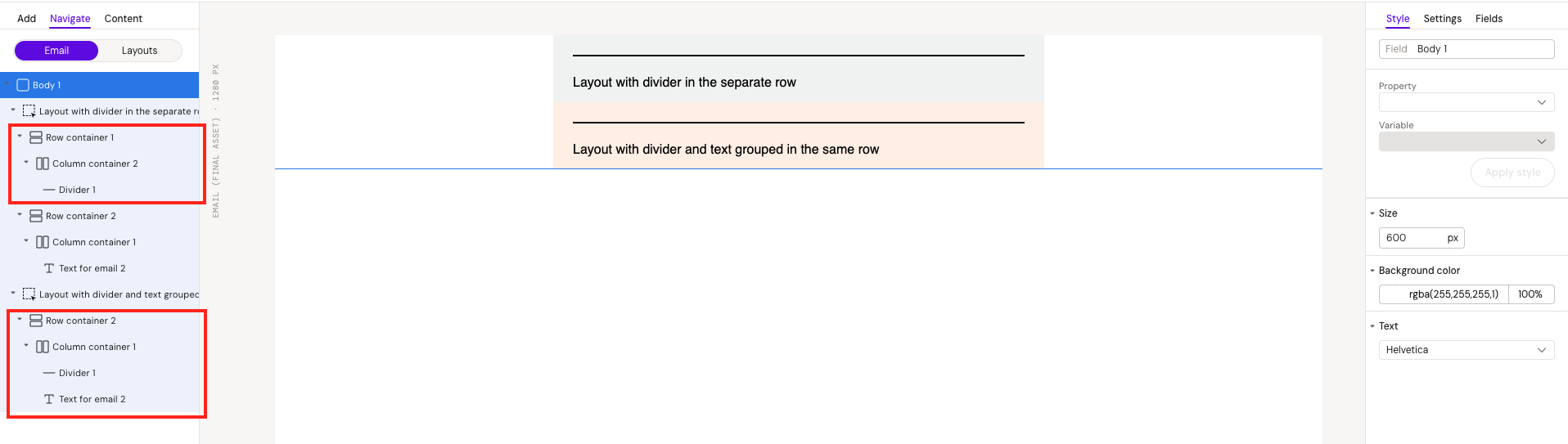
Combine Divider and Text in the Same Section
Example: A divider placed in its own row can usually be grouped with the related text element.
This reduces extra rows and columns.
Replace Manual Spacing With Padding
Use padding over the spacer elements to reduce the html size.
Technical Review Before MLR Approval
Perform a technical QA before the MLR stage. In this email, there are duplicate layouts that may not be necessary - especially considering Veeva’s character constraints.
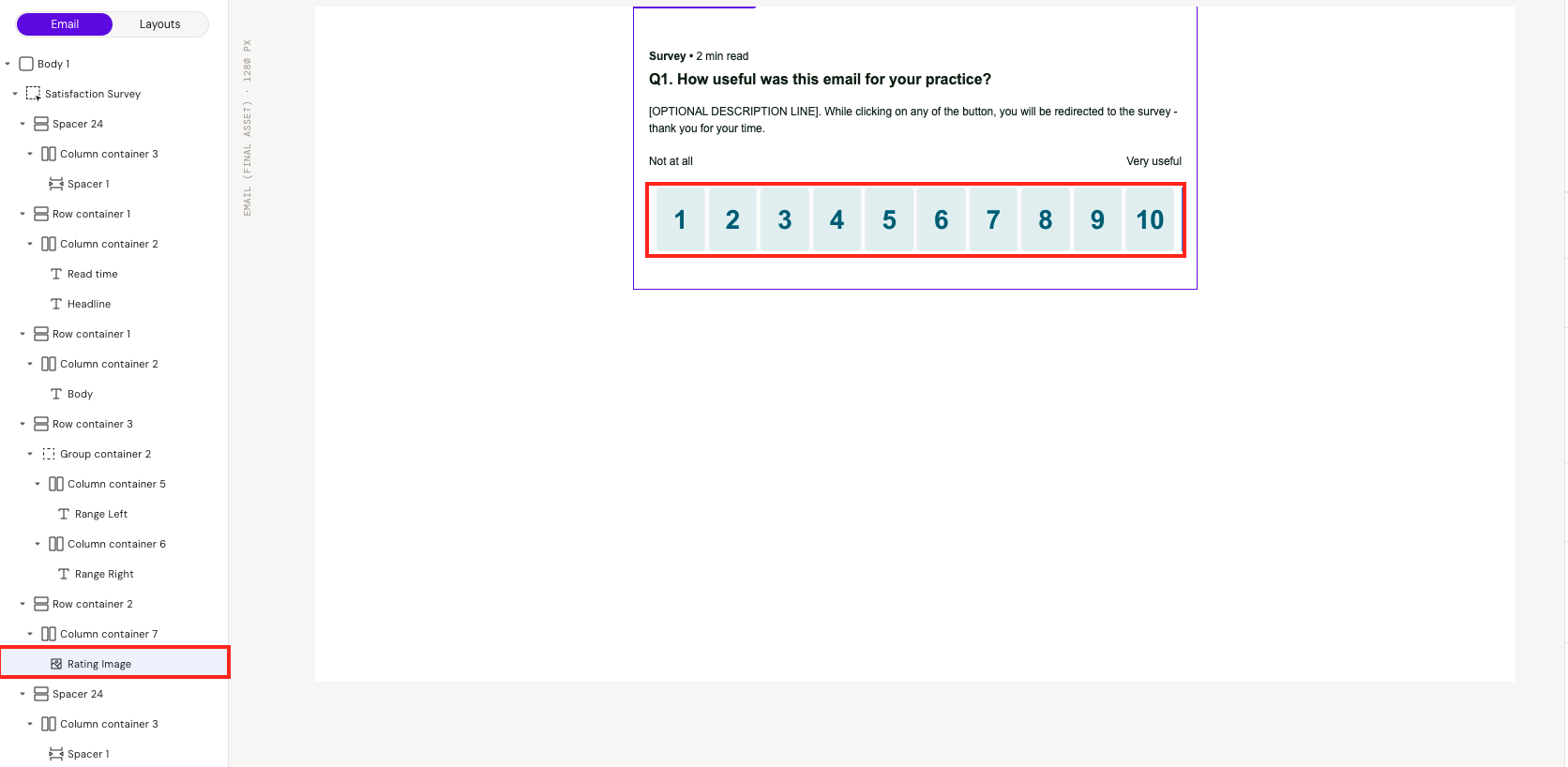
Consider Using Images for Complex Layouts
For visually complex sections, using an image can reduce HTML complexity. While localization becomes harder, this trade-off can help with CRM compatibility.
Reviewing the Email Before Approval
Use Activator Viewable Rendition for Accuracy
Activator generates its own Viewable Rendition PDF within 2-3 minutes of publishing.
This version avoids issues like page splits or unnecessary spacing that may appear in Vault’s default rendition.
It's worth waiting for this version before reviewing layout or structure.