
How to Add Custom Google Fonts in Emails [WIP]
Purpose
This is an instruction about how to add new web fonts to Emails Temaplates.

Custom web fonts will not work with Outlook and Gmail email clients.
Check this section How to Add Custom Google Fonts in Emails [WIP] | Compatibility-with-Different-Email-Clients for more information.
How to Add web font to Email.
1. Get your Google Font
Go to https://fonts.google.com/ and search for the target font.
Get the link to the CSS that Google Font recommends that you include. For example, lets get BIZ+UDGothic font:
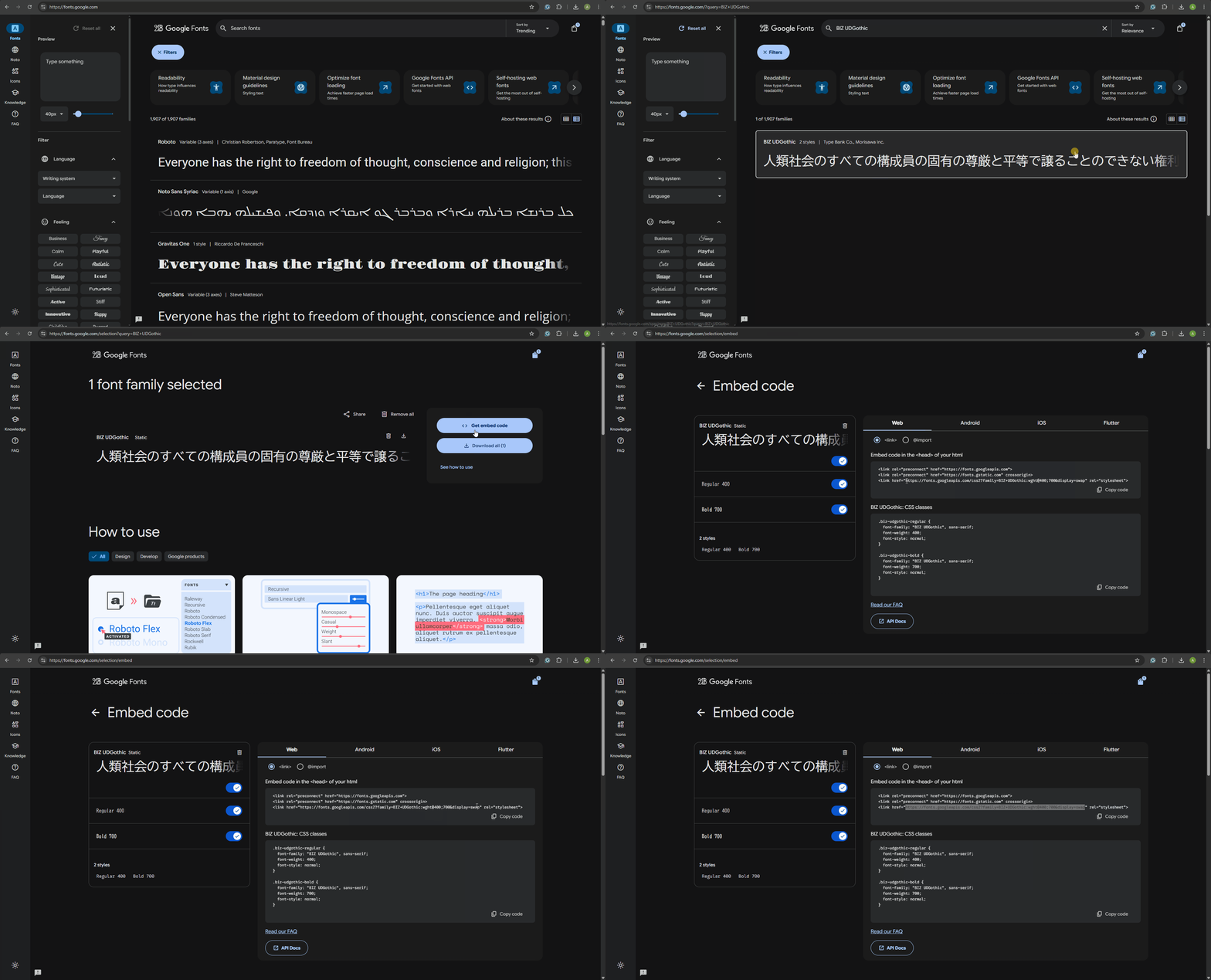
Copy the link from the
hrefattribute of the<link>tag as shown above
<link href="https://fonts.googleapis.com/css2?family=BIZ+UDGothic:wght@400;700&display=swap" rel="stylesheet">Copy https://fonts.googleapis.com/css2?family=BIZ+UDGothic:wght@400;700&display=swap
2. Link Google Font to all Email Templates
Now you need to go to each existing email template in your Design System and add <mj-font> in the <mj-head> tag
First, you need to prepare
<mj-font>tag. It should look like this
<mj-font href="https://fonts.googleapis.com/css2?family=BIZ+UDGothic:wght@400;700&display=swap" name="BIZ UDGothic"></mj-font>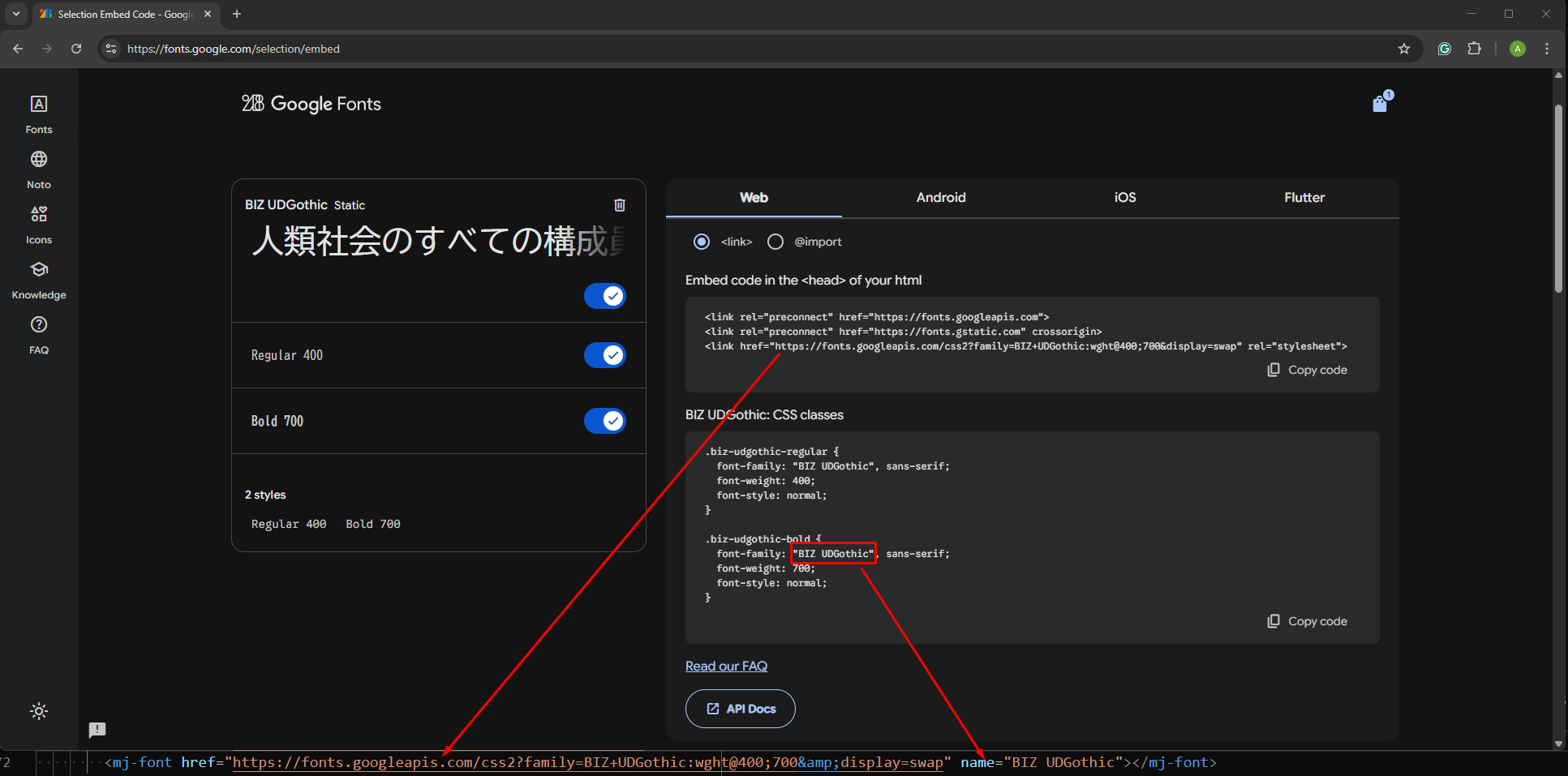
Now go to
email/templatesfolder in your Design System and copy paste the createdmj-fontinside<mj-head>tag into each templatemjml.htmlfile like so: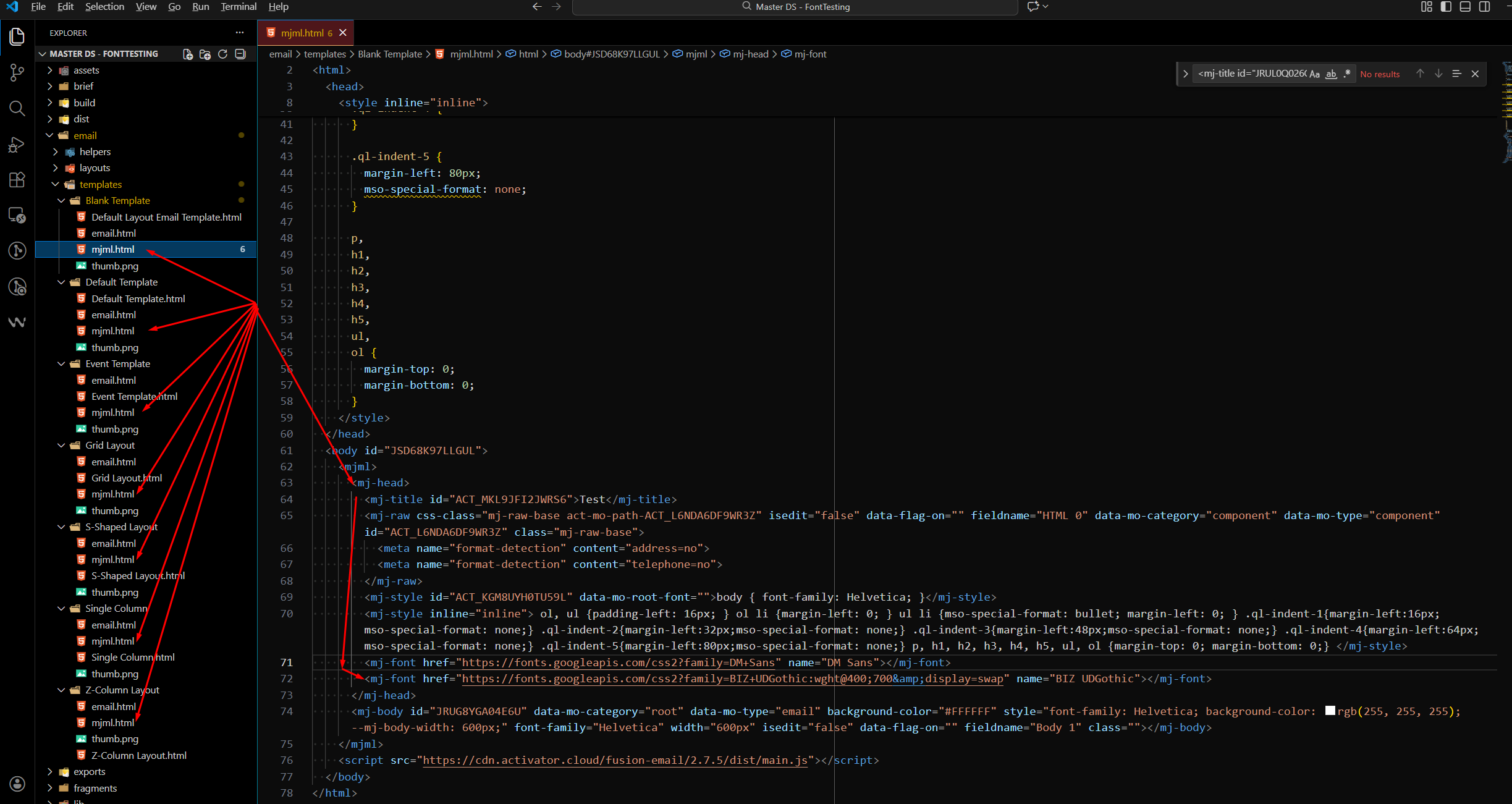
3. Add New Font to The Config
Note: This step is optional.
If you don’t add a new font to fonts.json it will show all possible font weights, even if your font supports, for example, only regular and bold. Because of this, the user will be able to select an unsupported font weight.
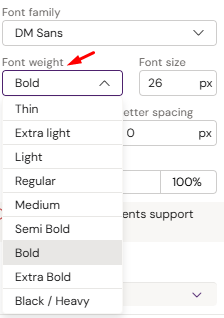
Other than that, the new font will work fine.
Go to
src/configfolderCreate
fonts.jsonfile if it doesn’t exist.Add new font-family and font-weight into config like so:
CODE{ "fonts": [ { "propName": "font-family", "propValue": "BIZ UDGothic", "inner": [ { "propName": "font-weight", "propValue": "400", "inner": [ { "propName": "font-style", "propValue": "normal", "src": "BIZ UDGothic" } ] }, { "propName": "font-weight", "propValue": "700", "inner": [ { "propName": "font-style", "propValue": "normal", "src": "BIZ UDGothic" } ] } ] } ] }
Also, please check src/fusion/config/fonts.json. It’s a good example of how to add multiple fonts with different font weights. But don’t modify files that are located in the fusion/config folder.
4. Rebuild and Reupload your DS
Run npm run prod in the root of your DS, then go to exports folder, find the latest build, and upload it to Vault or Aprimo.
5. Apply Updates to Already Existing Emails

Important: New font won’t work in the existing emails because they don’t include the <mj-font> definition that was added to the templates earlier.
However, all new emails will have this <mj-font> by default, because we updated all templates inside the Design System.
You need to add <mj-font> to the existing email source code
<mj-font href="https://fonts.googleapis.com/css2?family=BIZ+UDGothic:wght@400;700&display=swap" name="BIZ UDGothic"></mj-font>Compatibility with Different Email Clients
Unfortunately, custom web fonts are not supported in all mainstream clients.
Email clients that do support web fonts:
Apple Mail
iOS Mail
Android Mail (not Gmail)
Thunderbird
Outlook for macOS
According to Can I Email, certain versions of Outlook for Windows also have partial support for web fonts in email. Gmail does not fully support web fonts. The two web fonts Gmail will support are Roboto and Google Sans. That’s because Gmail uses those web fonts itself. Also, Gmail will strip @font-face CSS styles from the email HTML anyway.
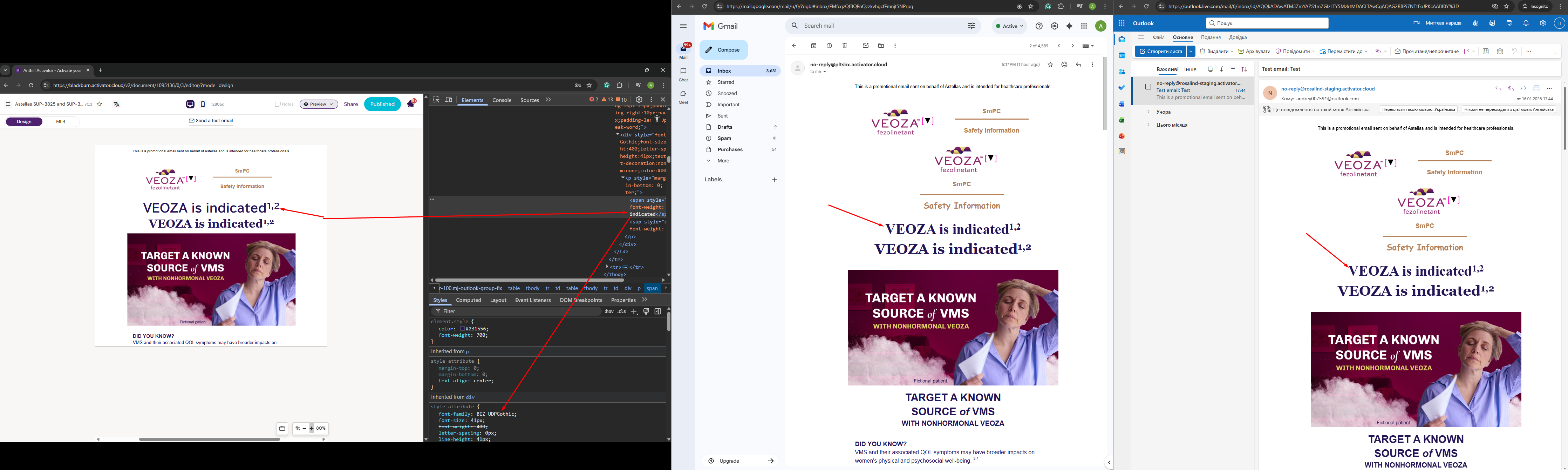

Due to these limitations, we recommend not using custom web fonts.
Here is the list of safe fonts with the widest support:
Arial
Arial Black
Comic Sans MS
Courier New
Georgia
Helvetica
Impact
Monaco
Tahoma
Times New Roman
Trebuchet MS
Verdana