
Interactions When creating slides or briefs, we can add interactions, which give us the ability to add interactivity to our slide or brief, for example opening a popup or navigation between slides.
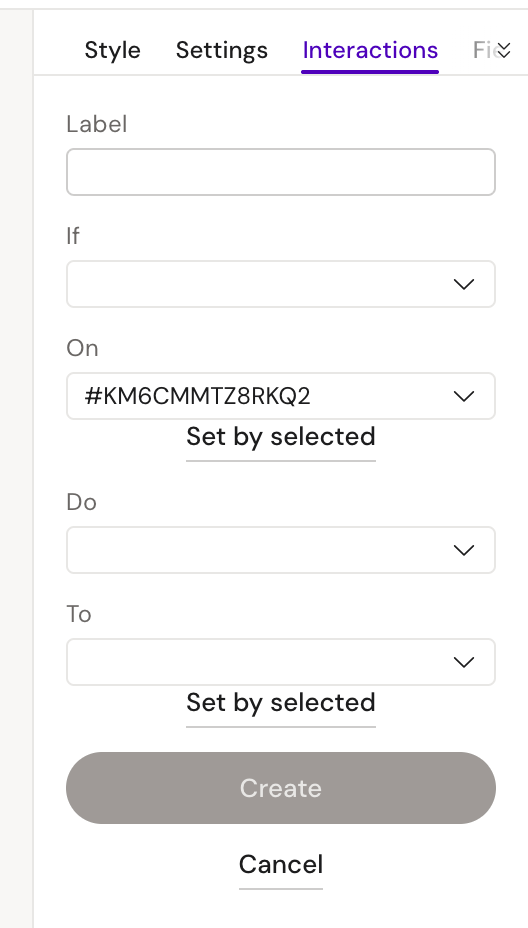
To add interactions, you need to go to the Interactions tab in the right panel.
Let's look at the logic of opening a popup using a button as an example.
First, add a popup and a button to the slide.
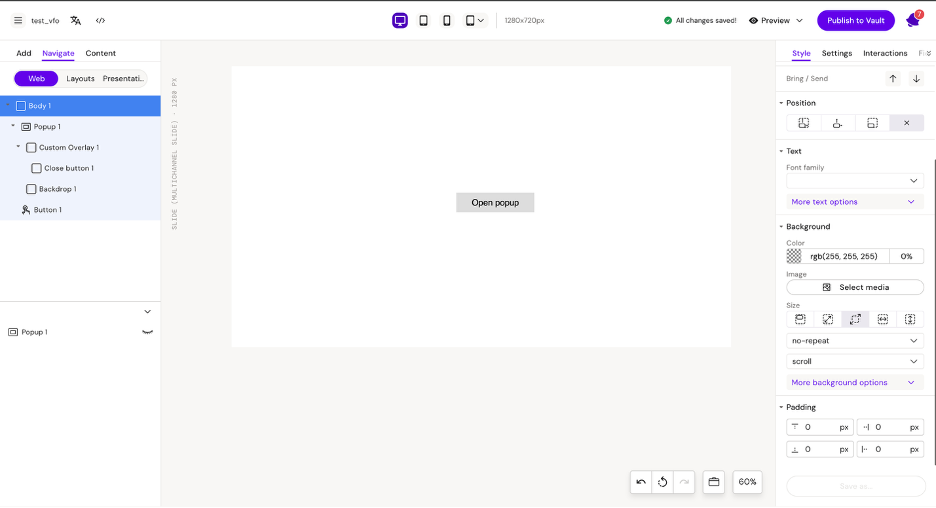
Then click on the button and go to the Interactions tab.
Label This is the name of the interaction. It should be set to make it easier to find the needed event.
If
In the If menu, you'll find a list of events that need to react in order to trigger the event:
-
click - mouse click on an item (standard JavaScript event)
-
dblclick - double click on an item (standard JavaScript event)
-
enter - when entering a state, e.g. opening a popup
-
exit - when exiting a state, e.g. closing a popup
-
focus - when an element is focused (standard JavaScript event)
-
blur - when an element loses focus (standard JavaScript event)
-
scroll - when scrolling an element (standard JavaScript event)
-
animationStart - when an element starts a CSS animation (standard JavaScript event)
-
animationEnd - when an element stops a CSS animation (standard JavaScript event)
-
transitionStart - when an element starts a CSS transition (standard JavaScript event)
-
transitionEnd - when an element stops a CSS transition (standard JavaScript event)
-
dragstart - when an element starts being dragged (standard JavaScript event)
-
drag - when an element is being dragged (standard JavaScript event)
-
dragend - when an element stops being dragged (standard JavaScript event)
-
loadNotification - a custom event triggered when the slide is done loading
-
$custom - listen to a custom event created in web component
On
This is the target element that will trigger the event. If you click "set by selected," the ID of the currently selected element will be added.
-
root - the slide root element, usually <div> element
-
notifier - a built-in notifier for the slide loading event. Used together with the 'loadNotification' event.
Do
This is the event that should happen when clicking on the target element:
-
Navigate - select binder and slide to navigate to
-
Next slide - if slide is in binder
-
Previous slide - if slide is in binder
-
Apply state - select an available state to apply, e.g. open a popup
-
Remove state - select an available state to remove, e.g. close a popup
-
Toggle state - select available state to toggle on and off
-
Set states - select multiple states that should be active
-
Activate next state
-
Inactivate current state
-
Bounce animation - CSS animation
-
Fade-in animation - CSS animation
-
Fade-out animation - CSS animation
-
Pulse animation - CSS animation
-
Slide-in from left - CSS animation
-
Slide-in from right - CSS animation
-
Slide-in from top - CSS animation
-
Slide-in from bottom - CSS animation
To
This is the element to which the above-mentioned event should be applied:
-
target - the 'on' element (the element that triggers the event)
-
$element - deprecated
-
$parent - the parent to the 'on' element
-
$closest - closest parent element matching query supplied, e.g. '$closest .slider'
-
$find - find descendent element matching supplied query, e.g. ‘$find .slider’
-
$children - find immediate children matching query, e.g. ‘$children .odd’
-
$slide - the slide element
-
$binder - deprecated
Let's break it down using the popup example.
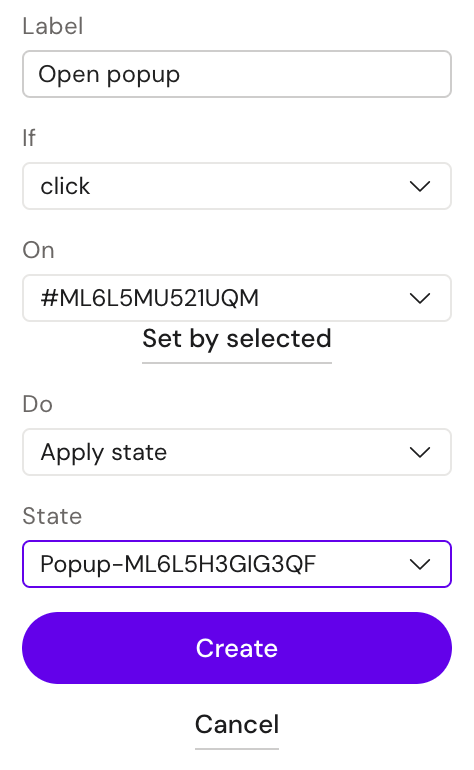

After that, you need to click the Create button.
After creating the interaction, we can notice an action icon next to the target element.
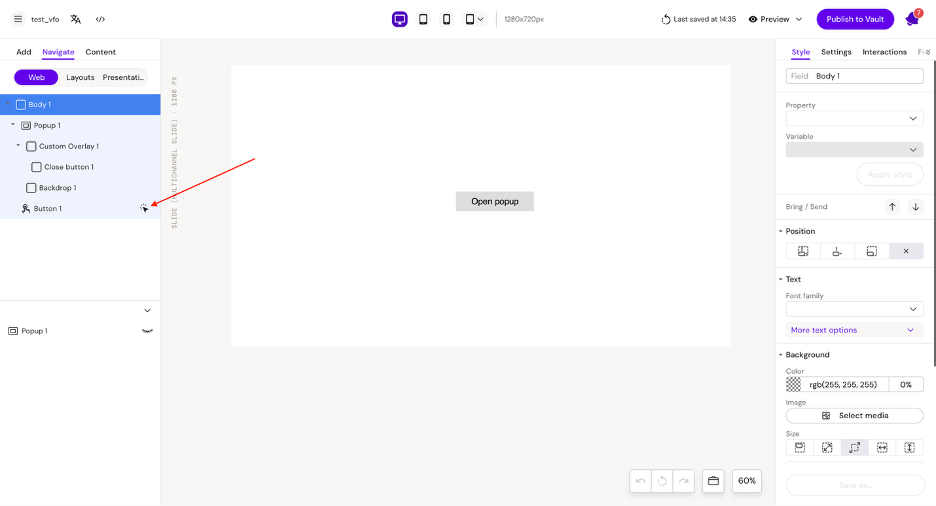
As we can see, the "To" field may differ depending on the selected event. For example, when we select the Navigate event, additional parameters will appear.
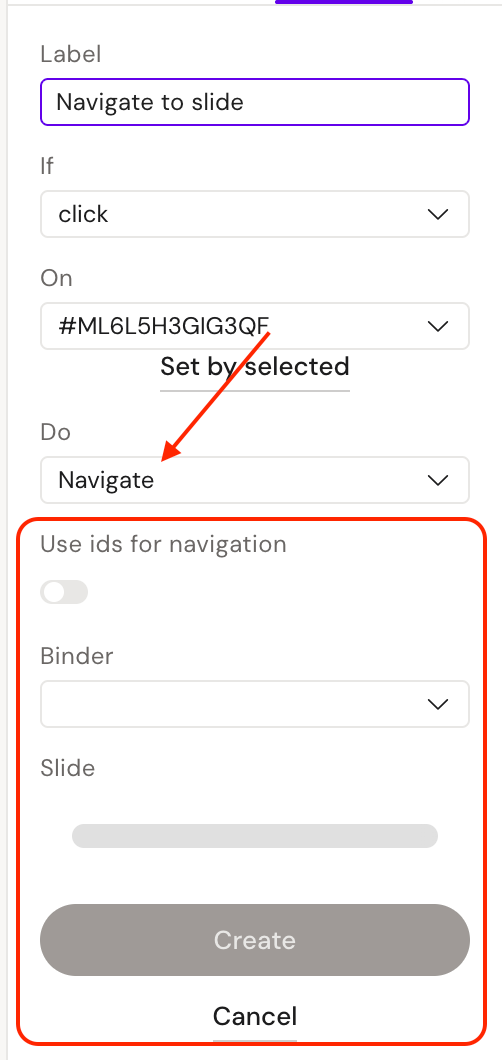
Let's look at the navigation interaction.
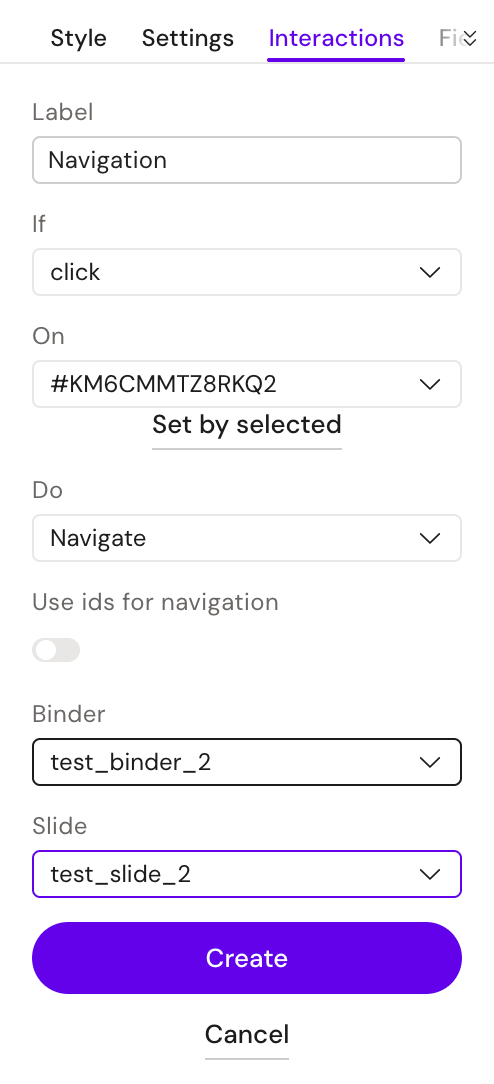
To select the slide we'll navigate to after clicking the button, you also need to specify the binder.
To navigate to a slide from another binder, that binder must reference the same DS (data source) as the slide.
After saving the interaction, a fusion-action element is added to the slide under the hood:
<fusion-action id="ML6N43J57YSMX" label="Navigate"
      if="click" on="#ML6L5MU521UQM" do="Navigate"
      internalid="93015473118" internalbinderid="93015473117" externalid=""
      zoom-container="" slide="test_slide_2" binder="test_binder_2"
      state="" to="" owner="#ML6L5MU521UQM" isedit="false"
      data-mo-category="component" data-mo-type="component"
      docidnavigation="">
Here we can see the data we specified when creating the interaction.