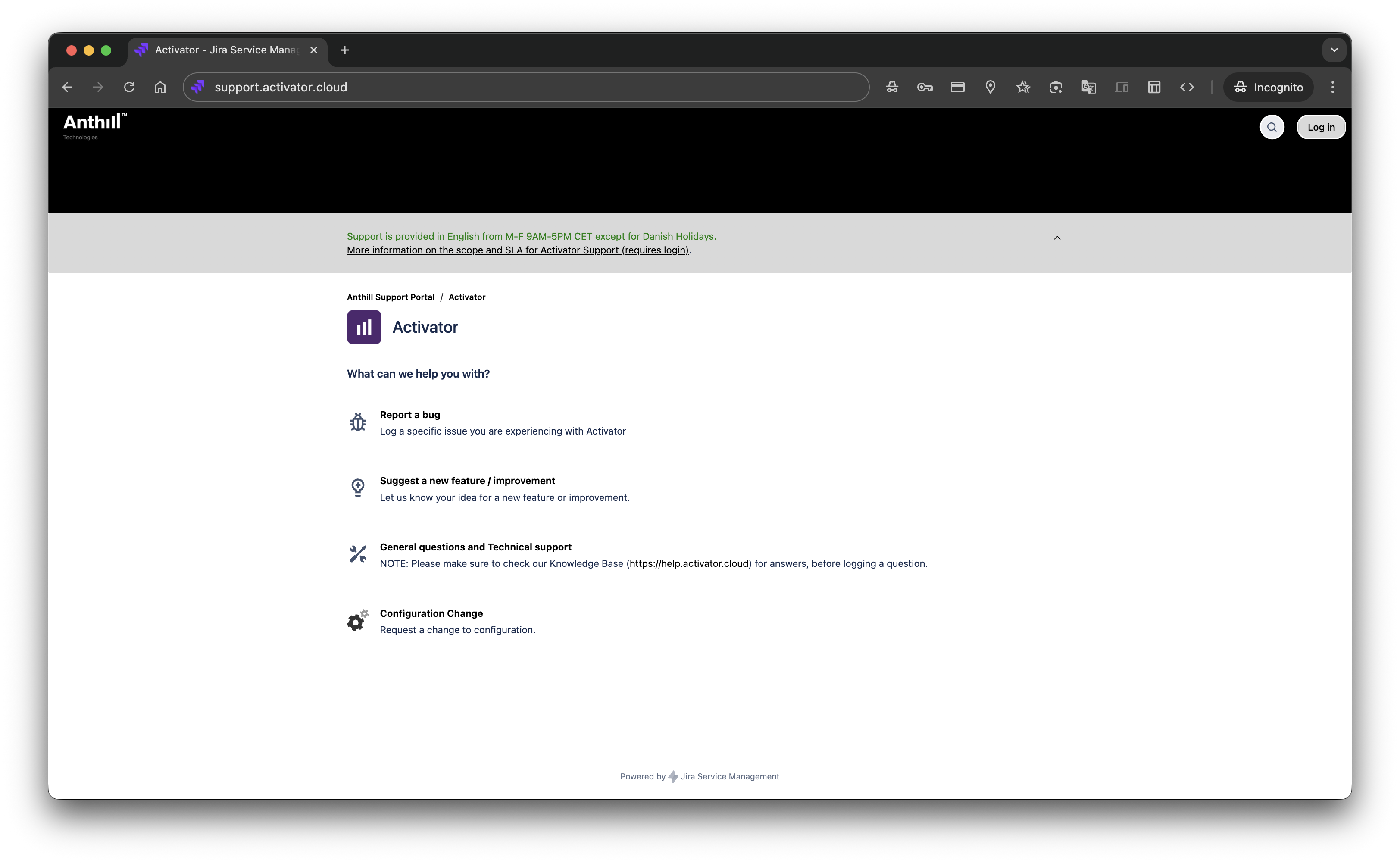
Common issues and how to resolve them. If your issue isn't covered here, contact the Activator Support Team via the Service Desk.
When submitting a support request, always include: your tenant name, the content type and document name, the browser you're using, and a screenshot or screen recording of the issue.
General
Activator is slow or unresponsive
Symptoms: Pages take a long time to load, the editor feels sluggish, or actions (save, preview, publish) time out.
What to try:
-
Clear your browser cache and reload the page. See Clear Your Browser Cache.
-
Check whether the issue occurs in a different browser (e.g. Chrome vs. Edge). See Supported Browsers.
-
Close other browser tabs — Activator's editor can be resource-intensive, especially with large documents or complex layouts.
-
If the issue is limited to a specific document, it may contain an unusually large number of layouts, media assets, or modular content imports. Try working with a smaller subset to isolate the problem.
-
If none of the above helps, submit a Service Desk ticket with details on when the issue started and which documents or actions are affected.
I can't log in to Activator
Symptoms: Login page shows an error, credentials are rejected, or you're redirected in a loop.
What to try:
-
Verify you're using the correct login URL for your tenant. Different organisations have different Activator URLs.
-
Clear your browser cache and cookies, then try again.
-
If your organisation uses Single Sign-On (SSO), check whether you can access other SSO-enabled applications. If not, the issue may be with your identity provider — contact your IT team.
-
If you recently changed your password, make sure you're using the updated credentials.
-
If the problem persists, contact your organisation's Activator administrator or raise a ticket via the Service Desk.
I see an error message I don't understand
Symptoms: A generic error message appears (e.g. "Something went wrong" or a technical error code).
What to try:
-
Take a screenshot of the error message, including any error codes or reference IDs.
-
Reload the page and try the action again.
-
If the error persists, submit a Service Desk ticket with the screenshot, the action you were performing, and the document or page you were on.
Content Authoring
My content looks different in the editor vs. preview
Symptoms: Spacing, fonts, colours, or element positions differ between the Editor view and the Preview.
What to try:
-
This can be expected in some cases — the Editor view includes UI chrome (toolbars, selection handles, padding) that doesn't appear in Preview. Preview reflects the published output more accurately.
-
If the difference is significant (e.g. text is missing, images are misaligned, or layout structure is broken), check whether your Design System has been recently updated. A Design System change can affect how existing content renders.
-
Review Why spacing may differ (rendering rules) for common rendering differences.
-
If the issue is specific to a single document or layout, try duplicating the document and checking whether the issue reproduces.
I can't edit a text block or image
Symptoms: Clicking on a content element does nothing, or the element appears locked.
What to try:
-
Check your role permissions. Some roles have read-only access to certain content types or projects. See Roles & permissions.
-
Check whether Content Rules are applied to the Layout element. Content Rules can restrict editing for specific elements to enforce compliance.
-
If the document is currently being edited by another user, some elements may be locked. Check whether a collaborator has the document open.
-
Reload the page — in rare cases, the editor state can become stale after a long session.
I accidentally deleted content — can I undo it?
Symptoms: You deleted a content element or cleared a section and want to restore it.
What to try:
-
Use your browser's undo shortcut (Ctrl+Z / Cmd+Z) immediately after the action. Activator supports undo for most editor actions within the current session.
-
If you've already saved and closed the document, the previous version may not be automatically recoverable. Contact support via the Service Desk with the document name and approximate time of the deletion — in some cases, content can be restored from the backend.
Copy/paste from external sources (Word, web) produces unexpected formatting
Symptoms: Pasting text from Microsoft Word, a web page, or another application results in broken formatting, extra spacing, or unsupported styles.
What to try:
-
Paste as plain text first (Ctrl+Shift+V / Cmd+Shift+V), then apply formatting within Activator.
-
Avoid pasting complex tables, nested lists, or styled content from external sources — these often carry hidden HTML/CSS that conflicts with Activator's component model.
-
For reusable content, use the Briefcase feature to copy between Activator documents instead of external copy/paste. See Copy/Paste (Briefcase).
Modular Content
Imported modules don't appear in my module list
Symptoms: You imported modules from Veeva Vault, but they don't show up under the Modules tab.
What to try:
-
Check your product and country filters in the import overlay — modules are filtered by these values. If the wrong filter is selected, relevant modules won't appear.
-
Reload the page after importing. In some cases, the module list doesn't refresh automatically.
-
Verify that the modules exist and are in an active state in Veeva Vault. Draft, expired, or withdrawn modules may not be available for import.
-
If the issue persists, raise a ticket with the module name(s) and your filter settings.
Modular Content shows as "Modified" even though I didn't change anything
Symptoms: The MLR preview shows a content element as "Modified" (red), but you don't believe you made any edits.
What to try:
-
Check for invisible changes — extra whitespace, a trailing space, or a line break can trigger the "Modified" status.
-
Open the MLR report to see the exact diff. The report highlights what changed between the Vault-approved version and your current version.
-
If the modification was unintentional, clear the Modular Content link and re-import the module to restore the original approved version.
I can't find the right module in the import overlay
Symptoms: You know a content module exists in Veeva Vault, but it doesn't appear when you try to import it.
What to try:
-
Double-check your product and country filter selections.
-
Search by module name or keywords in the search bar within the import overlay.
-
Confirm with your Veeva Vault administrator that the module is in an approved/active state and is associated with the correct product and country.
-
Some modules may be restricted by Vault permissions — check whether your Vault role has access to the relevant document.
Email
My email renders differently across email clients
Symptoms: The email looks correct in one client (e.g. Gmail) but has layout issues in another (e.g. Outlook, Apple Mail).
What to try:
-
This is a known limitation of email rendering — different email clients support different subsets of HTML and CSS. Outlook (desktop) is the most restrictive.
-
Review Email Limitations for known rendering constraints.
-
Follow the guidance in Email Layout Design Best Practices when designing layouts — avoid CSS features that lack cross-client support (e.g. flexbox, CSS grid, background images on table cells in Outlook).
-
Always send test emails to multiple clients before publishing. See Test an email.
Test email is not arriving
Symptoms: You sent a test email but it doesn't appear in the recipient's inbox.
What to try:
-
Check the spam/junk folder.
-
Verify the recipient email address is correct.
-
Wait a few minutes — test emails may be delayed depending on your organisation's email infrastructure.
-
If you're using tokens in the email (e.g. dynamic recipient fields), ensure they resolve correctly in test mode.
-
If test emails consistently fail, the issue may be with your organisation's email sending configuration (SMTP, sending domain). Contact your IT team or raise a Service Desk ticket.
Email tokens are not rendering correctly
Symptoms: Tokens appear as raw text (e.g. {{first_name}}) in the preview or test email instead of being replaced with actual values.
What to try:
-
In preview mode within Activator, tokens will typically display as placeholder text — this is expected. Tokens are resolved by the distribution platform (e.g. Veeva CRM, SFMC) at send time.
-
When sending test emails, some platforms require test-specific configurations to resolve tokens. Check your platform's test email documentation.
-
Ensure the token syntax matches what your distribution platform expects. Different platforms use different token formats. See Email Tokens.
Slides & eDetailer
Slide preview doesn't match the published output on a tablet
Symptoms: The slide looks correct in Activator's preview but appears differently when viewed on a physical device via Veeva CRM.
What to try:
-
Check the target resolution — Activator previews at a specific screen dimension that may differ from your target device. Tablet screen sizes vary.
-
If you're using responsive layouts, verify that the responsive breakpoints align with your target devices. See Responsive slide.
-
Custom CSS or JavaScript in your Design System may behave differently in the CLM player environment vs. a browser. Test on the actual target device early in the content creation process.
-
If popups or interactions are not triggering on the device, check that your interaction configuration is compatible with touch events (tap vs. click). See How to create and trigger interactions.
Interactions (popups, navigation) are not working
Symptoms: Tapping/clicking a button on a slide does not open the expected popup or navigate to the target slide.
What to try:
-
Verify that the interaction is correctly configured — check the trigger element, the action type, and the target (popup ID or slide reference).
-
Open Preview and test the interaction there first. If it works in Preview but not on-device, the issue may be device- or CLM-player-specific.
-
If using nested popups or complex navigation paths, check for circular references or missing targets.
-
Review How to create and trigger interactions for setup guidance.
Design Systems
My content looks wrong after a Design System update
Symptoms: Existing content that previously looked correct now has visual issues (wrong fonts, broken spacing, missing styles) after a Design System change.
What to try:
-
This is expected when a Design System update modifies styles or layouts that existing content depends on. Design System changes can affect all content that uses the updated system.
-
If you're using DS2 (static), you may need to manually recompile the Design System for the changes to take effect. See When to manually recompile a Design System.
-
If the change was unintentional, contact your Design System administrator to review and revert the update.
-
For DS3 (in-app), check the Design System Governance process to understand who made the change and whether it was approved. See Design System Governance.
I don't know whether I'm using DS2 or DS3
Symptoms: You're unsure which Design System version applies to your project.
What to try:
-
If you can access and edit Design System settings directly within the Activator interface (under the Design Systems section), you're using DS3.
-
If your Design System is managed via uploaded files and requires manual compilation, you're on DS2.
-
If still unsure, ask your Anthill project lead — the Design System version is configured per tenant.
Publishing
Publishing fails with an error
Symptoms: You click Publish and receive an error message. The content is not pushed to your content repository.
What to try:
-
Check that all required fields and metadata are filled in. Some content types require specific metadata (e.g. email subject line, sender name) before they can be published.
-
Verify that your connected content repository (e.g. Veeva Vault) is accessible and that your integration credentials are valid.
-
If the error references a specific content element, open that element in the editor and check for validation issues (unsupported characters, missing assets, broken links).
-
Retry the publish action — transient network or API issues can sometimes cause one-off failures.
-
If the error persists, submit a Service Desk ticket with the full error message and the document name.
Published content doesn't appear in Veeva Vault
Symptoms: Activator shows the publish as successful, but the content is not visible in Vault.
What to try:
-
Check the target location in Vault — publishing may go to a staging area, specific folder, or product-country combination that differs from where you're looking.
-
Verify that your Vault permissions allow you to view the published document type and location.
-
Publishing can take a few minutes to propagate depending on Vault processing queues.
-
If the content still doesn't appear after 15 minutes, raise a Service Desk ticket.
MLR Report
MLR report takes a very long time to generate
Symptoms: You clicked "Get MLR Report" and the report hasn't been delivered after several minutes.
What to try:
-
Report generation time depends on the number of layouts, content elements, and screenshots required. Complex eDetailers with many slides and popups will take longer.
-
You can continue working in Activator while the report generates — a notification will appear when it's ready.
-
If the report hasn't arrived after 10–15 minutes, reload the page and check whether the notification was missed.
-
If generation consistently fails, raise a Service Desk ticket. Include the document name and approximate number of slides/layouts.
MLR report screenshots are missing or incorrect
Symptoms: The generated MLR PDF is missing screenshots for some content elements, or the screenshots don't match the current content.
What to try:
-
For slides with nested popups, specific screenshot guidelines apply. See Guidelines: Custom Report Screenshots for nested popup states.
-
If you made recent edits, make sure you saved before generating the report. The report reflects the last saved state.
-
Clear your browser cache and regenerate the report — in some cases, cached assets can cause rendering mismatches in report screenshots.
Media & Assets
Image upload fails
Symptoms: You try to upload an image to the Media Library or a content element, but the upload fails or the image doesn't appear.
What to try:
-
Check the file format — only supported formats can be uploaded. See Supported asset formats.
-
Check the filename for unsupported characters. See Supported characters.
-
Check the file size — very large images may exceed upload limits.
-
If the image uploads but doesn't render, the file may be corrupted. Try re-exporting or re-saving the image from its source application.
Uploaded image quality is poor
Symptoms: An image you uploaded appears pixelated or blurry in the editor or preview.
What to try:
-
Ensure you're uploading the image at the intended display resolution or higher. Activator doesn't upscale images.
-
For retina/high-DPI displays (common on tablets used for eDetailers), use images at 2x the intended display size for sharp rendering.
-
Avoid excessive JPEG compression — use PNG for images that require sharp edges, transparency, or text overlays.
Still need help?
If your issue isn't covered here, or if the suggested steps don't resolve it, please contact the Activator Support Team:
When submitting a ticket, include:
-
Your tenant name
-
The content type and document name you're working with
-
The browser and version you're using
-
A screenshot or screen recording of the issue
-
The steps to reproduce the problem (what you did right before the issue occurred)
The more detail you provide, the faster we can help.