
This section explains how to validate and deliver content from Activator: preview, translate, publish, and (where enabled) generate an MLR PDF report.
Workflow at a glance
1. Save
Save your changes in the Editor before moving on. Preview and publish reflect the last saved state.
2. Preview
Open the Preview to verify the result. Where available, toggle between Design view and MLR view.
3. Translate (optional)
Run translation workflows if your project needs localised versions.
4. Publish
Push the content to the connected repository (DAM). Publishing runs in the background — keep working and watch the notification bell for completion.
5. MLR Report (if required)
Generate the MLR PDF report from Preview to support the review process.
Typical workflow
-
Save your changes
-
Preview (design vs review views, where applicable)
-
Translate (optional)
-
Publish to your connected repository (DAM)
-
Generate an MLR report (if required)
Varies by tenant (Anthill-managed)
Available preview modes, publishing targets, required metadata, and MLR functionality depend on tenant configuration. Learn more.
Publishing progress and notifications
When you trigger a publish the publish operation runs in the background and keeps you informed through the notification bell in the top navigation bar.
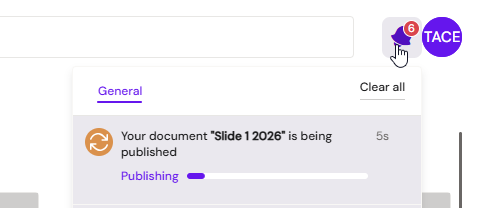
What to expect:
-
After submitting a publish, you can continue working in Activator — you do not need to wait on any dialog.
-
The notification bell icon will show an update when the publish operation completes (successfully or with an error).
-
Open the notification panel by clicking the bell icon to see the outcome and any relevant details.
Why this matters: Publishing to a DAM can take time, particularly for larger documents or those with complex publishing flows. The notification system means you always know when the operation has finished, without having to stay on a waiting screen or re-check the document status manually.