
Activator does not run the Medical/Legal/Regulatory (MLR) review process. What Activator can do is generate an MLR PDF report that helps reviewers focus on what actually needs review by highlighting:
-
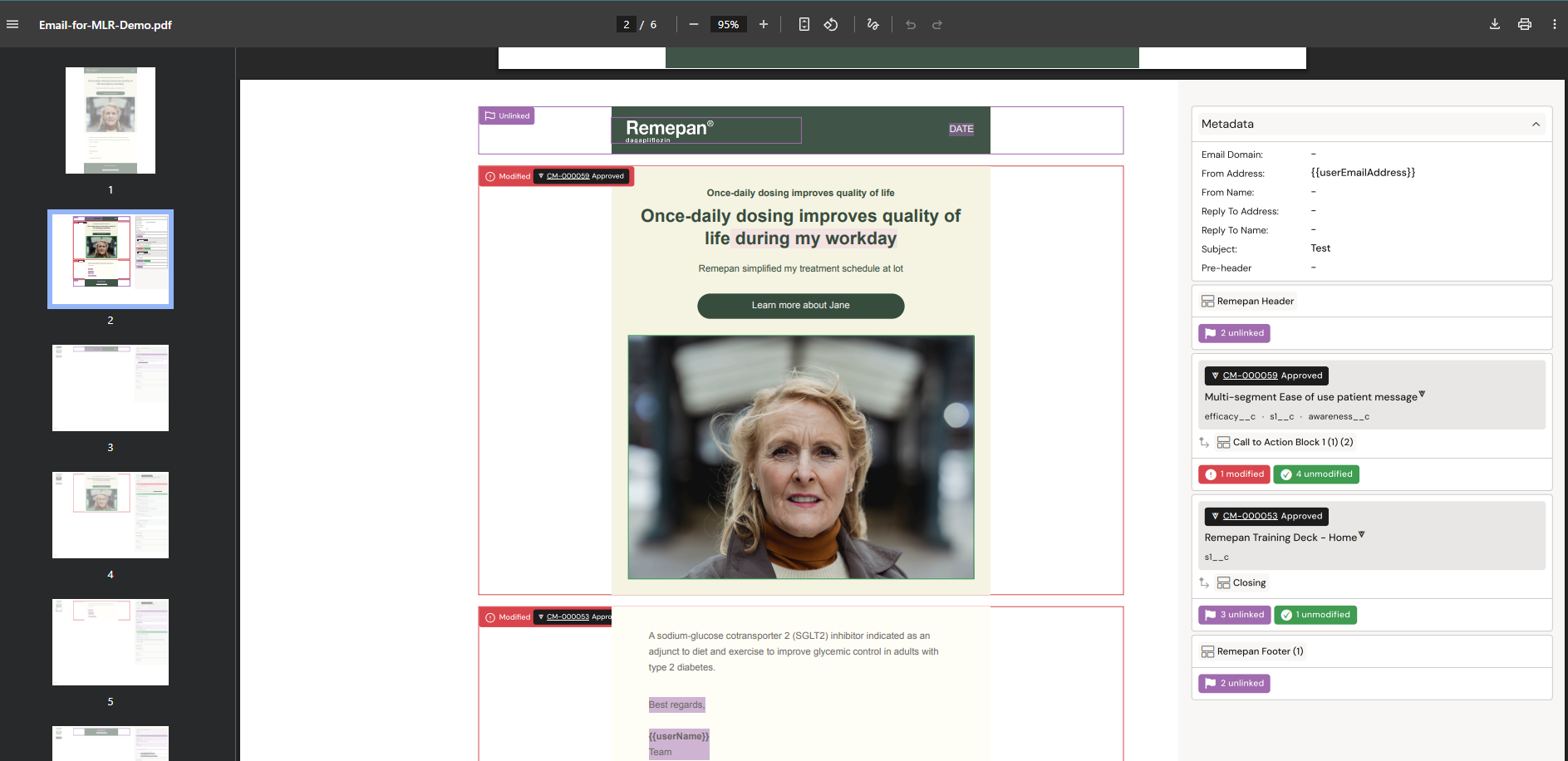
Content that is reused and unchanged from an approved source
-
Content that is new / not linked to an approved source
-
Content that was linked but modified, and therefore needs review again
This report is typically used as an input to your organisation’s MLR workflow.
Meaningful Attributes in the MLR Report
To reduce unnecessary noise and make the report easier to review, Activator only includes layouts that contain meaningful attributes.
A meaningful attribute is any value configured on a layout or component that introduces information reviewers may need to verify, such as external references, metadata, accessibility fields, or configured behavior.
Layouts are included in the MLR report when they contain one or more of the following:
-
A content module reference attached to the layout
-
Custom attributes configured on the layout or component
-
Anchor elements or explicit links (for example
hrefattributes) -
Text fields containing embedded hyperlinks
-
Image attributes, such as
alttext -
Element attributes such as
title, labels, or other configured fields -
File references or other externally referenced assets
Layouts that only act as structural wrappers for content are excluded from the report. For example, layouts that contain only plain text without links, metadata, or other configured attributes will not appear as separate pages in the MLR report.
This approach ensures the report focuses on elements that introduce review-relevant metadata or external references, while avoiding pages that contain no additional compliance information.
As a result, the number of pages in the MLR report may differ from earlier versions or between documents, even though the underlying document content remains unchanged. The report is intended to highlight review-relevant information, not replicate the full structural layout of the document.
Varies by tenant (Anthill-managed)
MLR view/report availability and what qualifies as “approved” depends on tenant configuration and repository metadata. Learn more.
When to use the MLR PDF report
Use the report when you need to:
-
Prepare a document for MLR review
-
Provide reviewers with a clear summary of what changed
-
Reduce review effort by reusing previously approved content (where supported)
-
Generate one report for a whole Presentation instead of one per Slide
How the MLR view works (before generating the PDF)
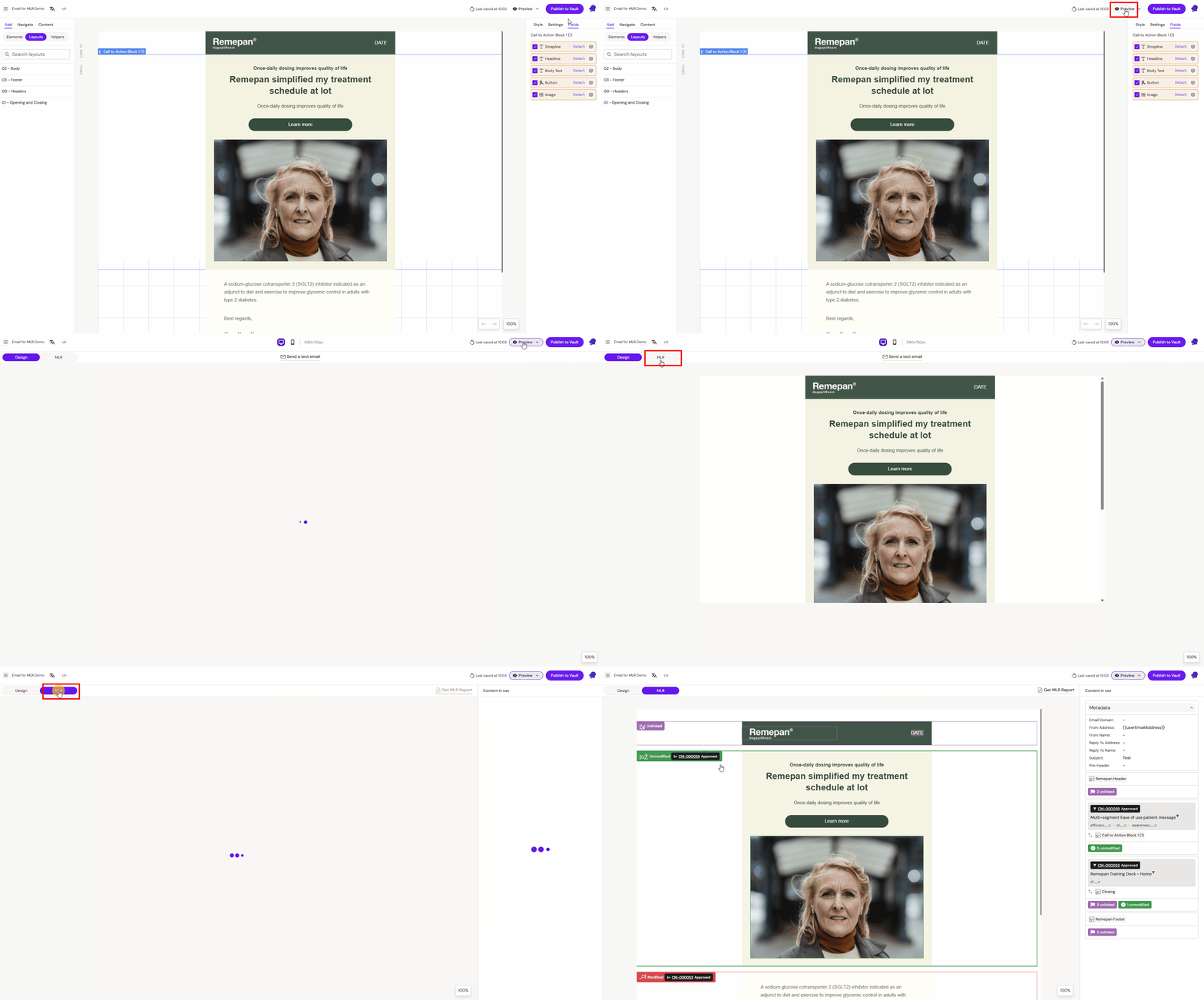
The report is generated from the MLR view in Preview mode.
Open the MLR view
-
Open the document (Email, Slide, or Brief)
-
Click Preview
-
Switch from Design view to MLR view
What you see in MLR view
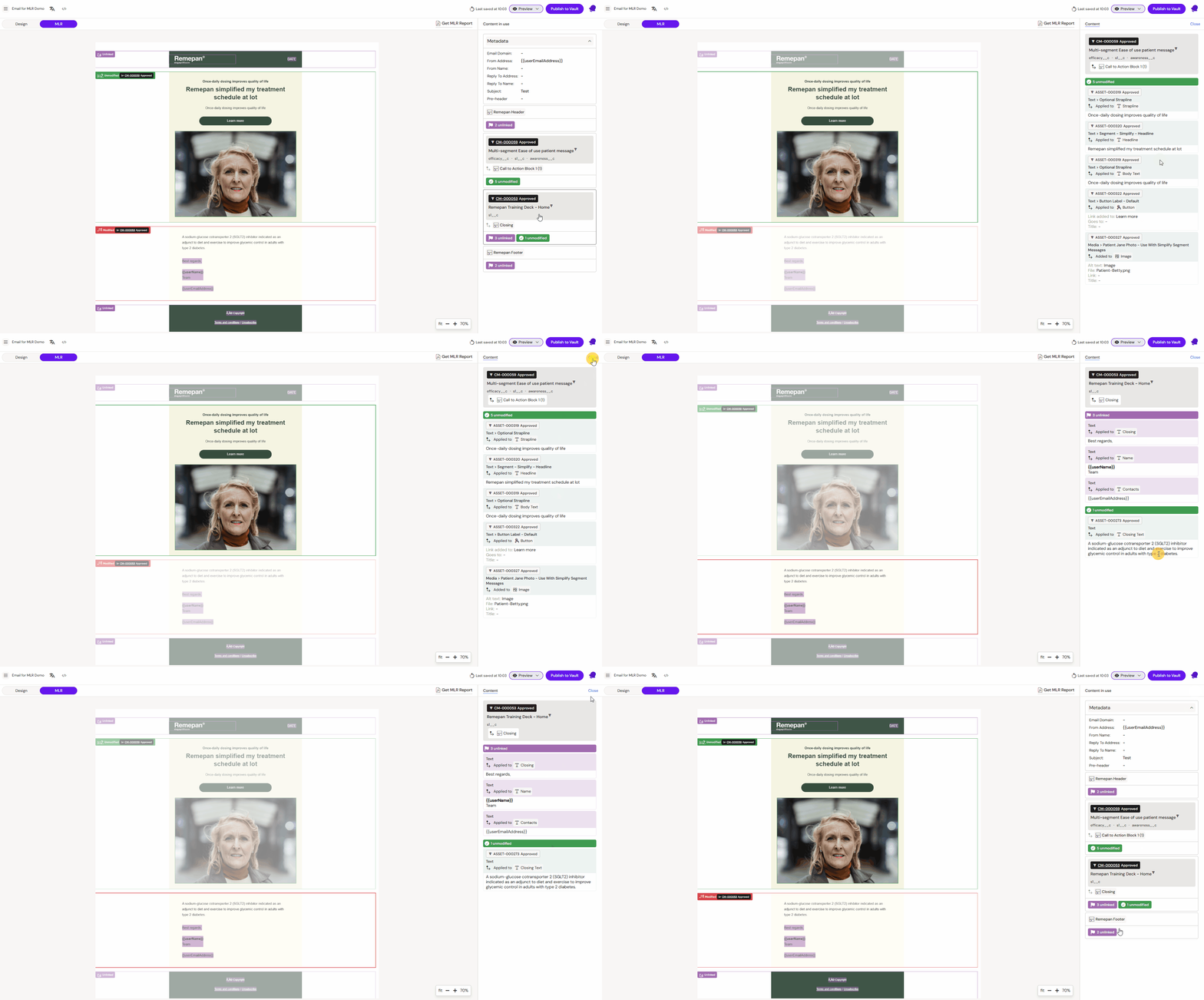
In MLR view, the right-hand pane shows:
-
The layouts used in the document
-
The fields/content elements inside each layout
-
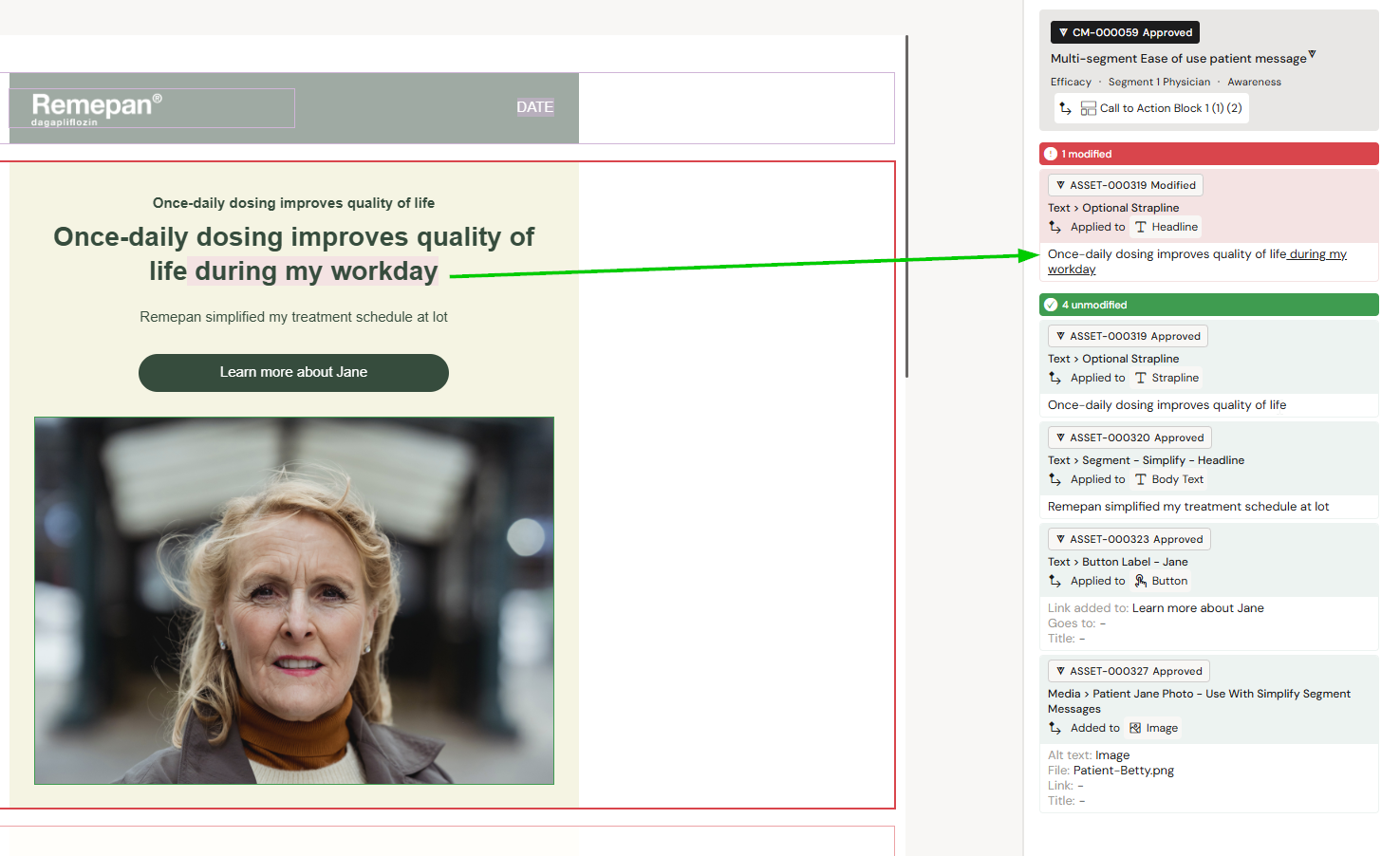
Indicators showing whether fields are linked to approved content and whether they were modified
This is the fastest way to validate whether your document is “mostly reused” or “mostly new”.
Understanding the MLR states
In the MLR view and PDF report, content elements typically show one of three states:
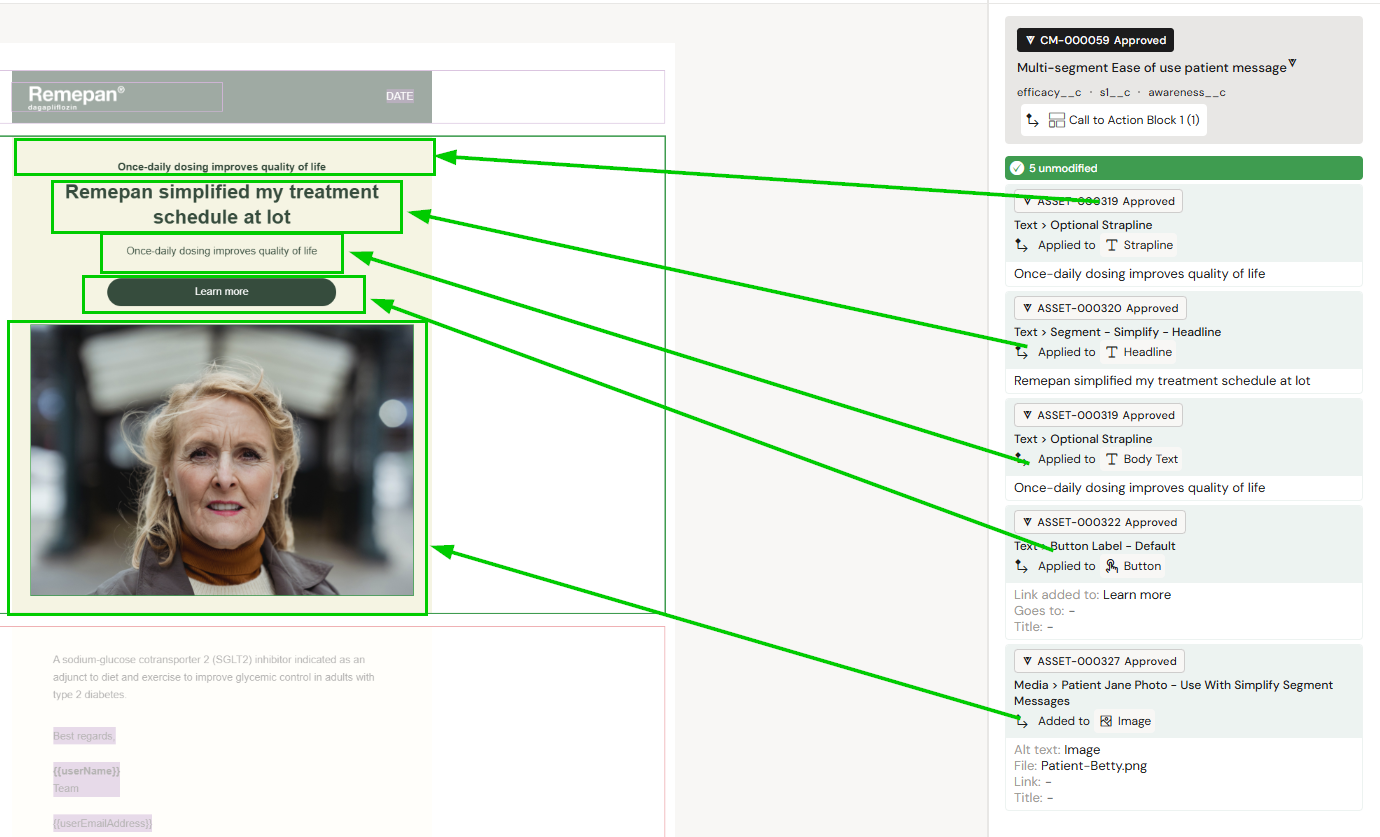
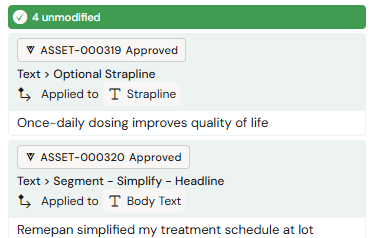
Unmodified (green)
-
The field is linked to an approved source
-
The content matches the approved source (no changes)
This indicates reviewers can usually spend minimal time on that element.
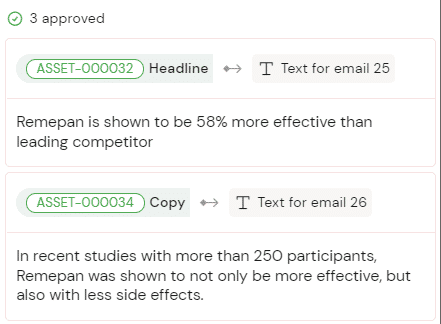
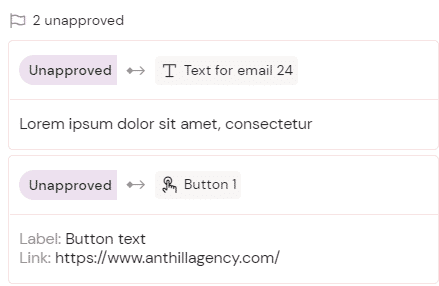
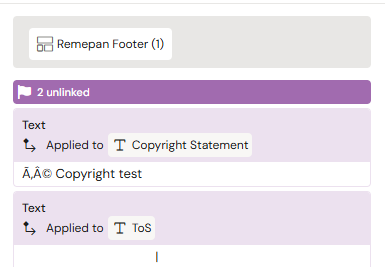
Unlinked (purple)
-
The field is not linked to an approved source, or
-
It contains new content, or
-
It contains placeholder content from layouts
This indicates the content should be treated as new and reviewed.
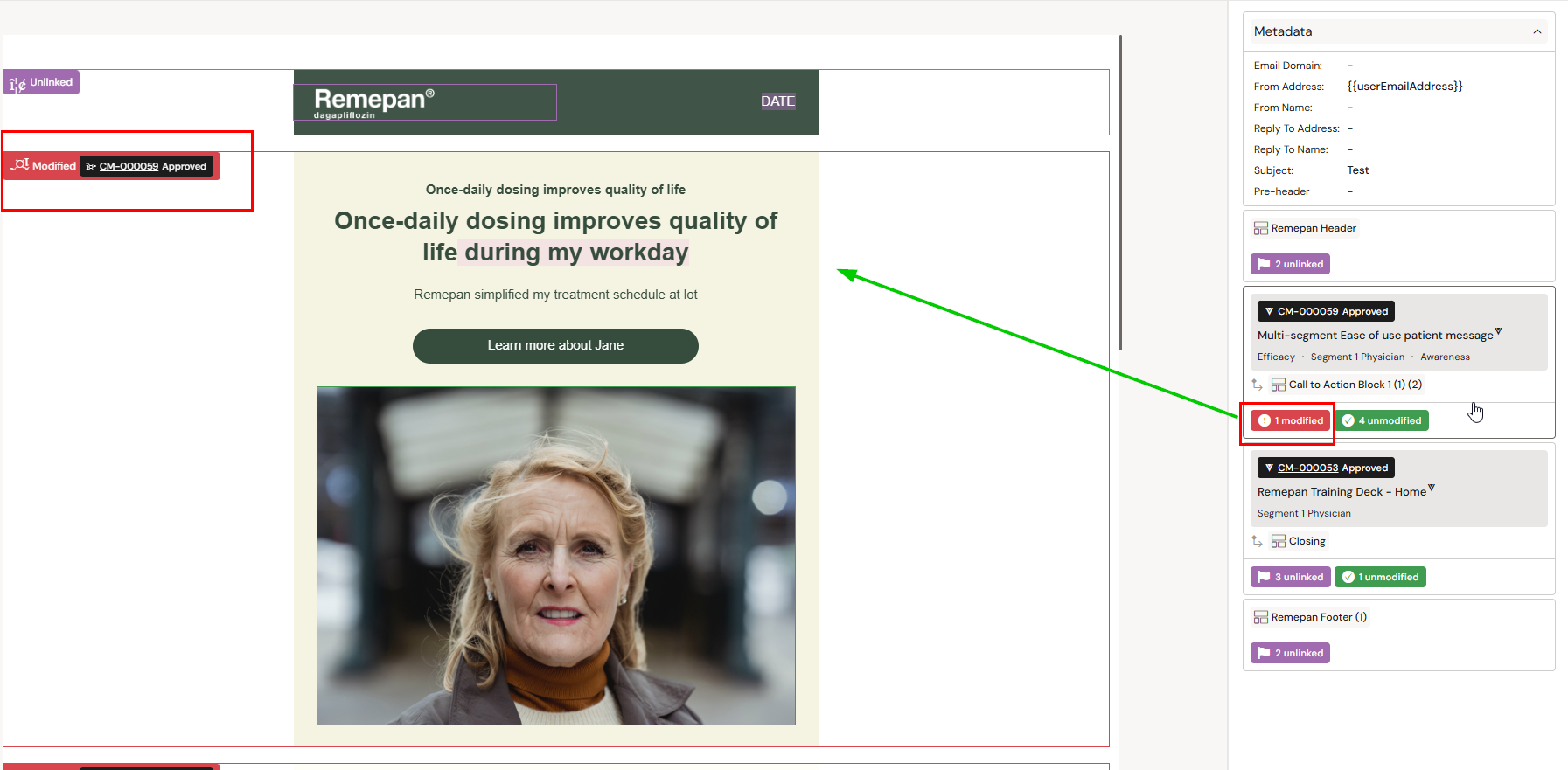
Modified (red)
-
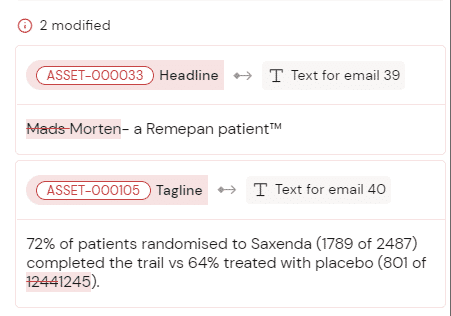
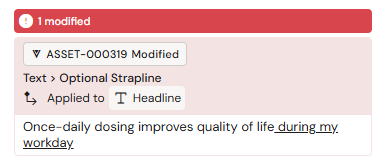
The field is linked to an approved source, but
-
The text/image was changed after linking (additions/removals/edits)
This indicates the content must be reviewed again. The report highlights the modifications.
Important
What counts as “approved source” depends on your tenant setup (for example, modular content backed by repository records).
Generate an MLR PDF report for a single document
Once your document is ready for review, generate the PDF from MLR view.
Steps
-
Open the document
-
Click Preview
-
Switch to MLR view
-
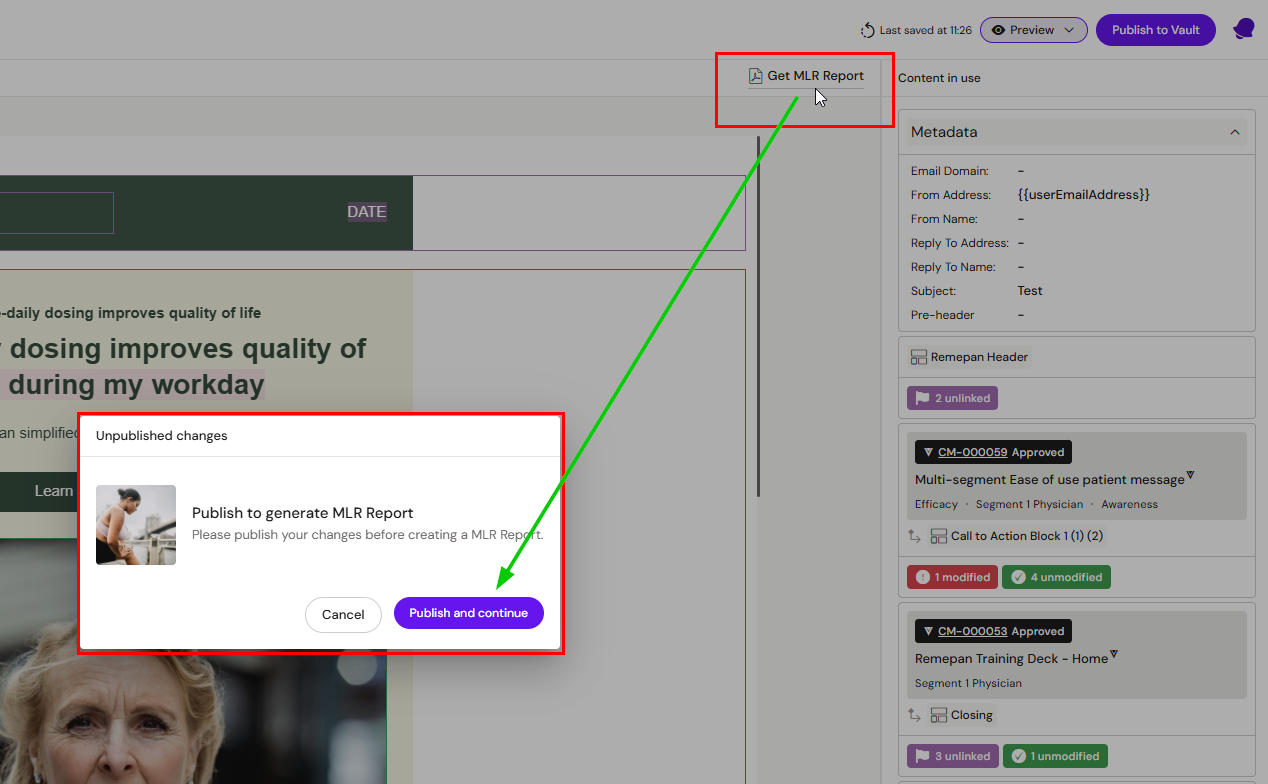
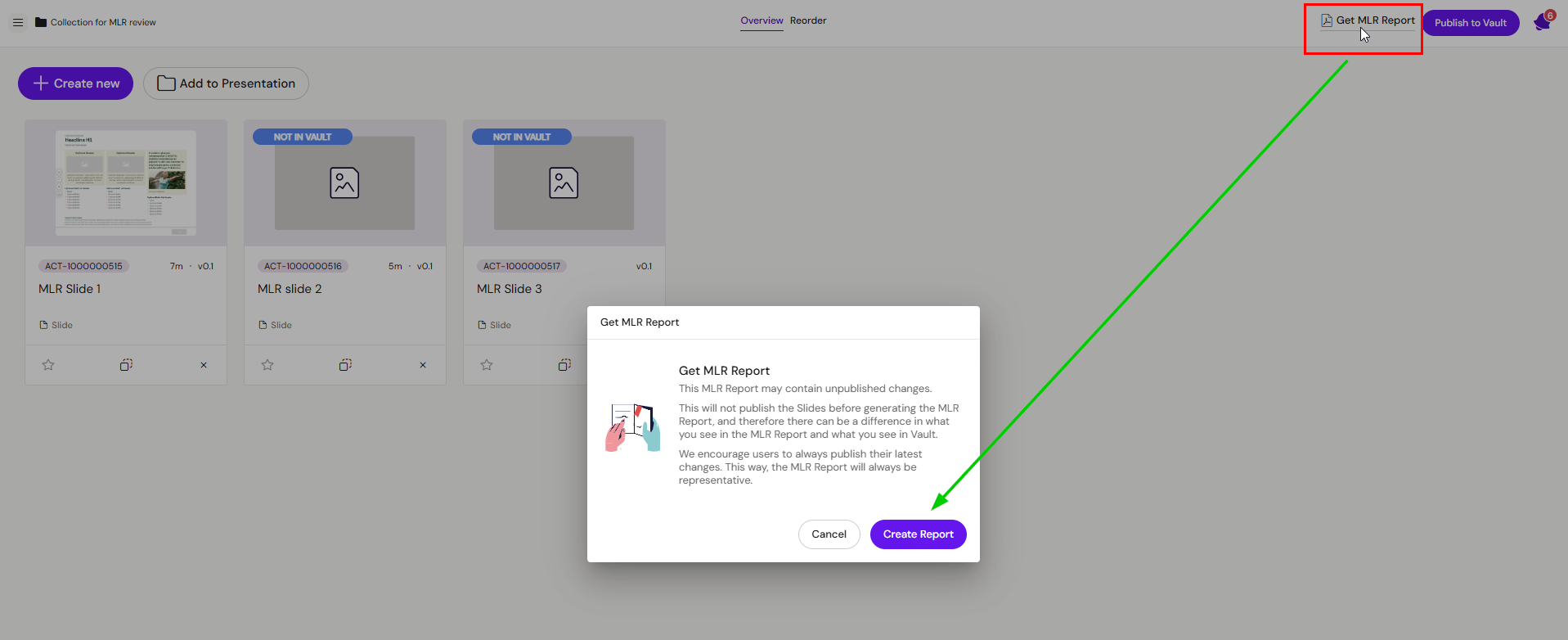
Click Get MLR report (near the right-hand pane / top of canvas area, depending on UI)
-
If prompted to publish, publish the document first (see below)
-
Wait for the report generation to complete
-
Download the PDF from the notification/link
If Activator prompts you to publish
If the document contains changes that are not published, Activator may prompt you to publish before generating the report.
Reason: the report is intended to reflect the deliverable state used for review/distribution, not an unsaved or unpublished working state.
Report generation time and download
Report generation time depends on:
-
Number of layouts
-
Number of content elements
-
Size/complexity of the document
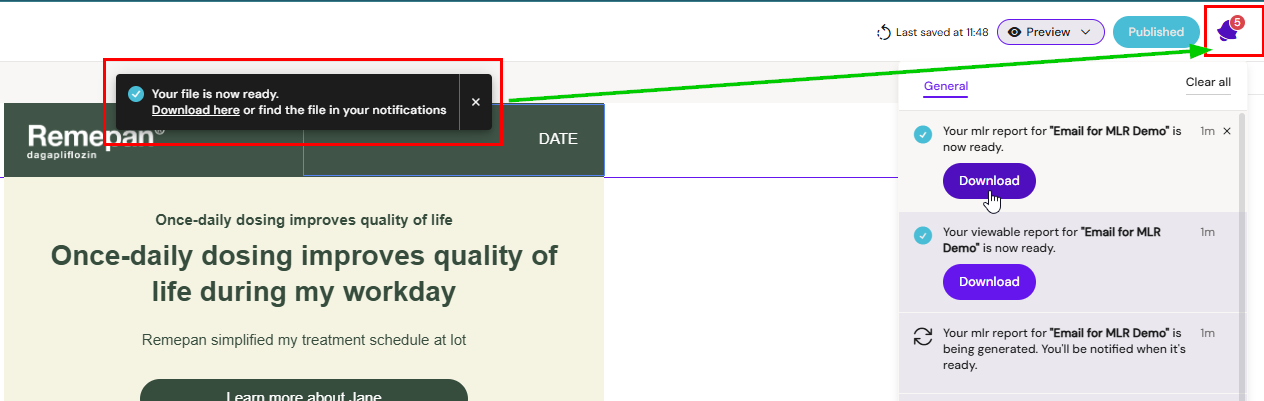
While the report is being generated:
-
You can continue working in Activator
-
Activator shows a notification when the PDF is ready
-
Download from the notification/link
Banner MLR reports
Banners follow a different MLR report structure. Instead of walking the document linearly, the banner MLR report walks every scene of each viewport included in the banner, so reviewers can review animation, copy, and visual consistency in a single document. It also includes the total banner duration, the full ISI content when present, and (per tenant configuration) an AdChoices logo overlaid on scene thumbnails.
See MLR Report for Banners for the full structure and generation flow.
Multi-language PDF rendering
The MLR PDF generation runtime bundles the Noto Sans CJK fonts, so Simplified Chinese, Japanese, and Traditional Chinese characters render natively in exported reports without any additional tenant configuration.
Generate an MLR PDF report for a Presentation
If you are working with Slides inside a Presentation, you can generate an MLR report for the entire Presentation instead of one report per Slide. Activator generates a concatenated report — one PDF combining the individual reports for all documents in the Presentation.
When to use this
-
You need one consolidated review package for the full eDetailer/IVA
-
You want reviewers to see all slides in one report
How concatenated report generation works
Activator uses the existing MLR report for each document, if available. Only documents in the root Collection are included.
Important notes
-
Generating the report does not publish content for you
-
For best results, publish Slides and the Presentation before generating the report (so the report reflects the delivered state)
Optional feature: generate MLR or Visual PDF during publishing
Some tenants allow publishing to automatically generate:
-
A Visual representation PDF, or
-
An MLR document/report
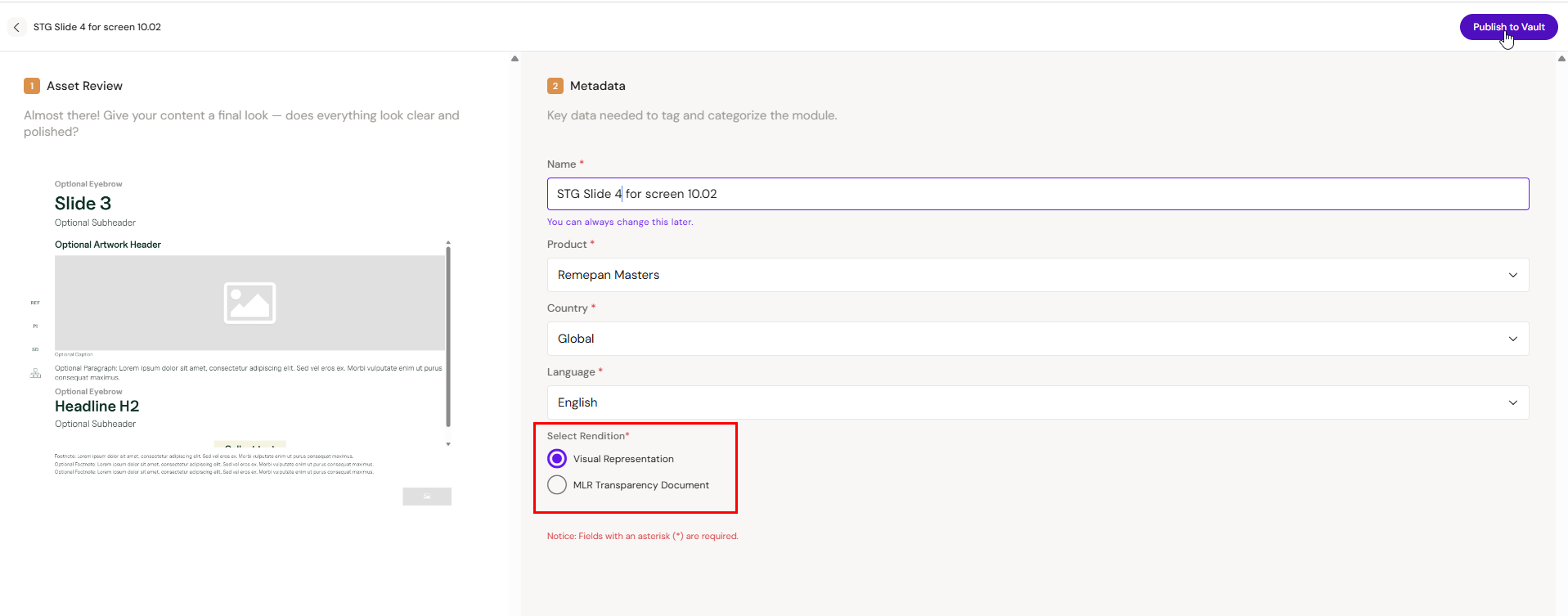
If enabled:
-
Start Publish
-
In the publishing wizard, choose the output you want
-
Complete publishing
Varies by tenant (Anthill-managed)
This option is not available in all environments. Learn more.
Best practices
-
Use modular/approved content where possible for repeated messages (disclaimers, standard claims, recurring CTAs).
-
Avoid manual edits to linked content unless necessary—edits will mark the element as Modified and increase review scope.
-
Always preview in MLR view before generating the PDF to ensure states match expectations.
-
For Presentations: publish slide changes and ordering before generating the Presentation-level report.