
The MLR PDF for a banner follows a different structure from the MLR report for other channels. Instead of walking the document linearly, it walks through every scene of each viewport included in the banner, allowing reviewers to review animation, copy, and visual consistency in a single document.
Support for scene durations and ISI content in the banner MLR PDF is not yet available and will be added in a future update.
What the report contains
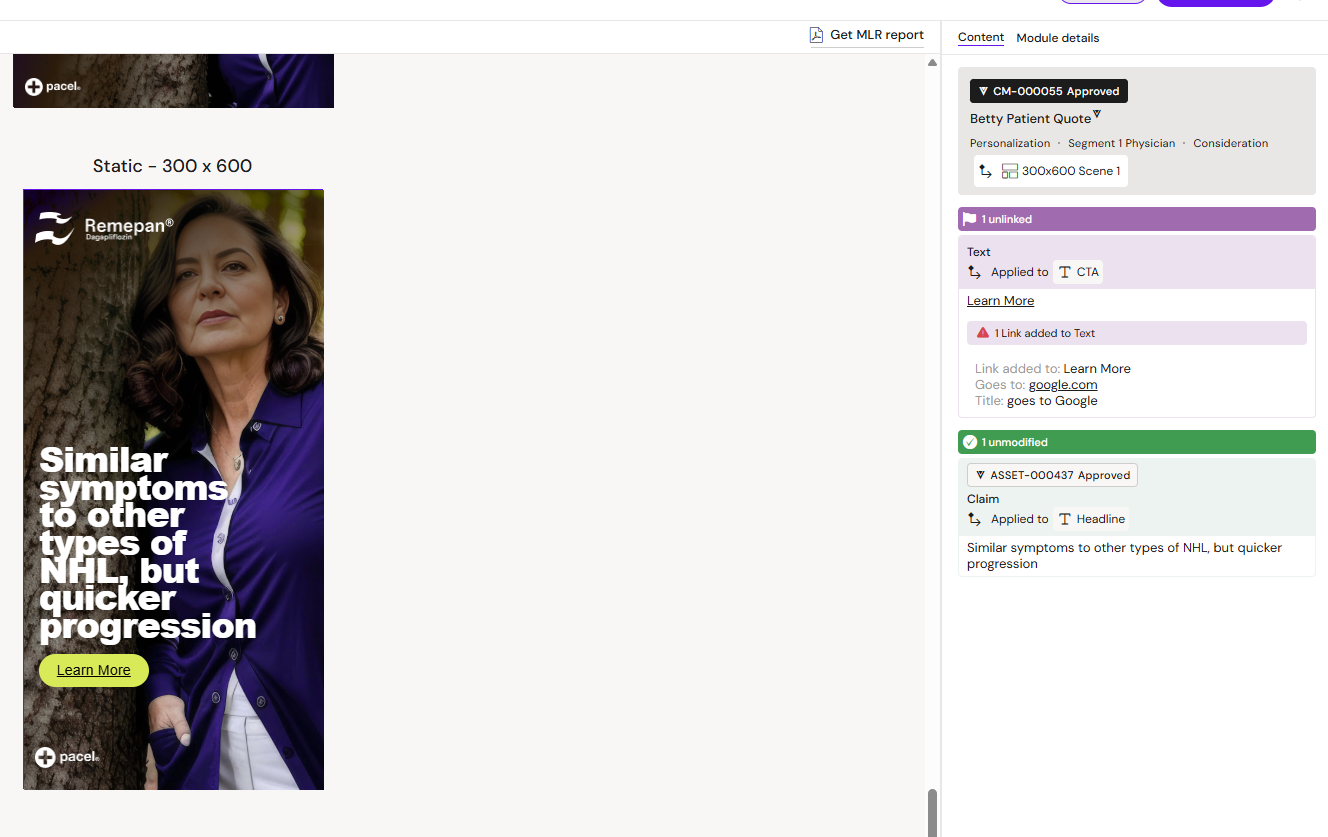
For every viewport the banner targets, the report renders:
-
Each scene in order, with a still rendering of the scene
-
Coming Soon! - Scene duration for animated banners — fetched from the underlying GSAP Timeline so the reported duration matches what reviewers will actually see at runtime
-
Coming Soon! - The full ISI content if the banner contains a scrolling ISI tray — including the total automatic scroll duration when automatic scrolling is enabled
-
Each clickTag assignment — name, destination URL, and associated element(s) — see "clickTag" below
-
Hidden content such as CTA destination URLs, exposed in the report even when not visually visible in the rendered banner
-
All standard ModCon details carried by the document, consistent with how other channels render in MLR
For animated viewports, the report covers every scene in sequence. For static viewports, the report shows the single static rendering.
clickTag
Each clickTag assignment on the banner — the banner-wide click tag and any element-level click tags — is surfaced in the MLR panel and included in the MLR PDF. For each assignment, the report shows:
-
The clickTag name
-
Its destination URL
-
The element(s) it's attached to
This lets reviewers approve click destinations alongside the creative content, rather than needing separate sign-off outside the MLR flow.
Coming Soon! - AdChoices logo
If your tenant is configured to enforce an AdChoices logo on banner submissions, the MLR PDF renders that logo in the top-right corner of each scene thumbnail. This is a tenant-level configuration handled by Anthill — contact your administrator if you need it enabled or disabled for your account.
Why the report is structured this way
A banner is fundamentally several pieces of content packaged together: multiple viewports, each playing multiple scenes, sometimes in both animated and static variants. Reviewers need to confirm all of these are correct before the banner can be distributed — and they need to do that on paper, in a single document, alongside the other MLR materials for the campaign.
The report's per-viewport, per-scene structure is designed to make that review feasible without requiring reviewers to run the live banner in a browser.
Generation
The MLR PDF is generated as part of the standard banner publishing flow in Activator. There is no separate “generate MLR” action — when a banner is published, the MLR PDF is created together with the distribution package and visual representations.
At this time, the MLR PDF must be downloaded manually from Activator. Automatic delivery of the PDF to the connected DAM will be supported in a future update.
Related
-
Banners — overview of the Banners channel.
-
Publishing a Banner — the publish flow that produces the MLR PDF.
-
Creating an MLR PDF Report — general MLR PDF generation across channels.
-
MLR PDF report — what an MLR report contains across channels.