
The Banners content type in Activator lets you create HTML banners — both animated and static — designed for distribution to ad platforms. A Banner targets multiple ad viewports (e.g. 300×250, 300×600, 728×90) from a single document, with each viewport rendered from its own HTML source.
Banners are not enabled by default. This content type is activated per customer configuration. Contact your Anthill administrator if you need Banners enabled for your account.
How Banners Differ from Other Channels
Banners share the same authoring principles as Activator's other channels — content is built visually using layouts from a Design System, then compiled and published to the connected DAM. The key differences are structural:
-
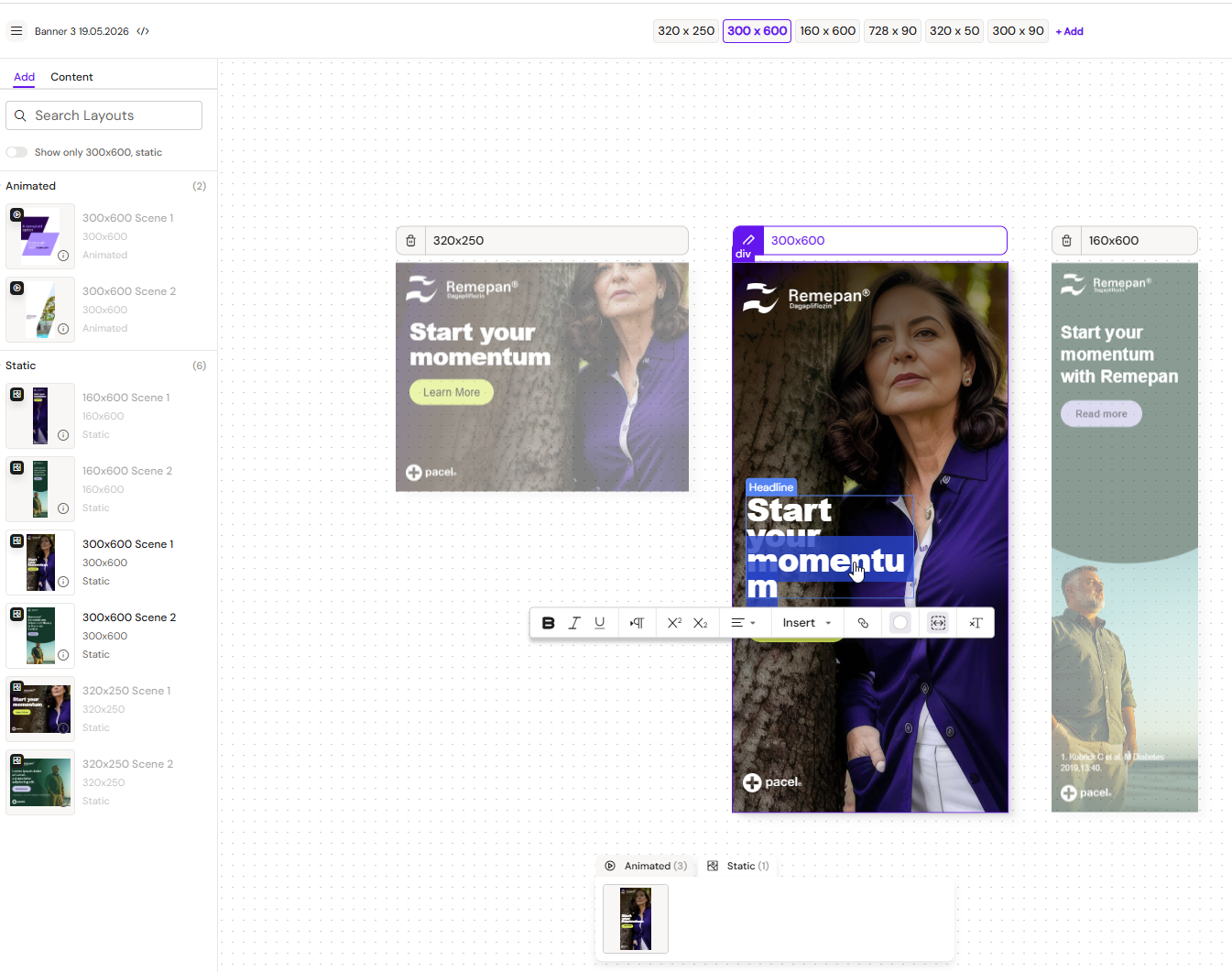
Multi-viewport by design. A single Banner document targets several viewports at once. Each viewport — for example 300×250, 300×600, 728×90 — is stored as its own rendition on the document with its own HTML source, so styling, media, and copy can be tuned for that specific size without compromising across them all.
-
Scene-based composition. Banner content is composed of scenes that play in sequence as the banner animates. Scenes are managed through the new Scene Manager, where it's possible to control the scenes in the viewports.
-
Animated and static. Banner viewports can be rendered as either animated (with motion) or static (without JavaScript) versions. Both can be carried in the same document and published together.
-
Built on Fusion 3 Core. Banners run on the new Fusion 3 Core — a lighter foundation than the Fusion library used by other channels, designed to fit within the file-size limits of ad platforms.
Building a Banner
Banners are built in the Activator editor using a multi-iframe canvas that renders every configured viewport side-by-side. Which viewports update together as you work depends on the banner's editing mode:
-
Sync editing — the default for banners with more than one viewport. Edits to styles, text, layouts, and scenes propagate across every viewport in the sync group as you work, and individual elements can be unlinked so they can differ per viewport.
-
Focus model — used for single-viewport banners, and available for editing intentionally scoped to one viewport within a multi-viewport banner. Only one viewport is in focus and editable at a time, while the others stay visible for context.
See Banner Editor: Multi-Viewport Canvas for the full detail on both models.
The high-level flow:
-
Create the banner. Choose a Design System and select the viewports the banner should target.
-
Add scenes. Use the Scene Manager to add the scenes that will play in sequence.
-
Drop in layouts. Drop in the pre-coded layouts from the Design System and adjust content, media, and styling — across every in-scope viewport at once under sync editing, or per viewport under the focus model — unlinking individual elements where a viewport needs to differ.
-
Preview and Publish. Preview each viewport to check the result, then publish to compile the distribution packages, generate the previews and MLR report, and deliver everything to your connected DAM.