
The Briefs content type in Activator lets you create structured, multi-page digital documents — similar in construction to Slides, but intended for different use cases such as leave-behinds, digital detail pieces, or supporting materials for healthcare professional meetings.
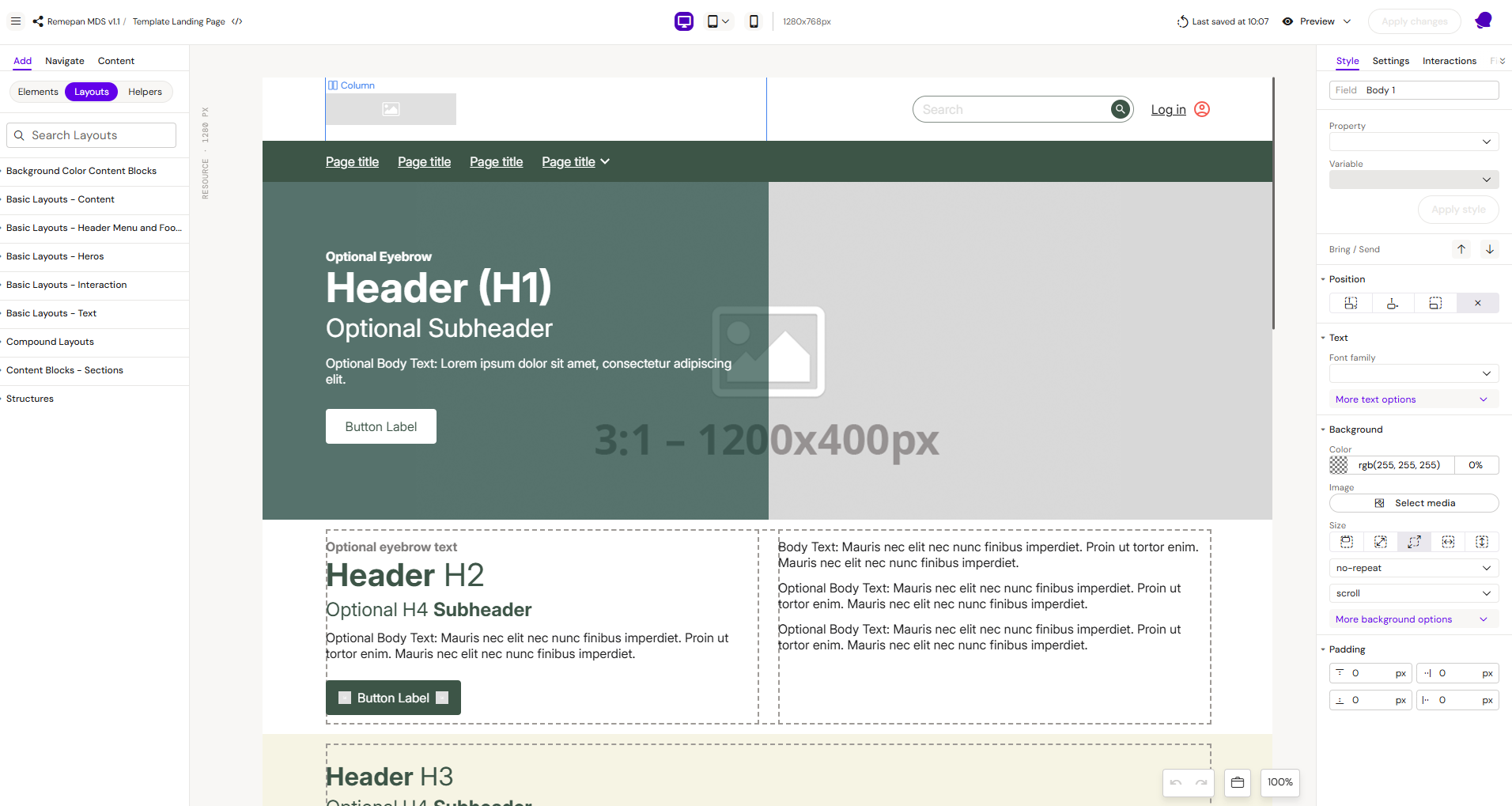
Briefs are not enabled by default. This content type is activated per customer configuration. Contact your Anthill administrator if you need Briefs enabled for your account.
How Briefs Differ from Slides
Briefs and Slides share the same component building blocks — Rows, Columns, text, images, and interactive elements — and are built using the same Activator Content Designer workflow. The key differences are in their intended purpose and deployment context:
-
Slides are full-screen interactive presentations used by field sales representatives on tablets during in-person visits.
-
Briefs are document-style content pieces designed to be shared with or left behind for healthcare professionals — for example, as digital leave-behinds or supplementary reference material.
Building Briefs
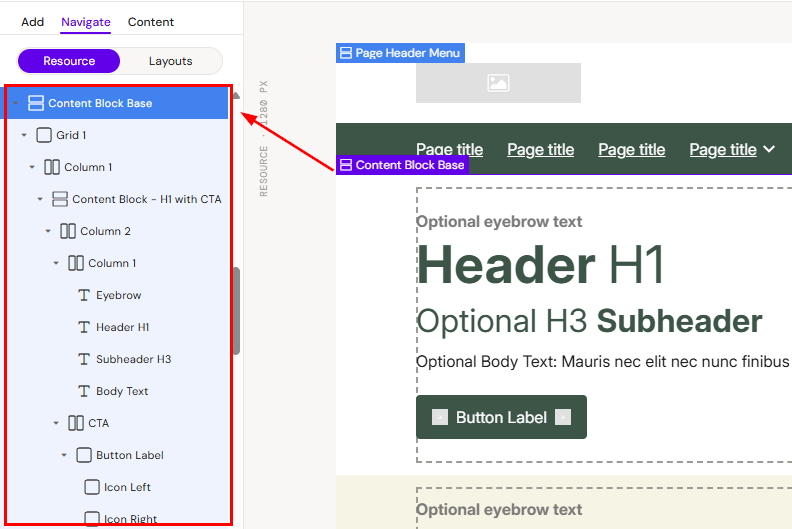
Briefs are built in the Activator Content Designer using the same Layout → Row → Column structure used for Slides and Emails. All Slide components are available for use in Briefs, including:
-
Layout containers (Row, Column, Group Container)
-
Text and List components
-
Media components (Image, Video Player)
-
Interactive components (Buttons, State Containers, Popups)
-
Droppable zones for nested layouts
Like Slides, Briefs go through the MLR approval workflow and are published to your CRM via Vault.
Related
-
Slide and Brief Components [WIP] — Full component reference for Slides and Briefs.
-
Configuration Abilities — Overview of configurable features, including content type enablement.