
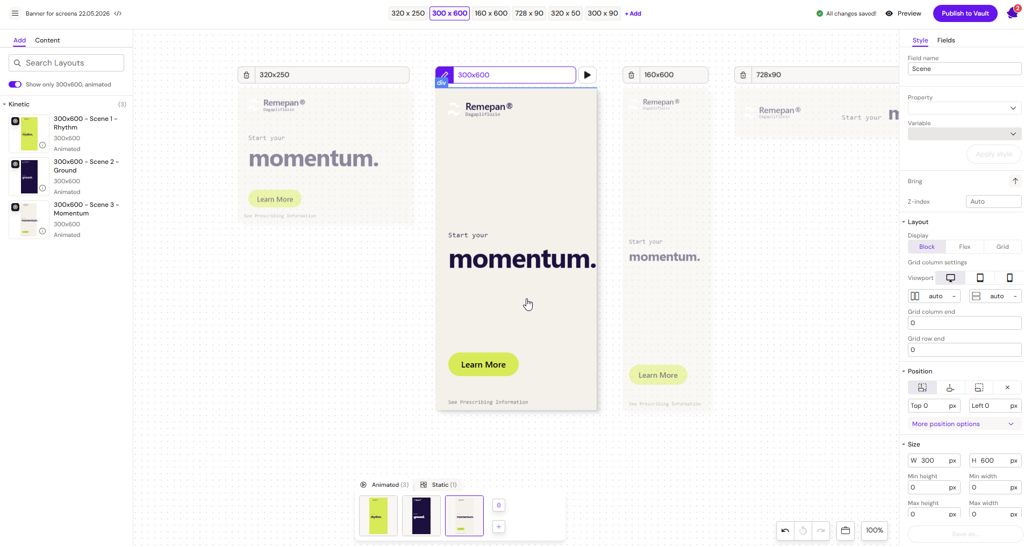
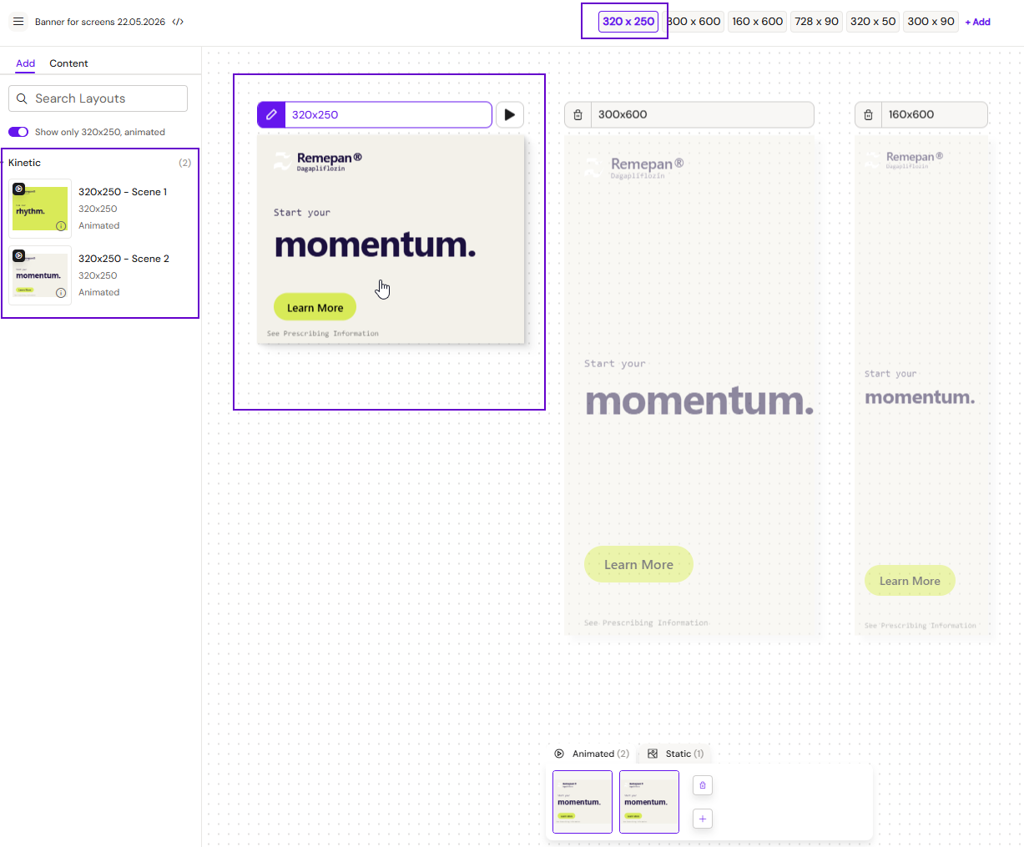
Unlike other channels in Activator, banner authoring takes place on a multi-iframe canvas that renders every configured viewport at once, side-by-side, in the same scrollable space. This page covers how the canvas behaves, including sync editing across viewports (the default for multi-viewport banners) and the focus model used for single-viewport banners.
Ad blockers can break banner previews in the editor
If your browser has an ad blocker enabled — uBlock Origin, AdBlock Plus, Brave's built-in shields, corporate content filters, etc. — banners may fail to render correctly in the multi-viewport editing canvas. Ad blockers often match on standard ad-viewport dimensions (300×250, 728×90, and so on) or on ad-related file naming, and can silently block the Fusion 3 scripts or banner assets from loading.
Typical symptoms: viewports appear blank, animations do not play, or the canvas shows loading errors in the browser console.
If you see any of these, disable your ad blocker on the Activator domain for your tenant and reload the editor.
Why the canvas works this way
Ad campaigns target several viewport sizes — 320×250, 300×600, 728×90, 160×600 and so on. The same content rarely fits all sizes equally well: a hero image cropped for a wide leaderboard won't read on a tall skyscraper, and copy that fits a 728×90 won't fit a 300×50.
Rather than asking authors to build a single responsive document and trust media-query styling to do the right thing across every banner size, Activator gives each viewport its own HTML source and its own iframe in the canvas. Each viewport can be edited individually — layouts, media, copy, and styling — while the others stay visible for context.
Editing models
How editing is scoped depends on how many viewports the banner has.
Sync editing (default for multi-viewport banners)
For banners with more than one viewport, sync editing is the default editing model. All viewports in the banner's sync group receive the same edit at the same time, so you author once and every in-scope viewport updates together.
What propagates
-
Style changes (colour, font, spacing, etc.) applied to a synced element
-
Text content edits
-
Layout drops — dropping a new layout onto one viewport broadcasts the layout (or its matching variant) to every in-scope viewport
-
Scene changes (add, delete, select, reorder) as a single action across the sync group — see Scene Manager
Active scope and the layouts panel
The layouts panel is scope-aware: it only shows layouts with a variant matching the active scope (the viewport or viewports currently being edited), rather than filtering purely by the focused viewport as under the focus model.
Per-element unlinking
Individual elements can be unlinked from sync editing so they can differ across viewports — for example, a headline that needs different line breaks per viewport. An unlinked element shows an unlink badge in the canvas overlay. Unlinked elements can be relinked later to resume receiving propagated edits.
Highlighting across viewports
When editing in sync mode, the element being directly edited shows a primary highlight in the focused viewport. The equivalent element in every other in-scope viewport shows a subtler peer-highlight, making it clear which elements are receiving the same edit.
Undo/redo
A synced edit and its propagation to every in-scope viewport count as a single undo step. Undoing a synced change reverts it everywhere it was applied in one action; redoing reapplies it the same way.
Focus model (single-viewport banners)
Banners configured with only one viewport use the focus model described below. It is also available as a fallback for editing that intentionally targets a single viewport within a multi-viewport banner.
-
All configured viewports are rendered in the canvas.
-
Only one viewport is in focus and editable at a time. The others are visible but not editable.
-
Switching focus to another viewport changes which iframe is editable; the rest stay rendered.
-
Layouts in the layouts panel are filtered by the currently focused viewport. Only layouts that the Design System has marked as compatible with that viewport are shown.
This avoids the complexity of true cross-viewport responsive styling, while still letting authors compare every size visually as they work.
Performance notes
-
Each viewport is a live iframe running the banner code, not a generated image. Updates appear instantly when content changes.
-
Scene thumbnails (in the Scene Manager) are also rendered as small live iframes. There is no thumbnail-generation delay.
-
For banners with many viewports, the canvas may use measurable browser memory. If the editor feels slow, try closing other heavy tabs.
Related
-
Banners — overview of the Banners channel.
-
Scene Manager — manage scenes, which sync across all in-scope viewports as a single undo step.
-
Create a Banner — the creation flow that produces the canvas state described above.