
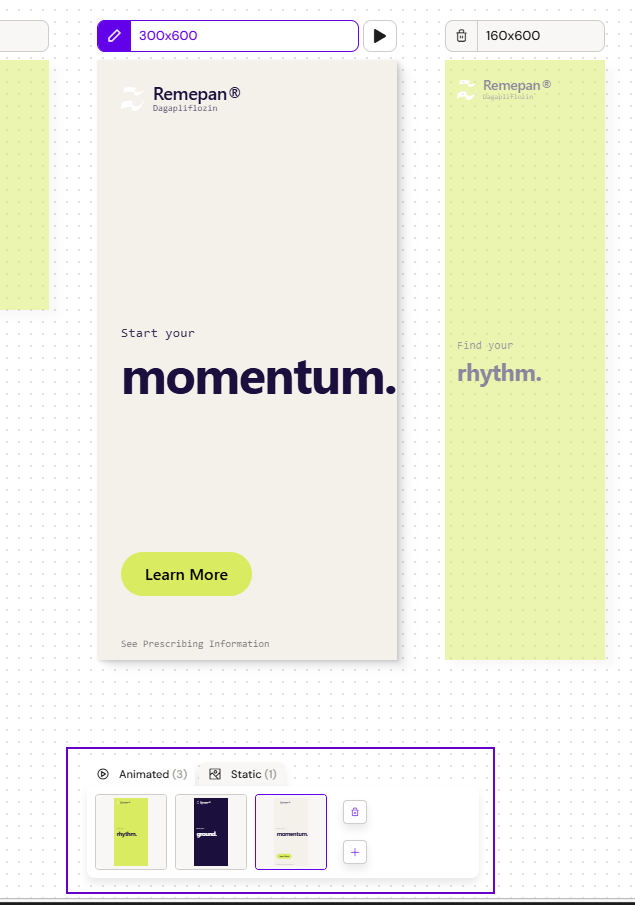
Banners play in sequence: scene 1, scene 2, scene 3, loop. The Scene Manager is the panel in the banner editor where you manage those scenes, switch between animated and static representations, and navigate between scenes during editing.
What it does
The Scene Manager is the one component in the banner editor that operates across all viewports simultaneously. For banners with more than one viewport, adding, deleting, selecting, and reordering scenes syncs across every viewport in the sync group as a single undo step.
-
Add a scene. Adds a new scene to every viewport in the sync group. The new scene becomes the active scene in all iframes.
-
Delete a scene. Removes the scene from every viewport in the sync group.
-
Reorder scenes. Drag to reorder. The reorder applies across every viewport in the sync group.
-
Switch active scene. Selecting a scene changes the active scene across every viewport in the sync group.
-
Toggle animated / static. Switch between the animated and static representations of the banner during editing.
The order of scenes in the Scene Manager defines the order in which they play in the published banner.
Animated vs static
Banner viewports can be rendered as either:
-
Animated — the full banner experience with motion, scene transitions, and looping
-
Static — fixed, non-animated banners with clear messaging for retargeting, brand awareness, and quick direct-to-consumer offers
Scene thumbnails
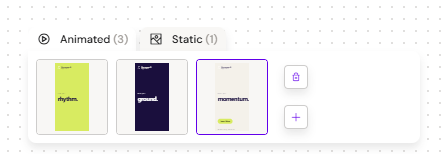
Each scene in the Scene Manager is shown with a small live iframe thumbnail rather than a generated image. Two consequences:
-
Thumbnails update instantly as you edit — there's no thumbnail-generation delay.
-
The thumbnail reflects the currently focused viewport in the canvas. As you change focus between viewports, the thumbnails update to match.
Each scene thumbnail also exposes a layout info pop-up showing that layout's animation description — the short human-readable summary provided when the layout was uploaded (see Banner Layouts) — so authors can see what a layout animates without opening it.
Editing within a scene
For banners with more than one viewport, editing within a scene uses sync editing by default: layout, content, media, and styling adjustments made in one viewport propagate to every viewport in the sync group. Individual elements can be unlinked so they can differ per viewport, and relinked later to resume syncing. Single-viewport banners — and any editing intentionally scoped to one viewport — use the focus model instead, where adjustments only affect the viewport currently in focus. See Banner Editor: Multi-Viewport Canvas for details on both models.
Related
-
Banners — overview of the Banners channel.
-
Banner Editor: Multi-Viewport Canvas — how sync editing and the focus model work alongside the Scene Manager.
-
Publishing a Banner — how scenes are bundled into the distribution package and walked in the MLR report.