
A banner targets several viewports — e.g. 300×250, 300×600, 728×90 — within a single document. This page explains how viewports are configured, why each viewport is stored as its own rendition, and what that means for editing and publishing.
Viewports
A viewport is a specific ad size that the banner should be rendered into. Common ad viewports include:
-
Square / rectangle — 250×250, 300×250, 320×320, 336×280
-
Skyscraper — 120×600, 160×600, 300×600, 300×1050
-
Leaderboard — 468×60, 728×90, 800×250, 970×90, 970×250
-
Mobile — 300×50, 300×100, 320×50, 320×100, 320×480
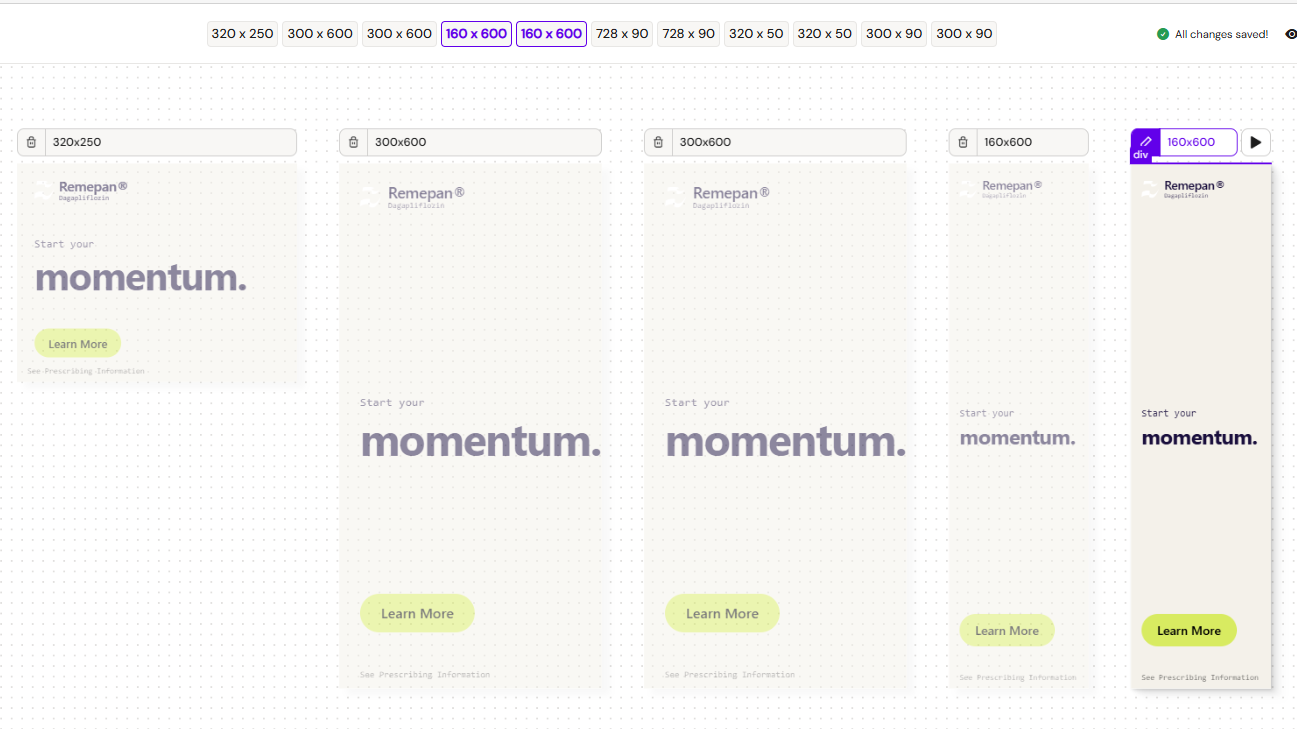
The list of viewports available in Activator is configured by Anthill per tenant. If a size you need isn't in the list, contact your Anthill administrator.
When creating a banner, you select which of the available viewports the banner should target. Each banner can target a different subset — there's no requirement to use every viewport supported by the tenant.
Renditions
Each viewport on a banner document is stored as its own rendition. A rendition is the same concept used elsewhere in Activator for image variants — a self-contained version of a piece of content. For banners, this means:
-
Each viewport has its own HTML source file.
-
Per-viewport changes — content, media, styling — are made directly to that viewport's source, not shared across viewports.
-
Animated and static representations of the same viewport are also stored as separate renditions.
The first viewport you pick at creation time is the main viewport. It's used as the initial focus in the editor and as the primary visual representation in the MLR report.
Why each viewport has its own HTML
Banner content rarely behaves like a single responsive document. A 300×250 might use a horizontal hero image while a 300×600 needs a vertical one. A 728×90 leaderboard has no room for body copy. A 160×600 skyscraper might need a different CTA layout entirely.
Rather than asking authors to write CSS media queries that handle every viewport correctly, Activator gives each viewport its own HTML file. Layouts can be tuned per-viewport without compromising on a single shared setup. The trade-off is that per-viewport adjustments are explicit rather than automatic — you switch focus to a viewport and adjust it.
Adding or removing viewports later
Viewports can be added to or removed from a banner after creation. Adding a viewport adds a new rendition; removing one deletes the rendition along with any content unique to it. Both actions are local to the single banner document and don't affect other banners.
Deleting a static viewport now also cleans up navigation in the editor afterward, so you land on a sensible remaining viewport rather than a stale or empty view.
Related
-
Banners — overview of the Banners channel.
-
Create a Banner — viewport selection at creation time.
-
Banner Editor: Multi-Viewport Canvas — how viewports are rendered in the editor and how sync editing and the focus model work.
-
Publishing a Banner — how viewport renditions are bundled into the distribution package.