
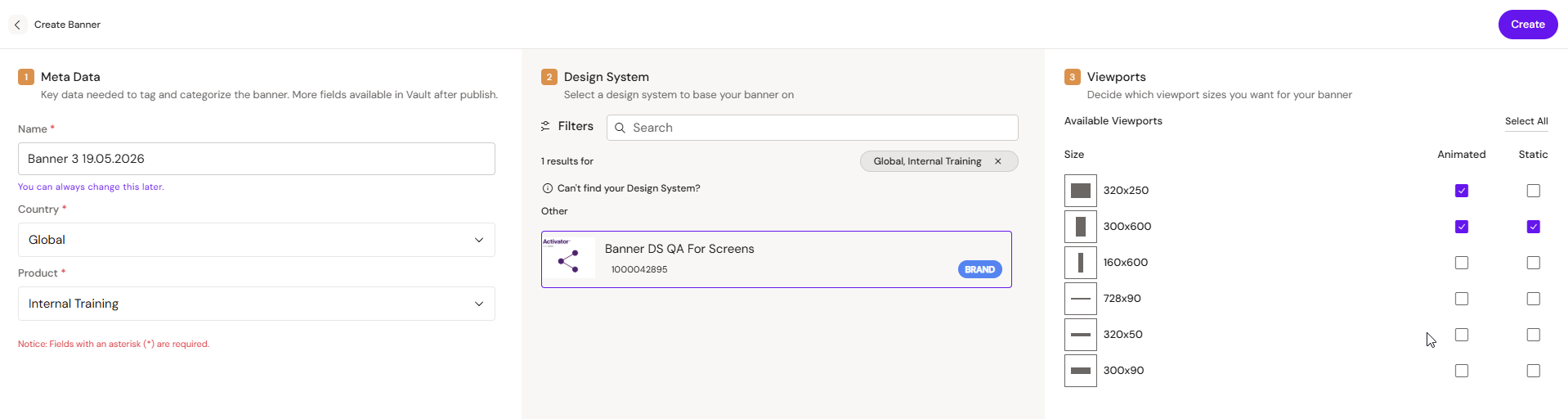
Banners are created from the Activator dashboard, in the same way as the other channels. The flow is similar to creating a Slide or a Brief, with two additional steps unique to Banners: selecting the viewports the banner should target and choosing whether each viewport should be animated, static, or both.
Banners are not enabled by default. This content type is activated per customer configuration. Contact your Anthill administrator if you need Banners enabled for your account.
Before you start
You'll need:
-
a Design System that has been configured for Banners (Anthill enables this per tenant)
-
a clear set of viewports the banner should target (e.g. 300×250, 300×600, 728×90, 160×600)
-
a sense of which viewports should be animated, static, or both. Both can coexist in the same banner
The viewports available to choose from are configured by Anthill at the tenant level. If a size you need isn't in the list, contact your Anthill administrator.
Step-by-step
-
Open the Dashboard and click Create. Choose Banner as the document type.
-
Enter metadata. Name the banner and fill any required fields (campaign, market, etc., per tenant configuration).
-
Select a Design System. Pick the Design System the banner will use. Only Design Systems configured for the Banners channel appear here.
-
Select viewports. Choose the viewports the banner should target. For each viewport, indicate whether it should be created as animated, static, or both.
-
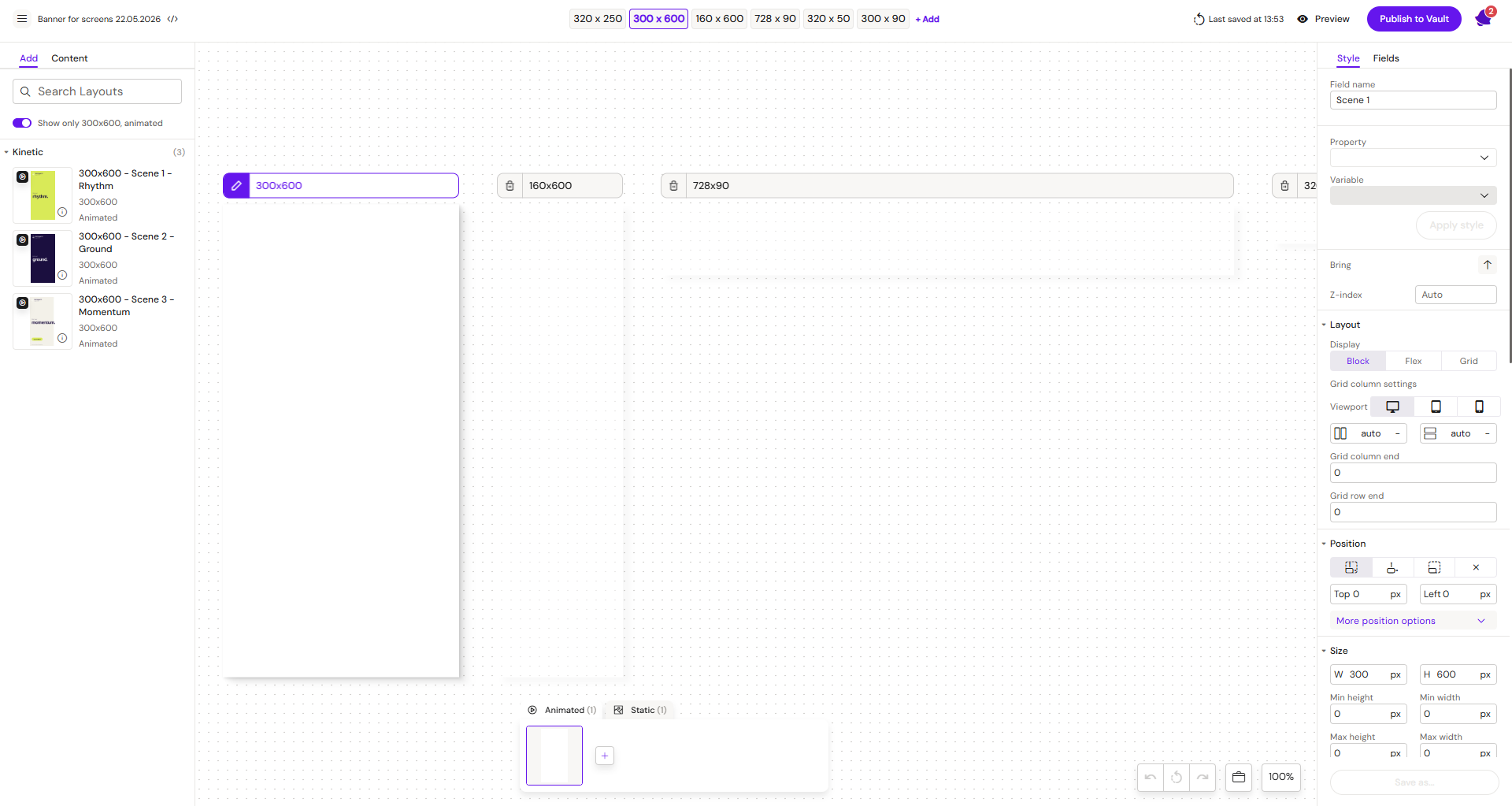
Create. The editor opens with the main viewport in focus and the other configured viewports visible alongside it.
What's next
Once the banner is open in the editor, you'll typically:
-
Add scenes using the Scene Manager (each scene plays in sequence as the banner animates)
-
Drag layouts from the layouts panel into each scene, per viewport
-
Adjust per-viewport content, media, and styling as needed
See the related pages below for the editor mechanics and publishing flow.
Duplicating a banner from the DAM
When a banner is created by duplicating a document already stored in the connected DAM, the duplicate now carries over each viewport's rendition data (per-viewport HTML, media, and styling) rather than starting from a blank template.
Related
-
Banners — overview of the Banners channel.
-
Banner Editor: Multi-Viewport Canvas — how the multi-iframe canvas, sync editing, and the focus model work.
-
Scene Manager — scene composition, animated vs static, scene thumbnails.
-
Banner Viewports & Renditions — how viewports are configured and stored as renditions.
-
Publishing a Banner — publish wizard options and downstream packaging.