
Before publishing, preview and test your content in realistic conditions. Activator’s preview tools are reliable for checking structure, layout, and behaviour, but the final output still depends on the target platform:
-
Emails should be tested in real email clients (or an email pre-deployment platform) because each client renders HTML differently.
-
Slides should be tested on real iPad devices (or your organisation’s target viewer) because behaviour and performance depend on device and CRM viewer.
-
Follow your internal guidelines for what “good to publish” means in your organisation.
This article covers how to:
-
Use the Share menu (links, QR codes, downloads)
-
Preview the document directly inside Activator
-
Send a test email (Emails only)
-
Validate interactions and navigation (Slides/Briefs)
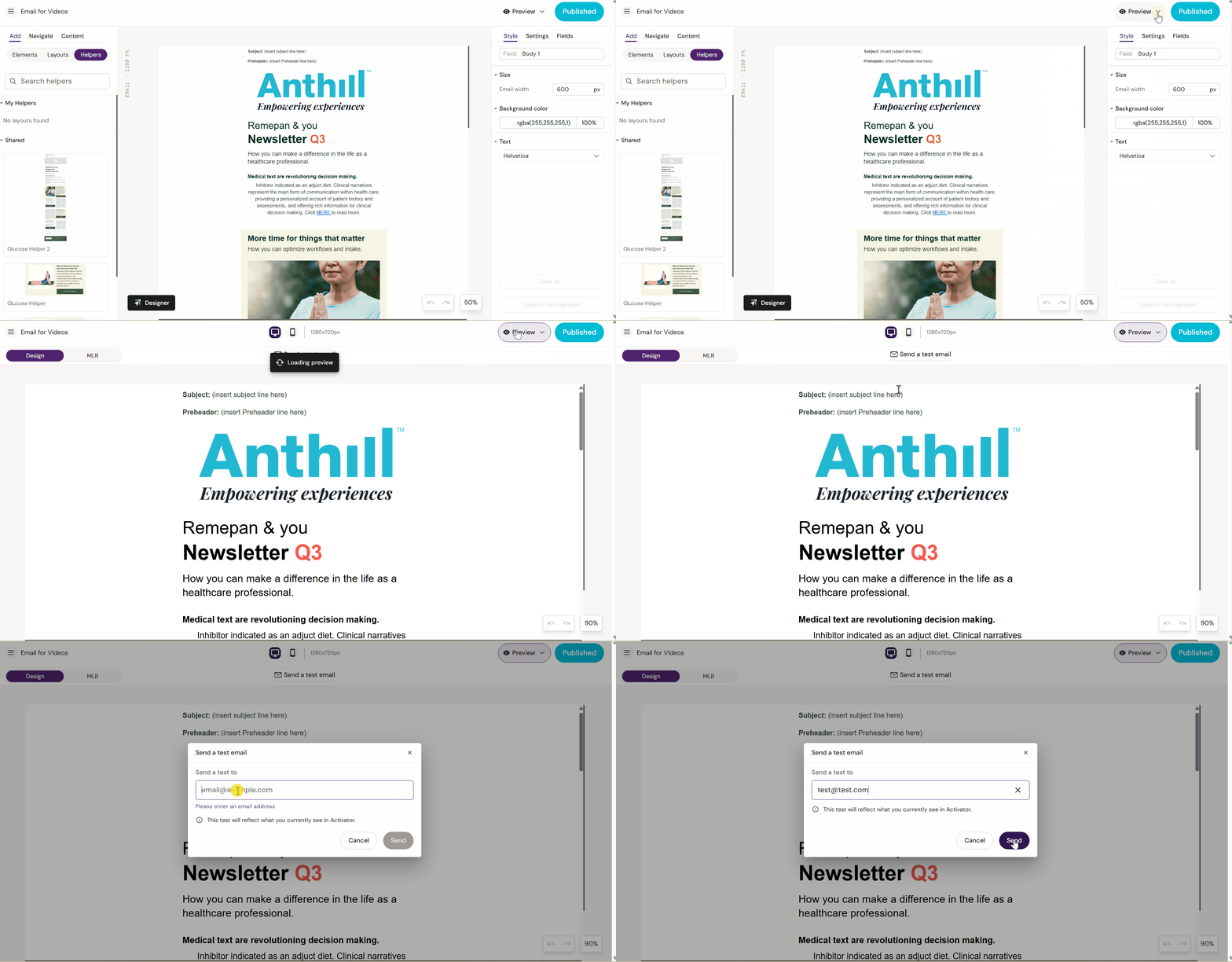
Share menu (links, QR codes, downloads)
The Share menu is accessed from the small dropdown next to Preview (arrow pointing down). It provides two things: link-based sharing and file exports.
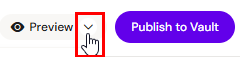
Link tab (QR code and preview link)
Use this when you want to preview content outside Activator without giving someone access.
You can typically generate:
-
A QR code
-
A shareable preview URL
These are useful for:
-
Quick stakeholder review
-
Testing on mobile devices by scanning the QR code
-
Sharing with colleagues who don’t use Activator
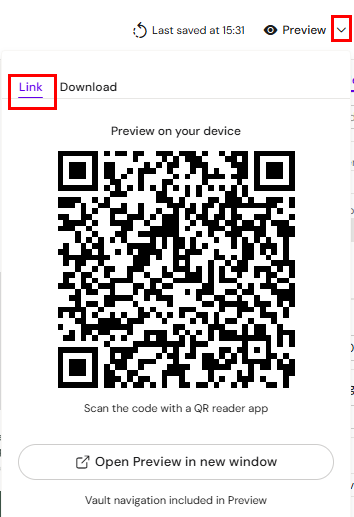
Download tab (PDF / MLR report / distribution packages)
Use this when you need exports for review or downstream processes.
Depending on your tenant configuration, you may be able to generate:
-
PDF export
-
MLR report (PDF)
-
Distribution package
Important
All exports are generated from the current working revision of the document. If you’ve made changes but not saved, the export may not reflect what you expect. Save first.
Varies by tenant (Anthill-managed)
Available downloads and package formats depend on channel and tenant setup. Learn more.
Preview inside Activator (Preview mode)
Preview mode shows how the document is expected to render on a target device or viewport.
Open preview mode
-
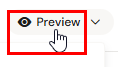
Click Preview (top right above the canvas)
-
Make sure you click Preview itself — not the Share dropdown
Viewport preview (device modes)
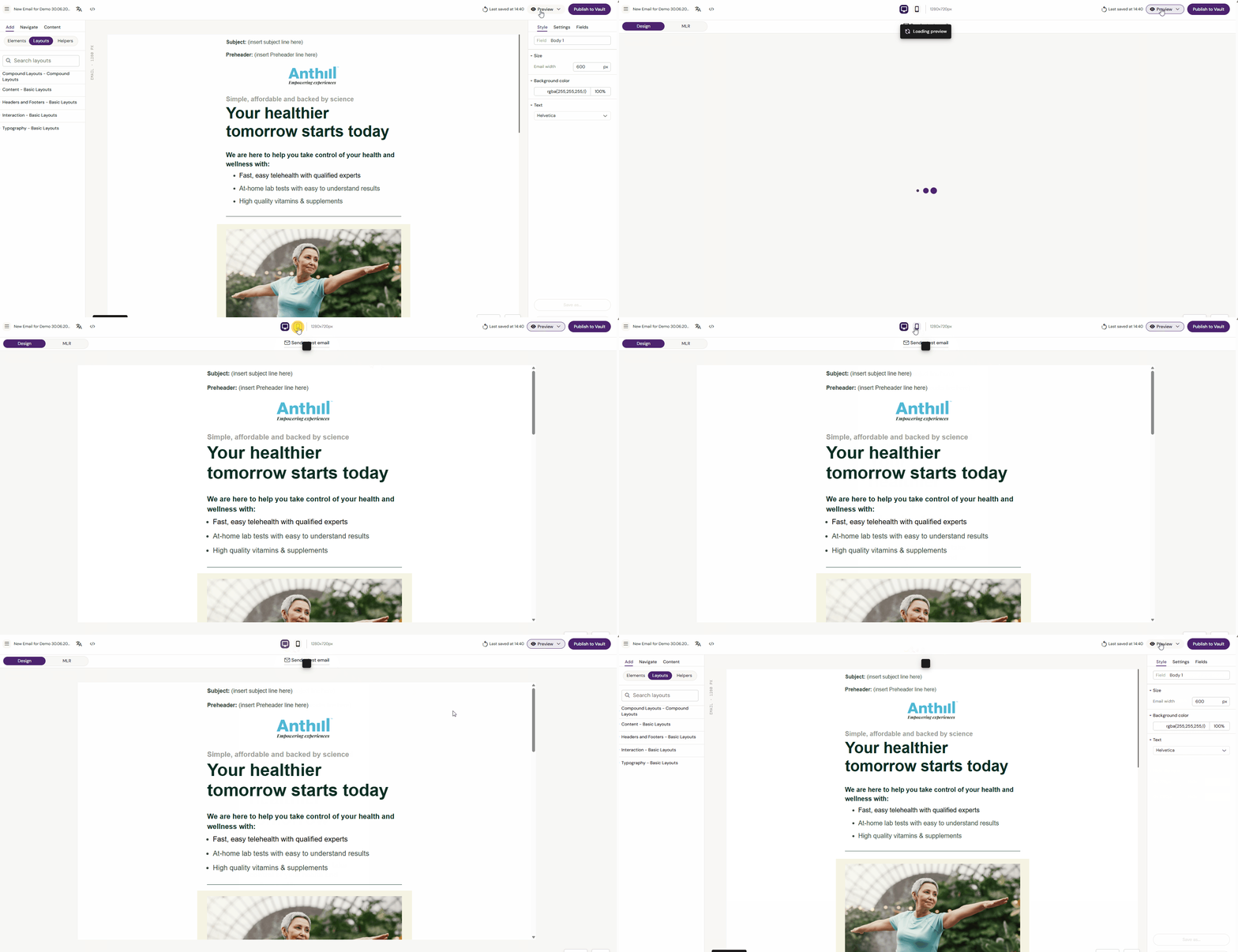
Preview mode includes a viewport toggle that lets you preview how your document fits on different screen sizes.
-
Click Preview (top right)
-
In the top bar, use the viewport toggle to switch device modes
-
The canvas resizes to match the selected viewport size (screen dimensions are shown next to each mode)
Important
Viewport preview is a rendering simulation. It is not a substitute for testing in real email clients, real iPads, or your final distribution platform.
-
Emails typically offer:
-
Desktop
-
Mobile
-
-
Slides and Briefs typically offer:
-
Multiple iPad presets (depending on tenant setup)
-
-20251211-122721.png?cb=af7f8af431707f795b37af8a19ef3318)
Exit preview mode
Click Preview again to return to the editor.
Test behaviour in preview mode
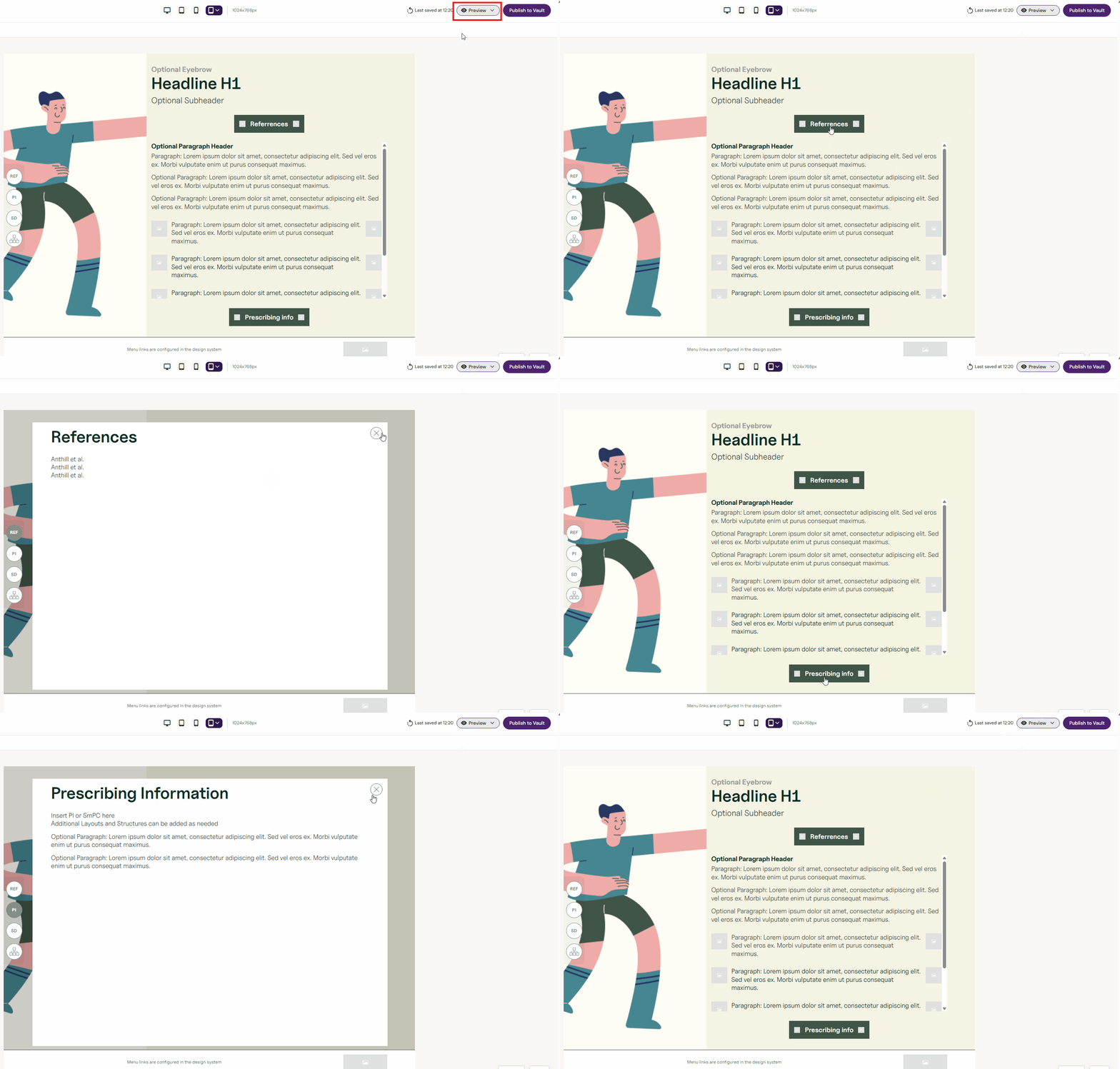
Preview mode is not only visual. It is also where you validate behaviour:
Emails
-
Button clicks open the correct URLs
-
Anchor links jump to the correct section (if used)
-
Layout doesn’t break on mobile
Slides / Briefs
-
Buttons navigate correctly
-
Interactions behave correctly (popups/states, if your tenant uses them)
-
Slide navigation and flow works end-to-end
Tip
Test your most complex parts first: the sections with nested layouts, conditional fields, popups, and navigation.
Send a test email (Emails only)
Test sending is available only for Email documents. It lets you see the email in a real inbox and client before approval.
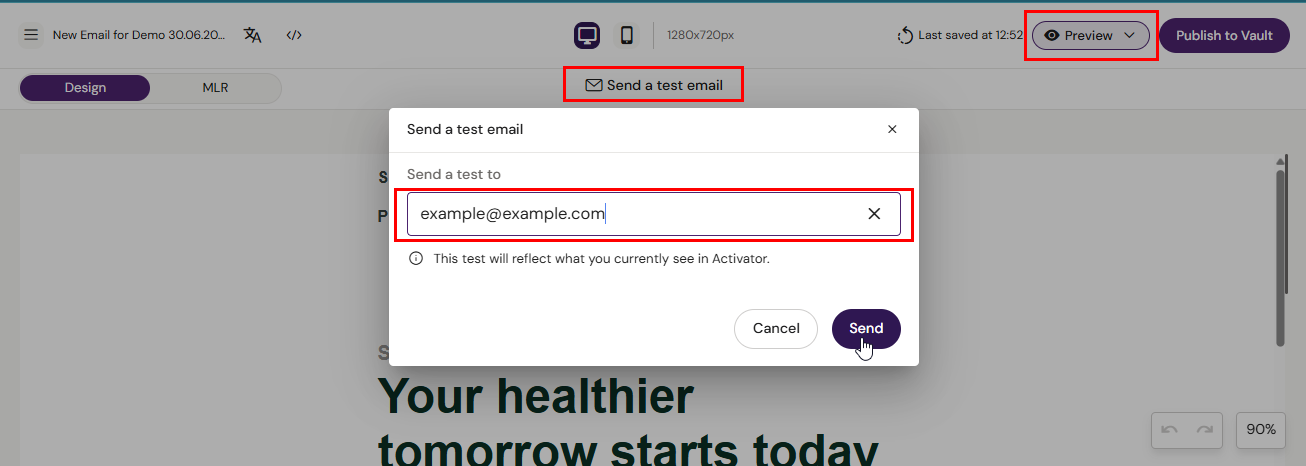
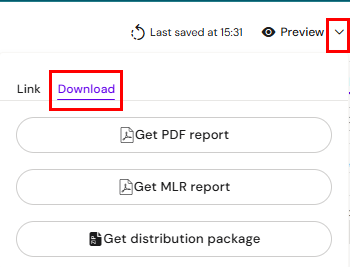
Send a test email
-
Click Preview
-
Click Send a Test (top middle in preview mode)
-
Enter the recipient email address
-
Click Send
What to verify in the received email
-
Subject/preheader (if applicable)
-
Layout and spacing in the target client
-
Images load correctly
-
Links work
-
Mobile rendering is acceptable
-
Any dynamic elements render as expected
Tip
Send tests to at least one Outlook client and one webmail client if your organisation targets both.