
Use translation files when you need to localize larger amounts of content via a translation agency. Activator exports the translatable text, you translate it externally, then import it back to apply the translated text to the document(s).
Supported formats
-
XLIFF/XML (industry standard for translators)
-
Excel (useful for in-house or simple workflows)
-
Arcane (subscription required)
Varies by tenant (Anthill-managed)
Available formats and which fields are included can differ by tenant configuration and document type. Learn more.
Before you start (don't translate the master)
Do not translate your master/source document directly.
Use this workflow:
-
Duplicate the document/presentation for the target market/language (so you keep a clean source and a localized copy).
-
Translate the localized copy using translation files.
When to use translation files
Use this workflow when you:
-
Work with external translation agencies
-
Need controlled, auditable translations across markets
-
Want to translate multiple text fields consistently without manual copy/paste
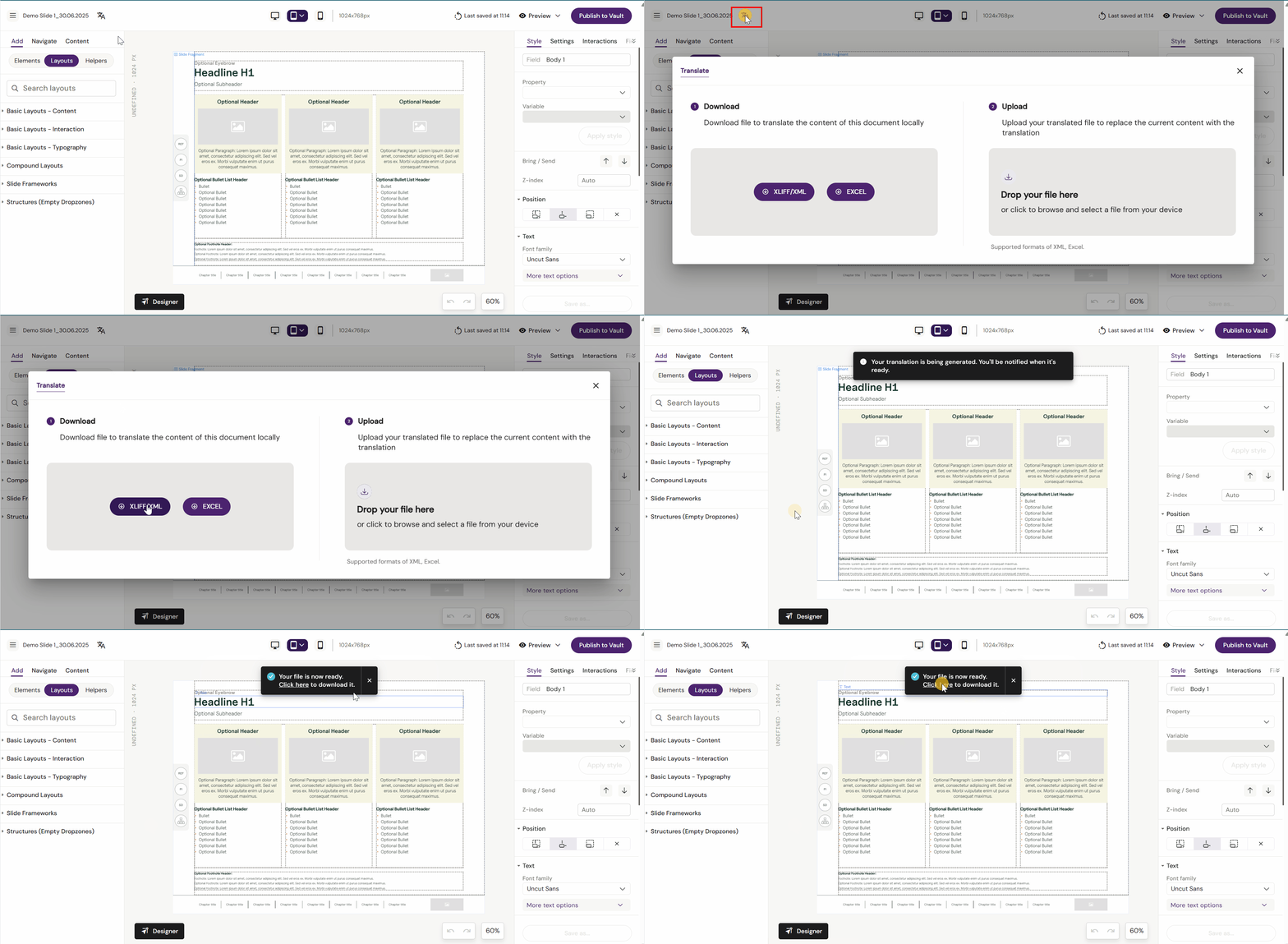
Export a translation file
-
Open the document you want to translate
-
Click the Translate icon next to the document name
-
Select the file format you need (XLIFF/XML or Excel)
-
Download the file and send it to your translation agency
What the export contains
Typically, the file includes translatable text fields from the document (for example headlines, body copy, button labels). Non-text assets (images) are not translated.
Import the translated file
-
Open the same document
-
Click the Translate icon next to the document name
-
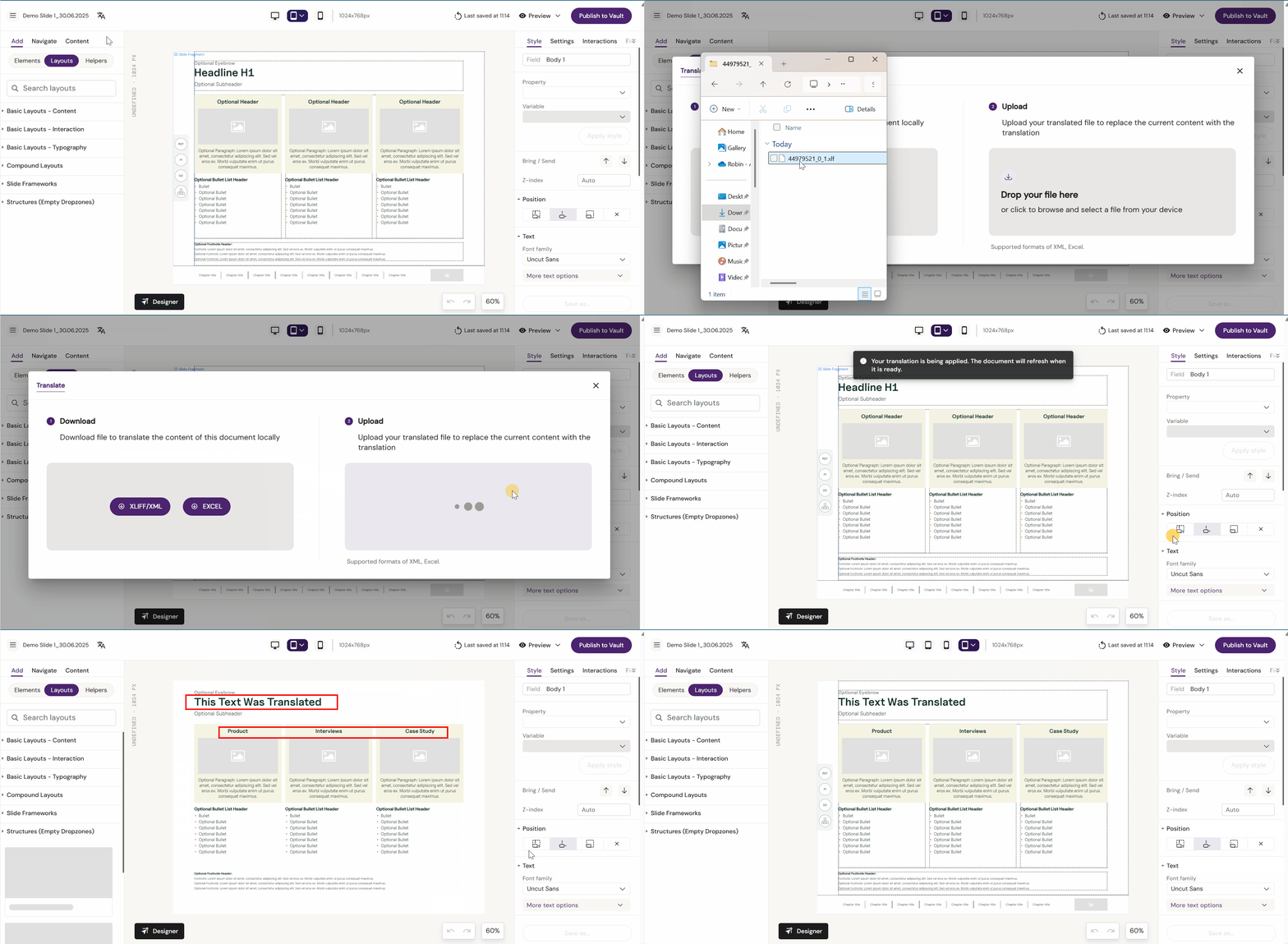
Upload the translated file
-
Activator applies the updated translations to the document
What to verify after import
-
Text fits the layout (overflow, wrapping, truncation)
-
Links and buttons still point to the correct targets
-
Any mandatory fields are still satisfied
-
Preview looks correct across relevant viewports/devices
Publish translated changes
Importing applies changes to the working version of the document. To deliver the translated version to your connected repository (DAM), publish after review.
-
Save (if prompted)
-
Preview
-
Publish
Collection-Level Translation
For localising many documents at once, you can generate a translation package for an entire Collection — including any nested Collections — instead of exporting and importing one document at a time.
Generate a Collection-level translation package
-
Open the Collection you want to translate
-
Click the Translate icon for the Collection
-
Select the file format you need (XLIFF or Excel)
-
Download the package and send it to your translation agency
XLIFF format
The XLIFF export is a zip file containing one XLIFF file per document in the Collection, including documents in nested Collections, so each document can still be translated and tracked individually while travelling together as one package.
Excel format
The Excel export is a single .xlsx workbook, with each document in the Collection — including nested Collections — represented as its own sheet.
Apply a Collection-level translation back
Upload the translated package once, at the Collection level. Activator auto-matches each translated document (or sheet) back to the corresponding document in scope, rather than requiring a separate upload per document. Progress is tracked while the apply-back runs, and you receive a completion notification once every document in the package has been updated.
Editing translation files safely (rules for agencies)
Do not change structure
Translators must not:
-
Remove or reorder keys/IDs
-
Delete tags/placeholders
-
Modify segment boundaries
Formatting tags are real
Translation files may contain inline formatting markers (for example <b>, <i>, placeholders, or inline tokens). If translators remove them, formatting will be lost.
If formatting is lost after import:
-
Fix formatting in the WYSIWYG editor, or
-
Use your Compare/Translate view if available (tenant-dependent)
Known pitfall: angle brackets in text
Angle brackets (< >) can be interpreted as markup in HTML/XLIFF contexts.
Problem pattern:
-
"<This"(no space) can break imports in some flows
Safer:
-
"< This"(add a space)
During export/import, brackets may be encoded, for example:
-
XLIFF:
%3Cand%3E -
Excel:
<and>
If Activator rejects an import due to bracket patterns, add a space after < (or before/after as needed), save, and re-import.
"My import didn't change anything"
Likely causes:
-
The file doesn't match the exported structure (wrong document/version)
-
The agency modified IDs/keys instead of only translating values
-
You uploaded the wrong format or a corrupted file
"Text now overflows / breaks layout"
Translation often expands text length. Shorten copy, adjust layout, or choose a different template/layout variant.
Arcane Translation
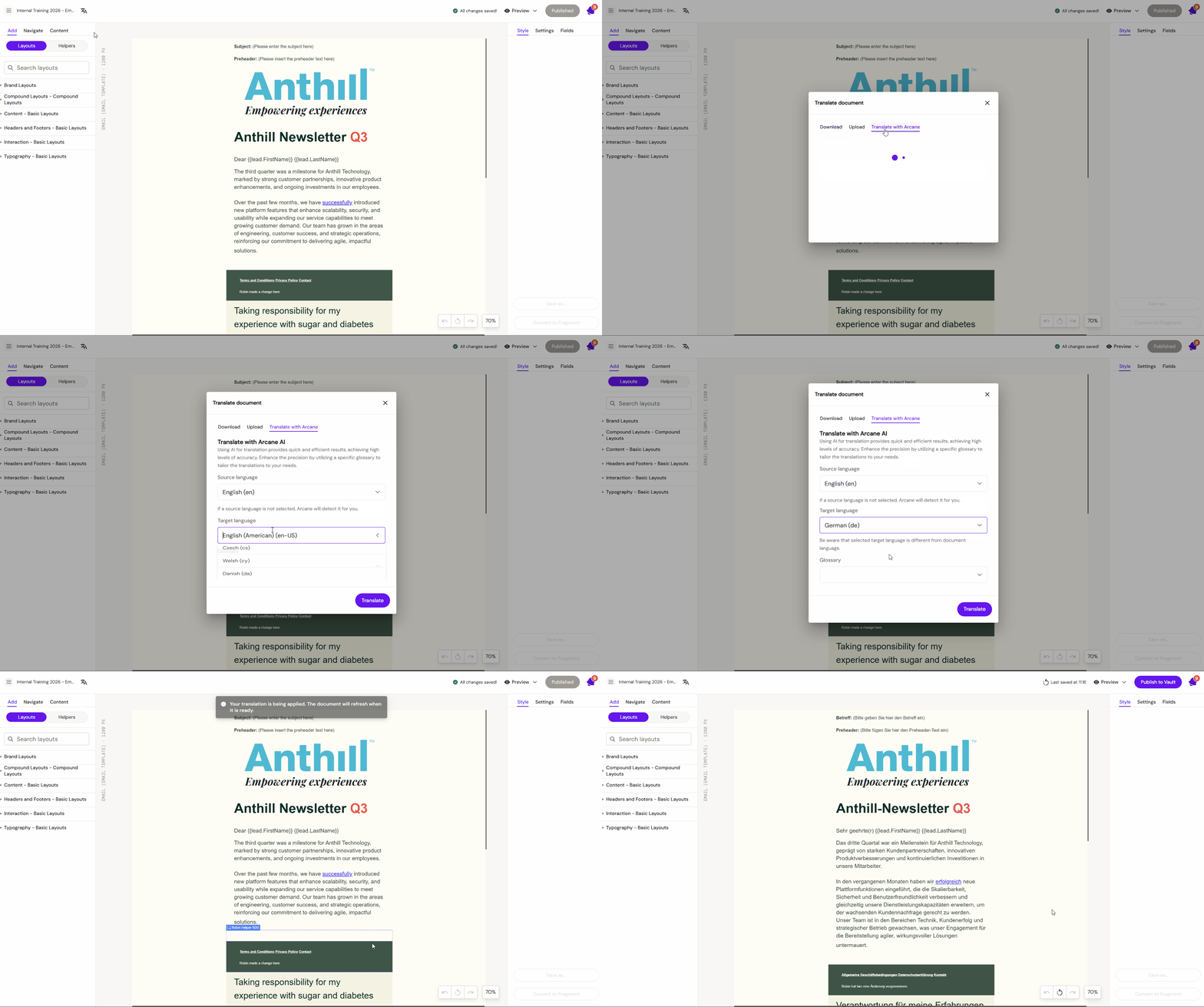
Arcane translation is a subscription based service that can help translate your documents into more than 30 languages.
-
Open the document you want to translate
-
Click the Translate icon next to the document name
-
Select Translate with Arcane
-
Select the target language and Glossary (if available)
Make sure to proofread the text as Arcane cannot be guaranteed to provide exact translations. These linguistic translation errors are also referred to as "approximate translation" or "imperfect translation". This can happen due to nuances in language, cultural context, or idiomatic expressions.
Translation Flag on documents
After a document has been translated using Arcane, it displays a translation flag on its Dashboard card. This flag identifies translated variants at a glance, making it easier to distinguish localised copies from the source document when browsing the Dashboard.
What it looks like:
The flag appears as a language/translation indicator on the document thumbnail in the Dashboard list or grid view.
When it appears:
The flag is set automatically when an Arcane translation is applied and persists on the document card until the document is deleted or replaced.
Why it matters:
On tenants with multiple market variants of the same content, the flag helps teams quickly identify which documents have already been localised — without having to open each one.