
Generate an MLR PDF report from within Activator to package your content into a format suitable for your organisation's Medical/Legal/Regulatory review process. The report is created from Preview mode and downloads as a PDF.
What the MLR report contains and how reviewers use it: MLR PDF report
Generate an MLR report
1. From the Dashboard, click the content card you want to report on. This opens it in the Editor.

2. In the Editor, click the Preview button (top right — labelled 1 in the screenshot below).
3. In Preview mode, select the MLR tab (2).

4. Click Get MLR Report at the top right of the canvas (3).
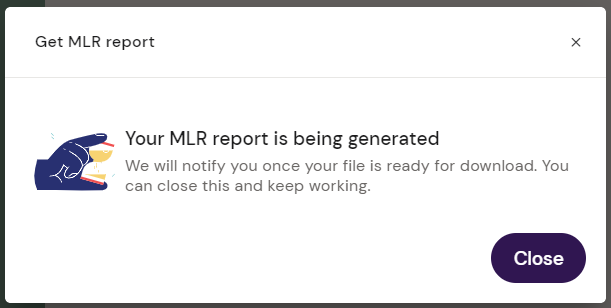
A prompt confirms the report is being generated. Close the prompt and continue working — Activator runs the report in the background.
5. When the report is ready, a notification appears at the top of the canvas.

6. Click Click to download to save the PDF to your computer.
Related
-
MLR PDF report — what the report contains and how reviewers interpret it