
This functionality is only available for Slide and Brief document types.
A popup is, usually, a small window or banner that appears in the foreground of you document.
Popups on a Slide are not active per default in the Activator workspace. You can find available states and popups in the Navigate-->Web menu at the bottom half of this menu.
Click on the eye-icon to open the popup on the workspace:
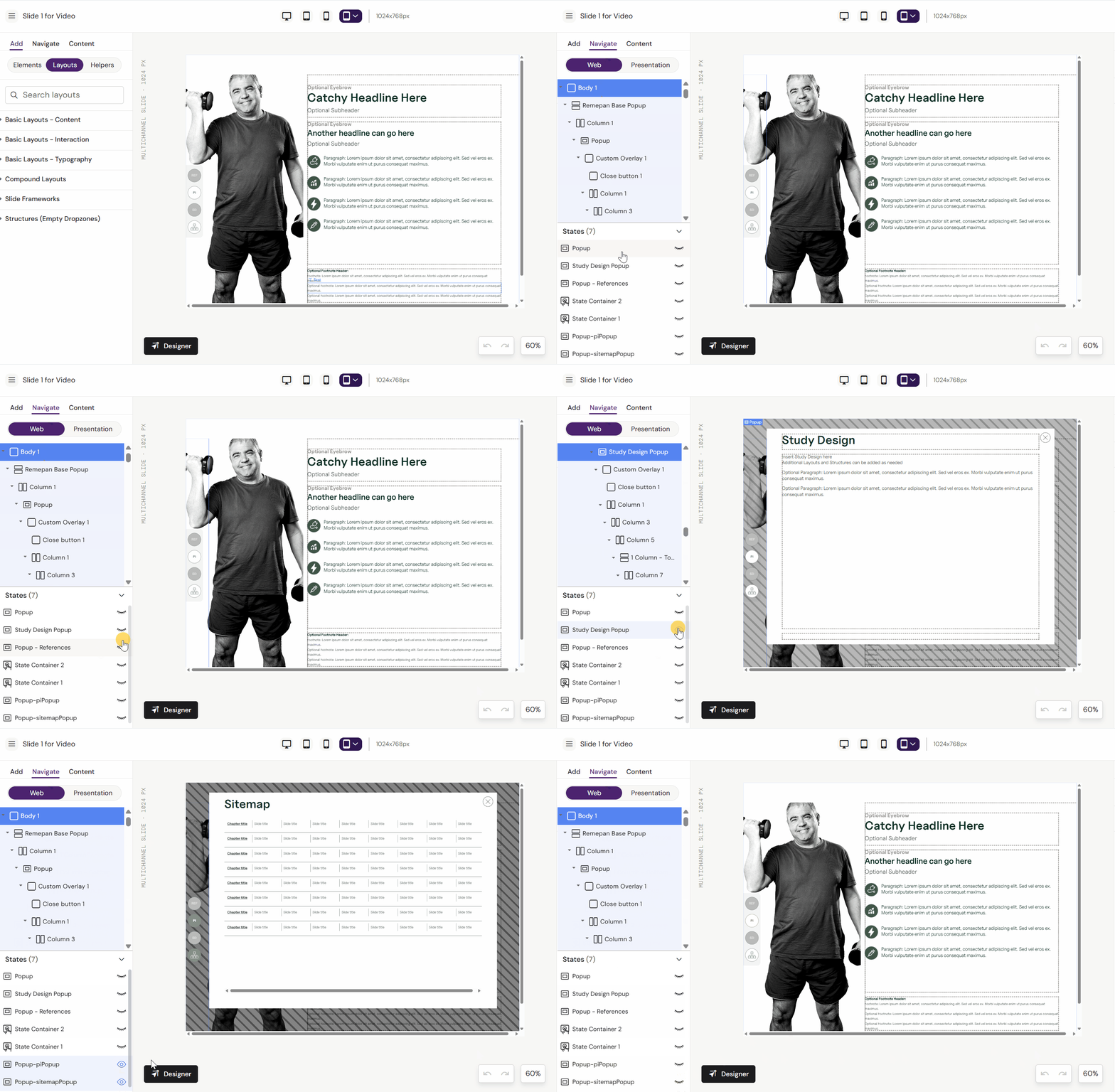
Local Popups and Global Popups
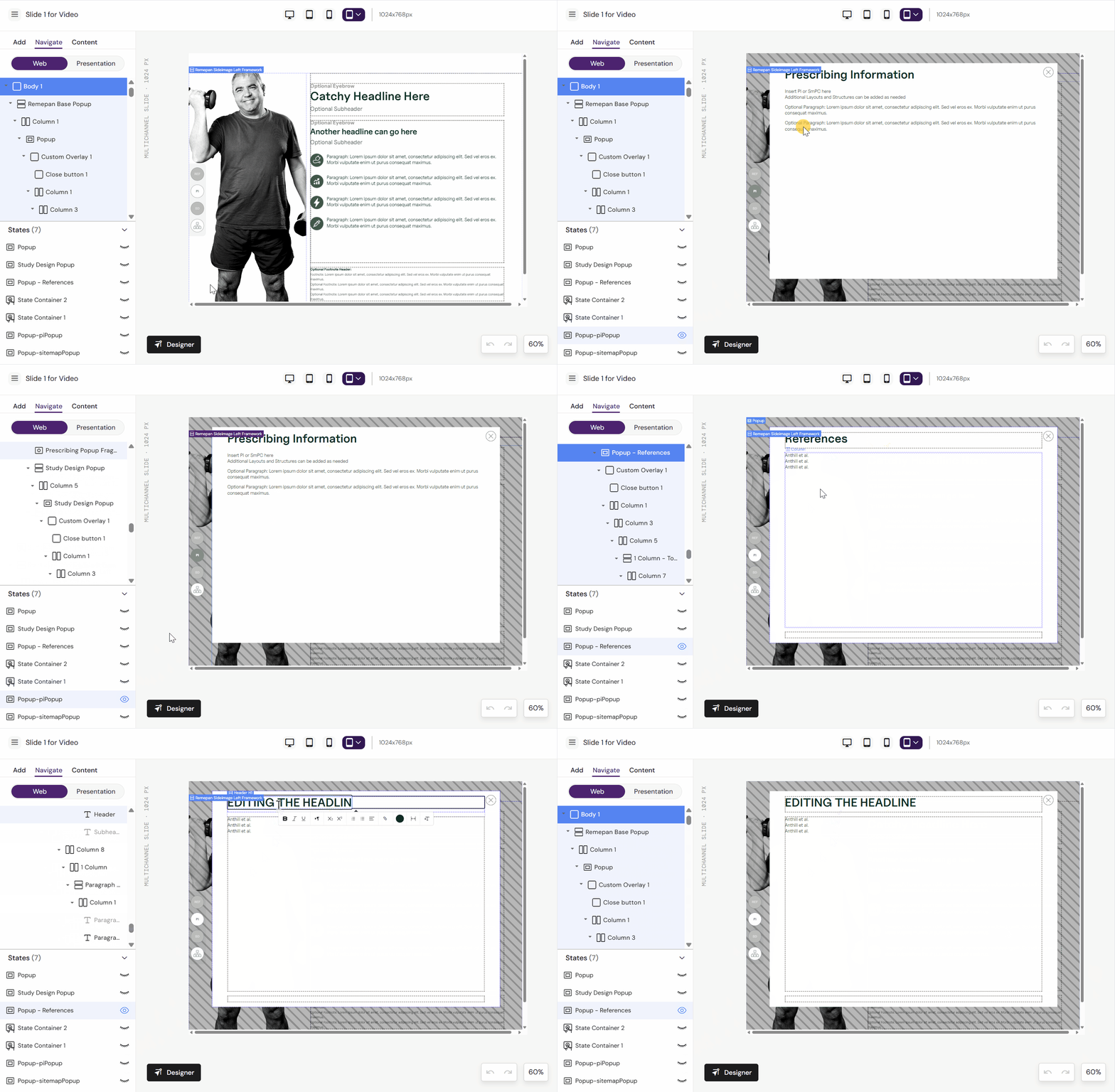
The icon for a local popup is the same as for a global popup. To check what kind of popup is open, click on content inside the popup.
-
If you can edit the text, it is a local popup.
-
If you cannot edit the text, it is a global popup in a Slide Fragment.
In Activator, the difference between a local popup and a global popup lies in where the popup is created and how it can be reused across content.
Local Popup
-
Created within a single slide or layout.
-
Only available in that specific context – you can’t reuse it across other slides or documents.
-
Best for unique interactions that are specific to a particular piece of content.
-
Managed directly in the slide you're working on (you can add a popup state and build it there).
Example:
If you want a popup with additional information on Slide 2 only, you create a local popup directly on Slide 2.
Global Popup
-
Created as a slide fragment and saved to the Design System.
-
Can be reused across multiple slides or documents.
-
Ideal for shared or standardized popups, such as ISI (Important Safety Information) or product disclaimers.
-
Managed from the Fragments section and inserted via lookup.
Note: As of now, if slide fragments are not accessible in your Activator environment, you won’t be able to edit global popups yet.
In Summary
|
Feature |
Local Popup |
Global Popup |
|---|---|---|
|
Scope |
Single slide or layout |
Multiple slides/documents |
|
Reusability |
Not reusable |
Reusable via Design System |
|
Created in |
Within the slide |
As a slide fragment |
|
Use case |
Slide-specific interactions |
Standard content (e.g., ISI) |