
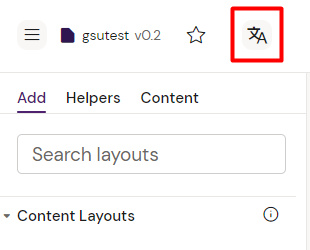
If you find yourself opening a new version of a slide and you want to compare the latest version’s contents to contents of a previously published version of the same slide, you can do so by clicking on the 'Compare and Translate' button in the top left corner of the Slide Editor view.
Doing so will open a new overlay called 'Compared and Translate' that compares the two slides side by side.
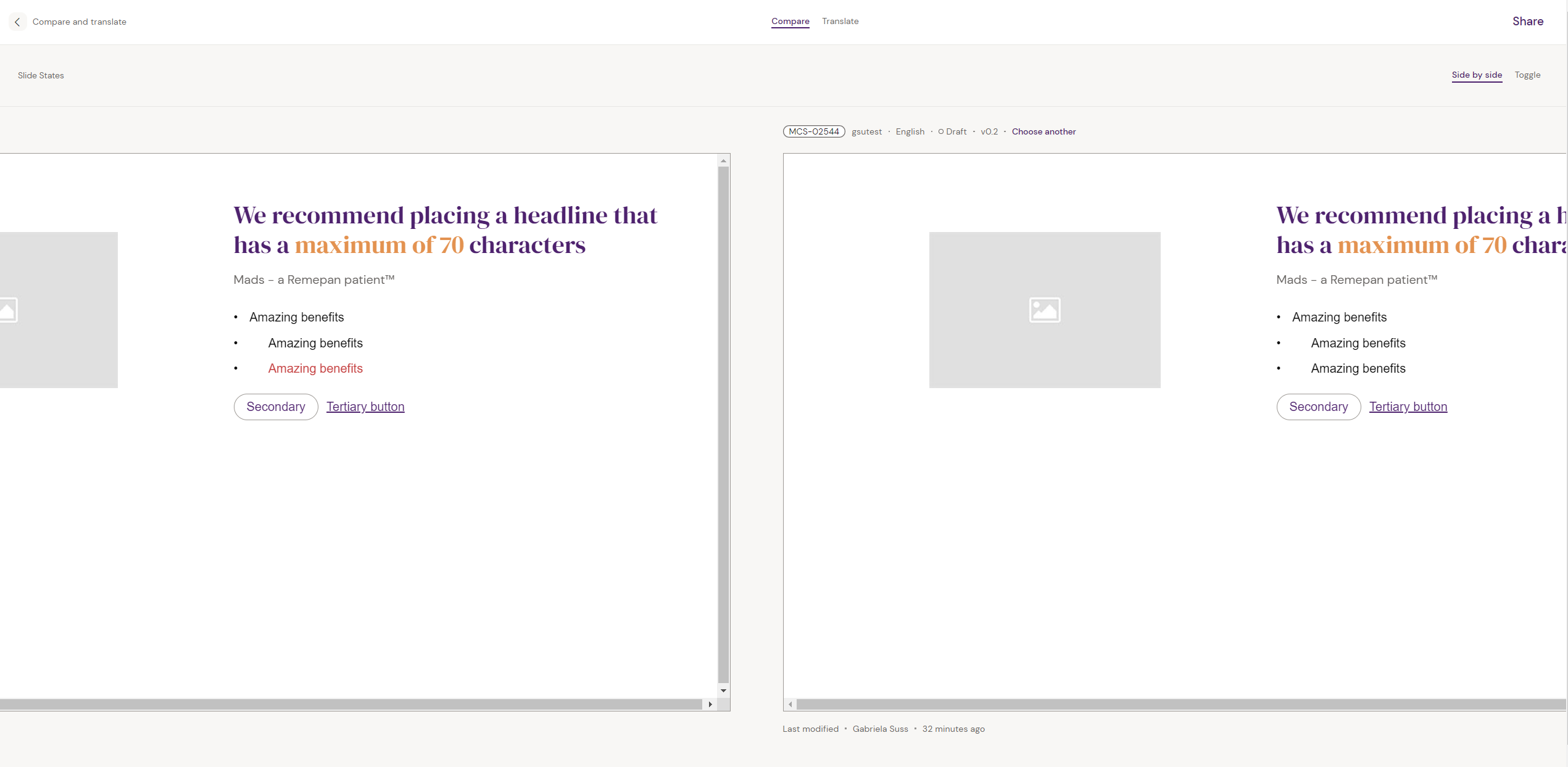
You can also click on ‘Toggle’ in the top right corner of the overlay to change the view to where you can toggle between one slide at a time to compare the differences of content between both versions of the slide.
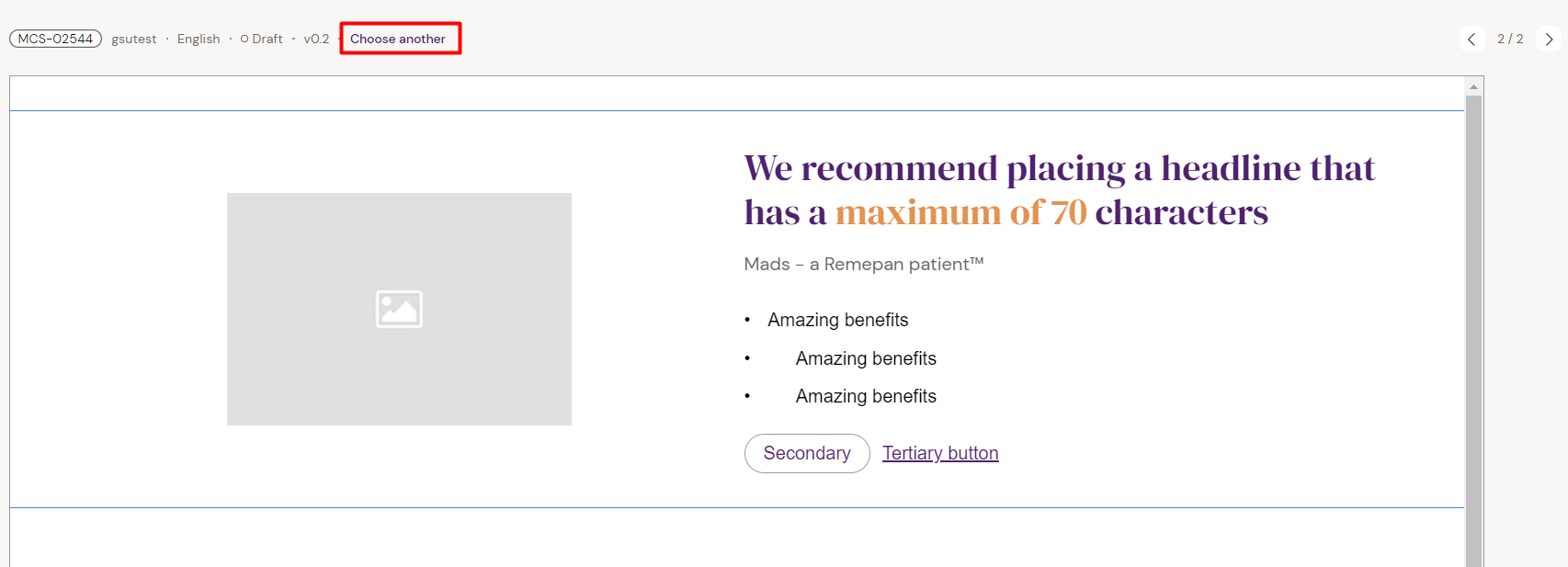
You will always compare the latest version of a slide to a chosen previous version of your choice. To change the version of the slide that you want compare to the latest version, click on ‘Choose another’ next to the version number of the slide.
When you are done comparing the states of the two slides, you can get back to your slide using the arrow in the top-left corner of your screen.