
How to edit existing text on a Slide.
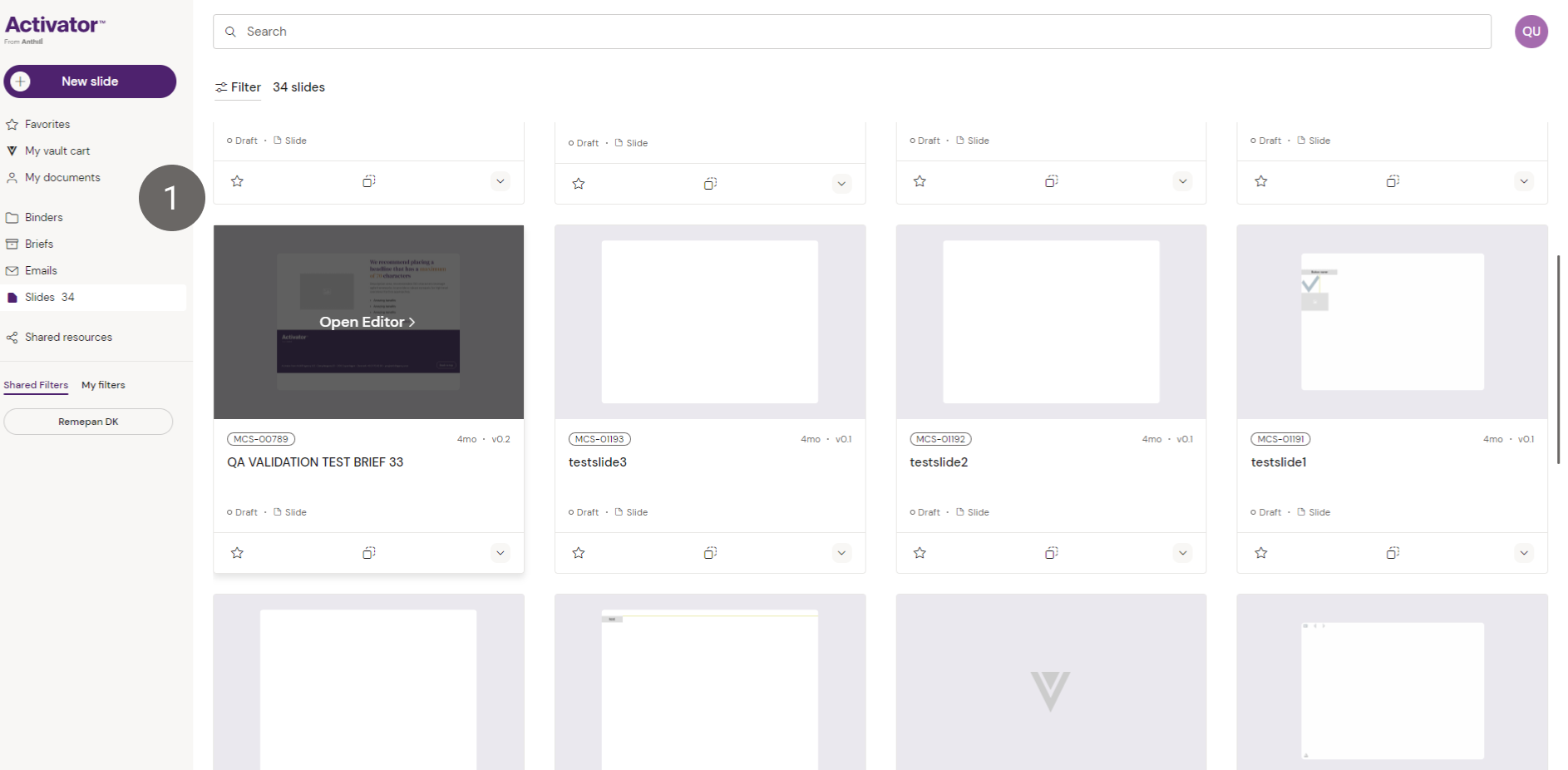
1. To access the editing mode in Activator, find your Slide and click on it to open the Editor
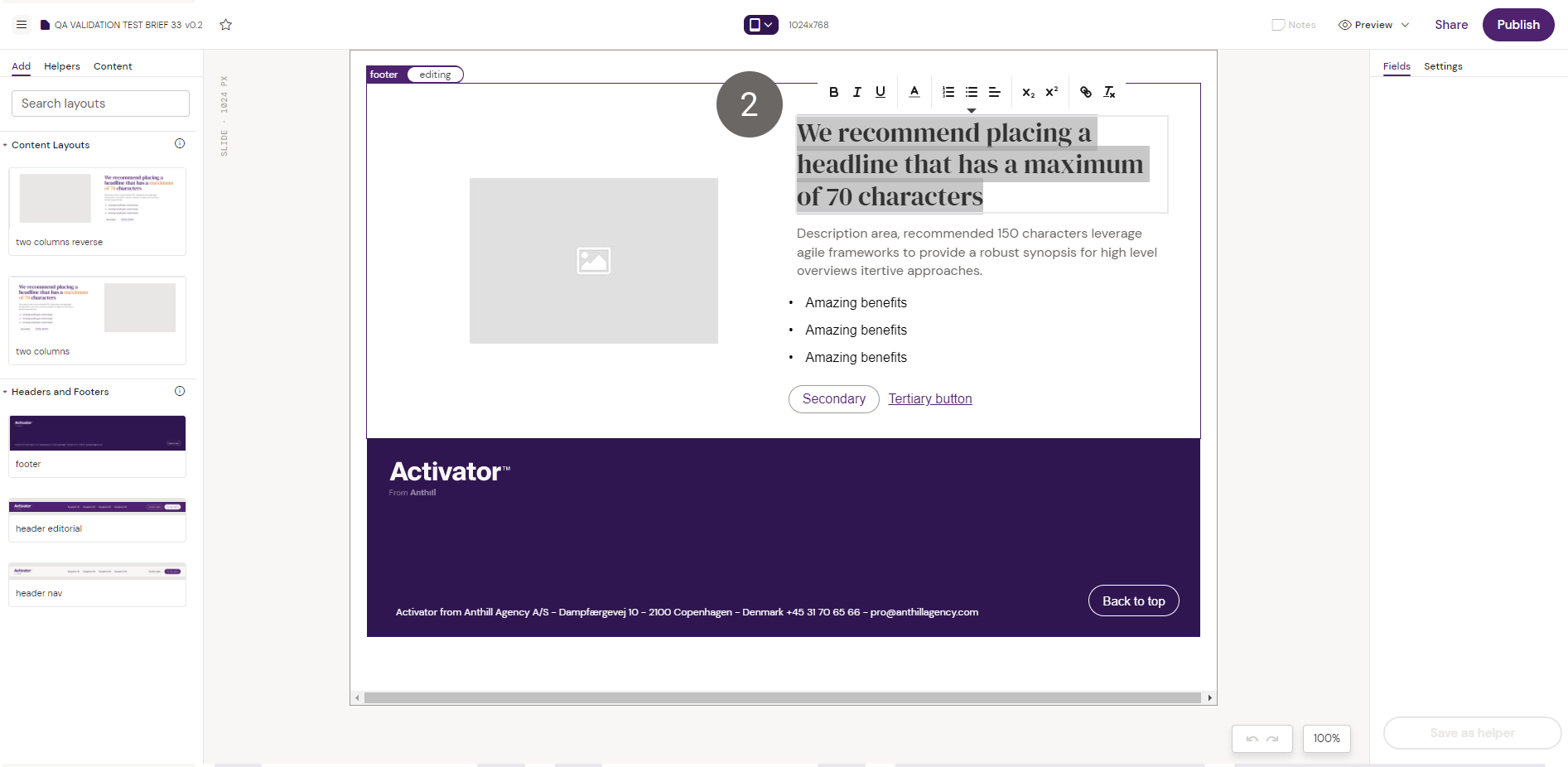
2. From here you can simply double click on any text that you wish to edit. This will also open up the text editor to apply formatting on your text.
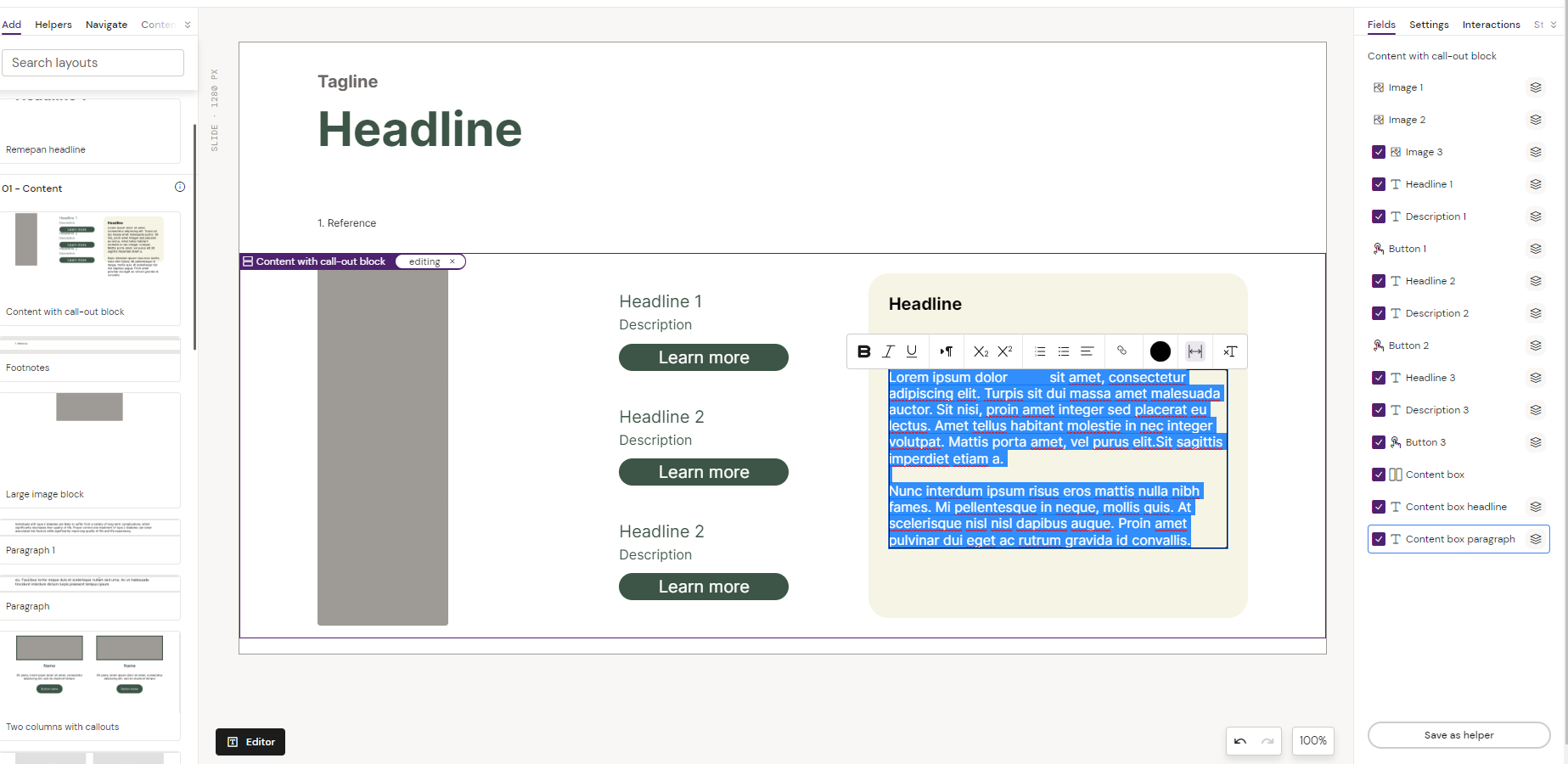
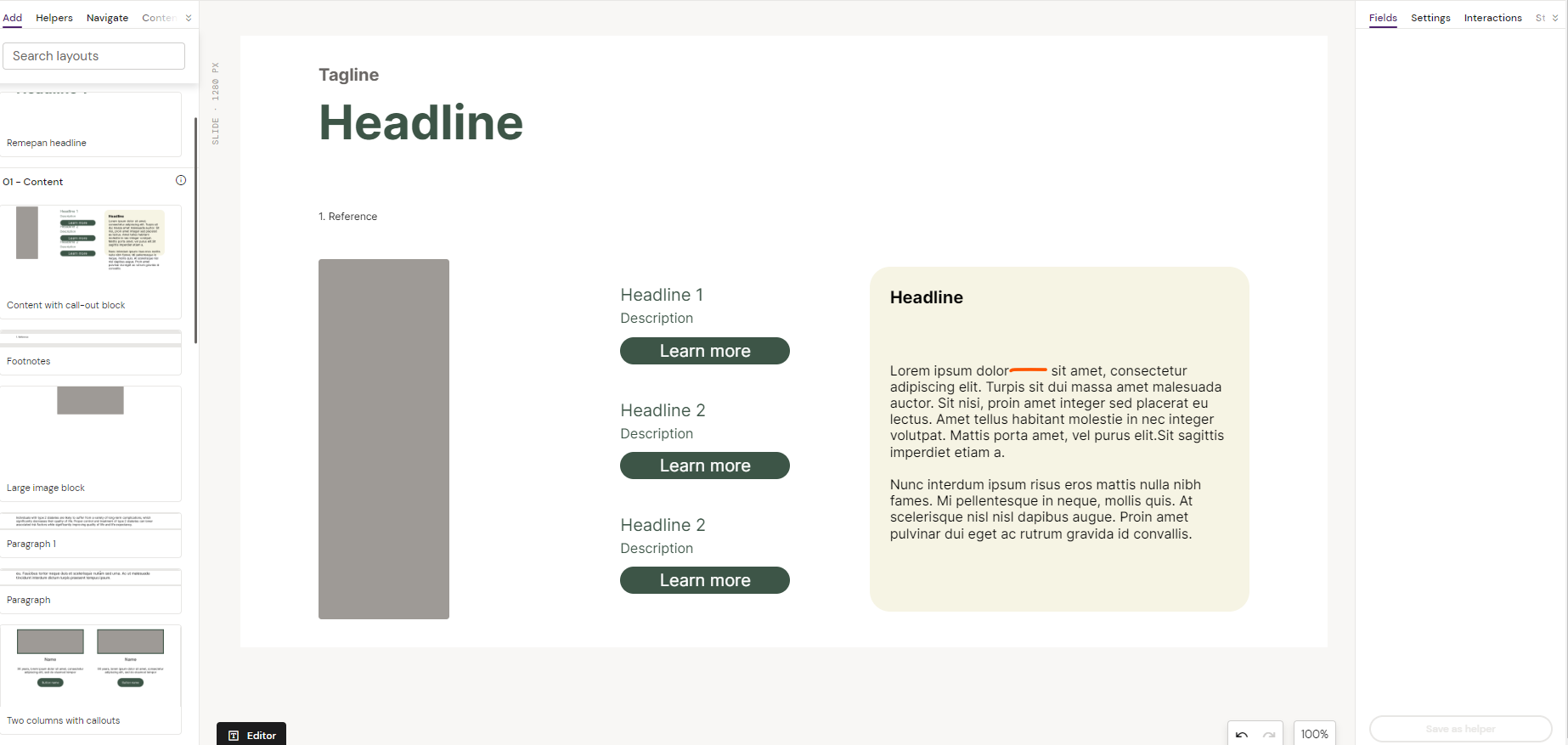
Users can add text with a few own spaces and apply this style ‘Preserve white space’ - spaces will not be removed by quill. Here is as it will look on the quill panel:

Functionality
-
Highlight the text that should not be trimmed.
-
Click on the icon in the quill
-
Click outside of the canvas for the the toast message to appear, that the changes were saved
-
The part will then not be trimmed
-
To remove the setting highlight the text and the part that has the setting will show an “active” icon in the quill (but it has to be precisely the section)
-
Click on the icon, that will deactivate it, but it can only be seen, after you hover away from the icon.
-
Then click outside of the canvas and wait for the toast message that the changes were saved.
-
The trimming will be reimplemented
The user should be aware that:
a) the whitespaces should be highlighted as well
b) to remove the setting you need to click on the icon but “active” state will only disappear once you are hovering away from it
c) In order to deactivate the setting they will have to highlight precisely the text part that has been highlighted, otherwise the quill icon will not recognise it. Workaround: Highlight All text to activate and deactivate the setting to remove it. (worst case you can check it in the source code directly)
BEST PRACTICE
-
Best practice would actually be to highlight the whole text in the text element and set the setting instead of using it smaller text bits.