
Custom HTML code can be added by using the HTML custom component. It is available from the Designer Components list.
Design:
Tag is added:

When opened to edit:

Designer:
-
The left panel should have a 'Custom' treeview group with an HTML component according to the designs.
-
Add an HTML element to the email. It should be draggable for email element reordering.
-
Element always has collapsed view as the first state.
-
To open component edit, click on the ‘click to edit' button.
-
After the user finishes text editing, the element should be deselected to save it.
-
If users don’t want to save the latest changes, just press the ‘escape' button.
Editor:
-
The user should be able to edit the value. The Content Designer needs to activate the 'Show field in editor mode’ switch inside the Designer right panel settings tab.
-
The component click to edit button inside the editor is not visible in preview mode, only in edit mode.
-
After applying changes, you can watch the result inside the document source page. The code should be saved inside the div block with the
code-containerCSS class.
Textarea restrictions - set cursor position by mouse click (need to use ➡ ⬅ ⬆ ⬇ ), text selection my mouse move (need to use shift + ➡ ⬅
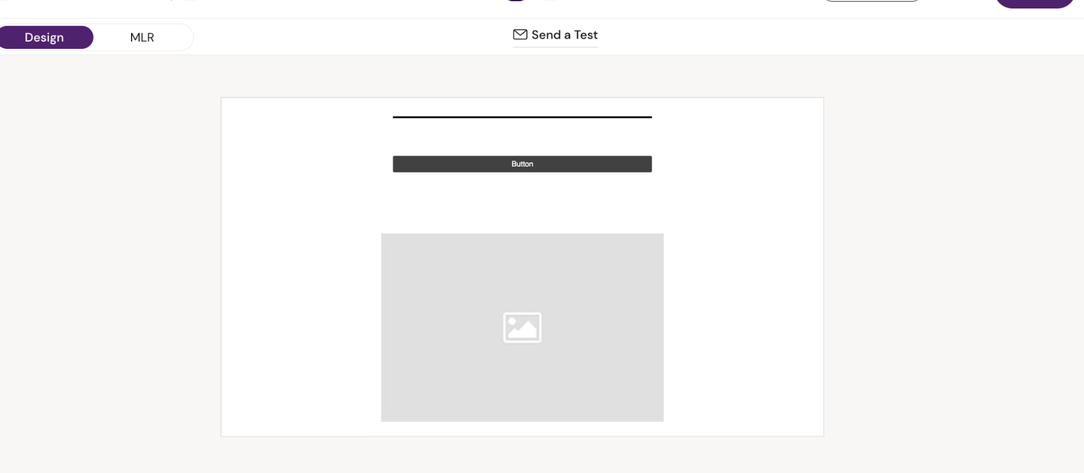
Preview: On “Preview”, the HTML tag is not visible as it is not intended for the end user
Document in Editor (preview):
Please note that from the source editor, it has always been possible to add custom code https://help.activator.cloud/sup/how-to-use-the-source-editor-and-manually-edit-mjm