Allow 1.x Emails being modified in the v2 Editor
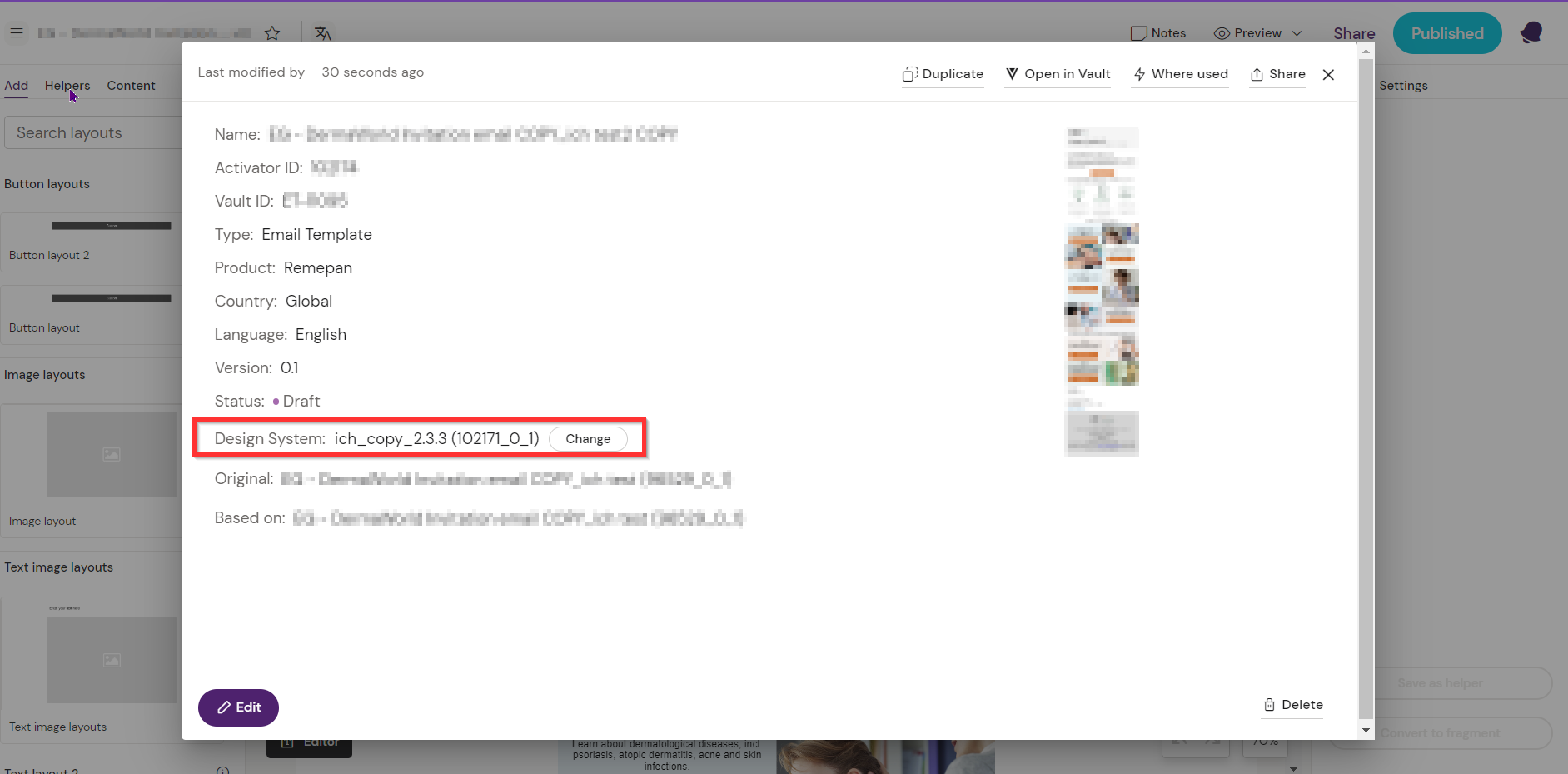
It is now possible for Editors to open e-mails created in Activator version 1.x in the v2 Editor. When opening the 1.x e-mail, a 2.x Design System will have to be selected and a pop-up will ask the user to confirm the update of outdated e-mail elements and properties.
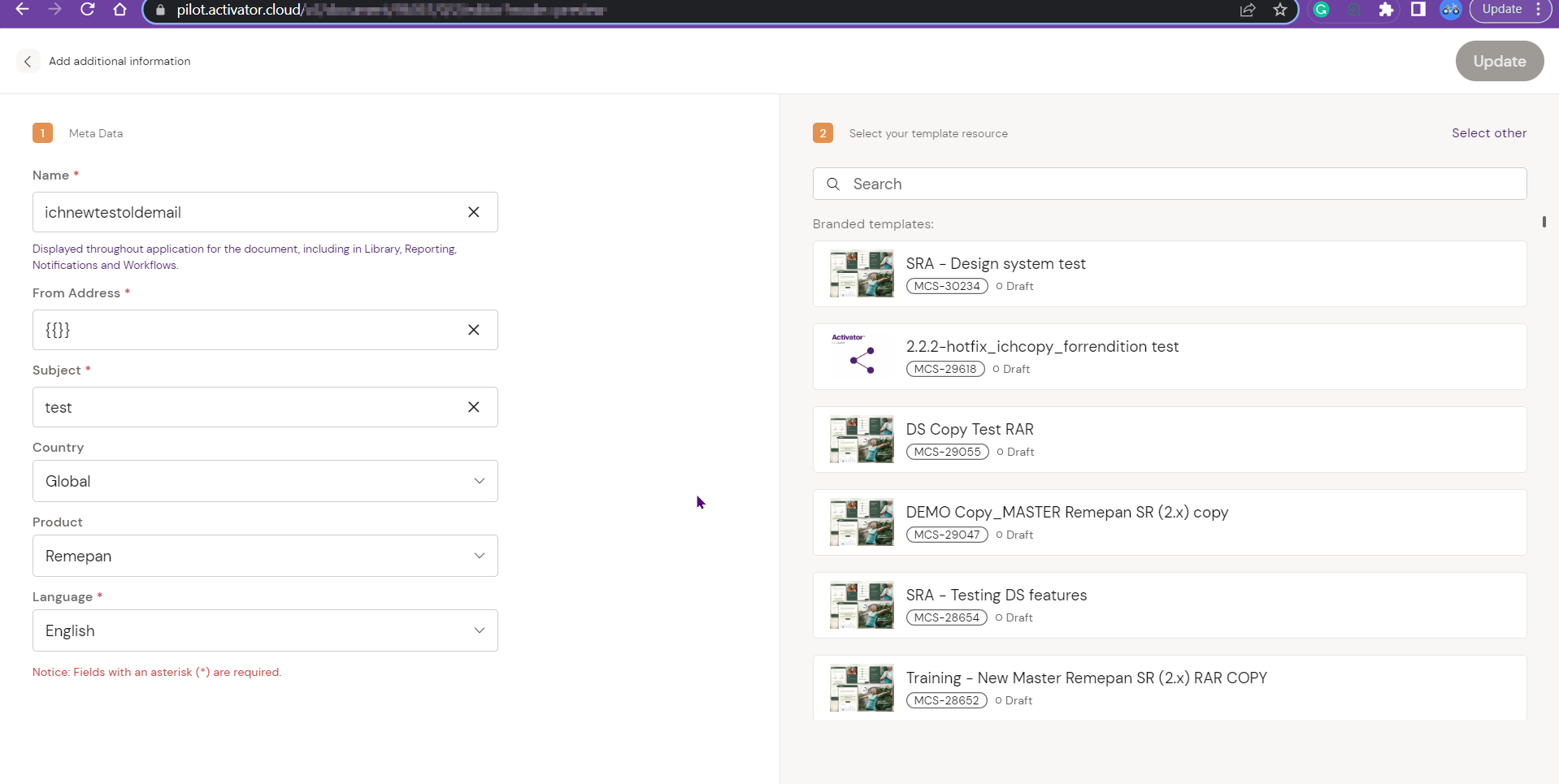
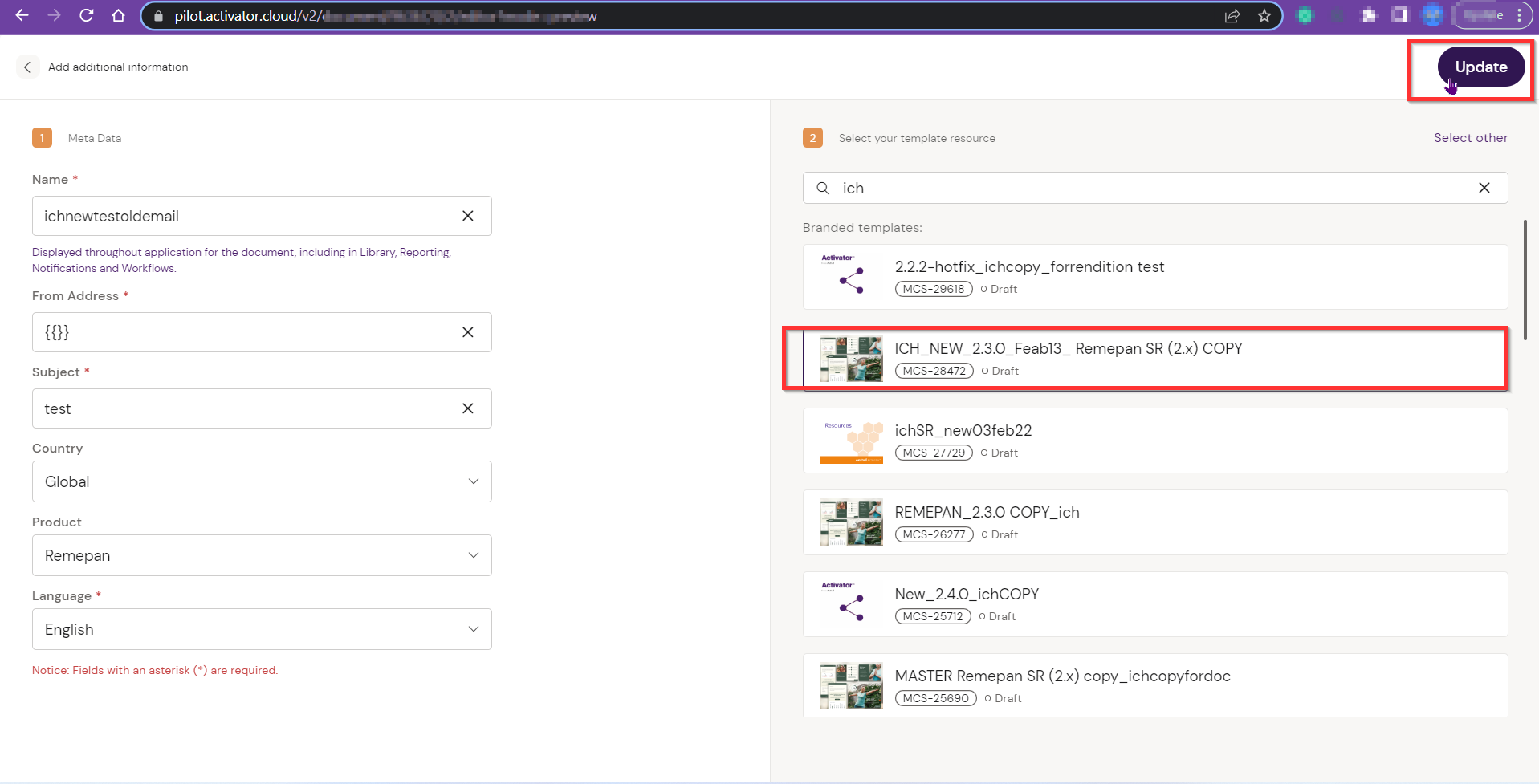
Once confirmed, the e-mail can be opened and edited in the v2 Editor. It will then be converted into a layout structure which means that the user can reorder existing or create new layouts. Saved layouts will be useable for modular content and MLR.
For transferring any 1.x email to 2.x, follow the guide https://help.anthillagency.com/sup/How-to-transfer-Email-content-from-one-environment-to-another-environment-in-Vault-PromoMats.2349465687.html
Show field in editor mode" for 1.x emails
When opening 1.x email in v2 Editor, from Designer mode the user will be prompted for an update of older elements.
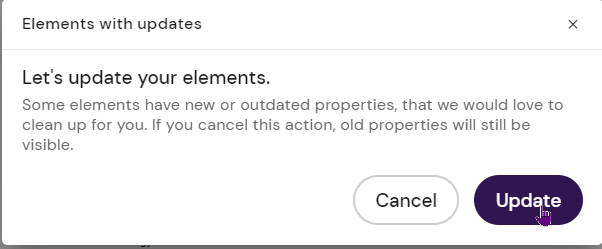
Notice the following changes in 2.x environment:
-
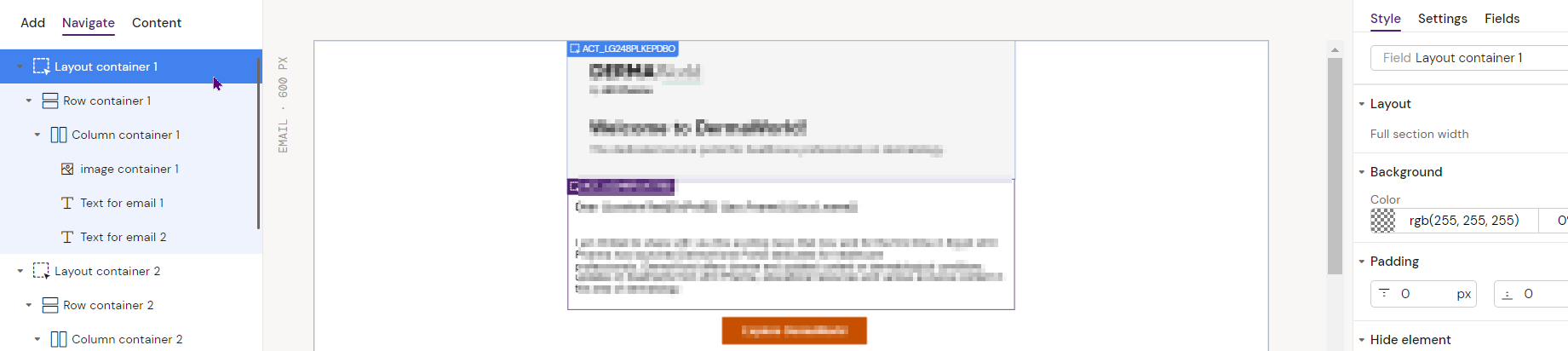
sections become layouts
-
layouts are reorder-able and delete-able
-
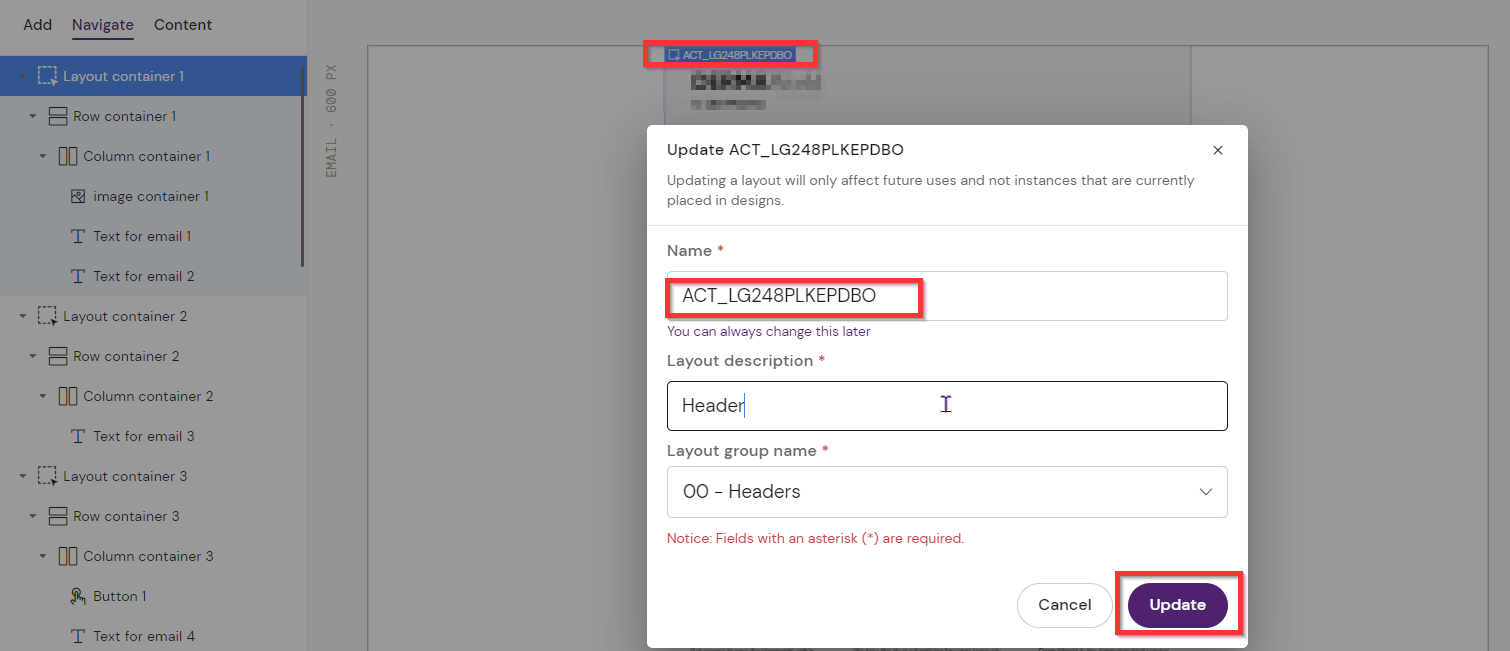
sections will already have a layout name when navigating to the designer, the “update to layout” button will be available
-
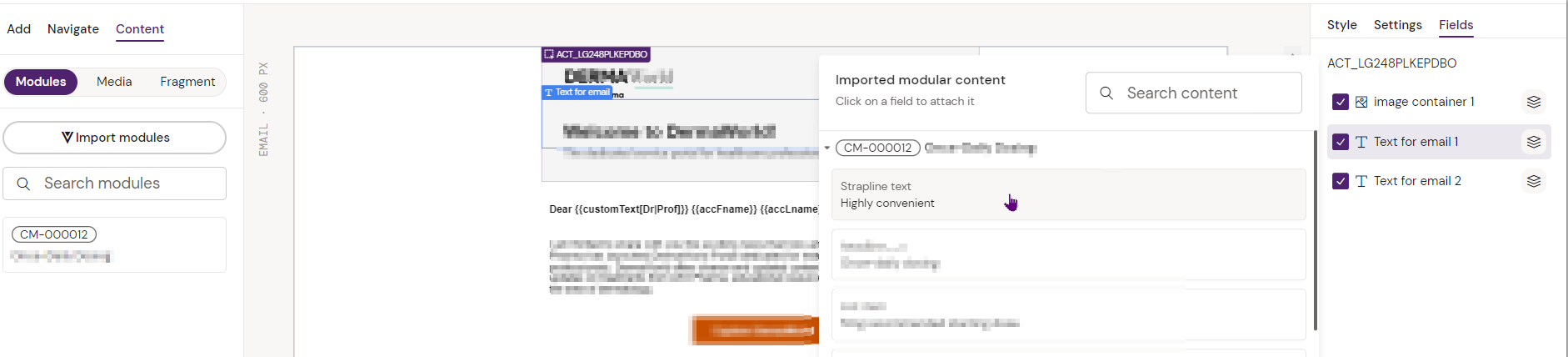
Fields will be available and it will be possible to add modular content
-
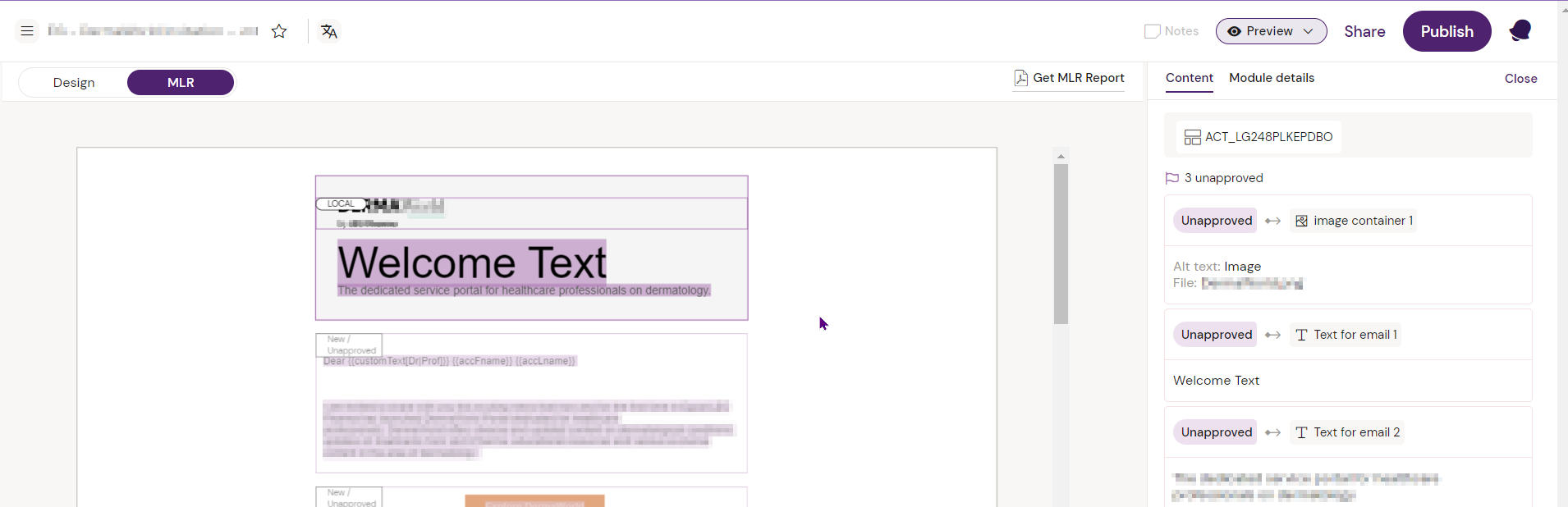
In MLR mode the layouts created will be labeled New/unapproved content
Duplicating an email without a Design System (SR) relation
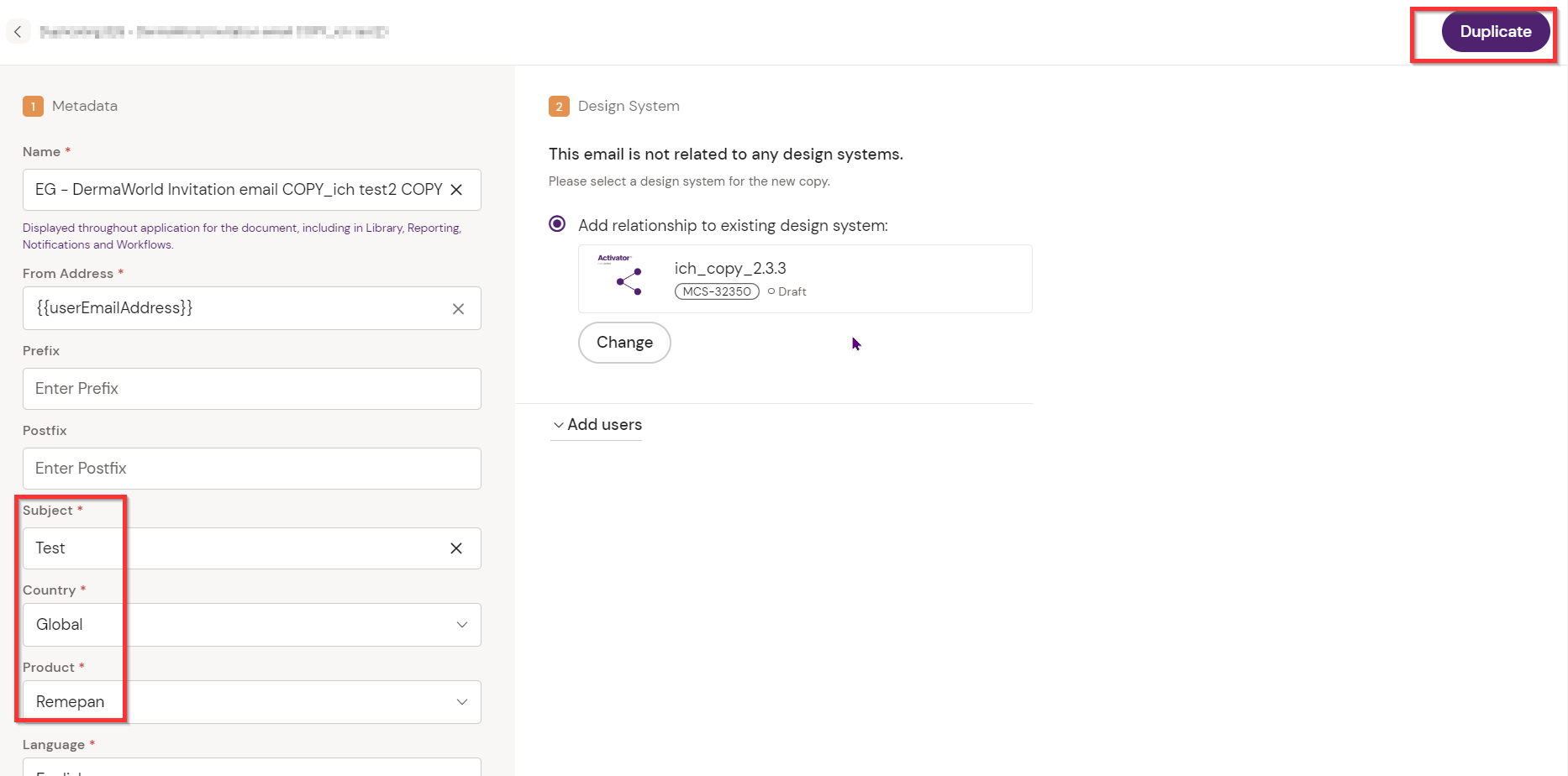
It is also possible to duplicate 1.x. e-mails without a Design system relation. The user can add relations to an existing (2.x) Design System during the duplication process.
When duplicating legacy Activator content, Activator will now prompt the user to add necessary Design System relations in the duplication wizard.
Steps:
-
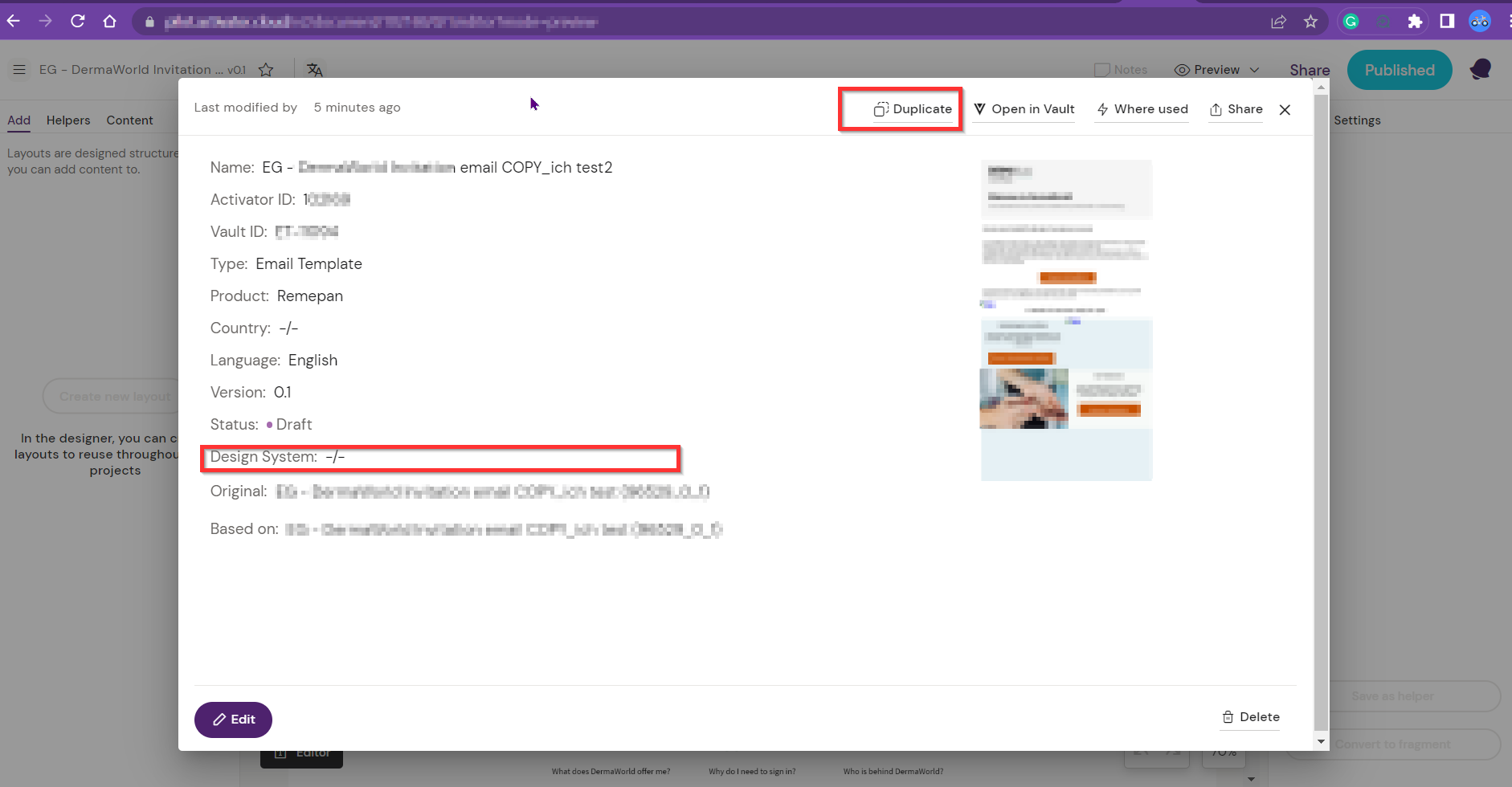
Find a 1.x email without a Design system Relationship and open it in Activator 2x. Click on the ‘Duplicate’ button from the settings
-
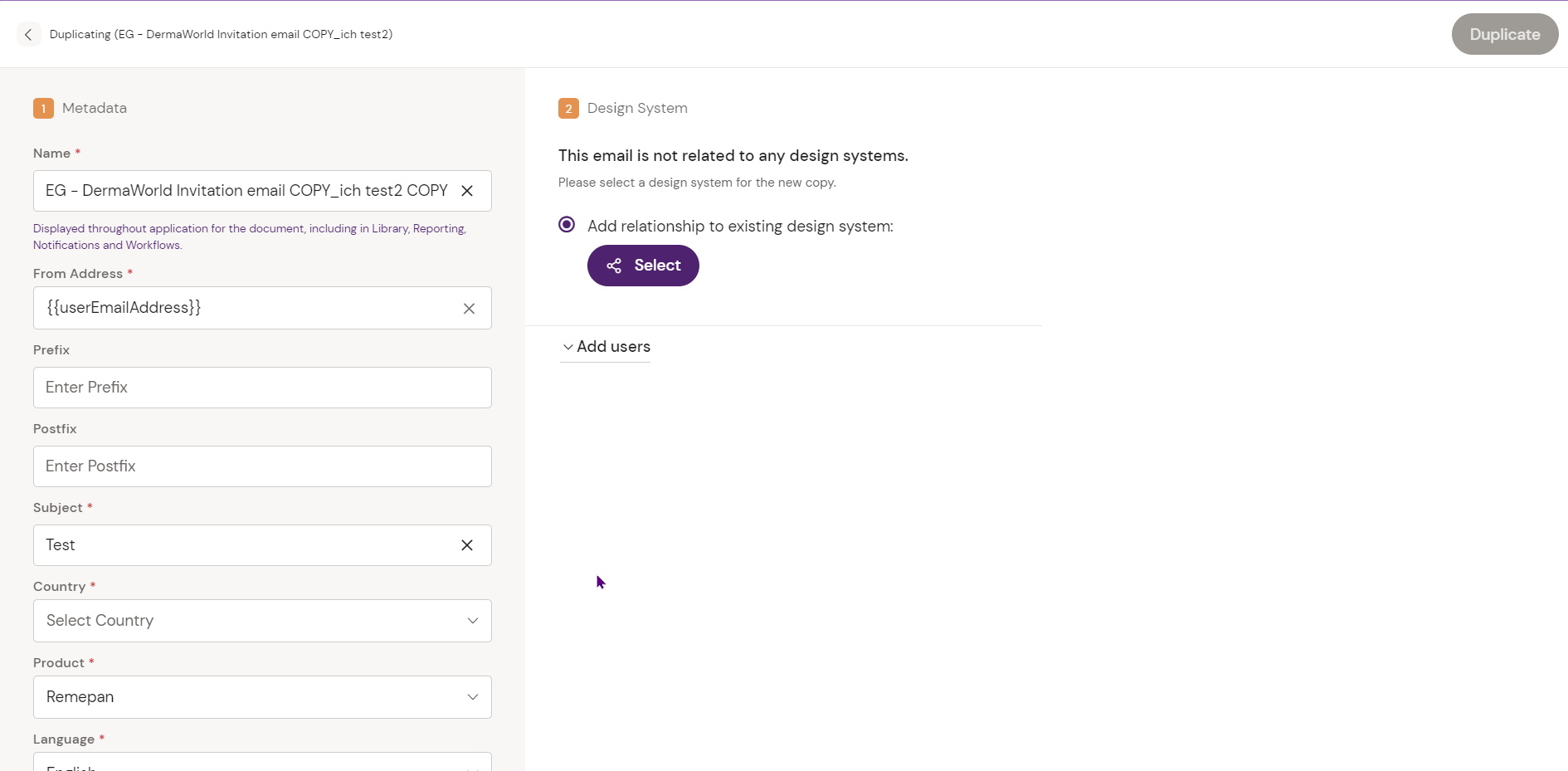
Upon opening the duplication wizard, the user has the option to select “Add relations to existing shared”
-
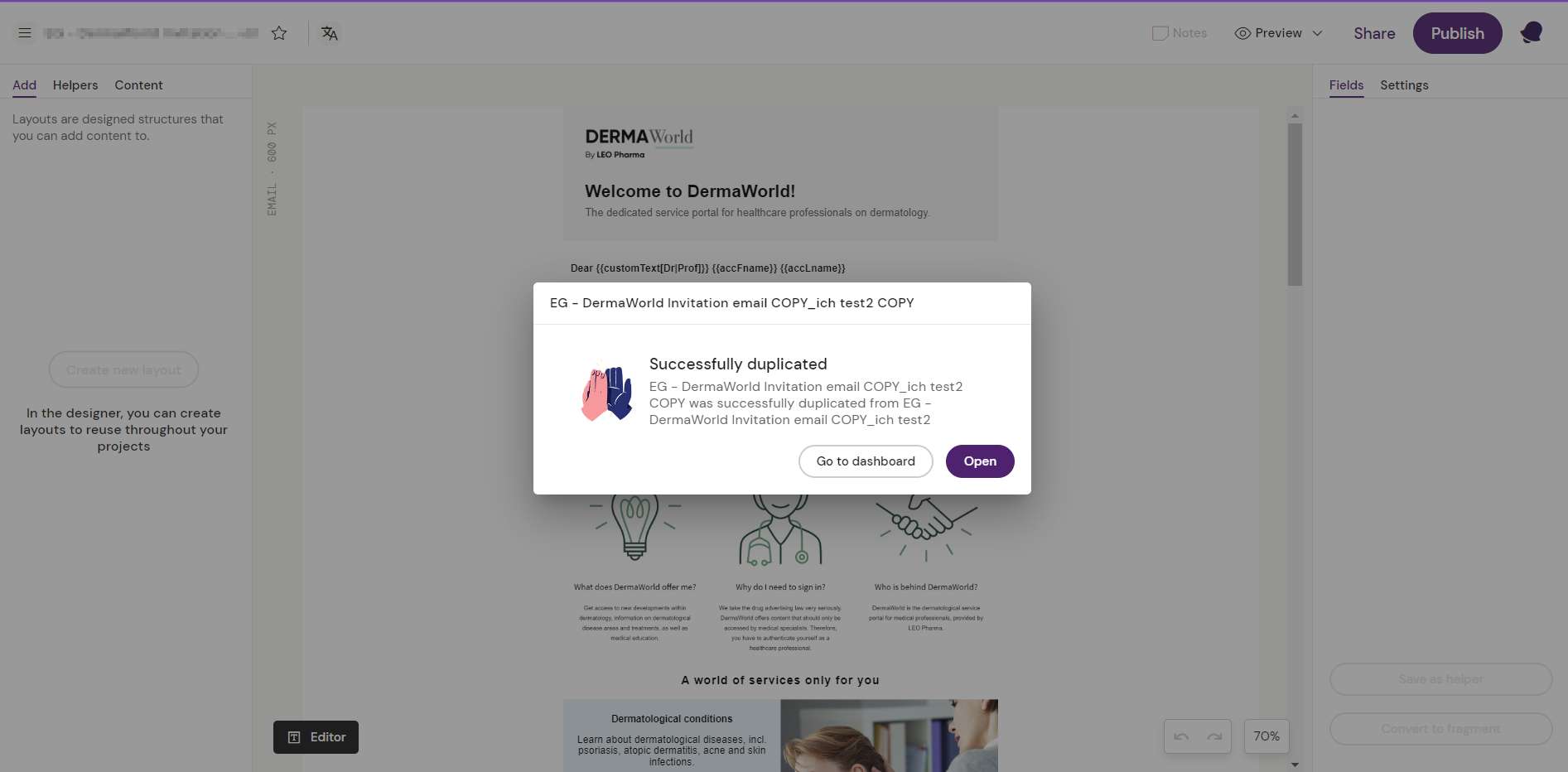
Add a Design system, confirm, and Duplicate. Make sure to fill out the necessary Metadata