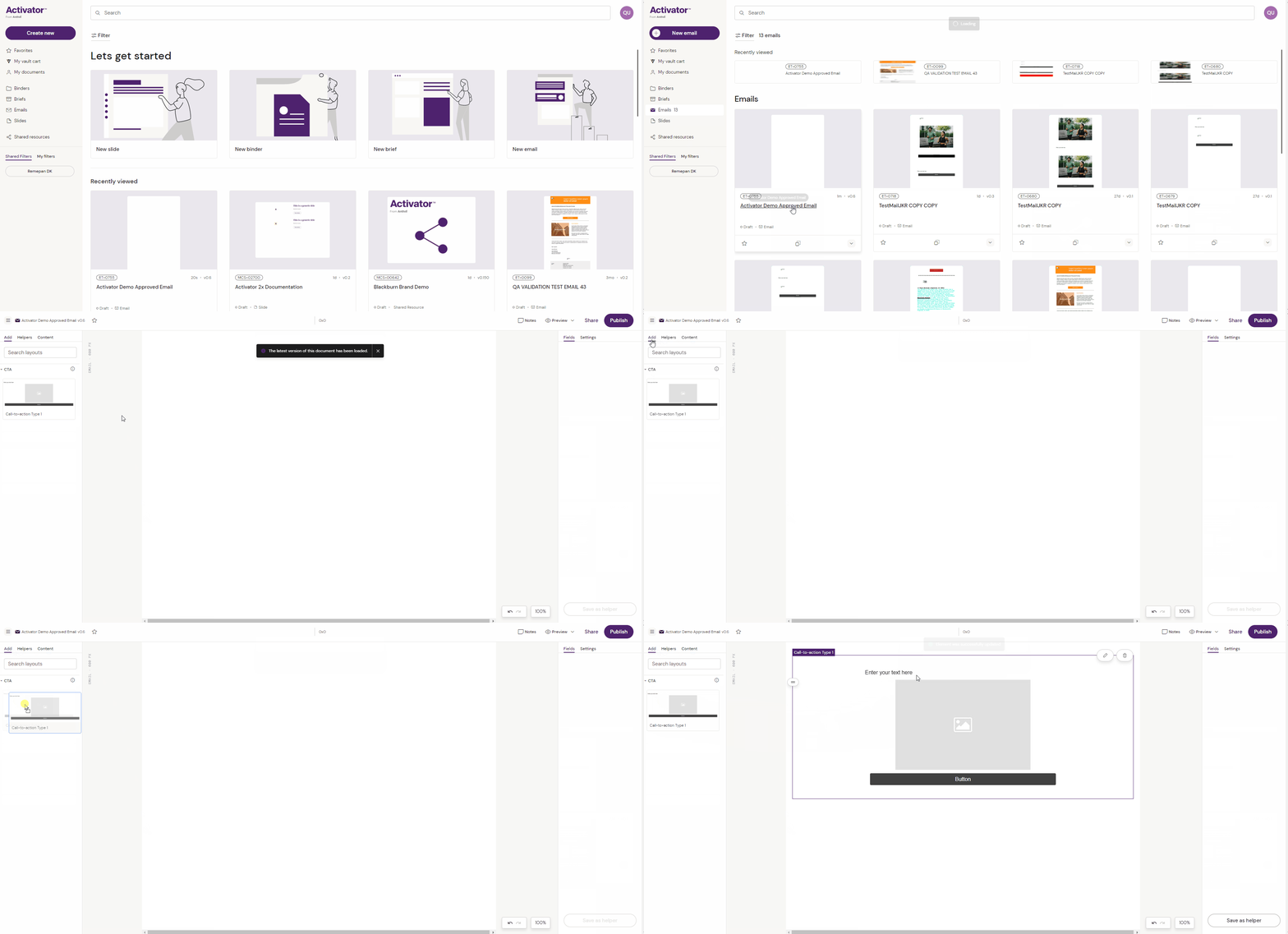
You can use Layouts both in the Activator Editor and in the Activator Designer, but you can only create or edit Layouts from the Designer view. To access layouts, navigate to the ‘Add’ tab in the left hand menu from either view.
Create & save a layout
-
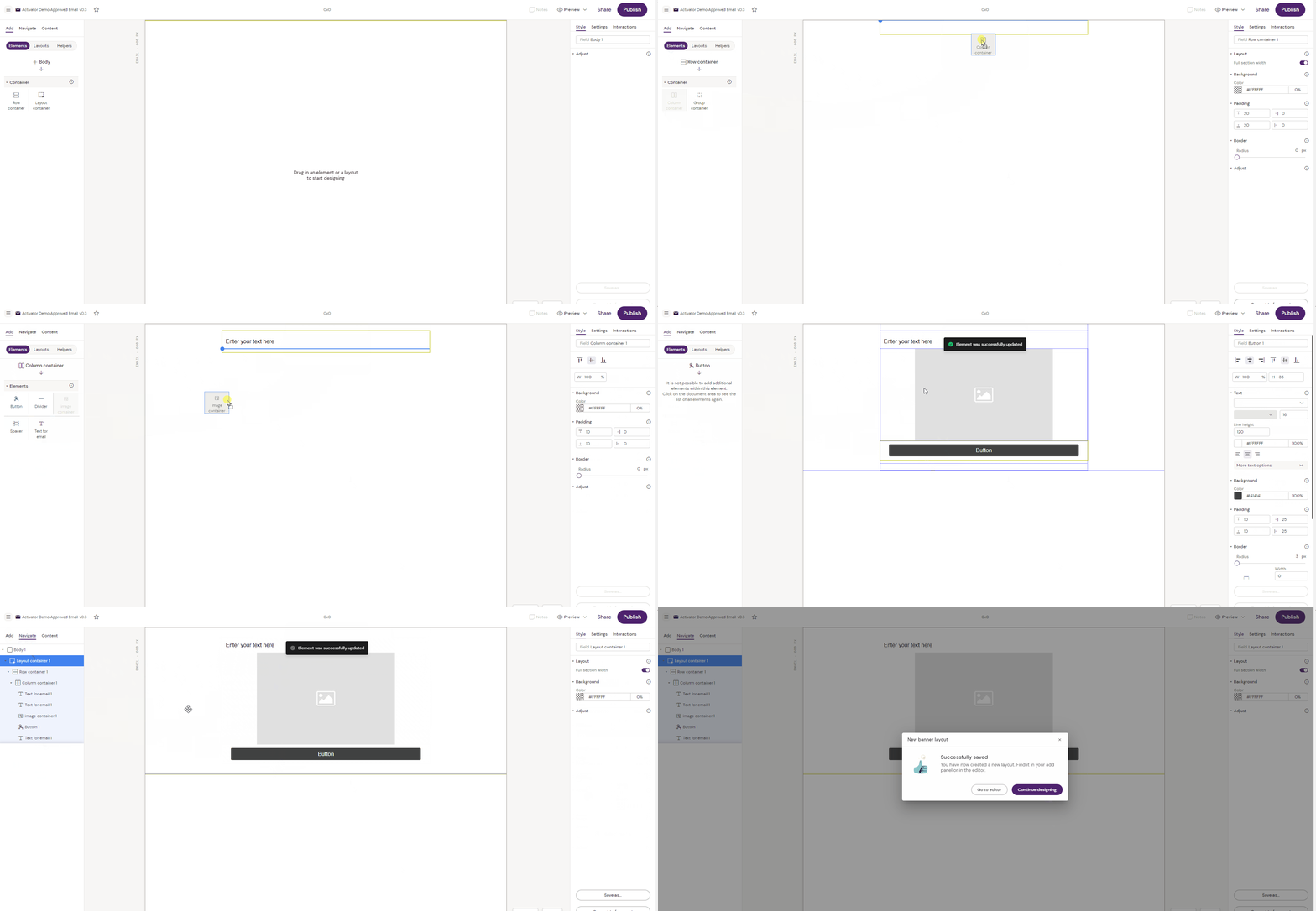
Open the Activator Designer view
-
Drag the layout container into the layout canvas
-
Add the row containers and elements to the layout canvas to create the desired layout.
-
Note that the Designer will only showcase possible containers and/or elements based on the container and/or element you just added into the layout canvas.
-
You will need to navigate to a container to be able to add additional elements like a text field, a picture or a button.
-
-
When you have created the desired layout, navigate to the top container (layout container)
-
Hit “Save as”
-
Make sure to name your layout for generic use e.g. Call-to-action Type 1
Create Layout
Adding a layout to use on your content
-
Find your desired content type (Slide, Email, Brief) in the Activator Dashboard
-
Click on the relevant content card to open your content in the Editor view
-
Click on the “Add” tab in the top left navigation
-
Drag your layout into the layout canvas