
If you wish to create a PDF that is suitable for a MLR approval process, you first of all need to find the content that you would like to create a report for from the Activator Dashboard (emails, slides, or briefs).
Learn more about authoring using Modular Content here:
Modular Content | What is Modular Content?
Learn more about Activator MLR Report documents and how they help reviewers here:
Modular Content | Previewing your content for MLR review
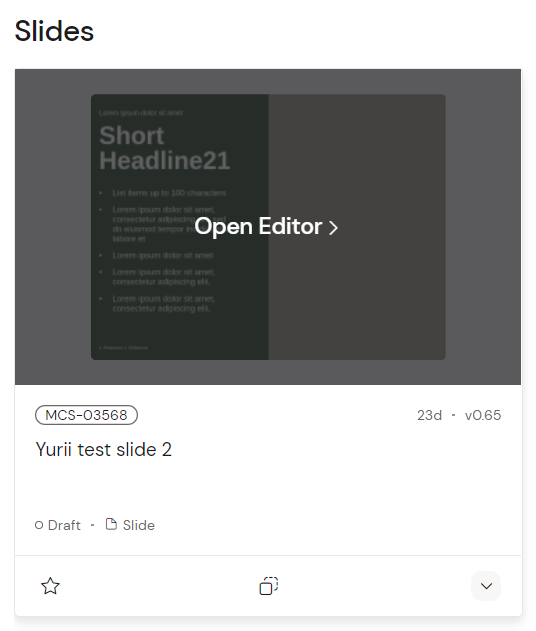
Open the content in the Activator Editor by clicking on the relevant content card.
Once you are in the Activator Editor view, click on the preview button in the top right corner of the UI (1). This should take you to Preview Mode, where you can toggle between the Design and the MLR tab. Select the latter (2), which should take you to the MLR preview of your content piece.
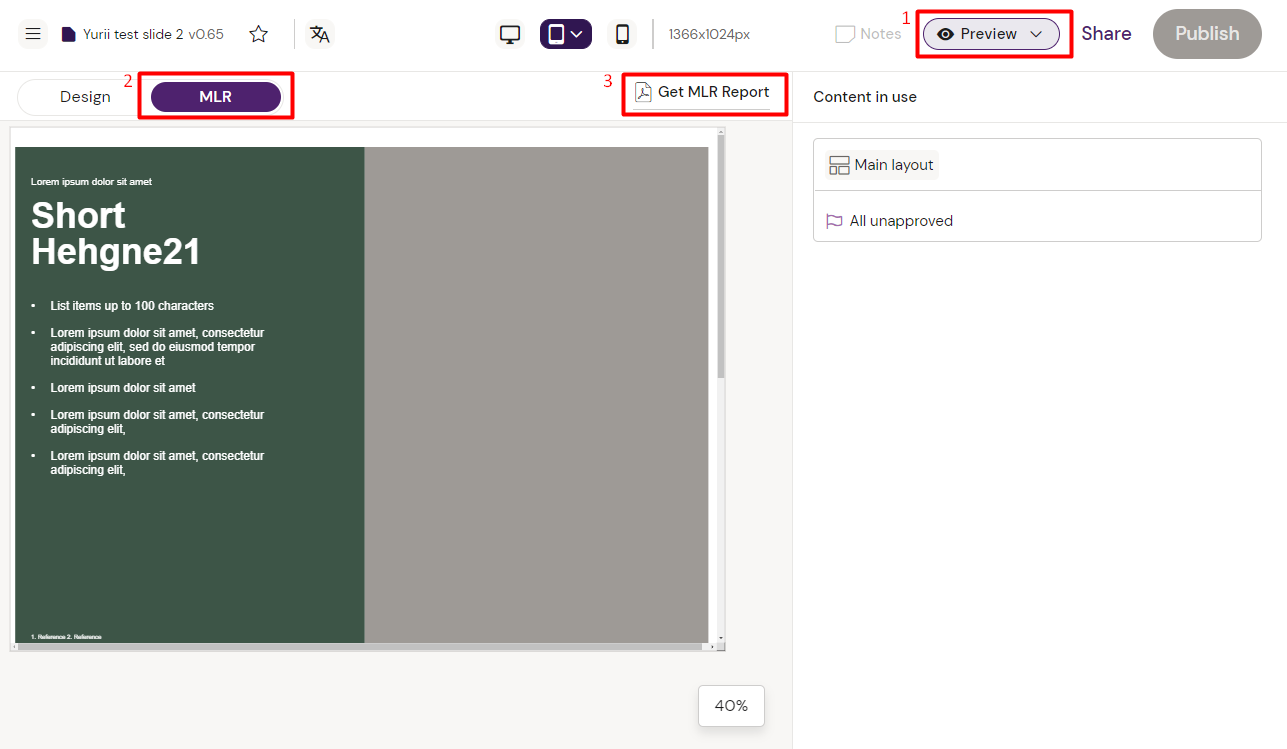
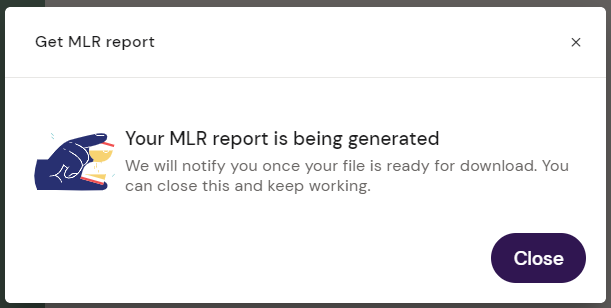
From here, click the ‘Get MLR Report’ button at the top right of the canvas area (3). A prompt will appear telling you that the MLR report is being generated and you can close the prompt to continue working until the report has been created.
Once the report has been generated a notification will appear at the top of your canvas area.

Click on the ‘Click to download’ link to save the report to your hard disk.