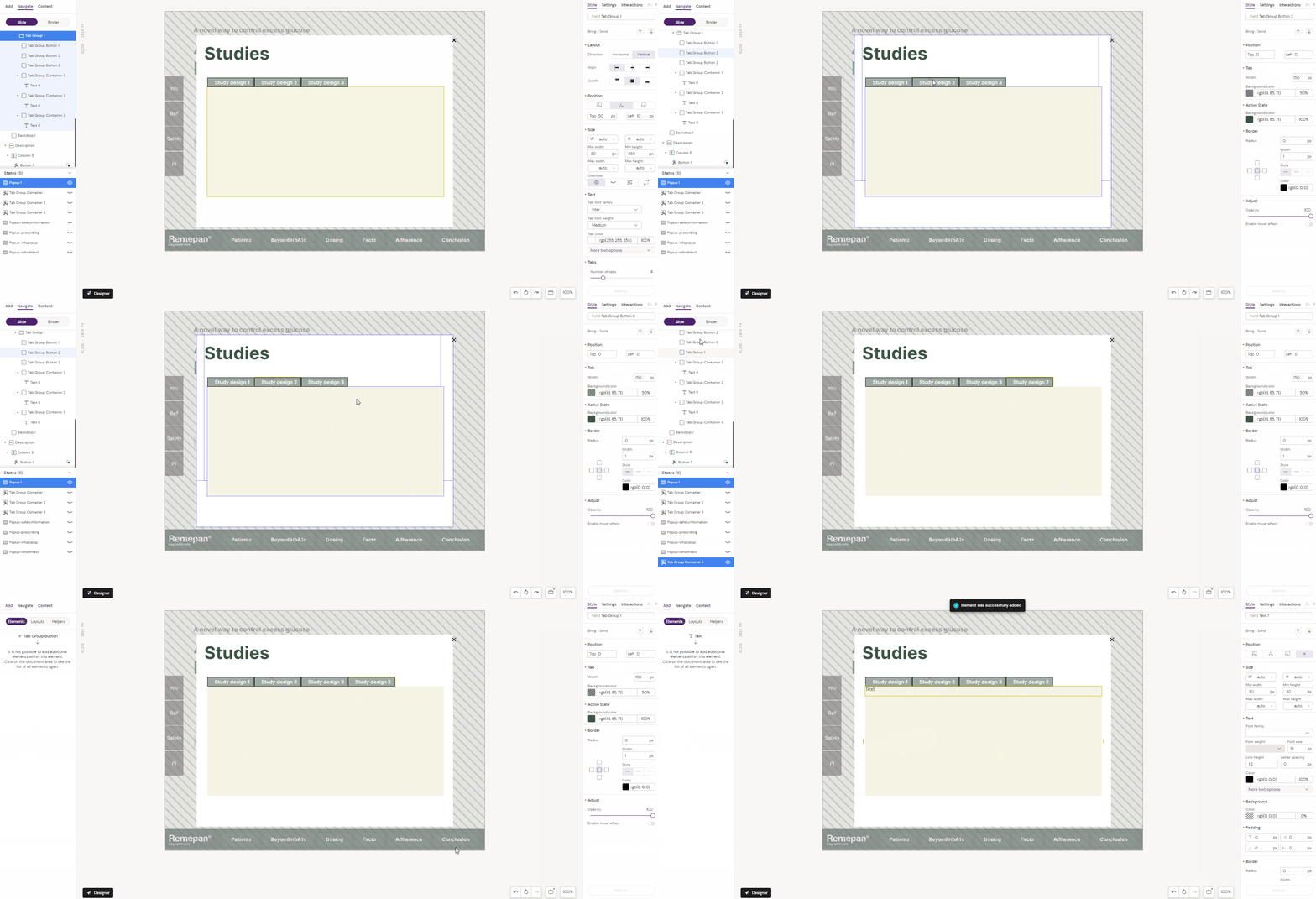
Inserts a tab group in which you can add multiple tab group containers. Each container creates a new state.
Example: How to insert a tab group with 2 tabs
Step 1: Select the “Tab Group” component from the components list and add it to the layout canvas. This will add one Tab Group Button and one Tab Group Container per default. Copy paste it so that you have two as shown in the example.
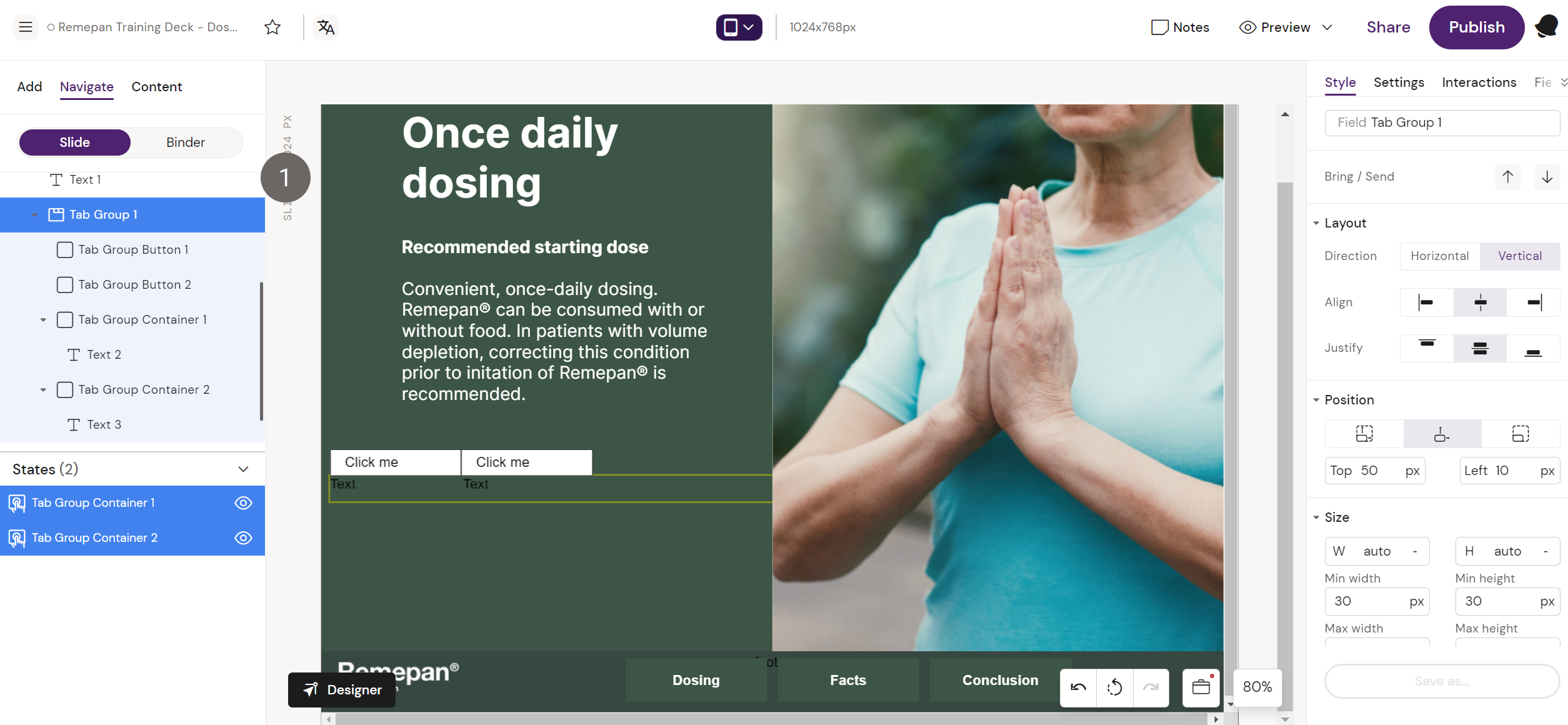
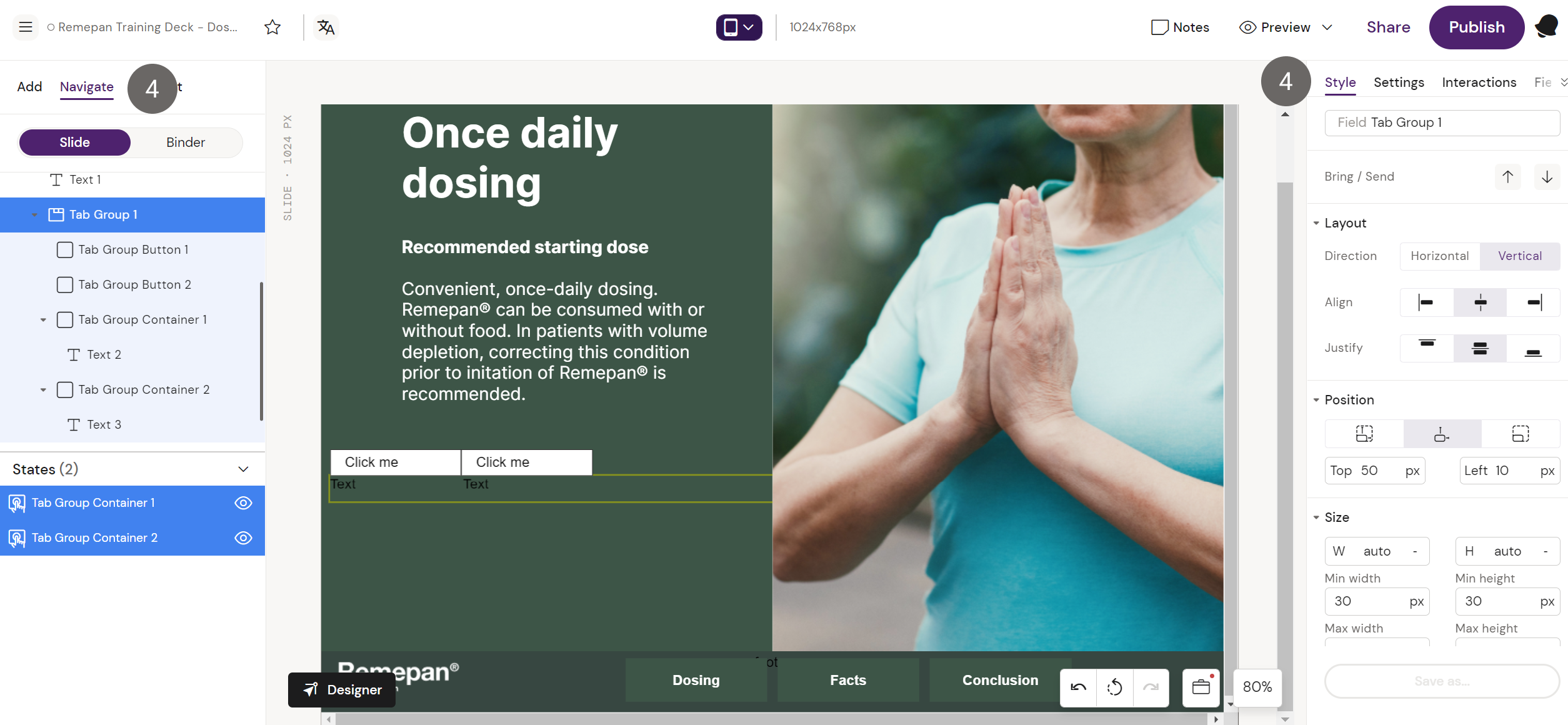
Step 2: Now that you have two Tab Group Containers, these act as new states. Add any other components to the states. The example below has text added.
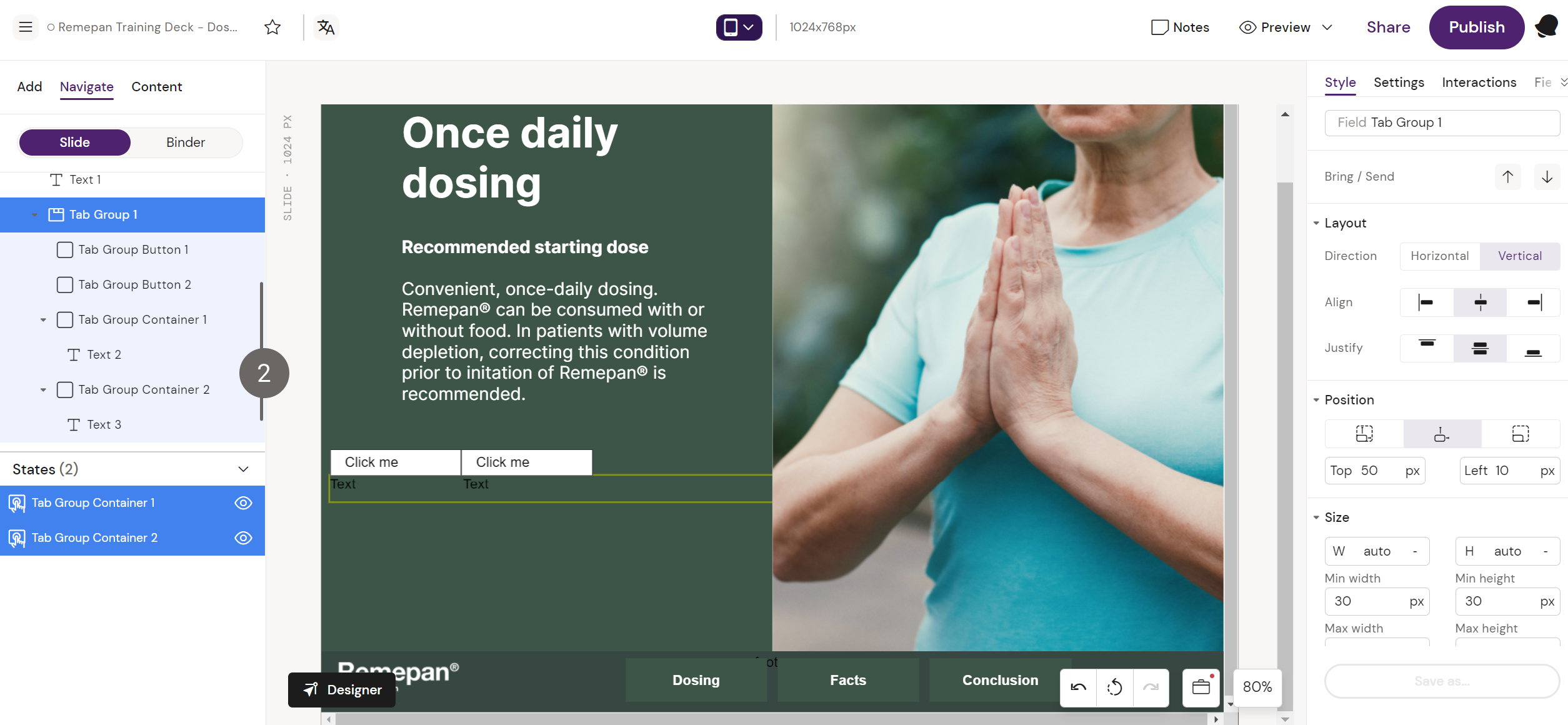
Step 3: Make sure that you make the states (text boxes) visible by flagging them in the left sidebar
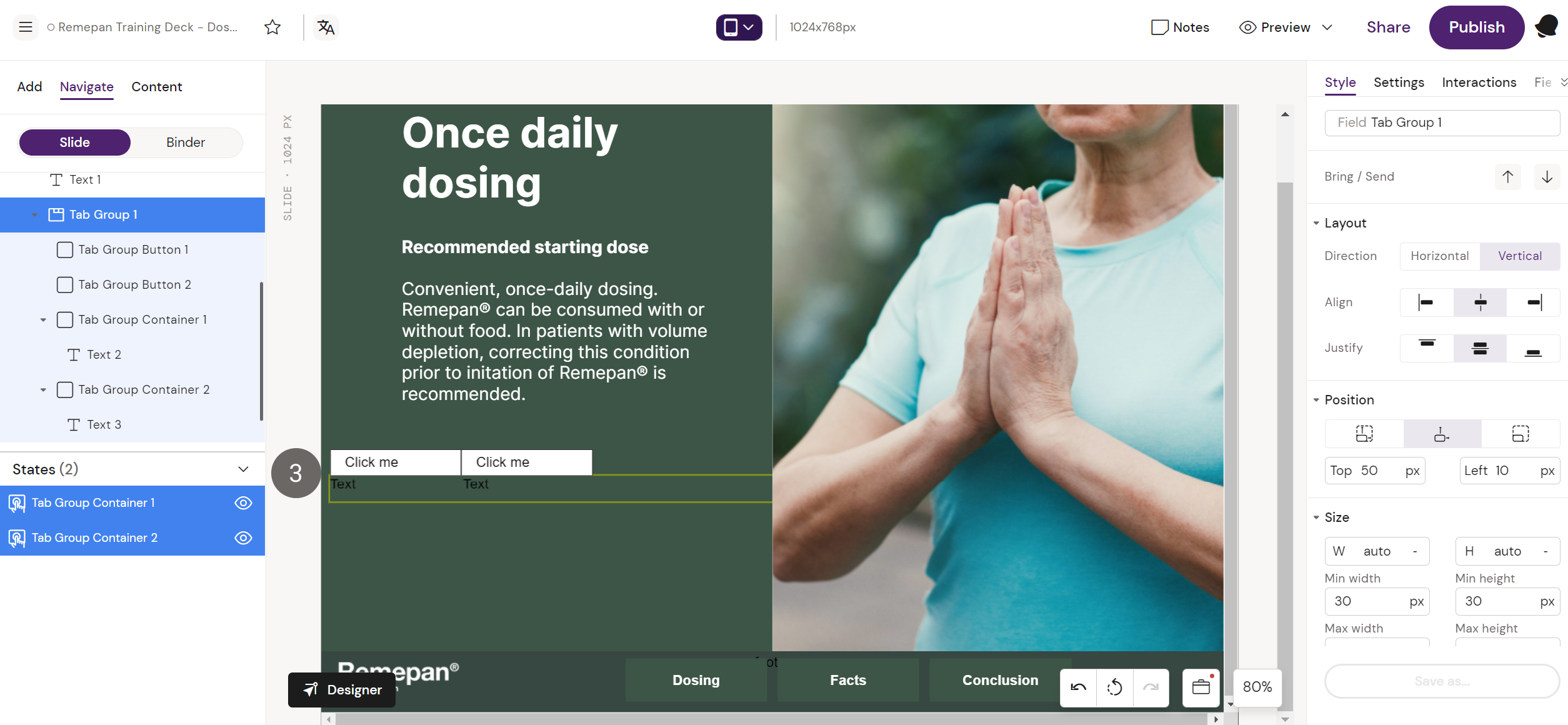
Step 4: Add and format the text as required, and style the tabs by selecting them in the “Navigate” menu and changing the style settings in the right hand menu.
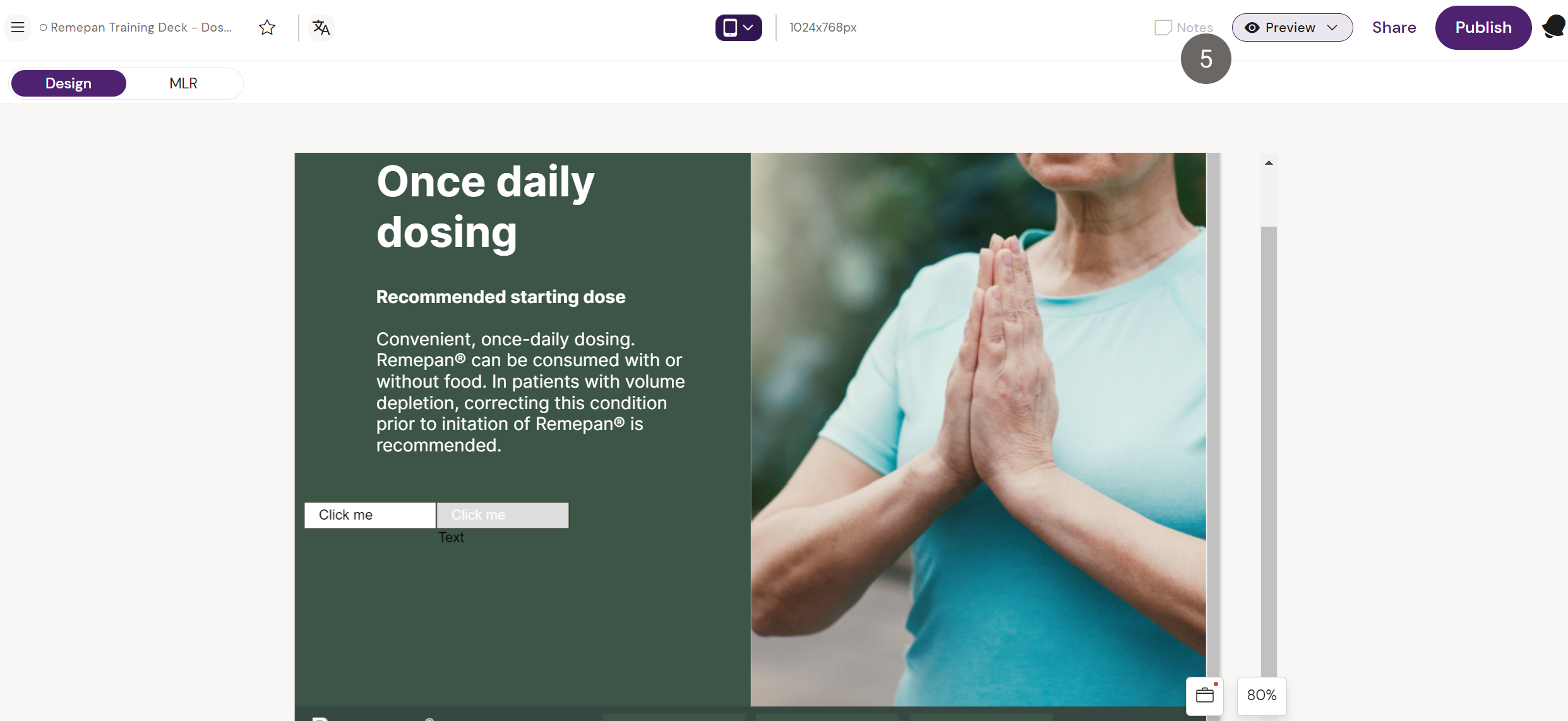
Step 5: To test, go to preview mode and click on the tab to see the content added to them.
OBS: while there is an option to add more tabs in the settings menu, we recommend you use the above method (copy/paste) or use drag & drop from the Elements list, as we have registered an issue with the add button. This will be fixed as soon as possible.
Video showcase for Tab Group
Shows copy/paste of an existing tab group to create more tabs: