
IMPORTANT: We are creating this documentation for DS3
Old DS2 ways shouldn’t be mentioned here.
Here is a documentation about it:
Additions:
-
Explain why users need to try using different formats like png, jpg and svg. What the difference and how does it affect image size. Use this training video as an example https://anthillagency.sharepoint.com/sites/AnthillShare/_layouts/15/stream.aspx?id=%2Fsites%2FAnthillShare%2FShared%20Documents%2F2025%2FNovartis%2FNovartis%20International%2F24298%5FNovartis%5FINTL%5FDesign%5FSystems%2FNOVA%20Training%2Fvideo%2D2%5FAssets%5FManagement%5FAdding%5FImages%5Fto%5Fyour%5FSlides%2Emp4&referrer=StreamWebApp%2EWeb&referrerScenario=AddressBarCopied%2Eview%2E3c40cd55%2D606f%2D4ab8%2Da1db%2D564fc32cf2d6
Time codes:10:58 and 12:58
Also whatch this video in general and see if there is any other relevant info that should be included. -
Explain that heavy images (1mb and more) will increase loading times, and big images will load longer and will take more time to appear on the slide.
-
Show how to upload images to Vault and use them on a slide
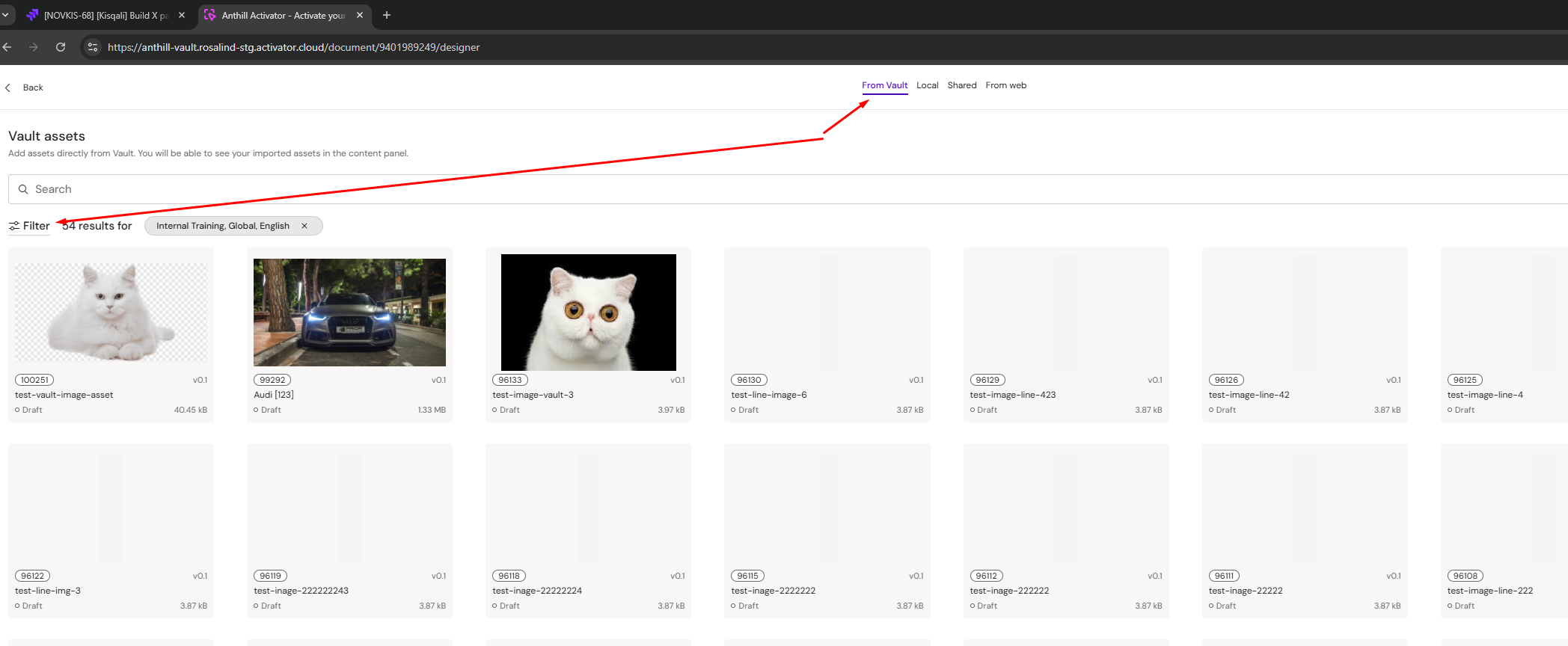
Show filtering options
-
Show how to upload images to Aprimo and use them on your slide
-
Explain why the image should be exported from figma using x2 multiplier oor in general why resolution should always be bigger for retina displays.
-
Add info about how to optimize images by using external tools like https://tinypng.com/, https://squoosh.app/.
-
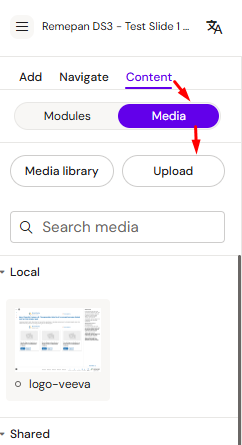
Show how to upload local images to a slide
-
Show how to download source code of the slide and search for local images in the assets folder. How to update, add or remove local images by reuploading package with re updates slide source code.
-
Add info about how add Video to Vault and Aprimo
-
Add info about optimizing Videos. Ask @User or research the topic yourself about how to use Handbrake optimizer app. Ask AI for help and create a step-by-step guide.
-
Info about PDFs???(optional) Probably will be a separate page. Needs more research and collecting refined processes for adding PDF and best practices.
How to add/remove assets in UI in DS3
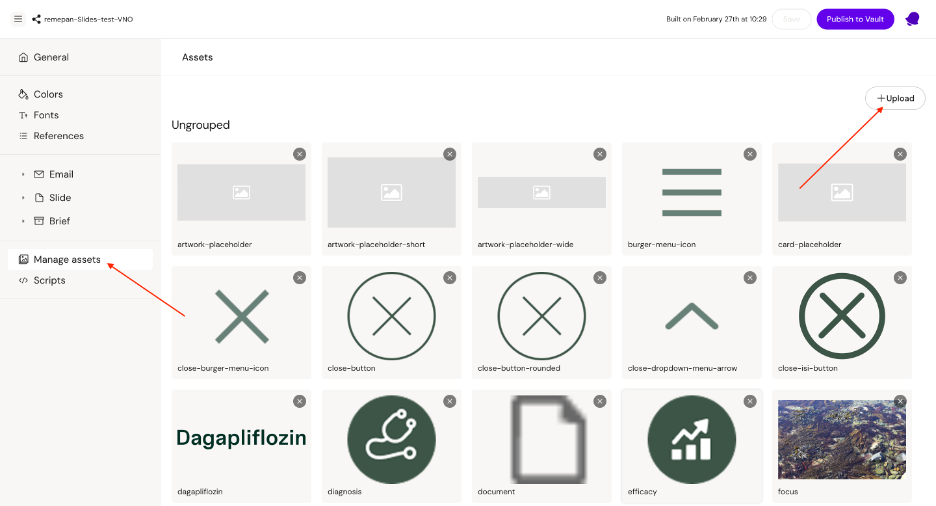
How to add assets in DS3
To add assets in DS3, go to the Design System, then navigate to the Managing assets section and click the +Upload button.
Next, a popup will open where you need to:
-
Add the asset file (click the Choose file button)
-
Enter the asset name
After that, click the Create button.
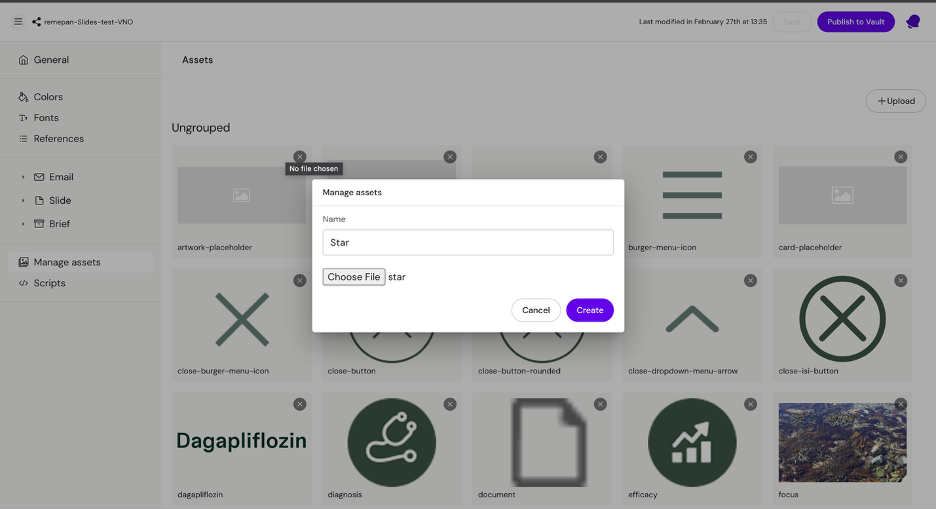
Once completed, the new asset will be added to the Design System.
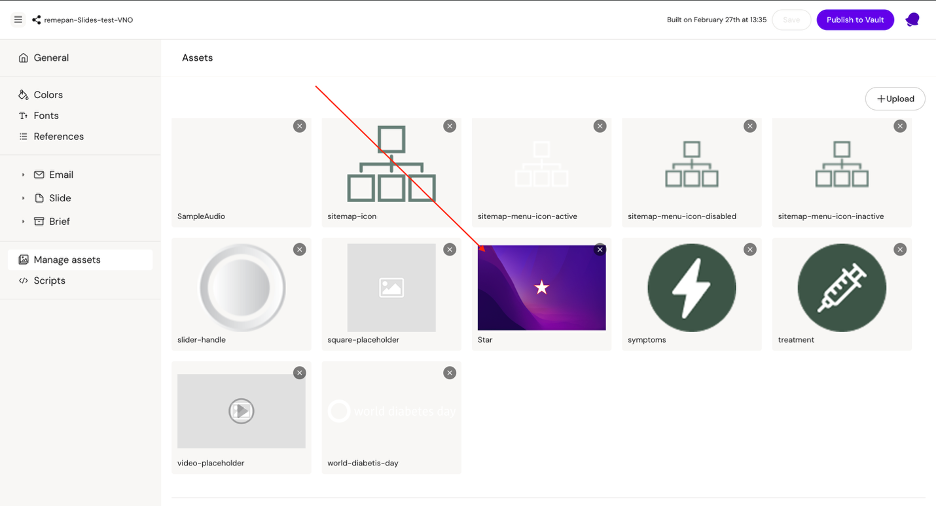
How to remove an asset
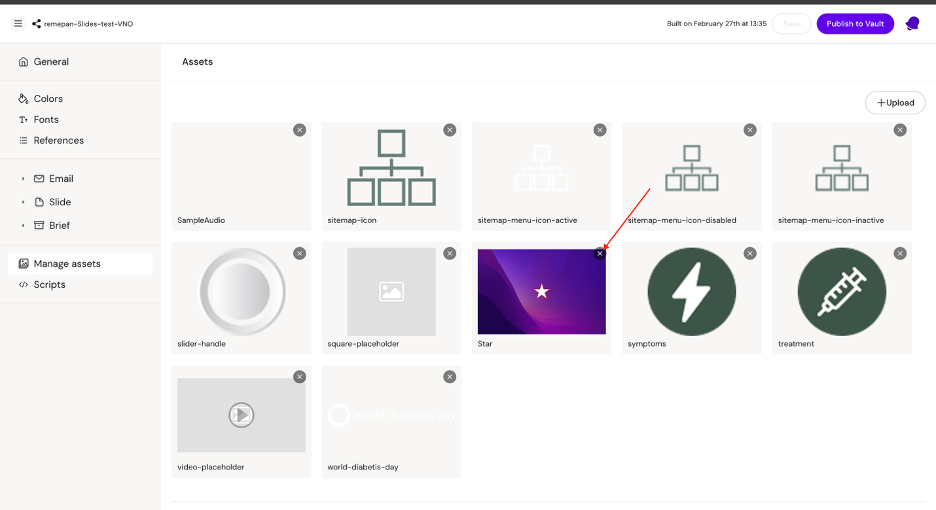
To remove an asset, click the cross (X) icon in the top-right corner of the asset.
A popup will appear where you need to click the Remove asset button.
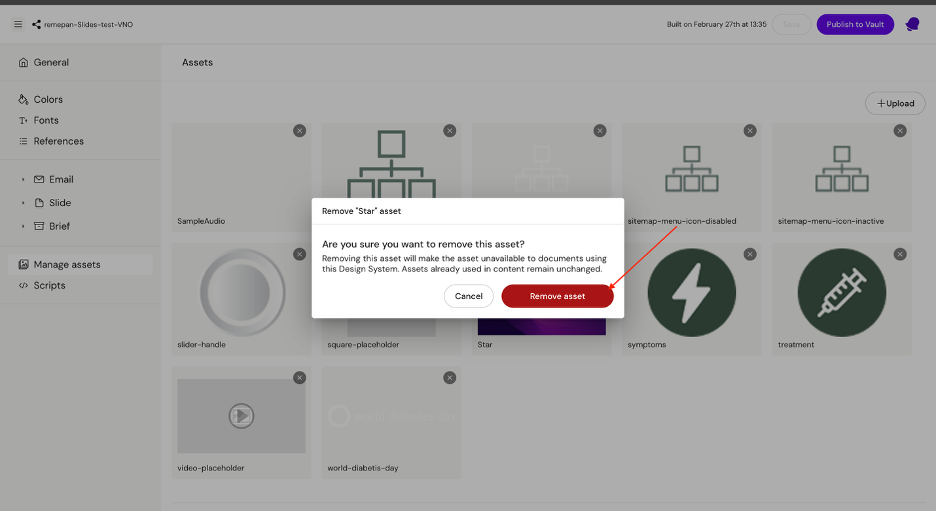
After that, the asset will be removed from the Design System.