What Is a Fragment?
A fragment is a reusable element, such as a menu or popup. Unlike a layout, a fragment can be updated in a single place, and all slides that use it are updated automatically.
When to Use a Fragment
Use a fragment when you need to reuse the same element across multiple slides and keep it centrally managed.
Example: a popup that contains global product information.
If you implement the popup using a layout, you must add the layout to each slide individually. Initially, this approach works, but when you need to update the popup content, you must revisit every slide and re-add the updated layout.
If you implement the popup as a fragment, you create and save it once and then add it to multiple slides. When you update the fragment, the changes are automatically applied to all slides that use it.
Create fragment
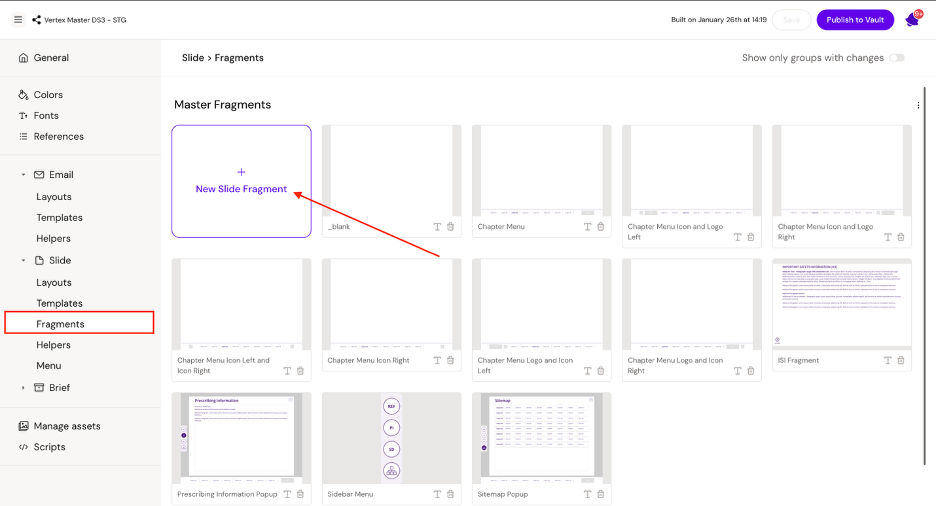
To create a fragment, go to Slides → Fragments and click “New Slide Fragment”.
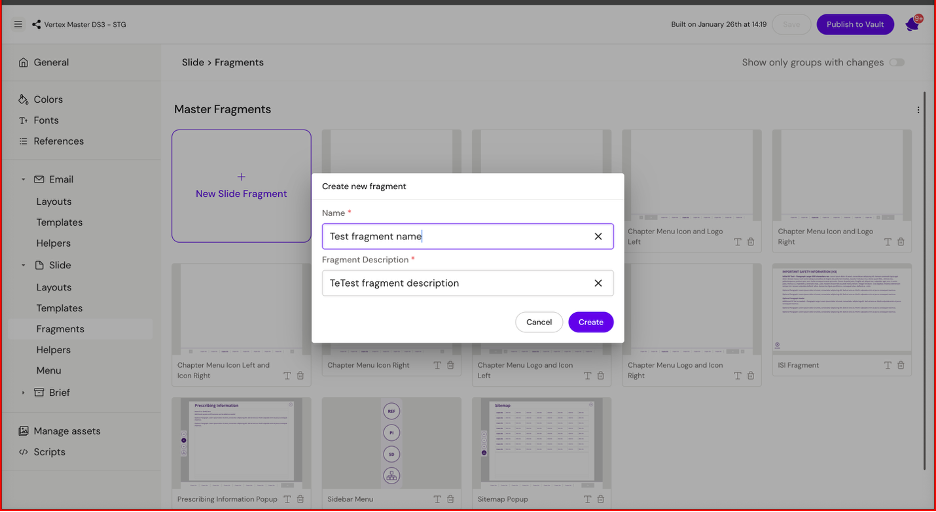
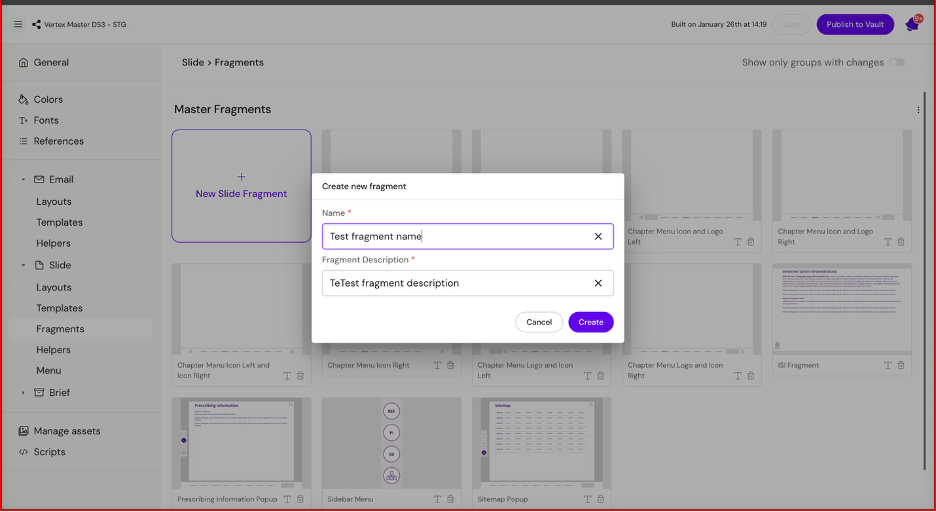
Set the fragment name, description and click the Create button.
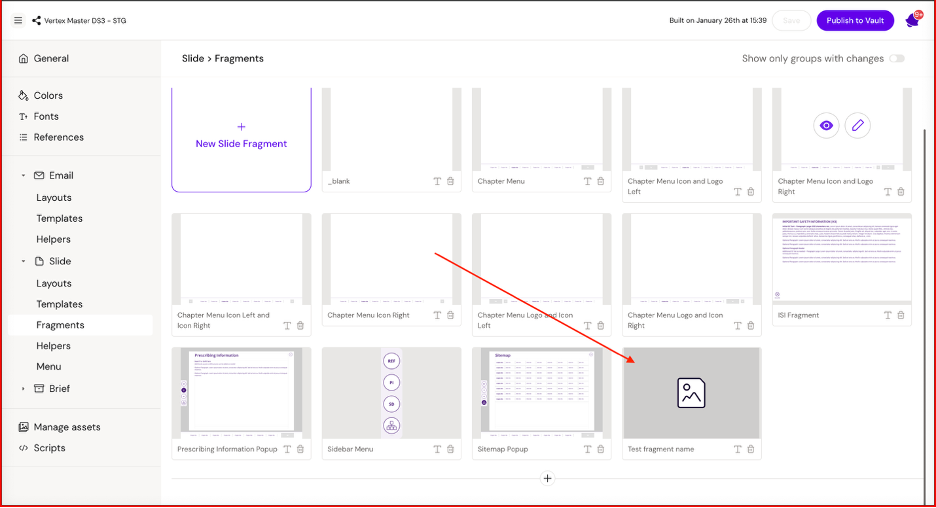
Update a Slide Fragment
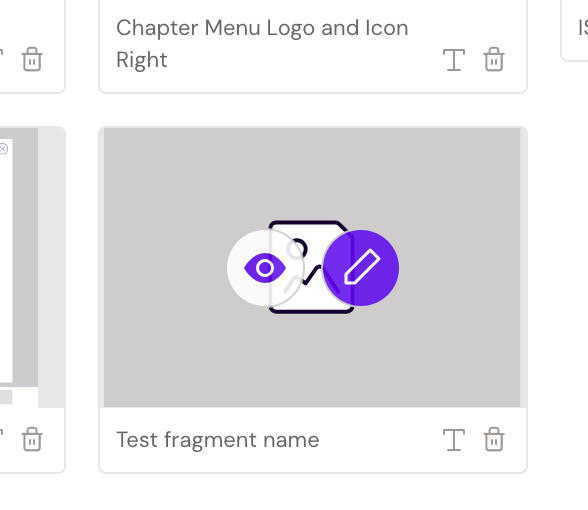
To update a fragment, click the pencil icon.
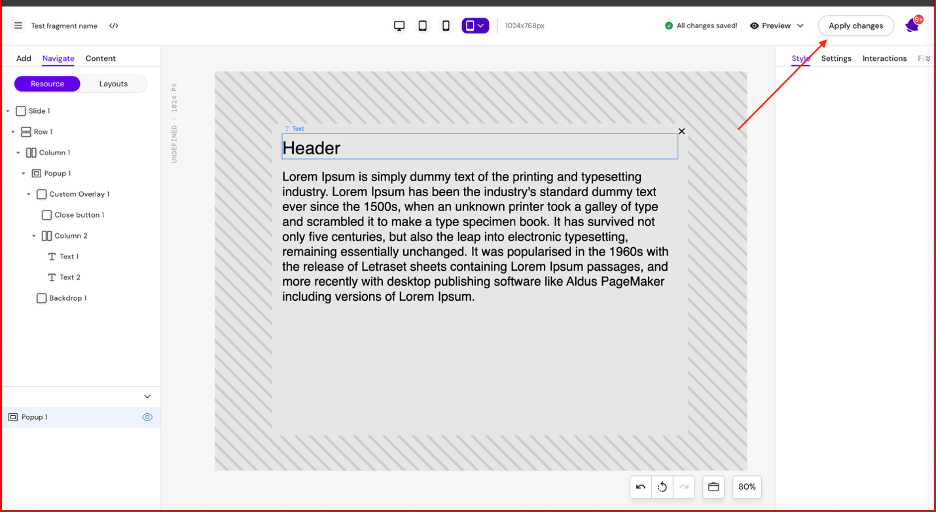
After creating or editing the content inside the fragment, click the Apply Changes button.
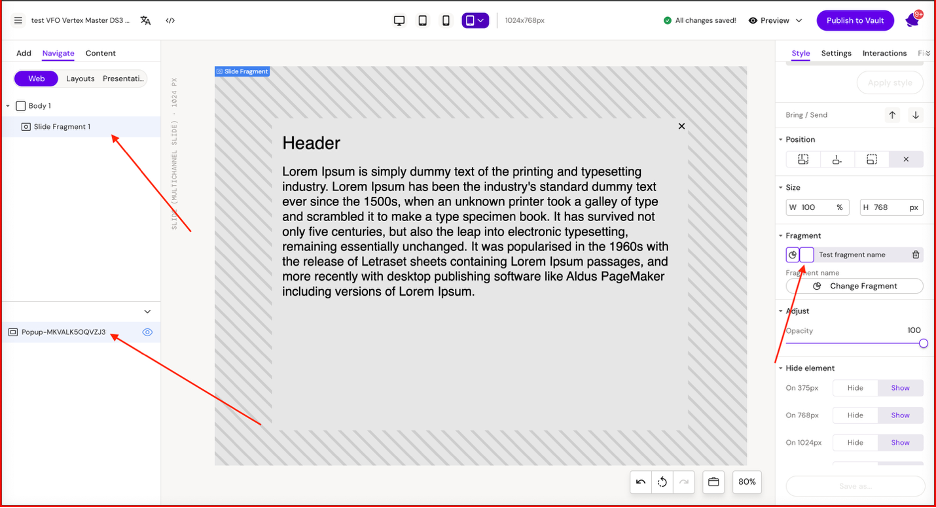
After saving, refresh the slide to see the updated Slide Fragment.
Delete a Slide Fragment
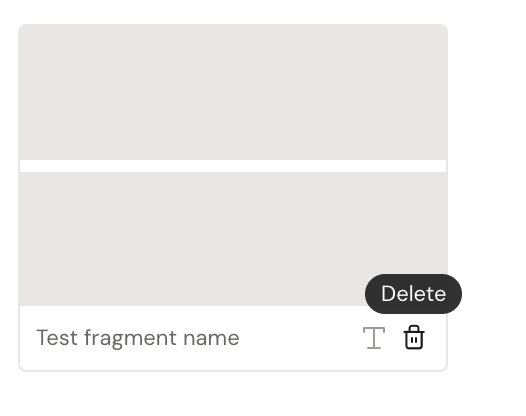
To delete a Slide Fragment, click the trash bin icon.