
The Text Input component adds a functional field to a slide, allowing creators to gather data and text inputs from the end-user during a presentation.
Add Text Input
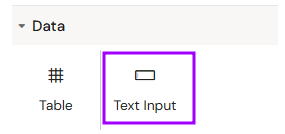
You can add a Text Input from the Left panel.
How to style Text Input
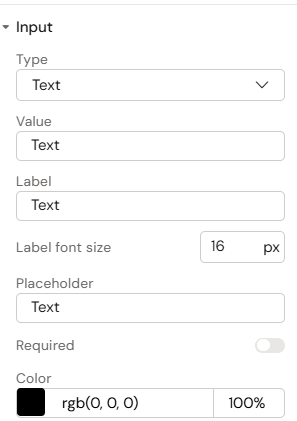
The right panel for the Text Input contains general properties:
-
Input
-
Type:
-
text
-
password
-
number
-
email
-
-
Value
-
Label
-
Label font size
-
Placeholder
-
Required (toggle)
-
Color
-
-
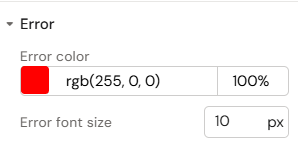
Error
-
Error color
-
Error font size
-
Overview
Text Input fields are essential for capturing user feedback, names, email addresses, or specific numeric data. These inputs are typically used in surveys, registration forms, or calculator tools within an eDetailer.
Prerequisites
-
Submit Mechanism: To effectively collect and store data, the Text Input component must be programmed alongside a submit mechanism (e.g., a "Submit" button with an interaction) to save the entered values to a database or shared resource.
How to Use the Text Input Component
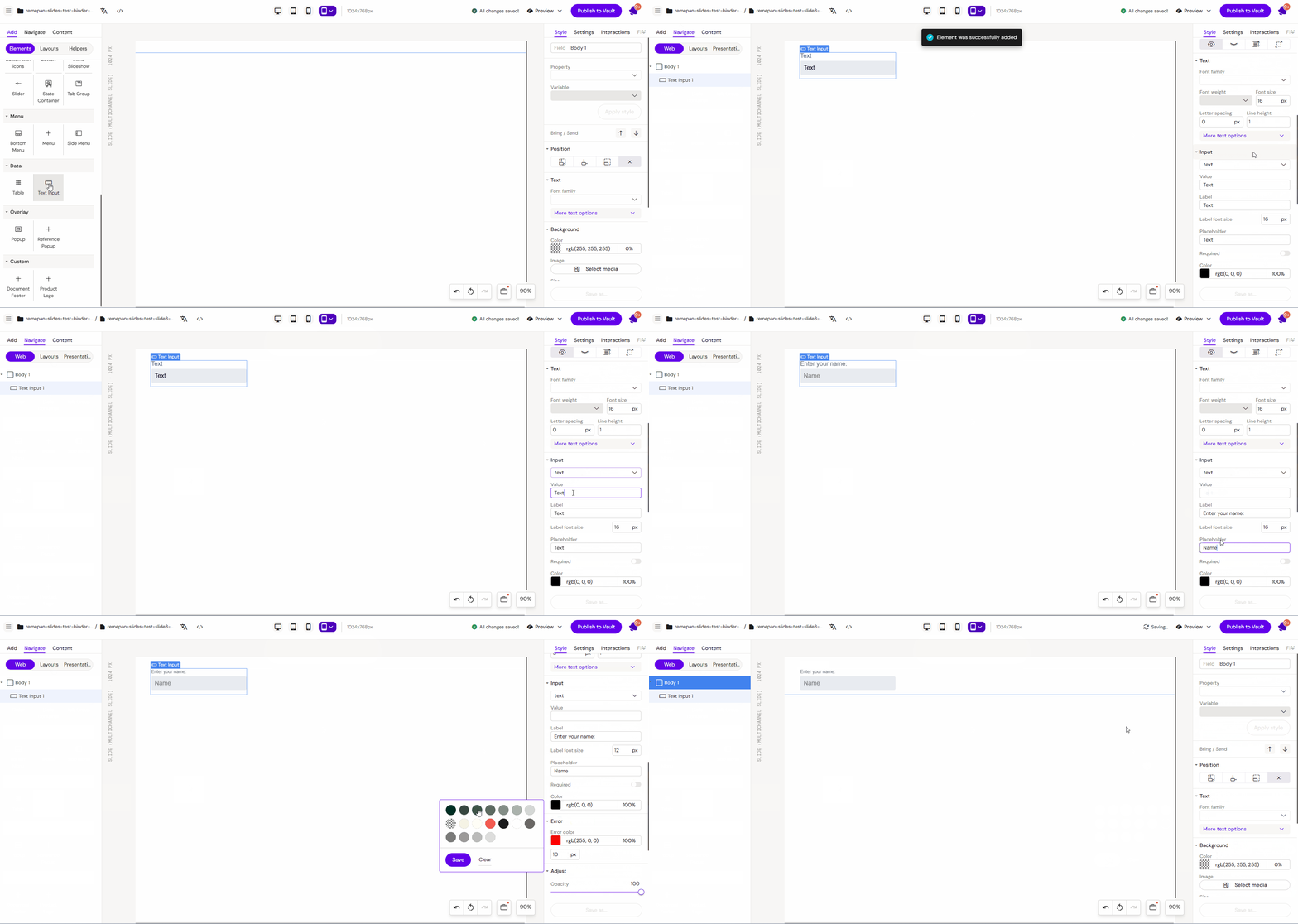
Step 1: Adding the Component
Select the Text Input element from the Elements list and drag it onto the layout canvas. This will automatically place a Label and a Value Box (input field) on your document.
Step 2: Defining Input Type
Access the element settings to specify the type of data you wish to receive. Common types include:
-
Text: For general alphanumeric input.
-
Password: Masks the characters entered by the user.
-
Number: Restricts input to numeric values.
-
Email: Validates for email format.
Step 3: Configuring Labels and Values
-
Label: Edit the label text to provide instructions to the user (e.g., "Enter your name:").
-
Placeholder/Value: Specify a default value or placeholder text that appears inside the box before the user starts typing.
Key Features
-
Data Validation: Ensures the input matches the specified type (e.g., ensuring a valid email address is entered).
-
Styling Options: Customize the appearance of both the label and the input box, including borders, background colors, and typography.
-
Interaction Ready: The captured value can be used as a variable in subsequent slide interactions.
5. Best Practices
-
Clear Labels: Always provide a clear and concise label so the user knows exactly what information is required.
-
Input Constraints: Use the correct input type (e.g., "Number") to prevent invalid data entries and trigger the appropriate mobile keyboard.
-
Visual Cues: Style the input box to look interactive (e.g., using a border or subtle background shadow) so it is easily distinguishable from static text.