
The iFrame Viewer component allows creators to insert dynamic iFrame elements into a slide, enabling the display of documents, external URLs, or third-party web pages directly within the eDetailer.
Add iFrame Viewer
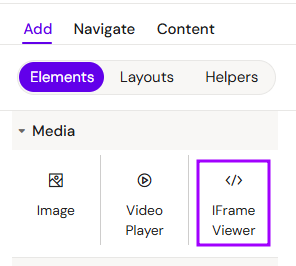
You can add a iFrame Viewer from the Left panel.
How to style iFrame Viewer
The right panel for the iFrame Viewer contains general properties:
“Settings” tab
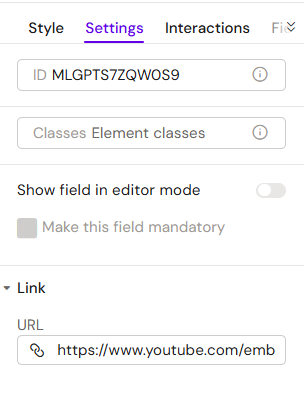
In the “Settings” tab, you can add Link: URL.
Overview
The iFrame Viewer is a versatile tool for embedding external content. It is commonly used to show live websites, dynamic dashboards, or hosted documents without forcing the user to leave the presentation.
Prerequisites
Before using this component, please consider the following:
-
Connectivity: The iRep end-user must be online on their device to view and interact with external links.
-
Compatibility: Not all external websites allow iFrame embedding due to security policies (e.g., X-Frame-Options headers). Always verify the target URL's permissions.
How to Use the iFrame Viewer Component
Step 1: Adding the Component
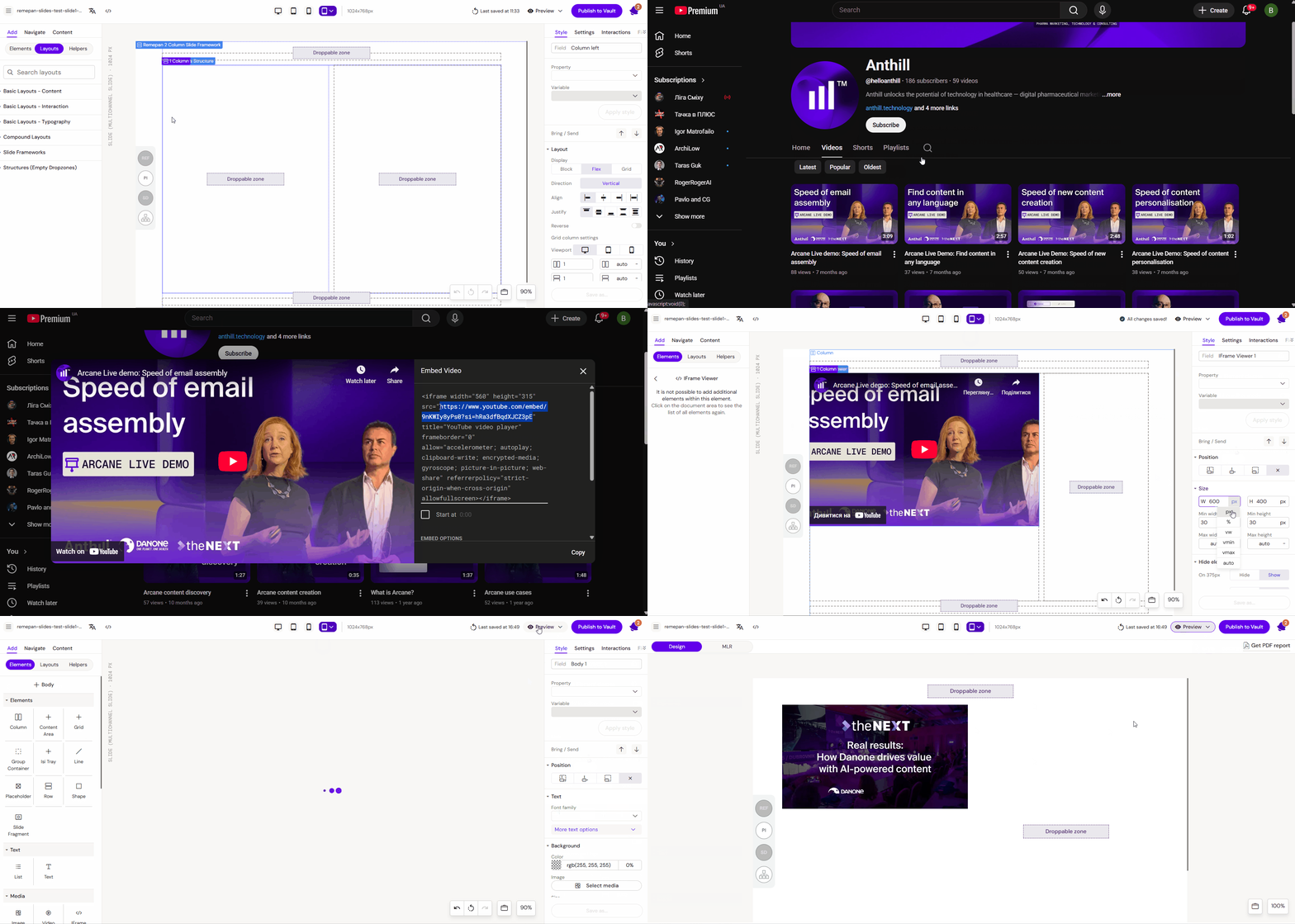
Drag the iFrame Viewer component from the library onto your layout canvas.
Step 2: Configuring Content
-
Select the component on the canvas to open its properties.
-
Navigate to the Settings tab.
-
Locate the iFrame embed code field and paste the relevant snippet or URL.
-
Example: To embed a YouTube video, use the standard YouTube embed code provided in the video's sharing options.
-
Step 3: Sizing and Positioning
Adjust the width and height of the component to ensure the embedded content is fully visible and fits the slide layout correctly.
Key Features
-
Dynamic Integration: Supports a wide range of web-based content, including interactive maps and live data feeds.
-
Document Hosting: Can be used to display PDFs or other documents hosted on external servers.
Best Practices
-
Test Permissions: Always test the embedded link on the target device to ensure the external site loads correctly.
-
User Experience: Use iFrames sparingly, as they require an active internet connection and may impact the loading time of the slide.
-
Fallback Strategy: Ensure the slide remains functional or provides a clear message if the user is offline and cannot view the iFrame content.