
The Video Player component adds a container for video files, handling playback, controls, and various states within eDetailer presentations.
Add Video Player
You can add a Video Player from the Left panel.
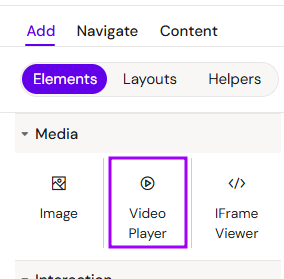
How to style Video Player
The right panel for the Video Player contains general properties:
-
Media
-
Source - select video file
-
Thumbnail - Select an image as the video cover
-
“Settings” tab
In the “Settings” tab, you can change the following properties:
-
Show controls
-
Activate autoplay
-
Mute audio
Overview
The Video Player component allows for the integration of high-quality video content. It supports custom thumbnails, autoplay functionality, and the ability to toggle playback controls for a seamless user experience.
Prerequisites
To ensure optimal playback and performance:
-
Source Availability: Video files must be available in Local Assets, Shared Assets, or Vault.
-
File Types: Supported formats include
.mp4,.mov,.avi, and.mpeg. -
Recommendations: Keep file sizes under 200MB to ensure smooth loading and performance on mobile devices.
How to Use the Video Player Component
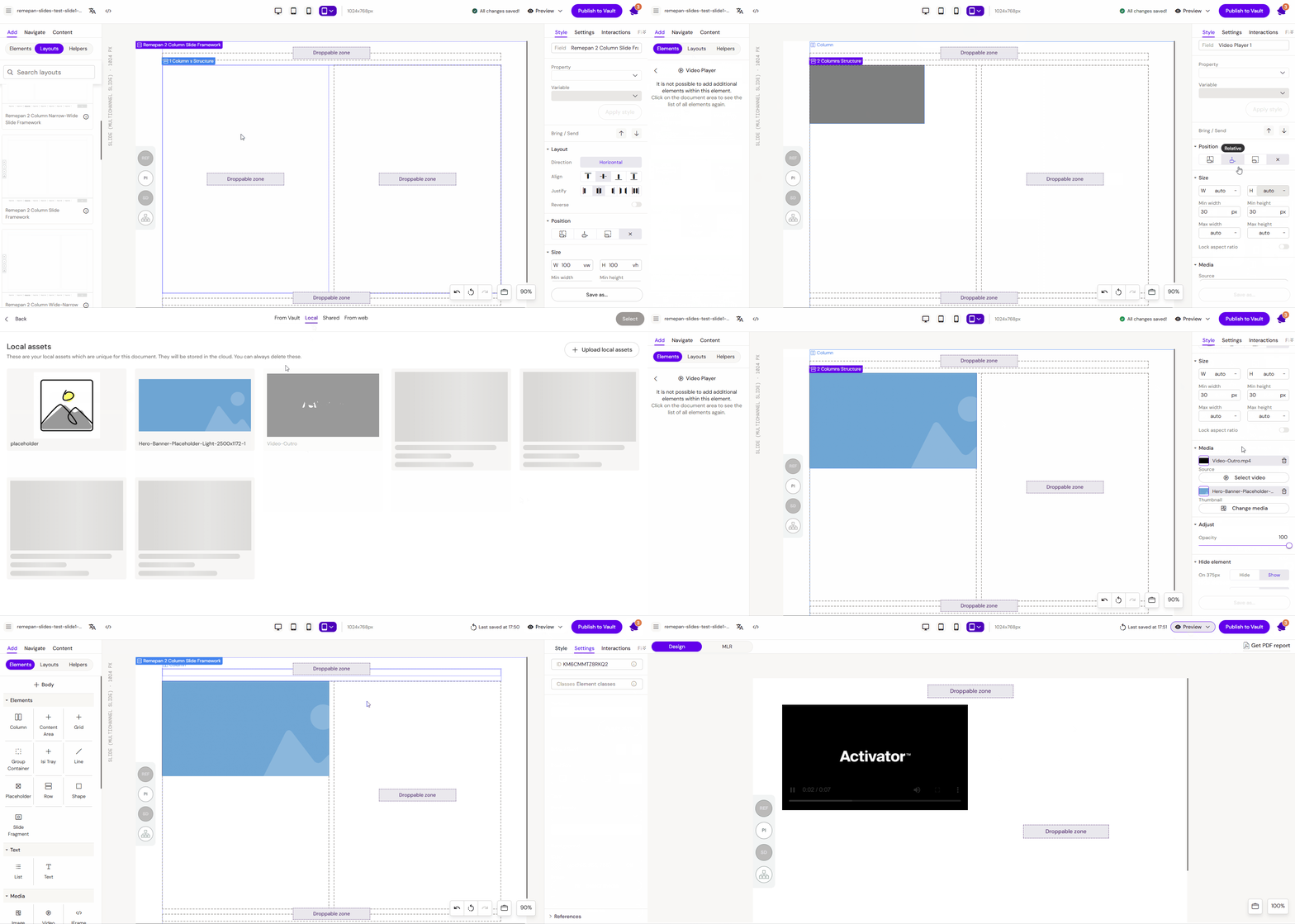
Step 1: Adding the Component
Drag the Video Player component from the library onto your layout canvas.
Step 2: Styling and Positioning
-
Adjust the style settings in the properties panel.
Step 3: Selecting Media and Thumbnails
-
Select Video: Click the "Select video" button to open the media library. Choose an existing file or use "Upload local assets" to add a new video from your computer.
-
Select Thumbnail: Click the "Select thumbnail" button to add a poster image that will be displayed before the video starts. Confirm your choice by clicking "Select".
Step 4: Configuring Playback Settings
Navigate to the Settings tab to define the video behavior:
-
Autoplay: Enable this to have the video start automatically when the slide is viewed.
-
Controls: Toggle this off if you want to remove the play/pause and volume bars for a cleaner look.
Key Features
-
Custom Thumbnails: Allows for brand-consistent preview images before playback begins.
-
State Management: Handles different states such as loading, playing, and paused.
-
Autoplay Logic: Ideal for background loops or introductory content.
Best Practices
-
Use Thumbnails: Always provide a thumbnail image to prevent a blank black box from appearing while the video is loading.
-
Format Optimization: Use
.mp4(H.264) for the best balance between quality and file size. -
Silent Autoplay: If using autoplay, it is recommended to mute the video or ensure it doesn't disrupt the flow of the presentation.
-
Preview Testing: Use the Preview Mode to verify how the video scales and behaves on the target end-device.