Use the Text element to add, style, and format text.
Add text
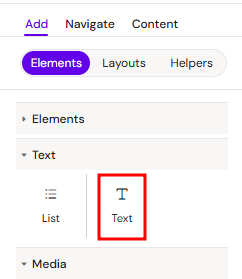
You can add a Text element from the Left panel. By default, the Text element contains a block of placeholder text. You can double-click, select, and replace the text inside either by typing or pasting in your content.
Style text
You can style a text element by useing a section Text in the right panel.
Also there is available almost all general propertis for the element:
How to format inline text
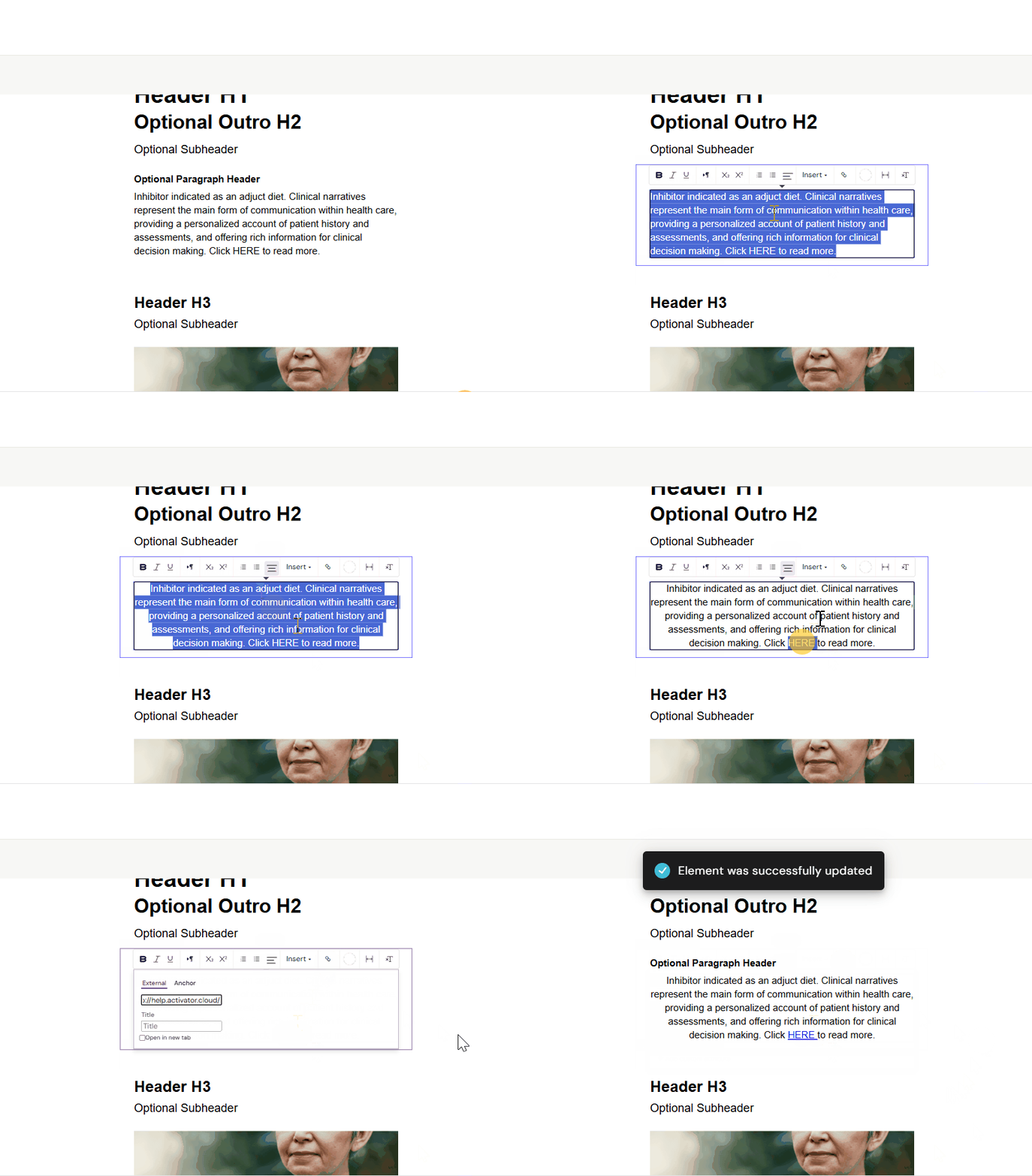
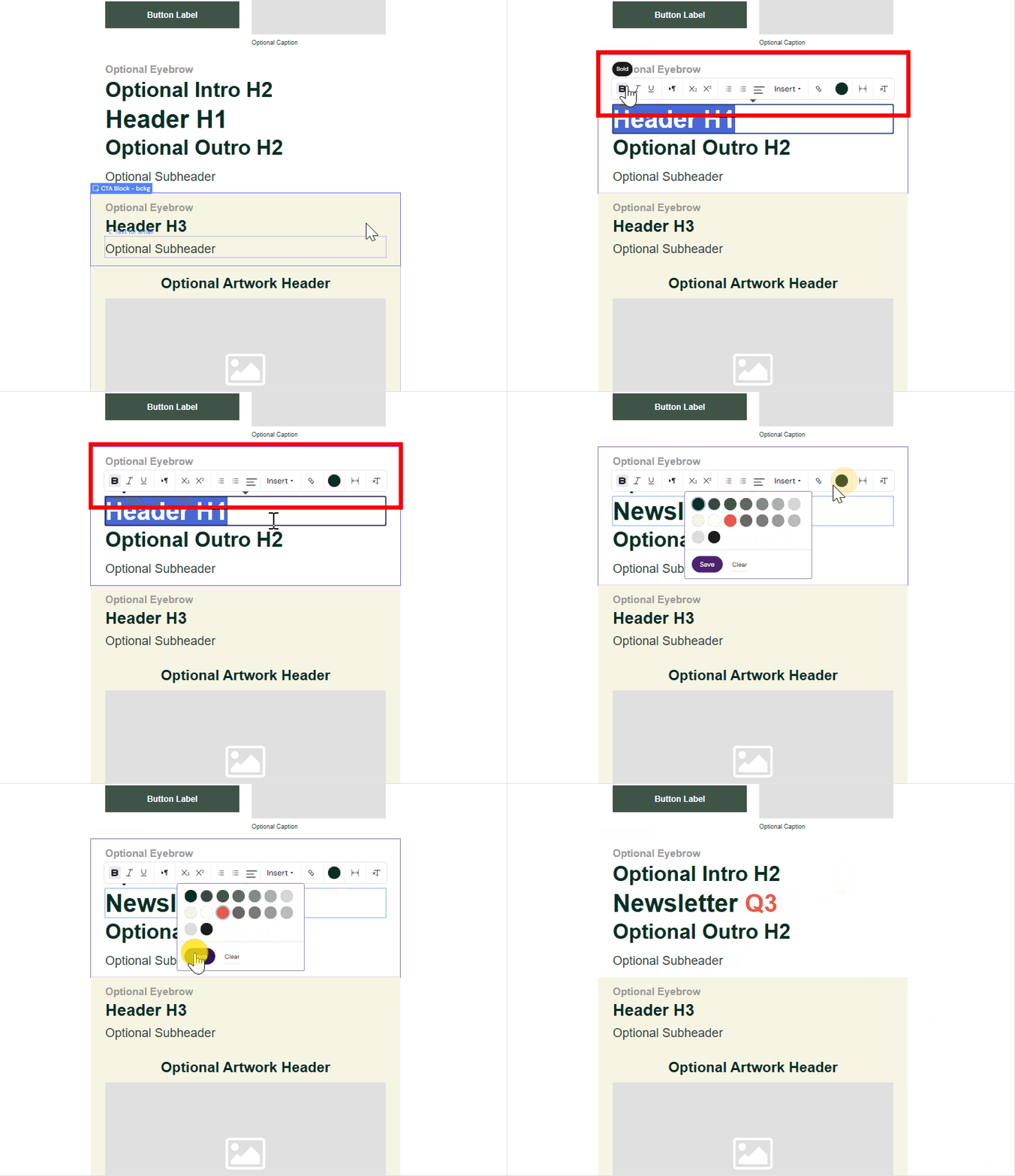
In some cases, you may want to style a part of the text within the text element. For example, you may want to italicize a word, or add a link to a phrase, or even underline a sentence. You can do that using the text formatting bar that appears when you double-click a paragraph element.

To format text within the editor, follow these simple steps:
-
Highlight the Text: Use your mouse or keyboard to select the specific portion of text you wish to modify.
-
Access the Toolbar: A formatting bar will automatically appear directly above the highlighted selection.
-
Apply Formatting: Click on any of the following options to adjust your text:
-
Bold / Italic / Underline: Change the weight or style of the font.
-
Direction: Adjust the text flow direction (Left-to-Right or Right-to-Left).
-
Subscript / Superscript: Set text slightly below or above the normal line.
-
Lists: Create organized Ordered (numbered) or Unordered (bulleted) lists.
-
Alignment: Adjust the text positioning (Left, Center, Right, or Justify).
-
Insert Link: Turn the selected text into a clickable hyperlink.
-
Color: Change the text color to highlight important information.
-
Preserve white space: Maintain original spacing and line breaks within the selected text.
-
Clear Formatting: Remove all applied styles and return the text to its default appearance.
The changes will be applied instantly to your selection.