
Link a button to a URL
Select the Layout which contains the button and go to edit mode. Select the button, click the settings icon and type in an address or document token in the URL field in the right-side menu. This can either be a website or a direct link to a document stored in Veeva PromoMats.
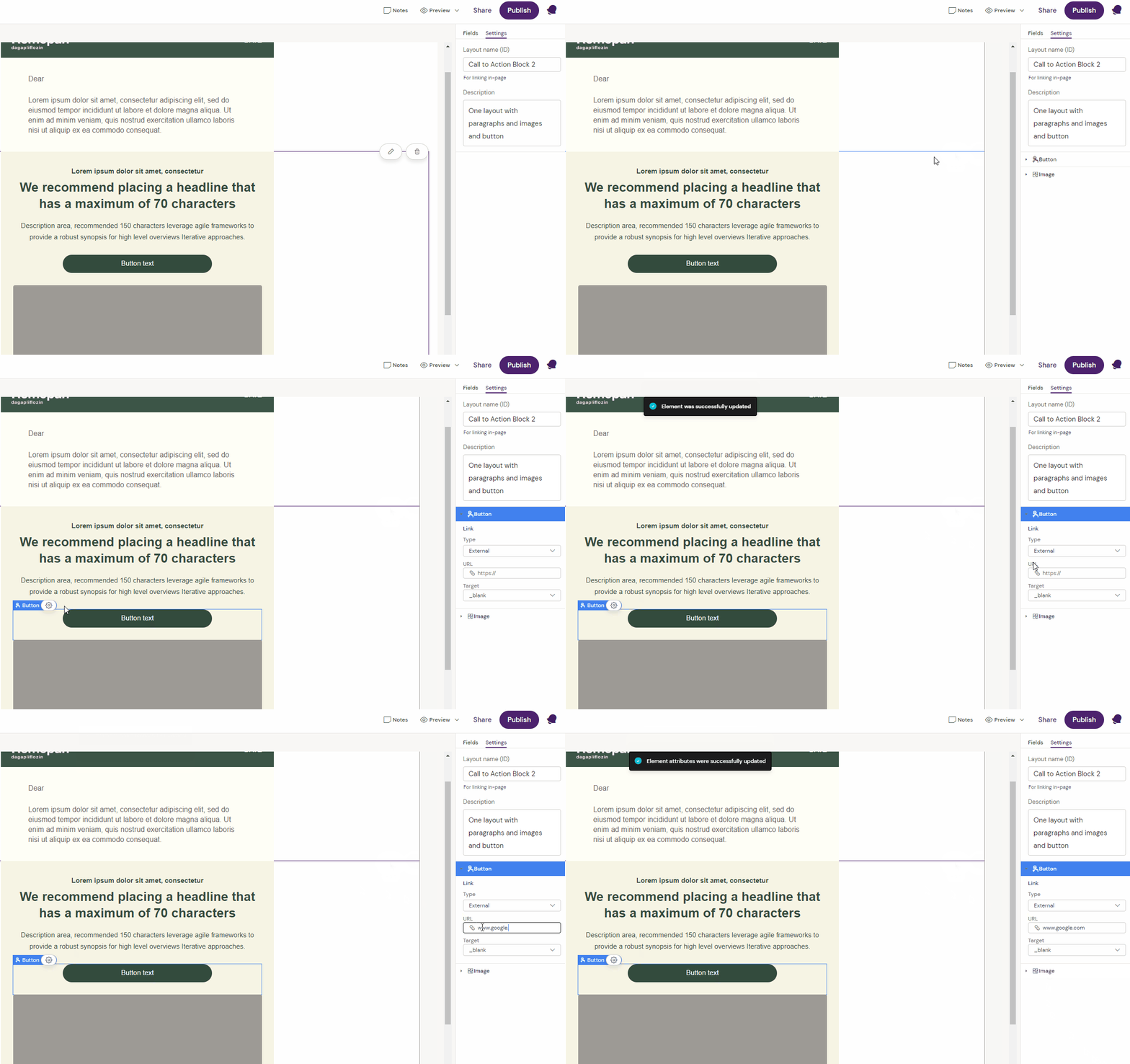
Note that not all websites allow external linking, so make sure to consult with the department responsible for company links if possible.
-
Do not add a URL or Token to the text of the button, as this will not work on buttons, only for regular text.
-
You must use the full URL website path such as https://www.
Link to PDF or other document hosted in Veeva PromoMats.
To insert a link to a PDF or other documents, write the document ID in the URL text area using Vault tokens such as: {{$VaultDocID}} replacing everything after the dollar sign with the document's ID number.
Finding the Document ID in Vault
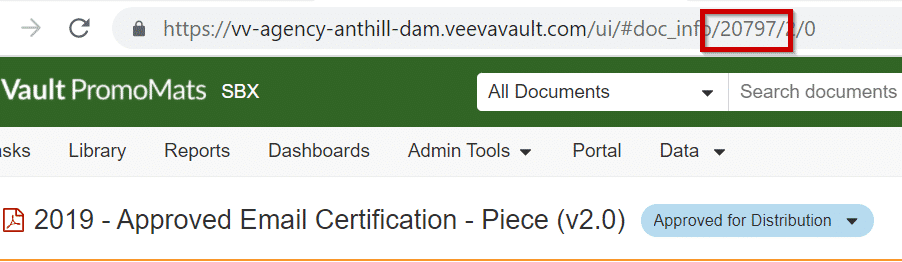
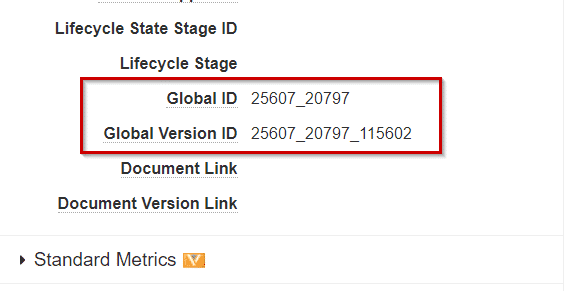
You can find the document ID as part of the URL of the materials once you have selected it as shown below or as part of the Global ID or Global Version ID.
Example of token use: {{$20797}} - for a document with ID 20797.
|
|
|---|
Prerequisites in Vault PromoMats
There are some prerequisites that must be in order in Veeva PromomMats for this to work:
-
The document you wish to use must be stored in Veeva PromoMats.
-
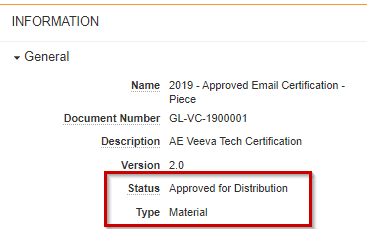
The document must be categorized as "Material" and has to be "Approved for Distribution".
-
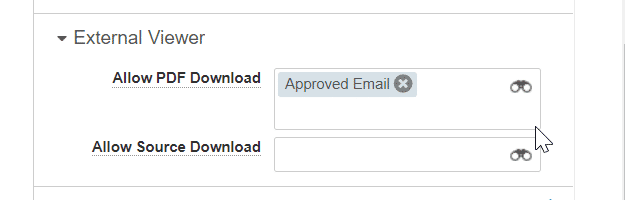
The document must be allowed for external viewing.
-
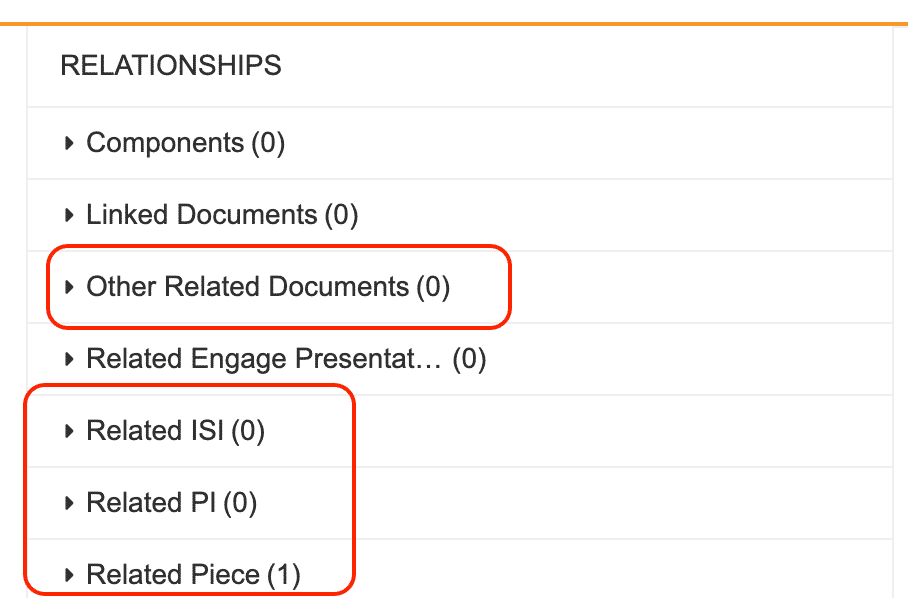
The document must also be linked in Vault to the template (EMT) in question as one of the 4 options below, whereof the two first options are the most common:
-
"Other Related Documents". Use token {{$VaultDocID}}
-
"Related Piece". Use token {{$PieceLink}}
-
"Related ISI". Use token {{$ISILink}}
-
"Related PI". Use token {{$PILink}}
-
Document Preparation in Vault
If the document is stored in Veeva Vault, it can be called upon via the token {{$VaultDocID}} on buttons in Approved Email in Activator
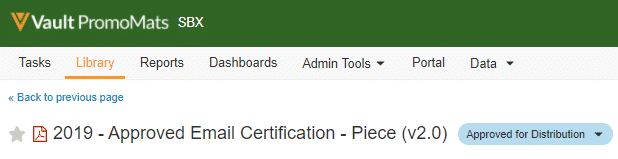
Check 1: In Promomats
Check 2: External Viewing
Set the External Viewer to allow PDF download for Approved Email
Check 3: Status and Type
Make sure the status and type are set correctly for the content
Check 4: Document link to the template
The PDF or other document must be linked to the Email in Vault in either of these categories. "Other Related Documents" and Related Piece" are most commonly used.
You can find information about tokens on Veeva's Email tokens on their knowledgebase
Link types in Activator
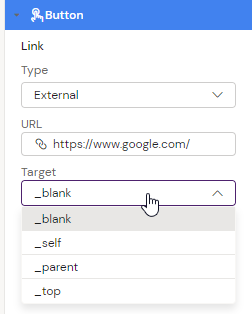
URLs will by default open in another tab when clicked. You can change the behavior by using following combinations:
Type: External
Target: “_blank” is default and will open the link in another tab.
Target: “_self” opens the linked document in the same frame as it was clicked.
Target; “_parent” opens the linked document in the parent frame.
Target: “_top” opens the linked document in the full body of the window.
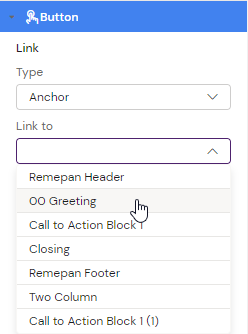
Type: Anchor
Link to: A list of Layouts used on the canvas. The page will scroll and display the selected layout at the top of the screen when the button is clicked.
Testing
You should generally test if links work by sending a test email via Salesforce to an actual mailbox or using the Activator test email feature: Email Testing
Regular links can be tested from PromoMats in the preview panel and in the Activator, but it is best to test it via a mailbox.