
Slide Fragments are reusable sections of slide content that are created and managed as separate resources, then inserted into slides or presentations. They help ensure consistency across presentations and make it easier to maintain content used in multiple places.
Fragments are managed centrally in the Fragment Editor, so any updates to their content or design are automatically reflected across all slides where they are used.
You can think of fragments like a shared slide in Google Slides—update it once, and every slide that uses it is instantly updated. This saves time and ensures your content stays accurate and consistent.
Use Slide Fragments for:
-
Legal disclaimers
-
Product claims or descriptions
-
Repeated branding or messaging elements
-
Standard slide sections used across presentations
Key point:
Use Slide Fragments for any content that must remain identical across multiple slides or presentations.
Note:
Slide Fragments are linked resources. Updating a fragment will impact all slides that reference it.
Add Slide Fragment
You can add a Slide Fragment from the Left panel.
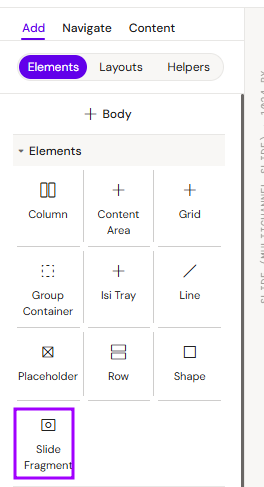
How to style Slide Fragment
The right panel for the Slide Fragment contains general properties:
-
Fragment - a field where you can select the required fragment from DS
Overview and Benefits
Unlike standard layouts or helpers, fragments maintain a live link to their source.
-
Centralized Editing: Update once, apply everywhere.
-
Consistency: Ensure brand elements like navigation menus remain identical across the entire presentation.
-
Efficiency: Reduces manual updates when global changes (e.g., a logo update) are required.
Prerequisites & Development
To use Slide Fragments, they must first be available within the Shared Resources of your Design System.
-
Developer Setup: New fragments must be created as described on this page Managing Slide Fragments [WIP] .
Using the Slide Fragment Component
To add a fragment (e.g., a global footer) to your slide:
-
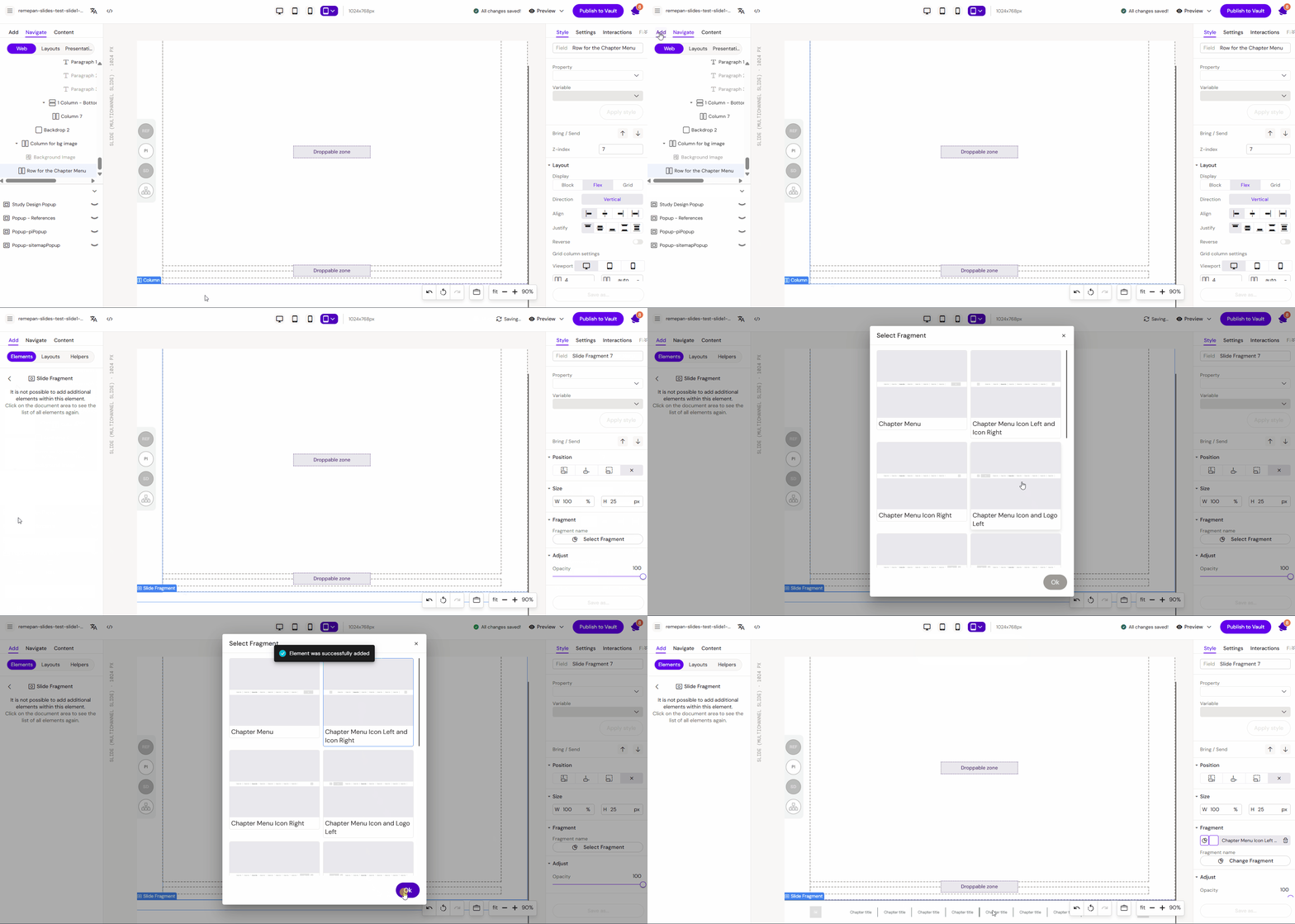
Add Component: Drag the Slide Fragment component from the library onto your layout canvas.
-
Select Fragment: In the component settings, browse the Design System and pick the specific fragment you wish to display.
-
Positioning: Adjust the position and alignment of the fragment as required to fit your slide's layout (e.g., pinning it to the bottom for a footer).
Key Considerations
-
Shared Resource Dependency: If a fragment is deleted from the DS, it will break on all slides using it.
-
Global Impact: Be cautious when editing fragments, as changes affect the entire project, not just the current slide.