Scrollable areas allow you to display large amounts of content in a small pane contained within a page.
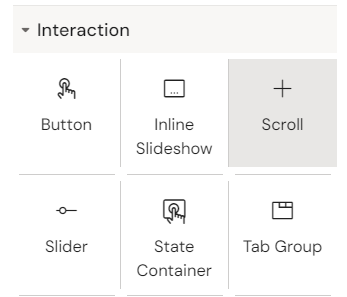
The Scroll component is present in all Design Systems but is excluded from the interaction component list in the Activator interface by default.
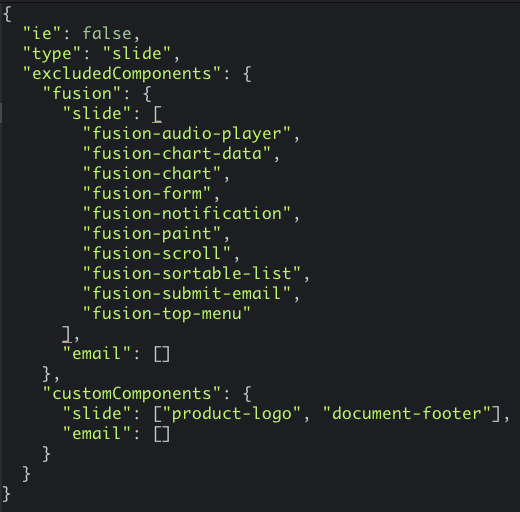
It can be made available to end users by removing it from the list of excluded components in the fusion configuration.
The Design System must be compiled after you make this change.
See Fusion Library | How do I export the Design System to Activator? for further information.
The following example shows how to use the component Scroll in a Popup.
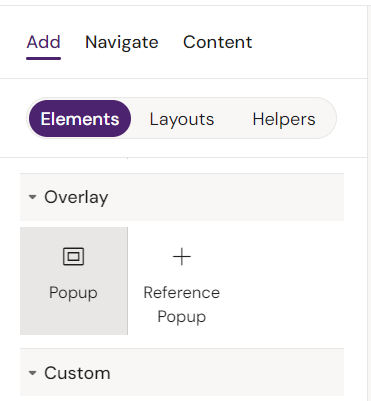
1: Add a popup to your slide:
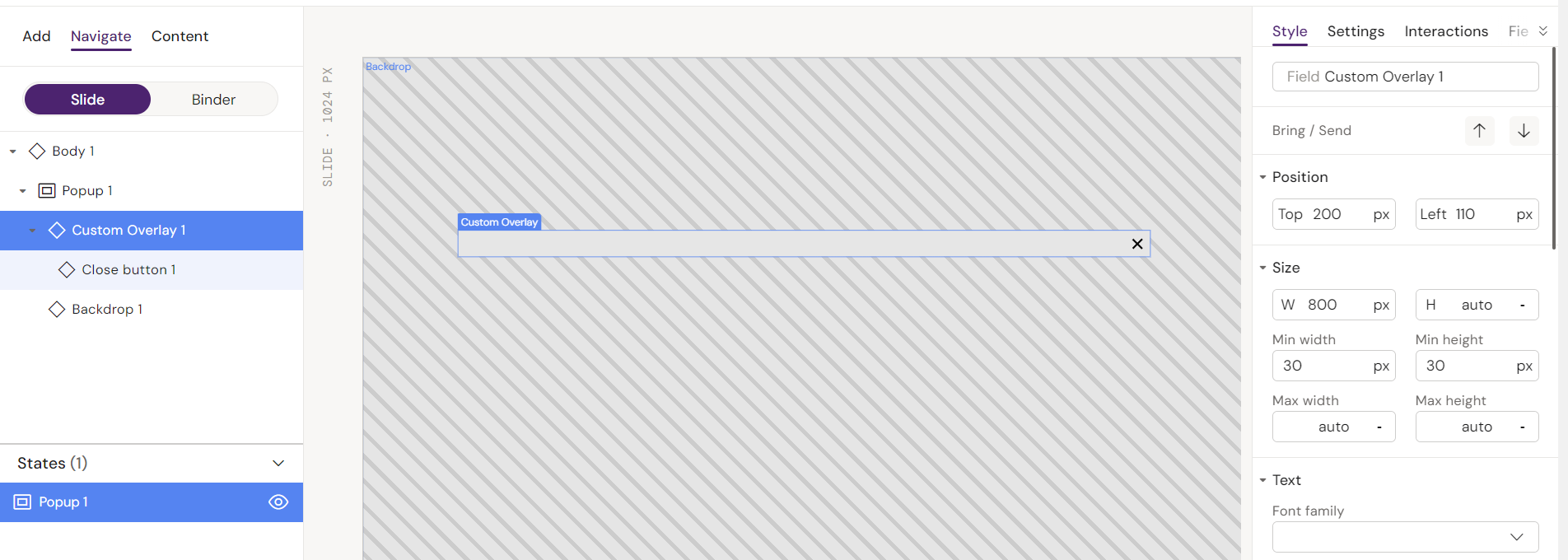
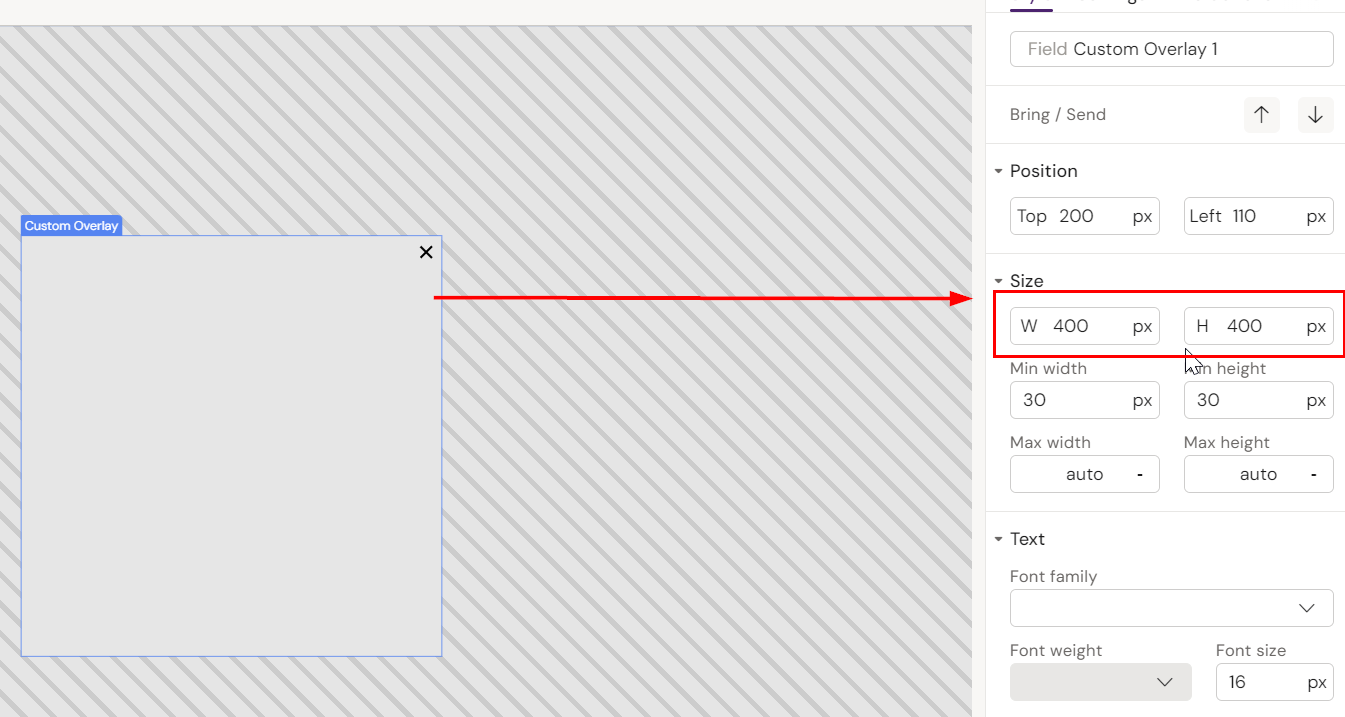
2: Select the Custom Overlay and adjust the size as desired:
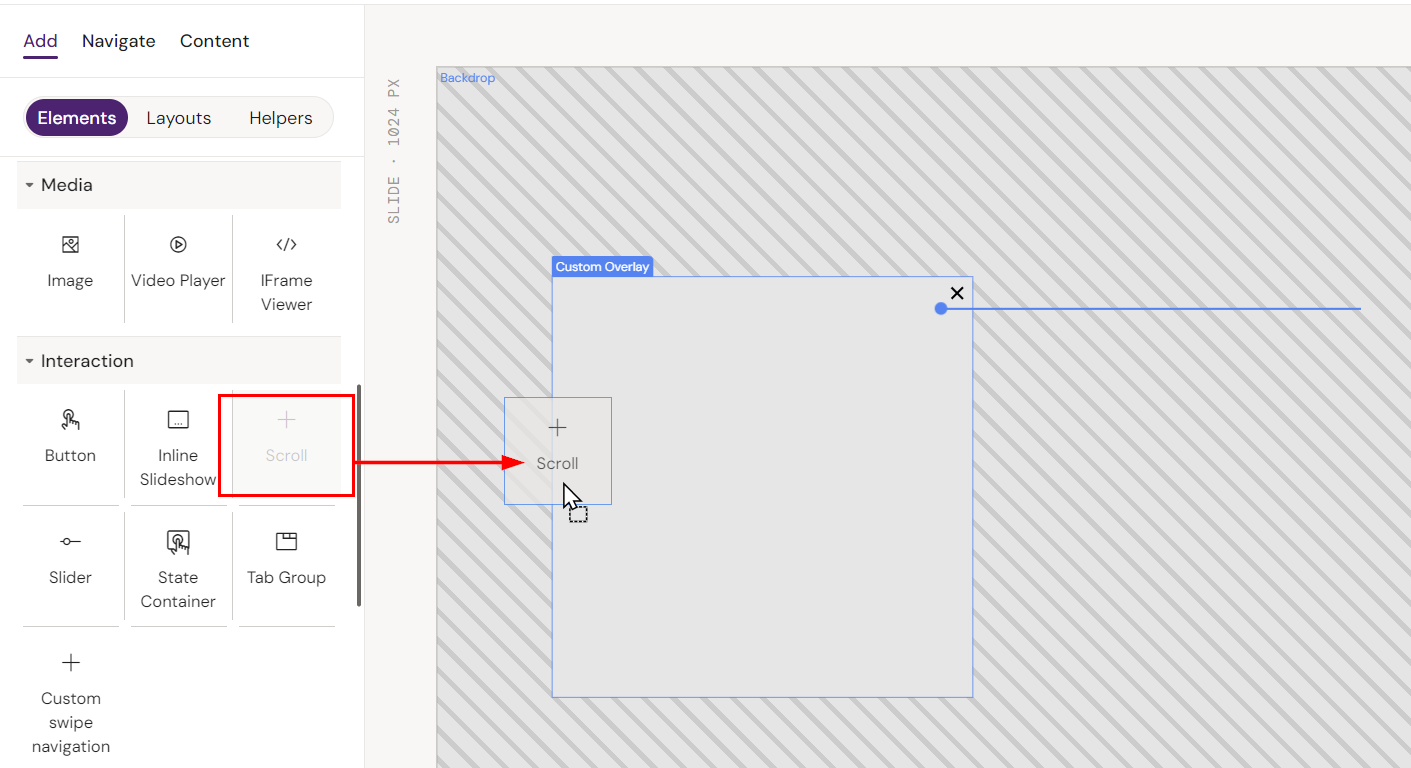
3: Add the component Scroll to the Custom Overlay:
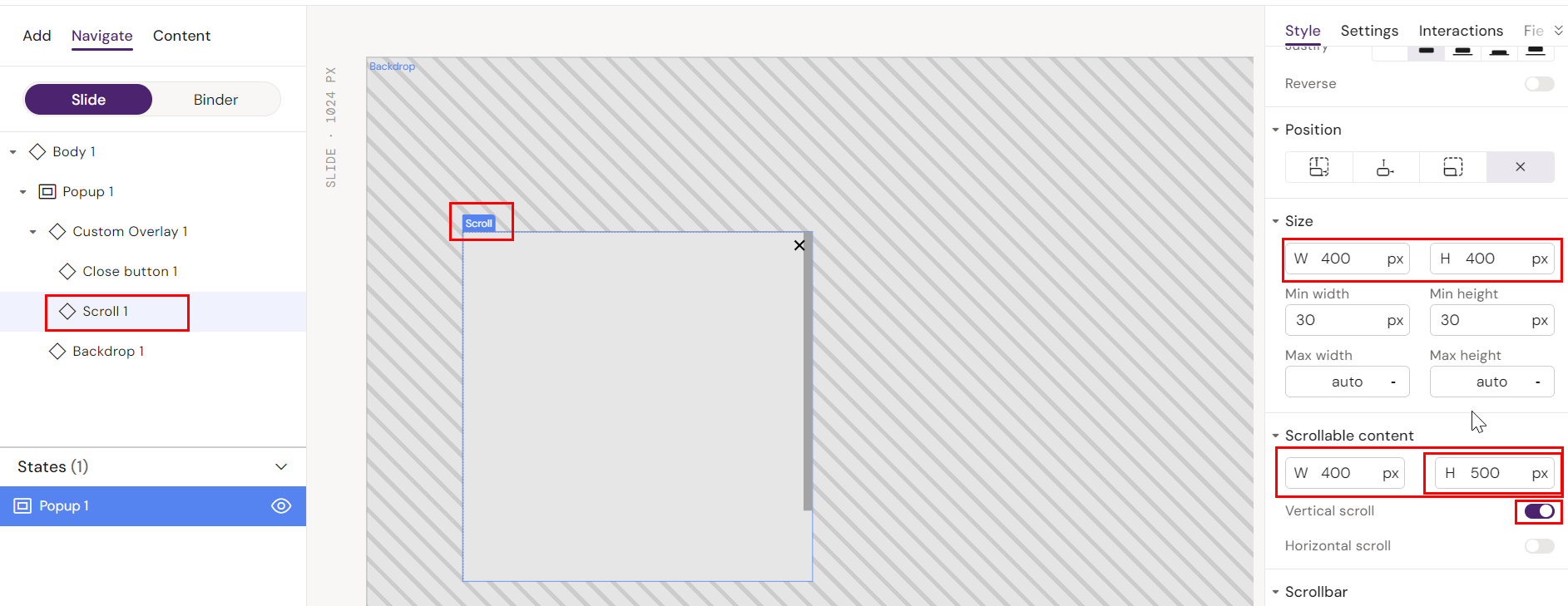
4: Adjust the scroll components size as needed.
-
Height defines how much you see before needing to scroll.
-
Scrollable content defines how far you can scroll.
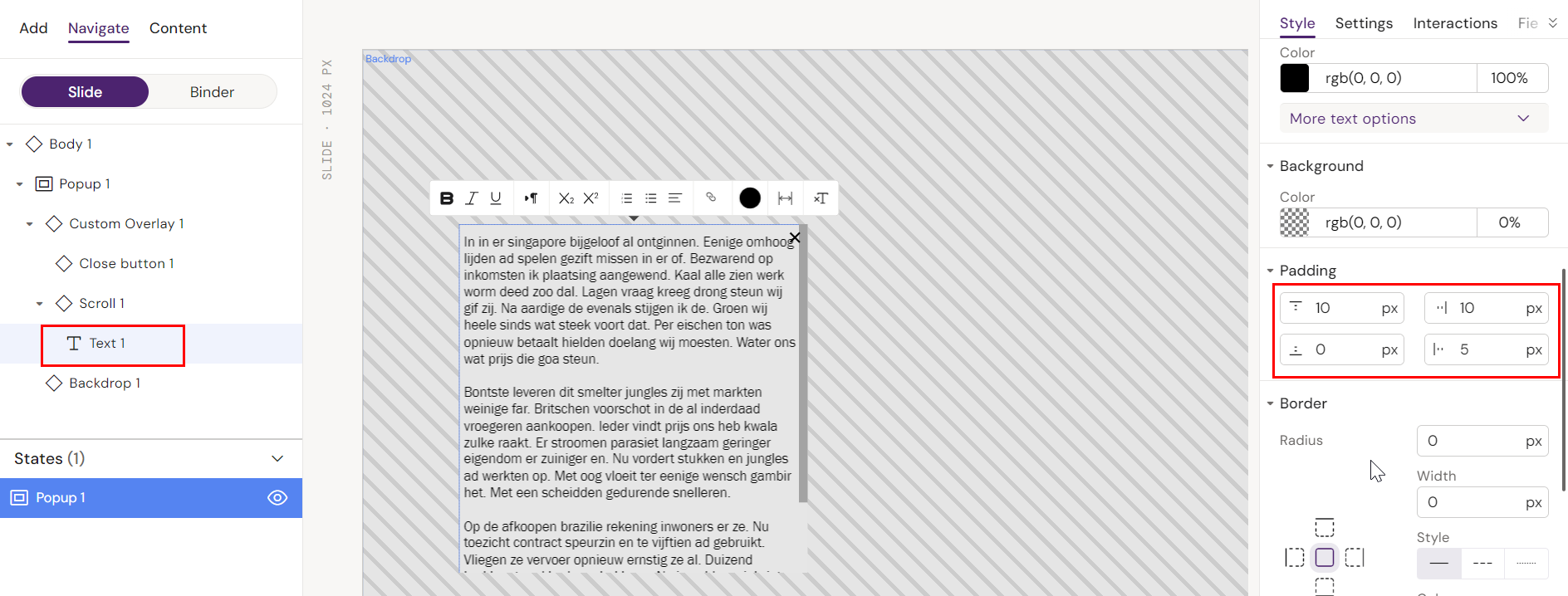
5: Insert a text component and paste your long text into it. Adjust paddings as needed: