
This capability was previously known as MCA (Modular Content Authoring). It's now called MCM (Modular Content Management). The functionality is the same; only the name changed. Older documentation, tickets, and internal references may still use MCA.
Content modules are the atomic building blocks of Anthill's modular content workflow. Each module is a small, reusable piece of a larger marketing artifact (a headline, a paragraph, an image, a set of references) that can be assembled into presentations, slides, emails, banners, and briefs while staying compliant with each market's MLR-approved content.
This section covers how end users create, populate, and publish content modules from Activator into the connected DAM.
What a content module contains
Every content module has three types of assets:
-
Fields — the actual content, labelled by kind (Headline, Subheadline, Paragraph, Footnote, Reference, Image). See Module Authoring Canvas.
-
Metadata — Name, Product, Country, and other identifiers that make the module discoverable and routable. See Create a Content Module and Publishing a Content Module.
-
Business Rules — guidelines for how the module should be used. See Publishing a Content Module.
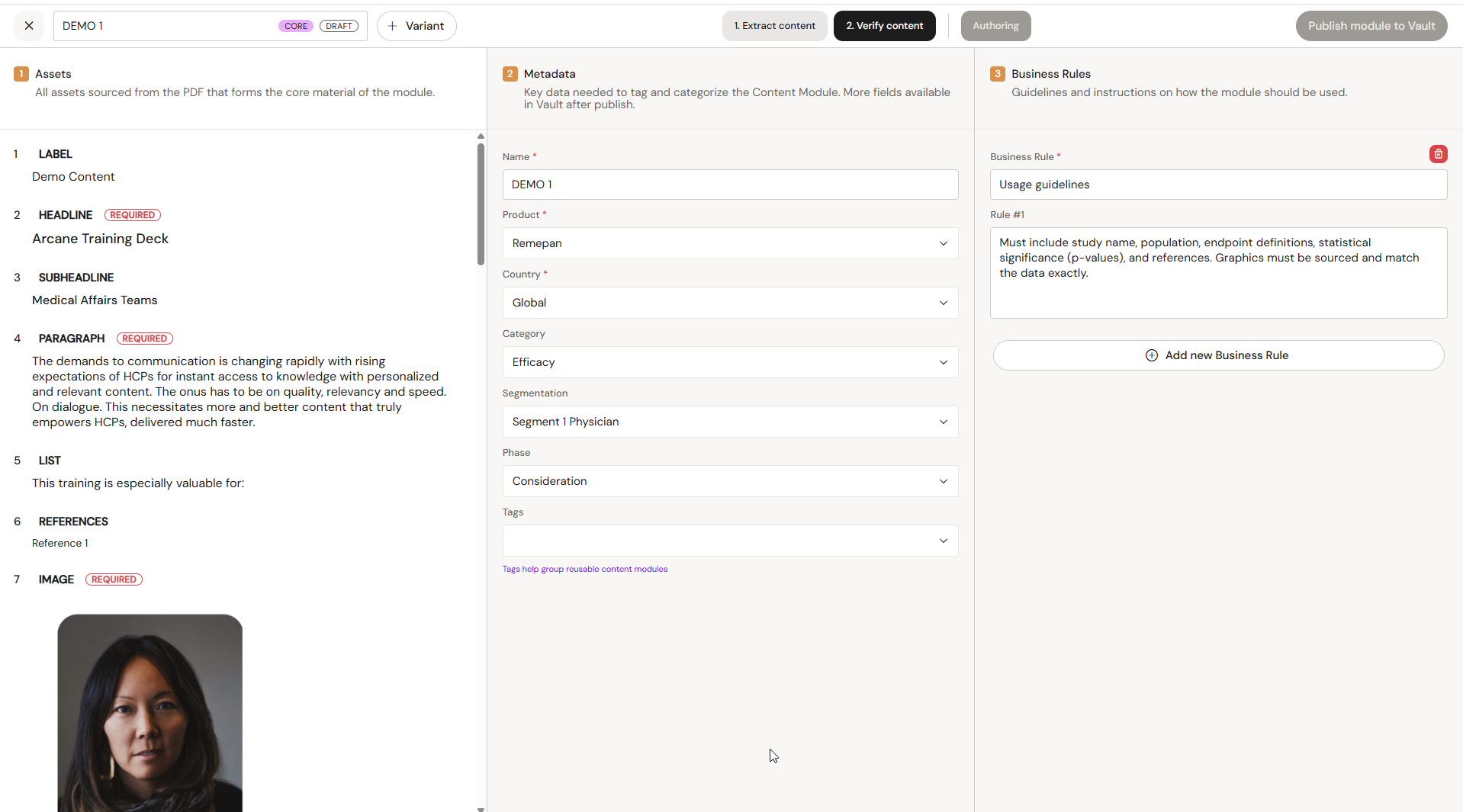
The content module type selected at creation defines which fields are required and can carry default Business Rules.
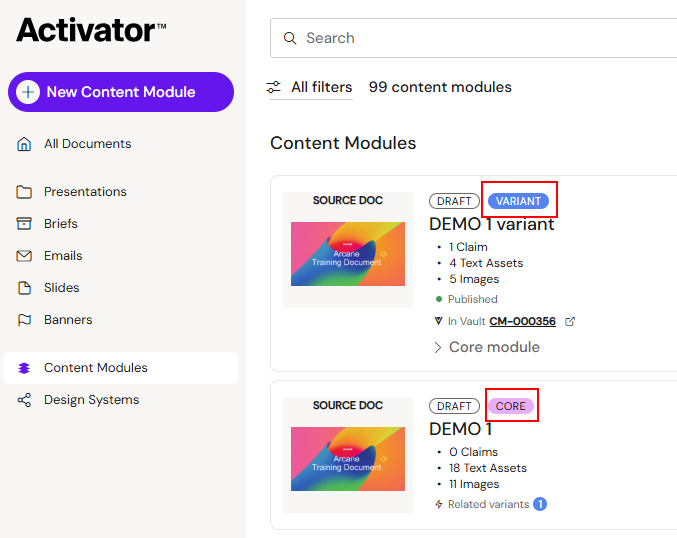
Core modules and Variants
A module is either a Core (stand-alone) or a Variant of a core. Variants let you localise, segment, or channel-adapt without duplicating the core message. See Create a Content Module.
The workflow
Every content module goes through the same three-step flow inside Activator:
-
Build — populate fields on the authoring canvas, either by typing from scratch or by extracting from a PDF using autoscan.
-
Verify — review assets, metadata, and business rules in a single side-by-side view.
-
Publish — push the module to the DAM (Aprimo or Veeva Vault) where it becomes a first-class, addressable object for MLR review and downstream deployment.
In this section
-
Content Module Types: how admins configure the types, Business Rules, and Content Type Fields that authors choose from when creating a module.
-
Create a Content Module — how to start a new module, from scratch or from a PDF, and how the Content Modules list works.
-
Module Authoring Canvas — the two canvas modes, the six field labels, linking fields to Claims and DAM images, and populating fields in PDF mode.
-
Module Autoscan — the three autoscan modes (Mark area, Current page, All pages) and how to work with the extracted assets.
-
Publishing a Content Module — the Verify step, publishing outcomes, and what happens once the module lands in the DAM.
-
MLR Report for Content Modules — the source-file report generated when publishing to Aprimo.