
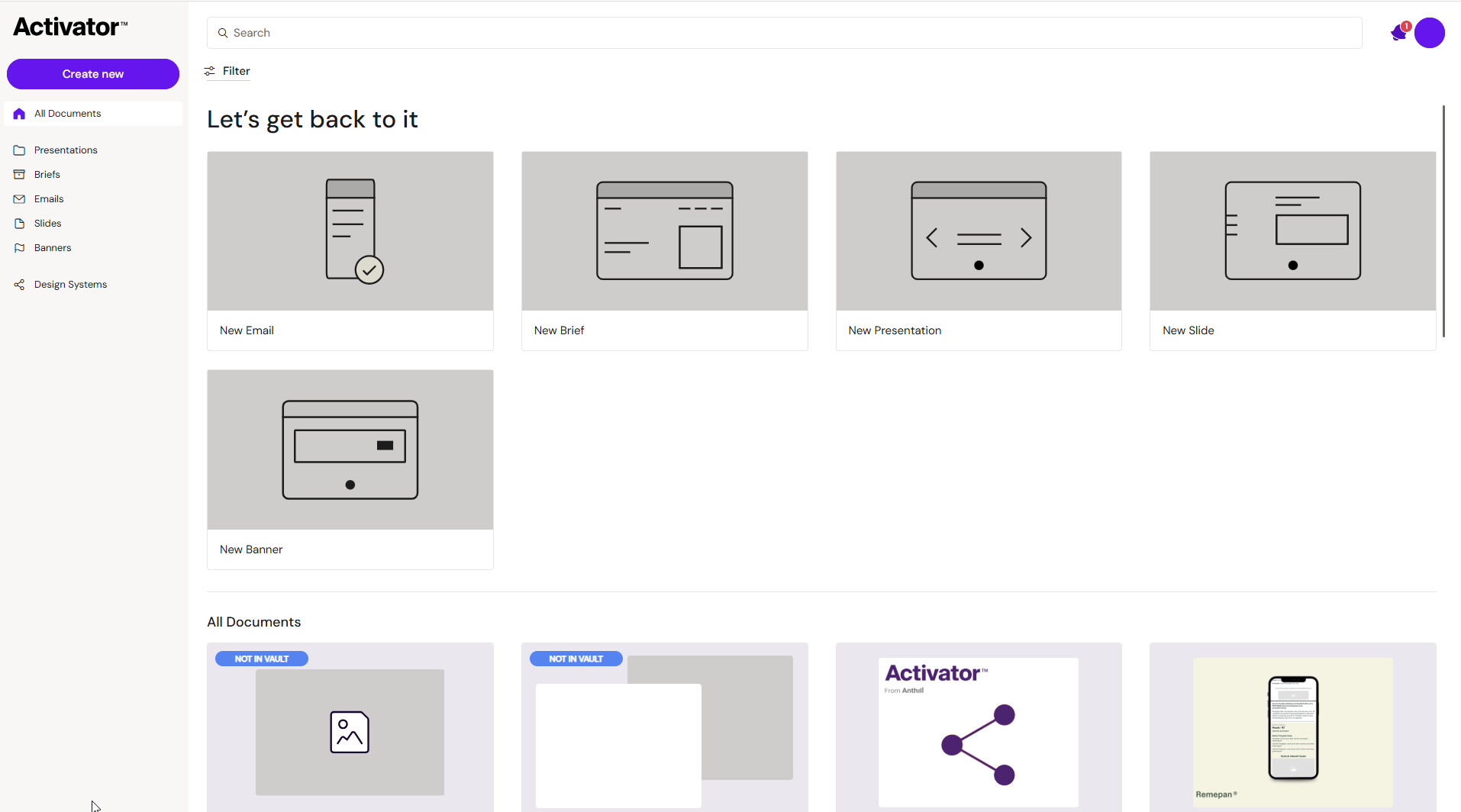
The Dashboard is where you browse, search, and manage content. It's the starting point for opening existing documents and creating new ones.
What you can do here
-
Navigate between content types (e.g., Emails, Slides, Briefs, Banners, Design Systems)
-
Search and filter content
-
Open content from lists
-
Create new content (if your role allows it)
Search & filters
Varies by tenant (Anthill-managed)
Searchable fields and available filters depend on tenant configuration. Learn more.
You can search by document name or by document ID. Document-ID search is useful when you already know the ID of the document you want (for example, from a support ticket, a link shared by a colleague, or a related record in your DAM) — paste the ID into the search bar to jump straight to it.
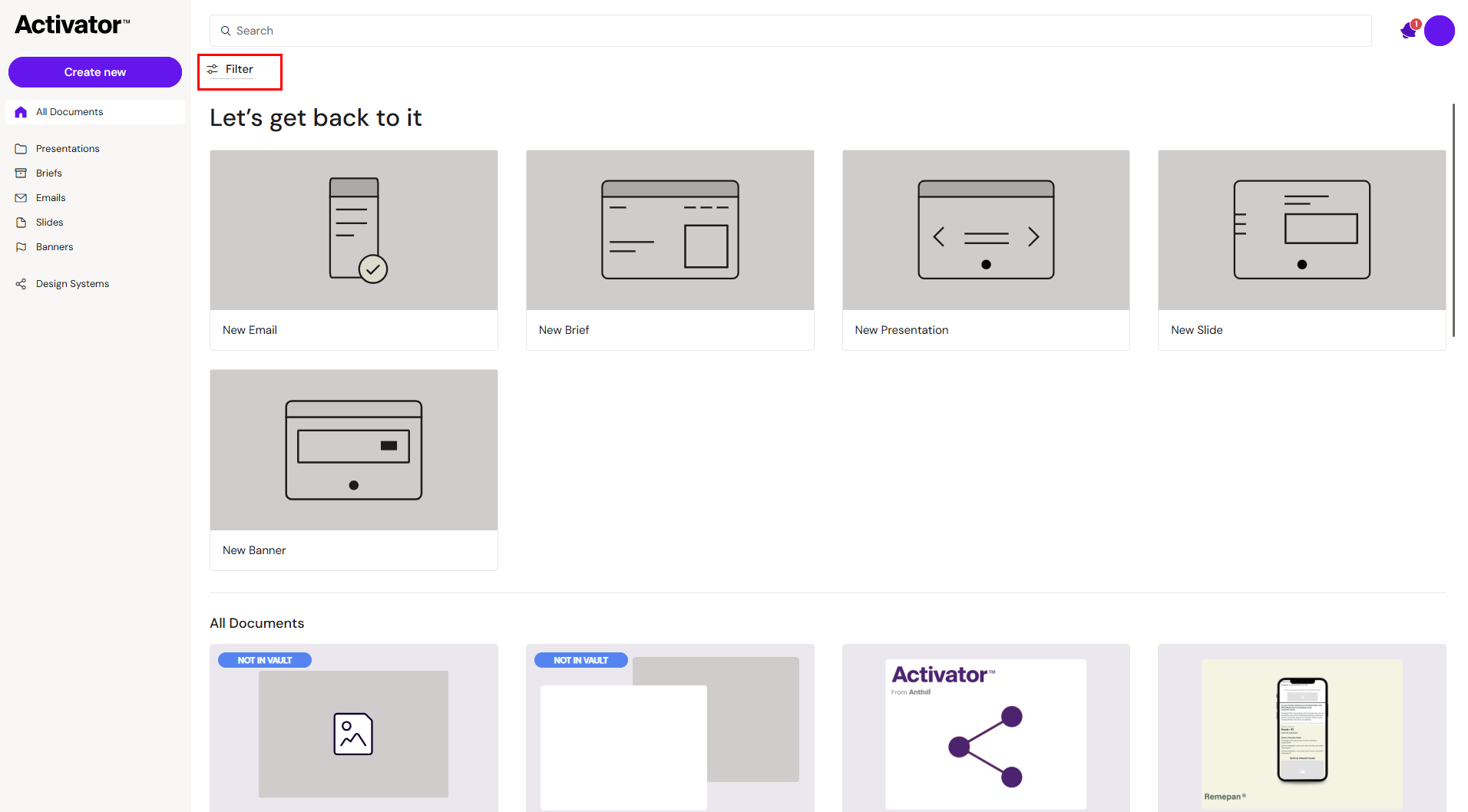
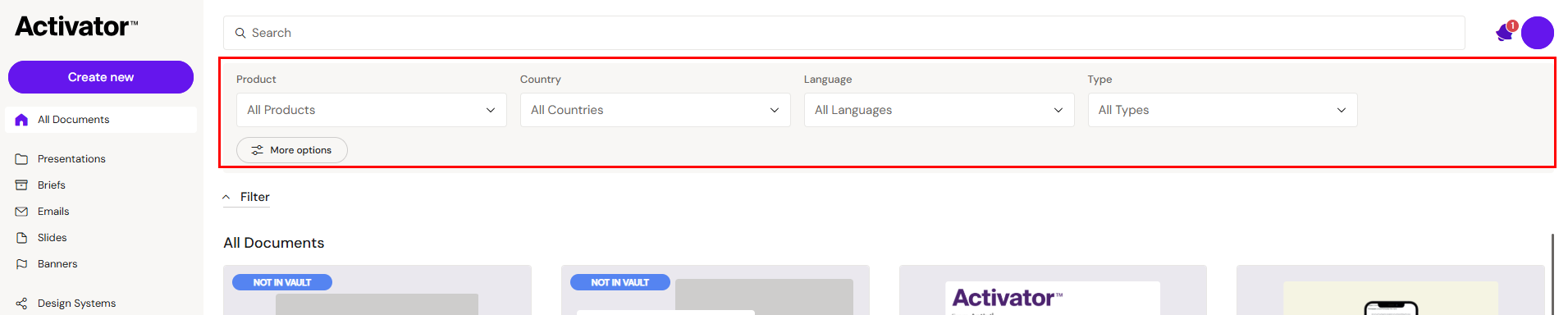
You can use filters to narrow down your search criteria. The filter options, as well as the search bar, are available on the top of the Activator Dashboard. Click on the 'Filter' button to expand the view of the filter options:
|
Filter Name |
Function |
|---|---|
|
Product |
Limit the search based on product names |
|
Country |
Limit the search based on local markets |
|
Language |
Limit the search based on content language |
|
Type |
Limit the search based on content type (Email, Slide, Brief, Banner, etc.) |
|
Status |
Limit the search based on document status (e.g., Draft, In Review, Published) |
You can expand the view further by clicking on 'More Options' to show the options that are hidden from the current view.
Lists and views
Lists show the content you have access to. Some views are broad (All documents), others are type-specific (Emails, Slides, Briefs, Banners, etc.).
What to expect
-
Lists show the content you have access to
-
Some views are type-specific (e.g., Emails only, Banners only)
-
Some views are broad (e.g., All documents)
Varies by tenant (Anthill-managed)
Available views and list behaviour depend on tenant configuration.
Document cards
Document cards summarise an item and provide quick actions. What you see depends on the content type and your role.
Common quick actions
-
Settings: metadata + thumbnail (where supported)
-
Where used: usage overview (where supported)
-
Share: share link and/or download report (where supported)
-
Delete: delete content (permission-based)
Varies by tenant (Anthill-managed)
Available actions depend on role and tenant policy.
|
Quick action |
Explanation |
|---|---|
|
Settings |
Shows the metadata information of the document and current published thumbnail. |
|
Open in Vault/Aprimo |
Opens a new browser tab displaying the document in your DAM |
|
Where Used |
Shows a overview of where on the platform the document is used. |
|
Share |
Opens a modal that displays options for sharing the selected content, including generating a link. Also allows to download a PDF report on the content. |
|
Delete |
Lets you delete the selected content piece. |
Create new content
Use Create new to start a new document. You'll be taken into the Workspace UI to edit.
Varies by tenant (Anthill-managed)
Available document types and required steps depend on tenant configuration.
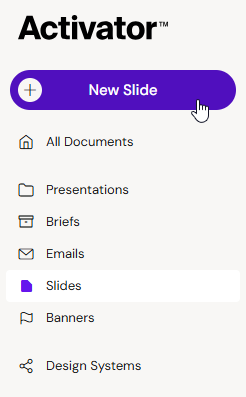
There are several types of content that you can create and use within Activator and there are also a few different shortcuts options for creating new Activator content in general.
Create new button
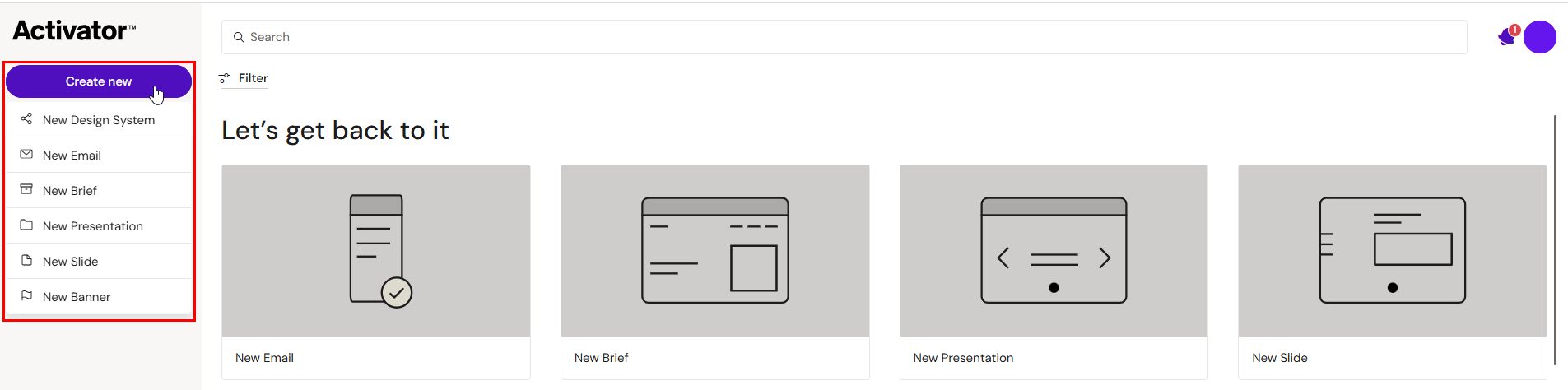
Lets get started section
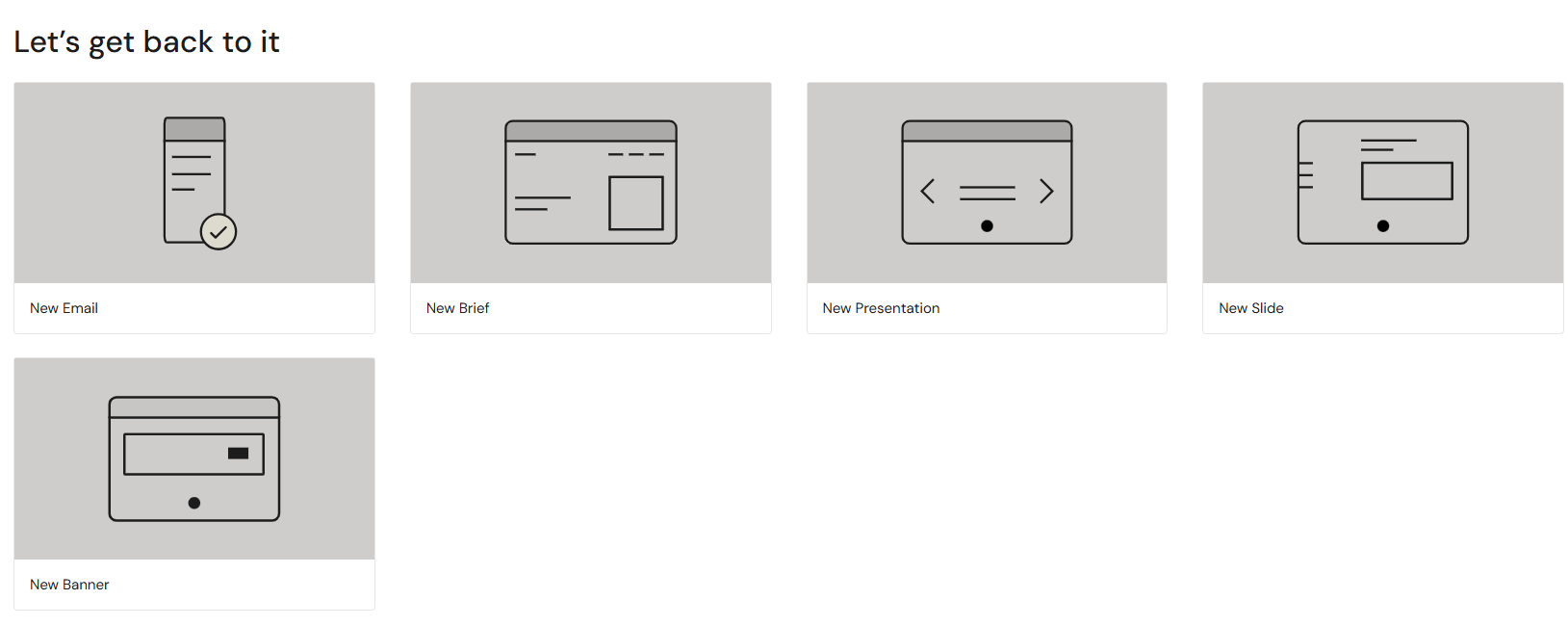
Content collection section 'Create new' button
Once you have clicked the button to add new content, follow the guide and fill in important and mandatory information about the new content piece.
For more detailed information around how to create specific types of content from end to end, you can visit one of the corresponding links below: