
Designers can add custom HTML attributes to any MJML element — Image, Button, Section, Column, Group, Text, and so on — directly from the email editor. This is useful when downstream rendering, analytics, or accessibility tooling needs a specific attribute on the rendered HTML.
Where to find it
Custom attributes are managed from a new Attributes section in the Settings panel, on the right-hand side of the email editor.
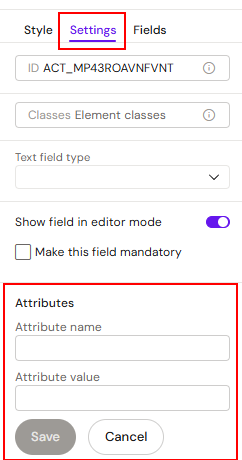
Steps:
-
Select an MJML element in the canvas (e.g. an Image, Button, or Section).
-
Open the Settings tab in the right-hand panel.
-
Scroll to the Attributes section.
-
Add an attribute by entering a name (the HTML attribute key) and a value.
-
Repeat for additional attributes. Remove attributes via the trash icon next to each row.
The editor writes the attributes directly onto the selected MJML element, and they survive through the publishing pipeline into the rendered email.
When to use custom attributes
Common use cases:
-
Analytics hooks — tracking attributes (e.g.
data-analytics-id) on links and buttons so downstream platforms can attribute clicks to specific creative elements. -
Accessibility attributes — ARIA attributes (e.g.
aria-label,role) on images, buttons, or interactive elements where the visible label isn't sufficient. -
Conditional rendering markers — attributes consumed by downstream ESP or rendering systems (e.g.
data-render-if,data-personalization-key). -
QA / test hooks — attributes used by test automation (e.g.
data-testid).
If a downstream system requires a specific attribute on the rendered HTML, this is the right place to add it — no engineering ticket required.
What gets written
For each custom attribute you add, Activator writes the corresponding HTML attribute on the rendered element when the email is published. For example, adding data-analytics-id with value cta-primary to a Button produces:
<a href="..." data-analytics-id="cta-primary">Click</a>
The same applies to images, sections, columns, and any other MJML element you can select in the canvas.
Limitations and good practice
-
Trust the downstream system. Activator doesn't validate attribute names against a whitelist — if a value is rejected by an email client or downstream system, that's a downstream issue to debug.
-
Attribute names are arbitrary, but be conservative. Use established conventions —
data-*for custom data attributes,aria-*for accessibility — rather than inventing arbitrary attribute names that may collide with future HTML/MJML reserved attributes. -
Don't replicate built-in fields. If MJML already exposes a field (e.g.
hrefon a Button), use the built-in field instead of overriding with a custom attribute.
Related
-
Email Components — overview of MJML containers and elements.
-
The Settings Panel — where the Attributes section lives.
-
Email Tokens — adjacent feature: tokens insert dynamic content; custom attributes attach metadata to elements.