
Email Fragments are reusable sections of email content that are created and managed as separate resources, then inserted into emails when they are generated. They help ensure consistency across communications and make it easier to maintain content used in multiple emails.
You can think of fragments like a shared document. When you update the fragment once, every email that uses it is automatically updated. This saves time and helps prevent outdated or inconsistent information.
Use Email Fragments for:
-
Repeated product content blocks
-
Common calls to action (CTAs)
-
Reusable campaign sections
Key point:
Use Email Fragments for any content that must remain identical across multiple emails.
Note:
Email Fragments are linked resources. Updating a fragment will impact all emails that reference it.
Create a fragment from a layout (convert)
-
In an Email, select the layout you want to convert
-
Open Style
-
Click Convert to fragment
-
Name the fragment and save
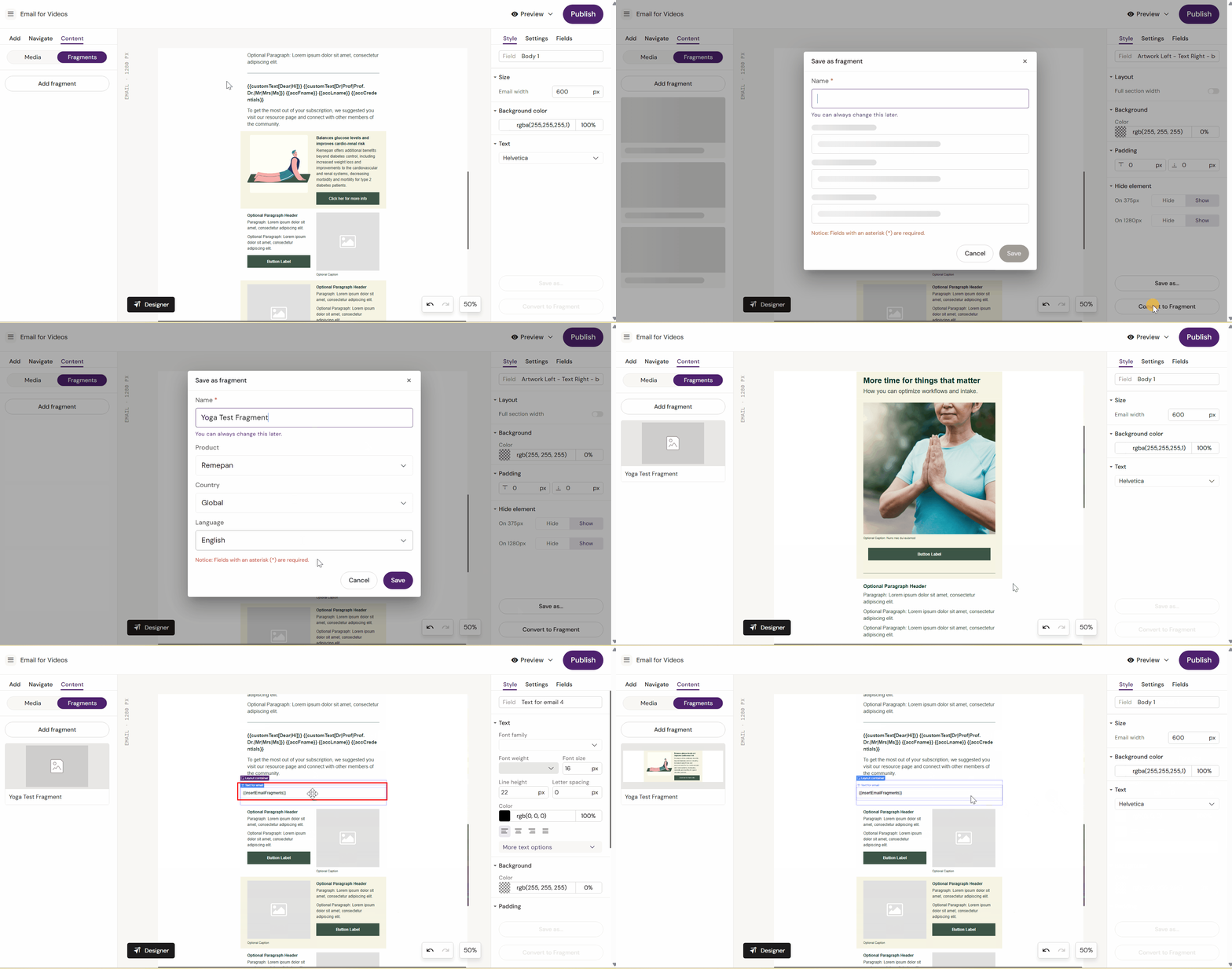
After conversion, the layout is replaced by a placeholder (for example {{insertEmailFragments}}) indicating where fragments are inserted in the final output.
Find linked fragments
-
Open the Email document
-
Go to Content → Fragments
-
Review which fragments are linked to this email
Edit and publish a fragment
-
Go to Content → Fragments
-
Hover the fragment thumbnail and open the fragment editor (cog icon)
-
Make edits
-
Publish the fragment changes
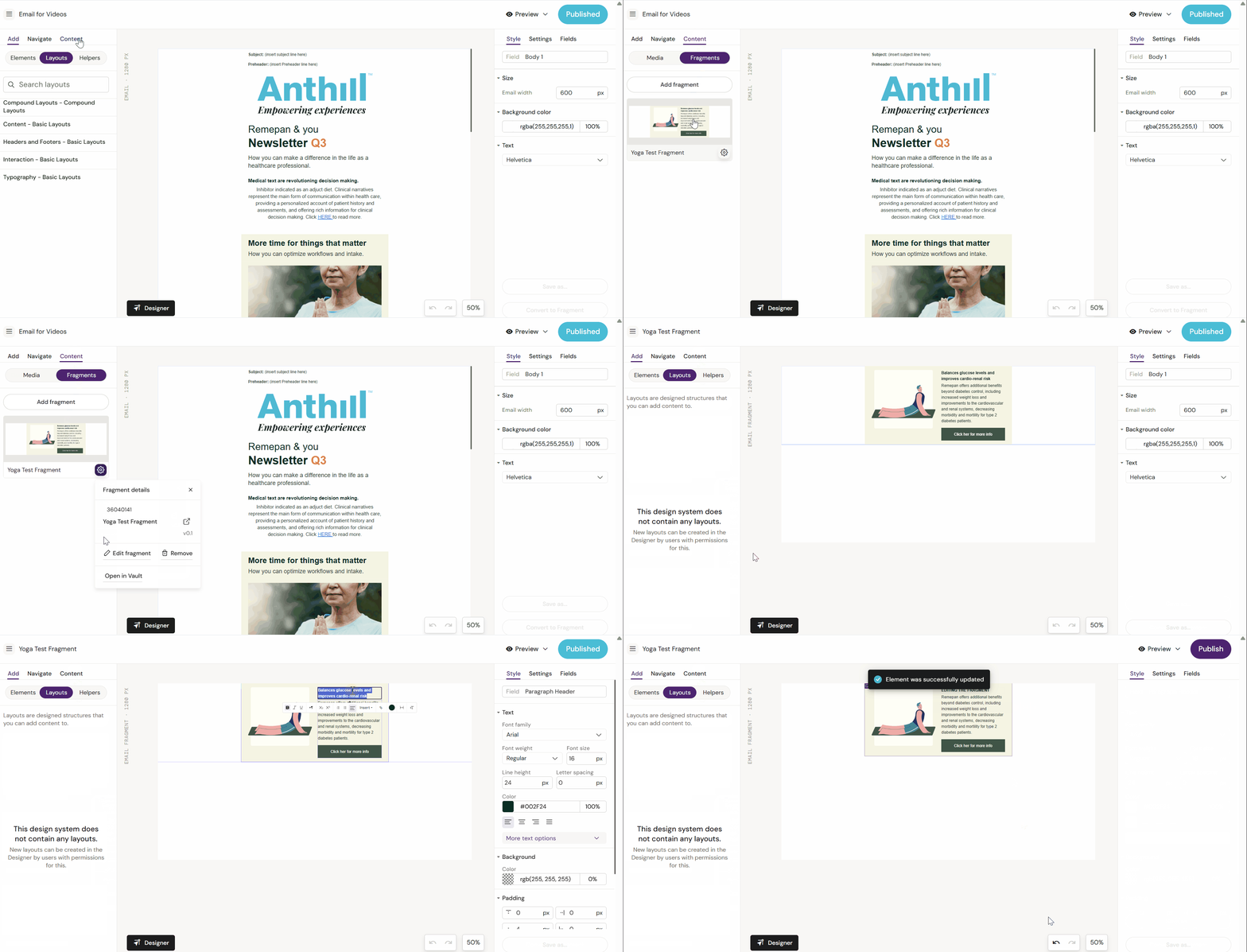
Impact
Publishing a fragment updates the fragment resource. Emails that reference it may need re-publish depending on your tenant rules.
Add an existing fragment to an email
-
Open the Email
-
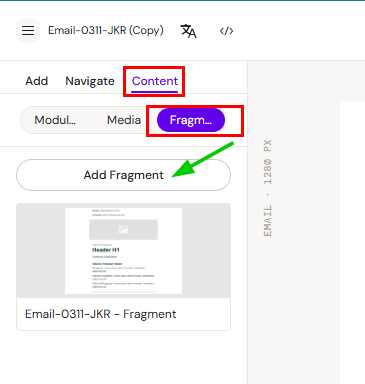
Go to Content → Fragments
-
Click Add fragment
-
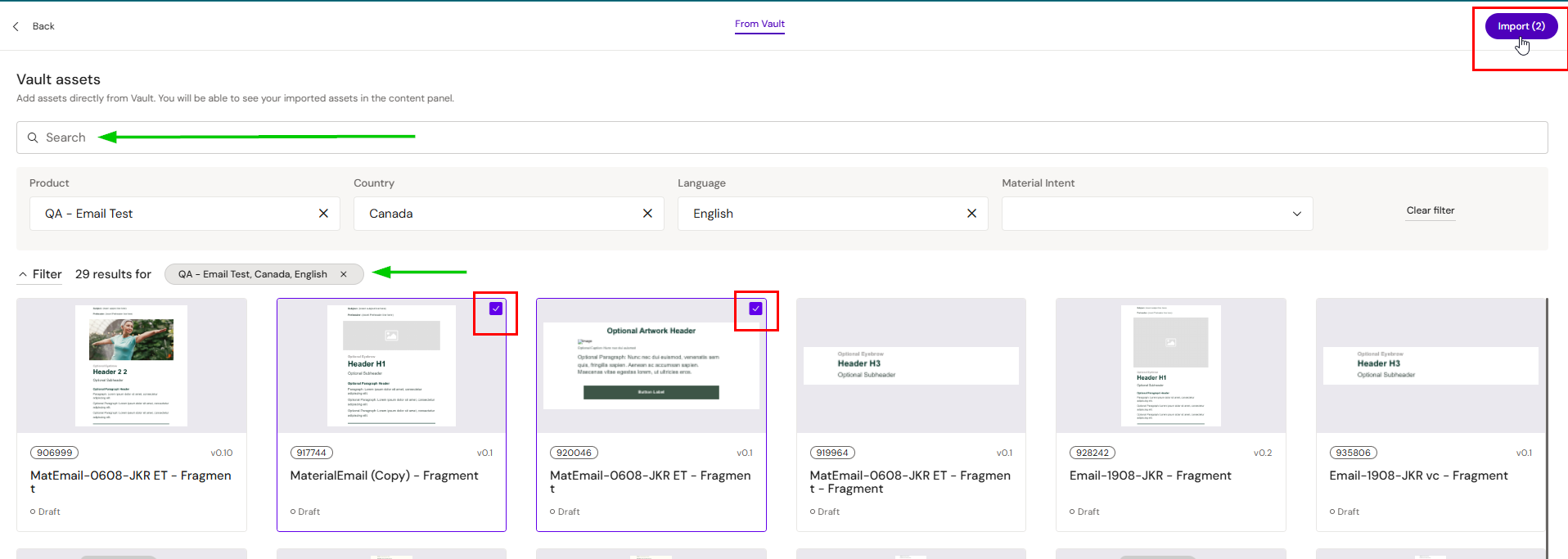
Search/filter, select fragments, and import/link them
Refresh a linked fragment
If a fragment has been updated since you last opened this email, you can pull in the latest version without leaving the document.
-
Open the Email in assembly mode
-
Go to Content → Fragments
-
Find the fragment you want to update
-
Click Refresh
The fragment is updated to its current published version in place. This lets you verify that linked content is up to date before you preview or publish the email.
Note:
Refresh updates the fragment reference within this document only. It does not re-publish the fragment itself or affect other emails that use it.
Testing limitation
Your environment does not support test-sending an email with email fragments inserted from within Activator. Therefore, you have two options:
-
Test each fragment individually (send a test from the fragment editor)
-
Test the assembled email via your downstream platform (CRM/test environment)
Related
-
Modular Content (if enabled)