
Delete a document from Activator when it is no longer available in the connected DAM — for example, when the corresponding DAM record has been deleted, withdrawn, marked obsolete, or expired.
Why this exists
Activator and the connected DAM are not continuously synchronised. When DAM-side content changes state — gets deleted, withdrawn, marked obsolete, or expires — the corresponding record in Activator stays in place by default. Without an explicit cleanup step, dashboards, search results, and Collections fill up with stale entries that nobody can act on.
The Delete action lets you remove these stale records directly from Activator so the workspace stays aligned with what is actually approved and in use.
What gets removed
When you delete a document, Activator permanently removes:
-
the document record from AOM
-
all versions of the document
-
all renditions of the document
The deletion is local to Activator — files in the connected DAM are not touched. This is intentional: Activator is downstream of the DAM, and DAM cleanup is managed separately. The deletion dialog makes this explicit so you don't confuse it with a DAM-side action.
When to delete
Delete an Activator record when:
-
The DAM-side document has been deleted, withdrawn, marked obsolete, or expired
-
The Activator record is no longer needed and won't be referenced again
Do not delete when:
-
The document is still active in DAM and may be republished
-
You want to remove only a single version or rendition (deletion removes the whole document)
-
You want to remove the DAM-side file (delete it in the DAM directly)
Steps
-
Go to the Dashboard
-
Locate the document you want to delete
-
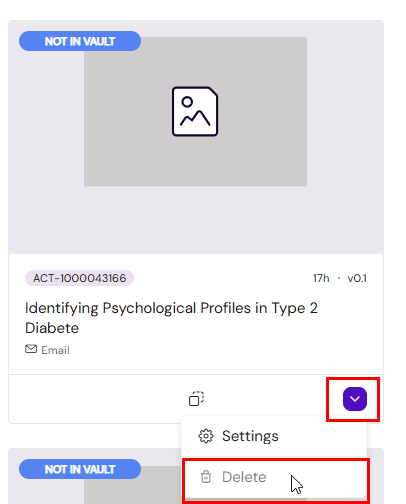
On the document card, select Delete
-
Review the deletion summary — it lists what will be removed and reminds you that DAM files are unaffected
-
Confirm to permanently delete the document, its versions, and its renditions
Deletion is permanent. There is no undo from inside Activator.
Varies by tenant (Anthill-managed)
Who can delete documents depends on tenant role configuration. Learn more.
Related
-
Roles & permissions — who can delete documents in a tenant