
Duplication creates a new document based on an existing one. It’s the fastest way to reuse a structure and then localise or update the content.
Duplicate from the Dashboard
Steps
-
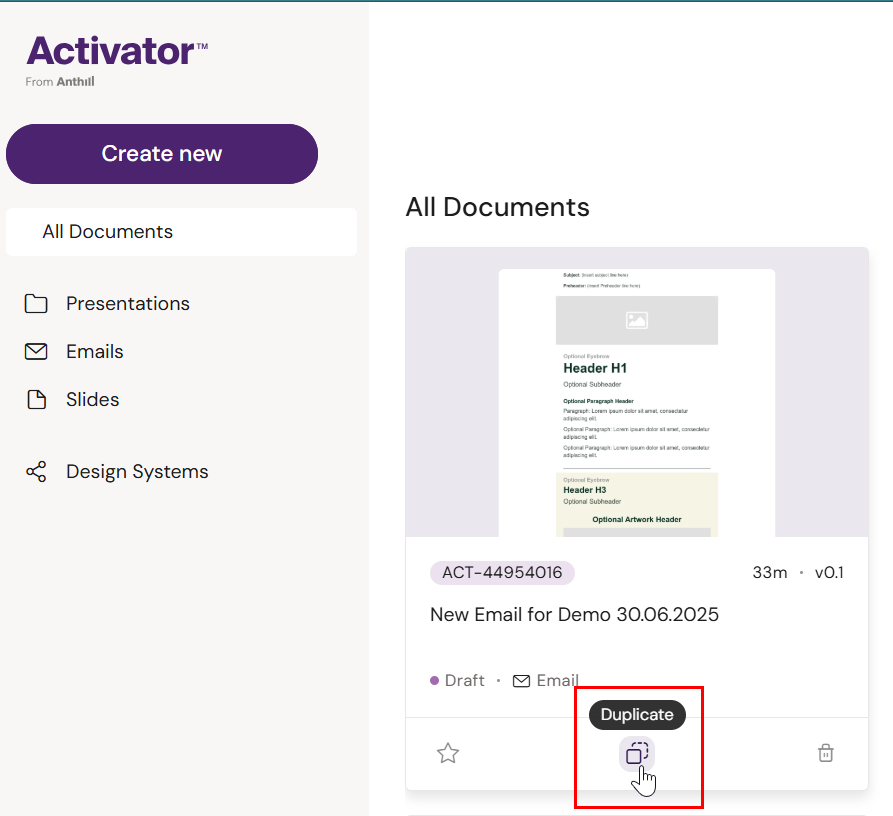
Go to the Dashboard
-
Locate the document you want to duplicate
-
On the document card, select Duplicate
-
Update metadata (if prompted)
-
Select duplication options (if prompted)
-
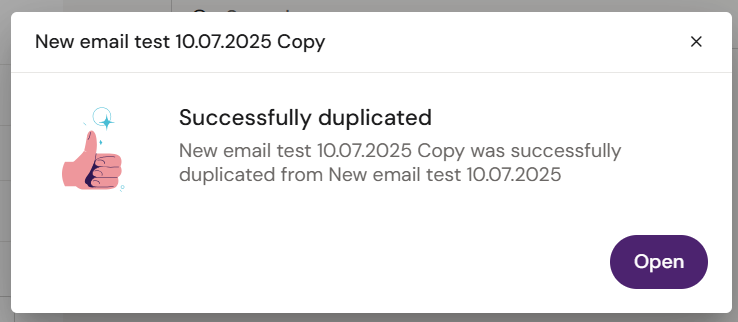
Click Duplicate and wait for the process to finish
-
Open the new document and edit as needed
Varies by tenant (Anthill-managed)
What is copied during duplication depends on tenant configuration and document type. Learn more.
What duplication typically copies
-
The document structure and content
-
Document metadata (you may be asked to change it during duplication)
Depending on document type and tenant setup, duplication may also include linked resources such as templates, fragments, or slide membership.
Email and Slide duplication options (when enabled)
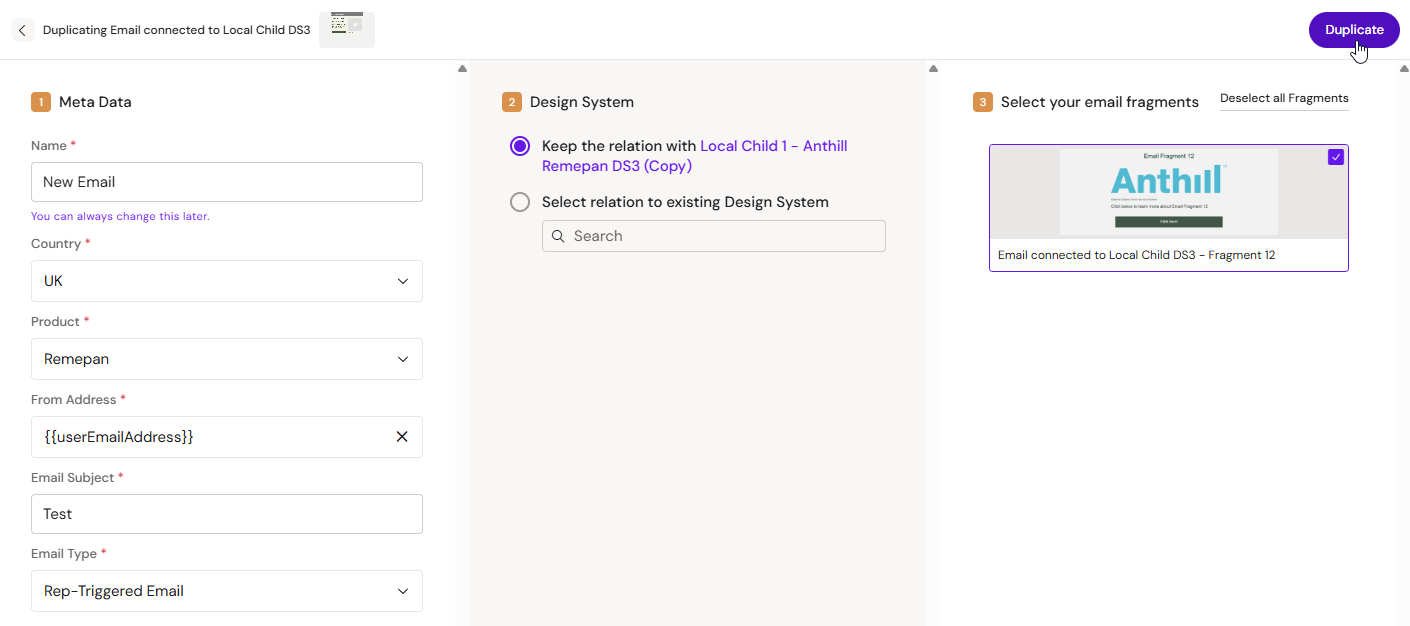
During duplication, you may be able to:
-
Change metadata for the new document
-
Keep the original Design System link or select a different Design System
-
Choose whether to copy linked reusable content (e.g., Email Fragments), if applicable
Presentation duplication options (when enabled)
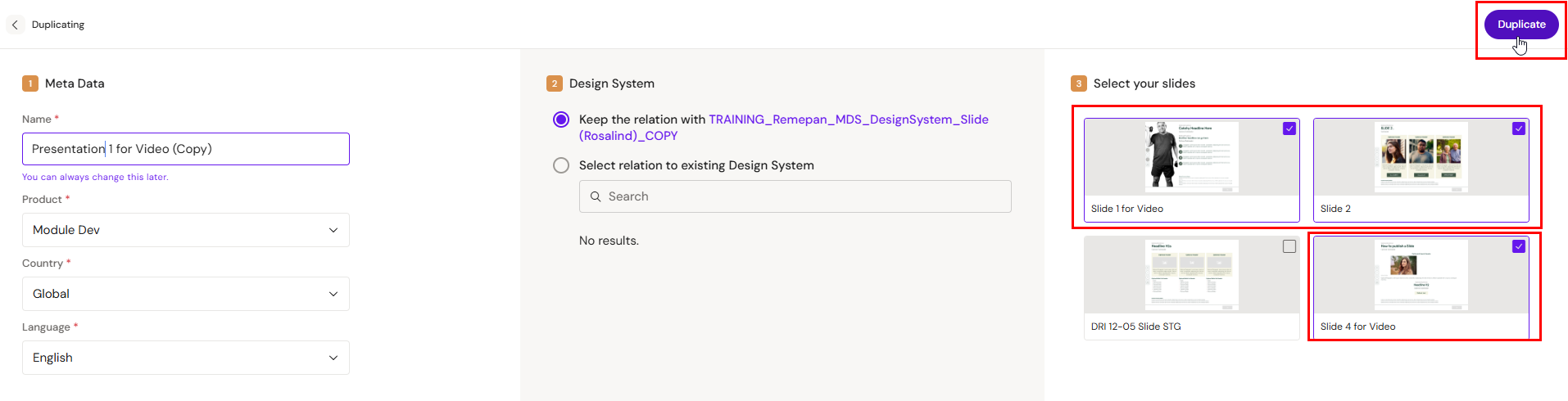
During duplication, you may be able to:
-
Change metadata for the new Presentation
-
Keep the original Design System link or select a different Design System
-
Choose which Slides to include in the duplicated Presentation
Where to go next
-
Email-specific duplication behaviour: Channels → Email
-
Slides/Presentation duplication behaviour: Channels → Slides/eDetailer